Contents
- I. Introduction to HTML
- 1.1 What Is HTML
- 1.2 New Features in HTML5
- II. HTML Basics
- 2.1 Declaration
- 2.2 Basic Tags
- 2.3 HTML Headings
- 2.4 HTML Paragraphs
- 2.5 HTML Links
- 2.6 HTML Images
- III. HTML Elements, Attributes, and Formatting
- 3.1 Elements
- 3.2 HTML Attributes
- 3.3 Formatting
- IV. Styles, Links, and Tables
- 4.1 Styles
- 4.2 Links
- 4.3 Tables
- V. HTML Lists, Blocks, and Layout
- 5.1 Lists
- 5.2 Blocks
- 5.3 Layout
- VI. HTML Forms
I. Introduction to HTML
1.1 What Is HTML
HTML is a language used to describe web pages
HTML stands for HyperText Markup Language
HTML is not a programming language; it is a markup language
1.2 New Features in HTML5
The canvas tag for drawing
The video and audio elements for media playback
Better support for local offline storage
New semantic content elements: article, footer, header, nav, section
New form controls: calendar, date, time, email, url, search
Browser support: Safari, Chrome, Firefox, and Opera, including IE9 and above
II. HTML Basics
2.1 Declaration
Declaration:<!DOCTYPE html>
HTML has several different versions. The browser can display an HTML page correctly only when it knows the exact HTML version used by the page.
HTML5:
<!DOCTYPE html>HTML4.01:
<!DOCTYPE HTML PUBLIC "-//W3C//DTD HTML 4.01 Transitional//EN" "http://www.w3.org/TR/html4/loose.dtd">
2.2 Basic Tags
Basic tags:<head> & <body>
- head: defines the head section, such as the character encoding (UTF-8), title, and text display style,
- body: the page content and other tags
2.3 HTML Headings
Headings:<h1> <h2>……<h6>
<body>
    <h1>标题h1</h1>
    <h2>标题h2</h2>
    <h3>标题h3</h3>
    <h4>标题h4</h4>
    <h5>标题h5</h5>
    <h6>标题h6</h6>
</body>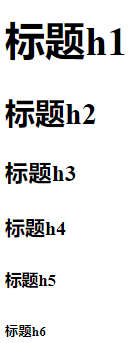
2.4 HTML Paragraphs
Paragraphs:<p>
Defines a paragraph
<body>
    Hello World
    <p>Hello</p>
    <p>World</p>
</body>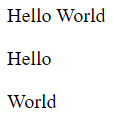
2.5 HTML Links
Links:<a>
<body>
    <a href="https://blog.csdn.net/weixin_44543463">Half_A的CSDN主页</a>
</body>
2.6 HTML Images
Images:<img>
<body>
    <img src="./images/Huffie.jpg">
</body>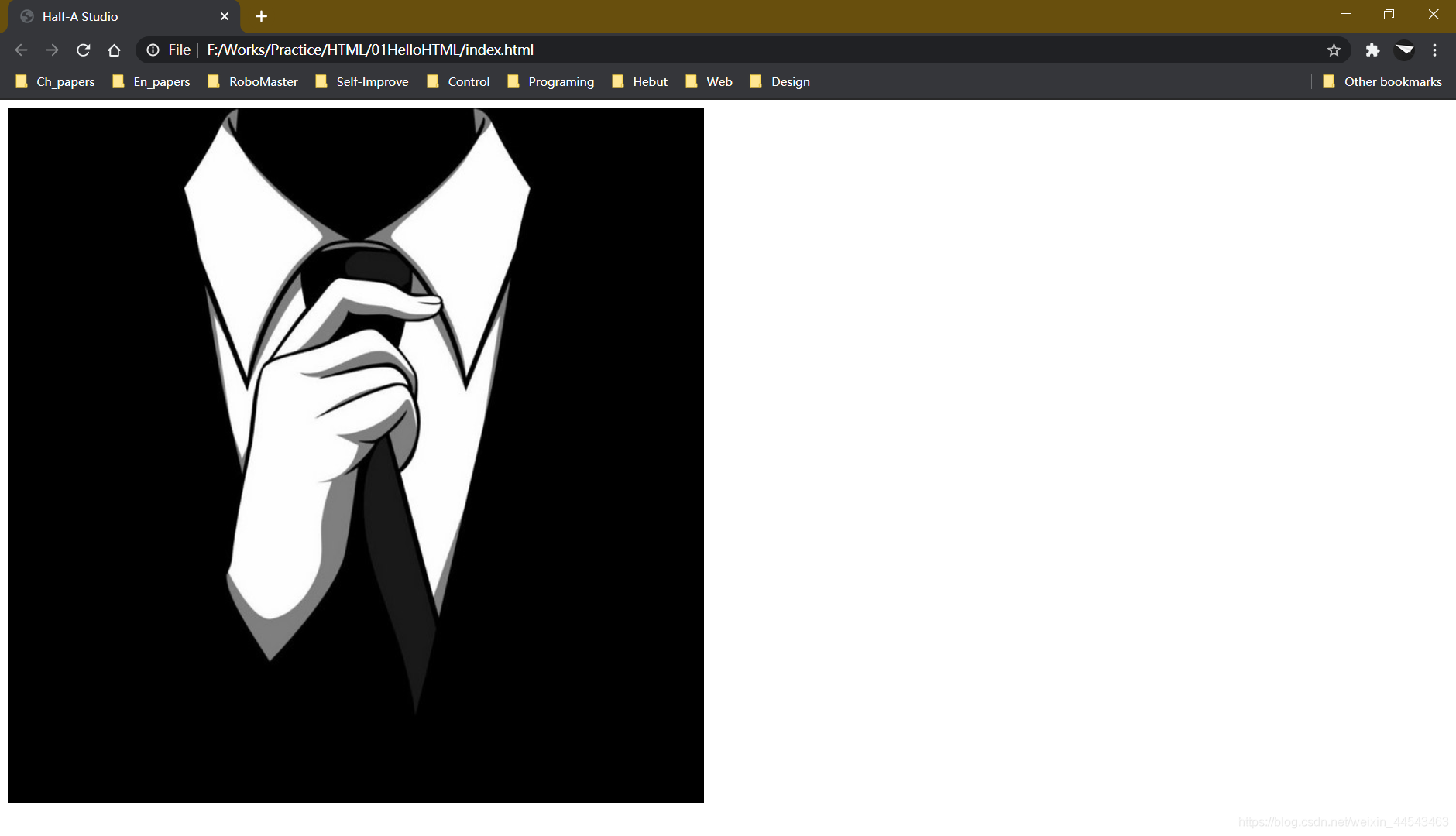
III. HTML Elements, Attributes, and Formatting
3.1 Elements
An element refers to all content from the start tag to the end tag
| Start tag | Element content | End tag |
|---|---|---|
<p> | this is my page | </p> |
<p></p>is a paragraph tag, and<br/>is a line breakAlthough both can produce a line break, their line spacing is different
<body>
 <p>this is my webpage</p>
 Hello,world<br/>Huffie
</body>

- Element content refers to the content between the start tag and the end tag
- Empty elements are closed in the start tag (such as
<br/>) - Most HTML elements can have attributes
- Most HTML elements can be nested
3.2 HTML Attributes
-
Tags can have attributes that provide more information for an element
-
Attributes appear as key/value pairs
href="www.huffie.top" -
Common tag attributes
<h1>:align: alignment
:bgcolor` background color<h1 align="center">标题h1</h1><body bgcolor="#ebebeb">Note: bgcolor sets the background color, and background sets the background image
<a>:targetspecifies where to open the link<a href="test.html" target="_blank">链接</a> -
Global attributes
Global attribute Purpose class specifies the class name of an element id specifies a unique element ID style specifies element styles title specifies extra information for an element
3.3 Formatting
| Tag | Description |
|---|---|
<b> | defines bold text |
<big> | defines large text |
<em> | defines emphasized text |
<i> | defines italic text |
<small> | defines small text |
<strong> | defines strongly emphasized text |
<sub> | defines subscript text |
<sup> | defines superscript text |
<ins> | defines inserted text |
<del> | defines deleted text |
<body>
    Hello, I'm huffie!<br/>
    <b>标签 b:欢迎来到我的博客</b>
    <br/>
    <big>标签 big: 欢迎来到我的博客</big>
    <br/>
    <em>标签 em: 欢迎来到我的博客</em>
    <br/>
    <i>标签 i: 欢迎来到我的博客</i>
    <br/>
    <small>标签 small: 欢迎来到我的博客</small>
    <br/>
    <strong>标签 strong: 欢迎来到我的博客</strong>
    <br/> 标签 sub: 欢迎来到<sub>这是上标</sub>我的博客
    <br/> 标签 sup: 欢迎来到<sup>这是下标</sup>我的博客
    <br/>
    <ins>标签 ins: 欢迎来到我的博客</ins>
    <br/>
    <del>标签 del: 欢迎来到我的博客</del>
</body>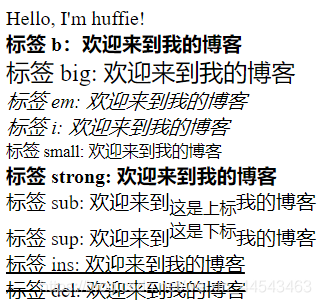
IV. Styles, Links, and Tables
4.1 Styles
-
Tags:
<style>: style definition<link>: resource reference
-
Attributes:
- rel=“stylesheet”: external stylesheet
- type=“text/css”: type of document being imported
- margin-left: margin
-
Ways to insert styles
-
External stylesheet
Syntax:
<link rel="stylesheet" type="text/css" href="mystyle.css">That is, specify an external referenced resource with document type css and location mystyle.css
Example: index.html:
<!DOCTYPE html>
<html lang="en">

<head>
    <meta charset="UTF-8">
    <meta http-equiv="X-UA-Compatible" content="IE=edge">
    <meta name="viewport" content="width=device-width, initial-scale=1.0">
    <title>样式</title>
    <link rel="stylesheet" type="text/css" href="mystyle.css">
</head>

<body>
    <h1>标题h1</h1>

</body>

</html>
mystyle.css
h1 {
    color: blue;
}
-

-
Internal stylesheet
Syntax:
    <style type="text/css">
        p {
            color: aquamarine;
        }
    </style>
Example:
<!DOCTYPE html>
<html lang="en">

<head>
    <meta charset="UTF-8">
    <meta http-equiv="X-UA-Compatible" content="IE=edge">
    <meta name="viewport" content="width=device-width, initial-scale=1.0">
    <title>样式</title>
    <style type="text/css">
        p {
            color: aquamarine;
        }
    </style>
</head>

<body>
    <p>欢迎来到我的博客</p>
</body>

</html>

-
Inline stylesheet
Syntax:
<p style="color: blueviolet;">点击我跳转到CSDN</a>Example:
<!DOCTYPE html>
<html lang="en">

<head>
    <meta charset="UTF-8">
    <meta http-equiv="X-UA-Compatible" content="IE=edge">
    <meta name="viewport" content="width=device-width, initial-scale=1.0">
    <title>样式</title>
</head>

<body>
    <p style="color: blueviolet;">点击我跳转到CSDN</a>
</body>

</html>
4.2 Links
-
Link data includes text links and image links
-
Attributes:
- href attribute: points to a link to another document
- name attribute: creates a link within a document
-
img tag attributes:
- alt: alternate text attribute
- width: width
- height: height
<body>
    <a href="http://www.huffie.top">点击我跳转</a>
    <br/>
    <a href="http://www.huffie.top">
        <img src="./images/Huffie.jpg" width="100px" height="100px" alt="huffie.jpg">
    </a>
    <br/>
    <a name="tips">页内锚点</a>
    <br/>
    <a href="#tip">跳转到页内锚点</a>
</body>
4.3 Tables
(1) Table tags:
| Table | Description |
|---|---|
<table> | defines a table |
<caption> | defines a table title |
<th> | defines a table header |
<tr> | defines a table row |
<td> | defines a table cell |
<thead> | defines the table header section |
<tbody> | defines the table body |
<tfoot> | defines the table footer |
<col> | defines column properties for a table |
<body>
    <table border="1">
        <caption>表格标题</caption>
        <tr>
            <th>表头1</th>
            <th>表头2</th>
            <th>表头3</th>
        </tr>
        <tr>
            <td>单元格</td>
            <td></td>
            <td>单元格</td>
        </tr>
        <tr>
            <td>
                <ul>
                    <li>列表1</li>
                    <li>列表2</li>
                    <li>列表3</li>
                </ul>
            </td>
            <td>单元格</td>
            <td>单元格</td>
        </tr>
    </table>
</body>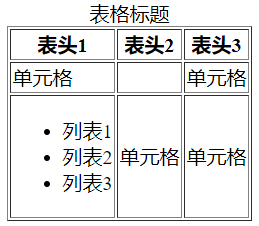
(2) Table attributes
-
Border attribute: border Example:
<table border="1"> -
Lists in tables
<ul> <li>列表1</li> <li>列表2</li> <li>列表3</li> </ul> -
Cell size: cellpadding Example:
<table border="1" cellpadding="10">

- Cell spacing: cellspacing Example:
<table border="1" cellspacing="10">
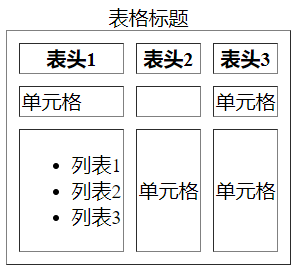
- Cell background color: bgcolor Example:
<table border="1" bgcolor="#cccccc"> - Cell background image: background Example:
<table border="1" background="huffie.jpg">
V. HTML Lists, Blocks, and Layout
5.1 Lists
(1) Tags
| Tag | Description |
|---|---|
<ol> | ordered list |
<ul> | unordered list |
<li> | list item |
<dl> | list |
<dt> | list item |
<dd> | description |
<body>
    <ul>
        <li>列表项1</li>
        <li>列表项2</li>
        <li>列表项3</li>
    </ul>
    <ol>
        <li>列表项1</li>
        <li>列表项2</li>
        <li>列表项3</li>
    </ol>
</body>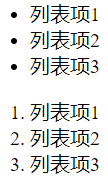
(2) Attributes
-
Unordered lists
-
Tags:
<ul>,<li> -
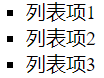
Attributes: disc (filled circle), circle (hollow circle), square (default is filled circle)
<ul type="square">
    <li>列表项1</li>
    <li>列表项2</li>
    <li>列表项3</li>
</ul>
-
-
Ordered lists
-
Tags:
<ol>,<li> -
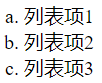
Attributes: A, a, l, i (numbering: default is numeric), start (starting position: default starts at 1)
    <ol type="a">
        <li>列表项1</li>
        <li>列表项2</li>
        <li>列表项3</li>
    </ol>
-
-
Nested lists
- Tags:
<ul>,<ol>,<li>
- Tags:
-
Custom lists
-
Tags:
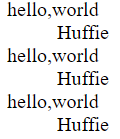
<dl>,<dt>,<dd><dl> <dt>hello,world</dt> <dd>Huffie</dd> <dt>hello,world</dt> <dd>Huffie</dd> <dt>hello,world</dt> <dd>Huffie</dd> </dl>
-
5.2 Blocks
-
Block elements
Block elements usually start on a new line when displayed, such as
<h1>,<p>, and<ul> -
Inline elements
Inline elements usually do not start on a new line, such as
<b>,<a>, and<img> -
The
<div>elementThe
<div>element is also called a block element; it is mainly a container for grouping HTML elements -
The
<span>elementThe
<spac>element is an inline element and can serve as a container for text
5.3 Layout
- Layout with
<div> - Layout with
<table>
<!DOCTYPE html>
<html lang="en">

<head>
    <meta charset="UTF-8">
    <meta http-equiv="X-UA-Compatible" content="IE=edge">
    <meta name="viewport" content="width=device-width, initial-scale=1.0">
    <title>Document</title>
    <style>
        body {
            margin: 0px;
        }

        #container {
            width: 100%;
            height: 1000px;
            background-color: cornsilk;
        }

        #heading {
            width: 100%;
            height: 10%;
            background-color: cyan;
        }

        #content_menu {
            width: 30%;
            height: 80%;
            background-color: gold;
            float: left;
        }

        #content_body {
            width: 70%;
            height: 80%;
            background-color: darkgray;
            float: left;
        }

        #footing {
            width: 100%;
            height: 10%;
            background-color: darkslateblue;
            clear: both;
        }
    </style>
</head>

<body>
    <div id="container">
        <div id="heading">头部</div>
        <div id="content_menu">内容菜单</div>
        <div id="content_body">内容主体</div>
        <div id="footing">内容底部</div>
    </div>
</body>

</html>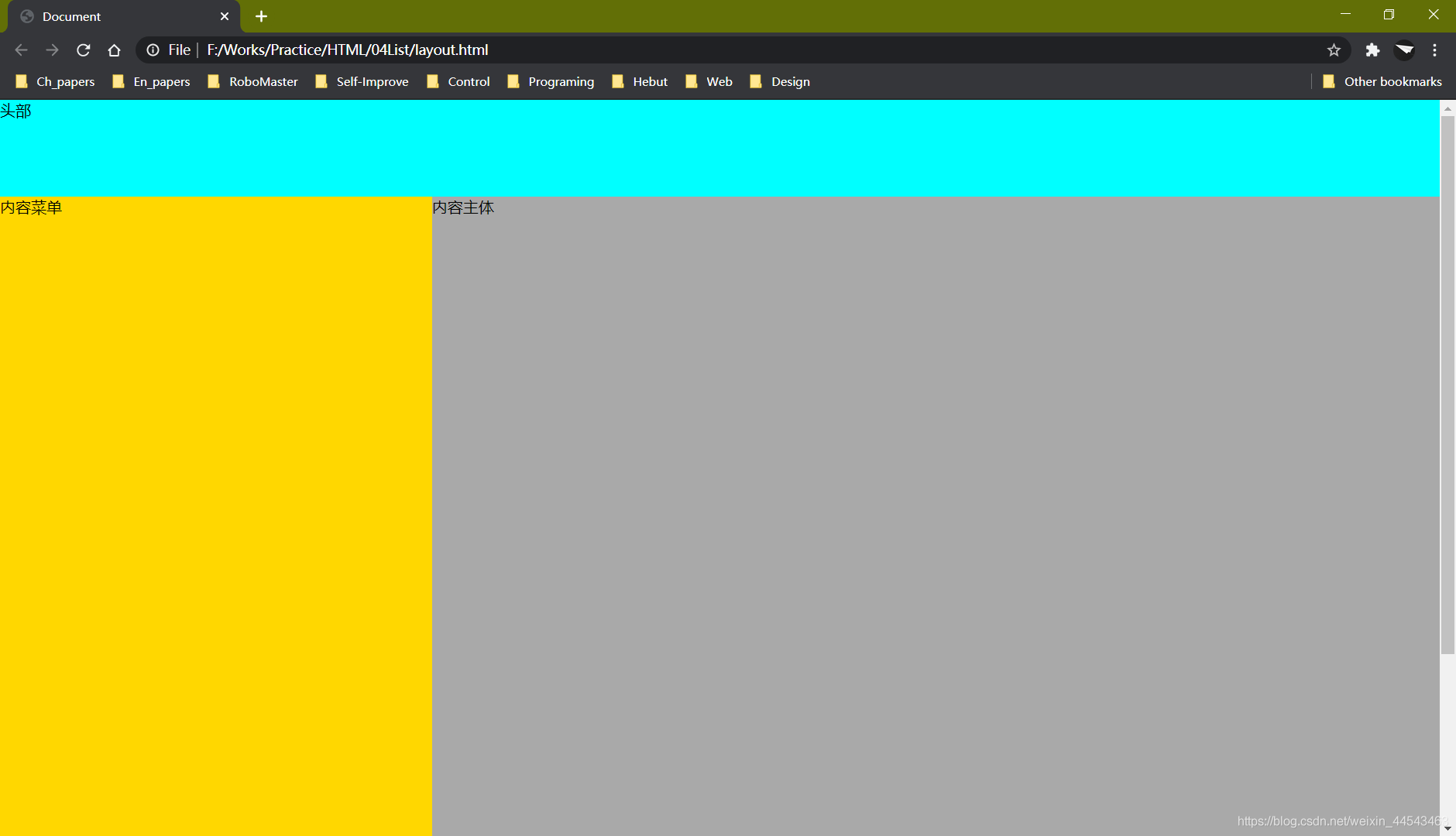
VI. HTML Forms
-
Forms are used to collect different types of user input
-
Common form tags
Tag Description <form>form <input>input field <textarea>text area <label>control label <fieldset>fieldset <legend>fieldset title <select>selection list <optgroup>option group <option>option in a drop-down list <button>button -
Common form controls
-
Checkbox:
<input type="checkbox"> -
Radio button:
<input type="radio" name="sex">Radio button options must share the same name
To check one by default, add the attribute
checked="checked" -
Drop-down list:
<select> <option>北京</option> <option>上海</option> <option>广州</option> <option>深圳</option> </select> -
Text area:
<textarea name="" id="" cols="30" rows="10">文本内容</textarea> -
Create a button:
<input type="button" value="按钮内容">
-
<body>
<form>
<!-- 输入框 -->
账号:
<input type="text">
<br/> 密码:
<input type="text">
<br/>
<!-- 复选框 -->
<input type="checkbox">已阅读并同意《用户使用须知》
<br/>
<!-- 单选框 -->
请选择您的性别: 男 <input type="radio" name="sex"> 女 <input type="radio" name="sex">
<br/>
<!-- 下拉列表 -->
请选择居住地区
<select>
<option>北京</option>
<option>上海</option>
<option>广州</option>
<option>深圳</option>
</select>
<br/>
<!-- 按钮 -->
<input type="button" value="人机验证">
<br/>
<!-- 提交按钮 -->
<input type="submit" value="注册">
</form>
<!-- 文本域 -->
<textarea name="" id="" cols="30" rows="10">请填写个人简介</textarea>
<b/r>
</body>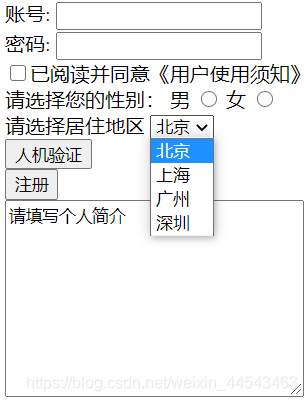 ps. If you combine tables with forms, you can write a more standard registration page
Comments