Contents
I. Test Environment and Preparation
Test environment:
- Ubuntu 22.04 LTS
- ROS2 Humble
Prerequisites:
- URDF and the corresponding mesh files (This article uses a URDF exported from Solidworks. For the export procedure, see this article.)
Dependencies:
- Make sure your ROS2 installation works (being able to run the turtle demo is enough)
- Install
joint_state_publisherandrobot_state_publisher
sudo apt install ros-$ROS_DISTRO-joint-state-publisher-gui ros-$ROS_DISTRO-robot-state-publisherII. Workspace and Package Configuration
mkdir ros2_ws
cd ros2_ws
For convenience and to avoid messy changes to launch, package, setup.py, and other files, you can modify the code I uploaded to GitHub for this article (https://github.com/HaofeiMa/urdf_ros2_rviz2) to suit your needs. The code provides a UR5e robotic arm + Inspire Hand dexterous hand model:
git clone https://github.com/HaofeiMa/urdf_ros2_rviz2.gitAfter that, you can first test whether you can build successfully and display the existing model:
colcon build
source install/setup.bash
ros2 launch urdf_ros2_rviz2 view_robot_launch.py
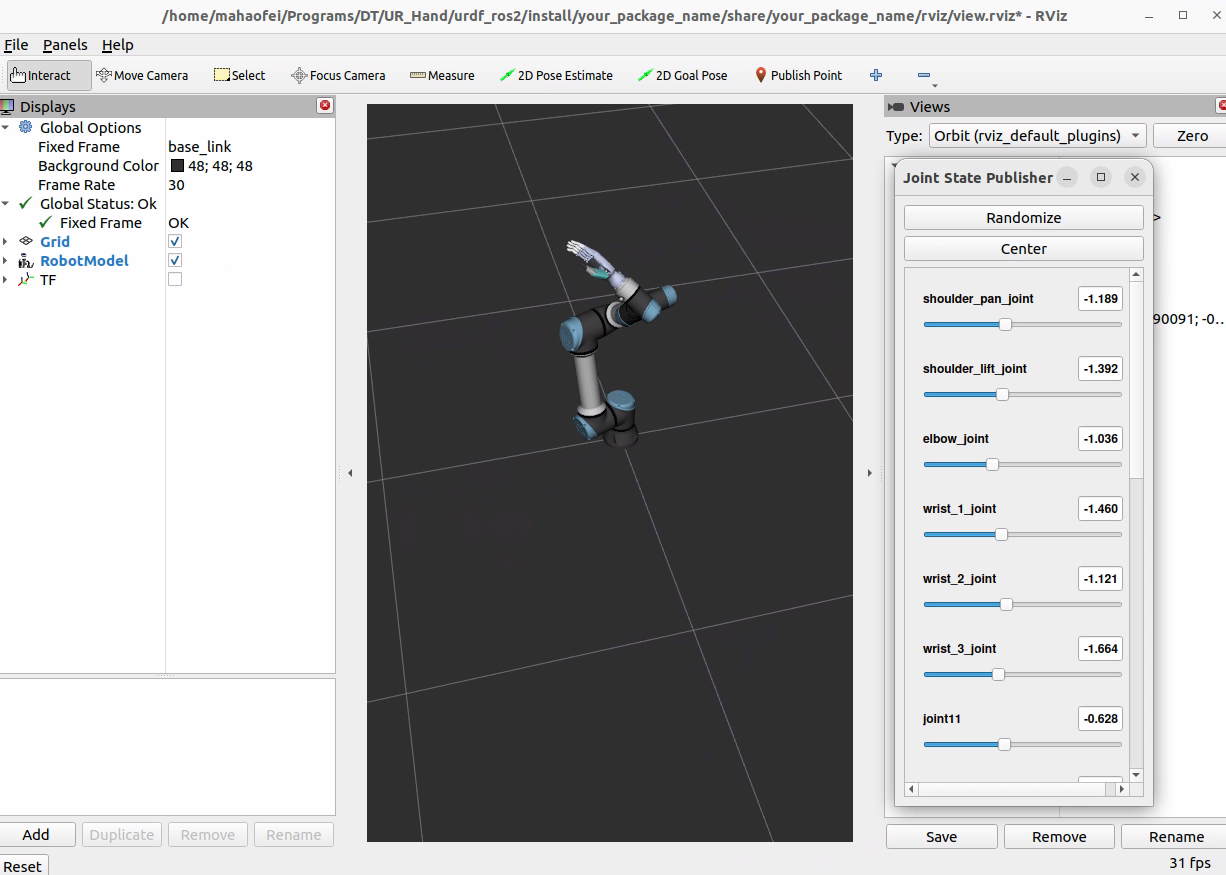
You should see the Rviz2 interface and the existing model.
III. Modifying the Package
(1) Create a package
Create your own package and borrow some code from the repository you just cloned:
ros2 pkg create your_package_name --build-type ament_python(2) Copy files
From the urdf_ros2_rviz2 directory, copy the four folders launch, meshes, rviz, and urdf into your new your_package_name directory.
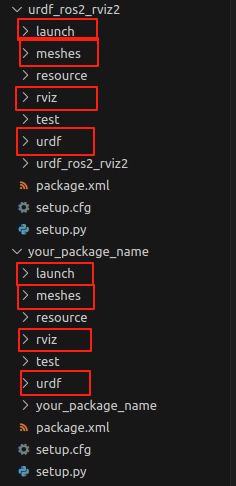
(3) Modify setup.py
From urdf_ros2_rviz2, copy all of the setup.py file code over, then modify:
# 第4行
package_name='your_package_name'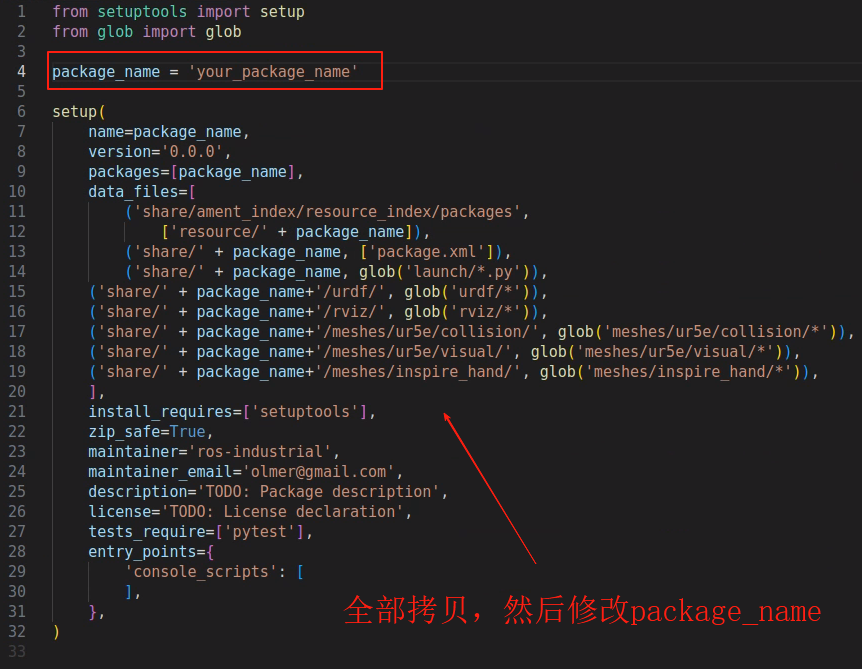
(4) Modify package.xml
From urdf_ros2_rviz2, copy all of the package.xml file code over, then modify:
<!-- 第4行 -->
<name>your_package_name</name>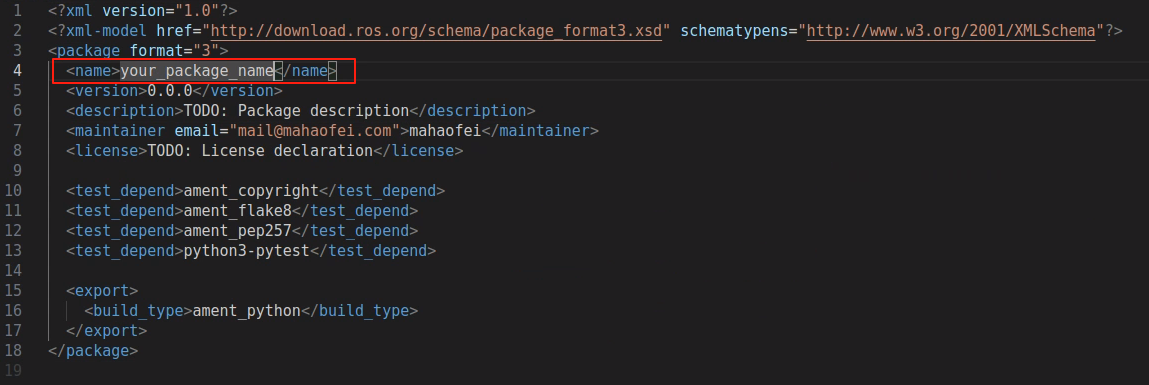
(5) Copy mesh files
Copy all of your mesh files into the meshes folder and delete the original mesh files.
Note that if your meshes folder structure differs from mine, you need to modify setup.py so it matches your STL files.
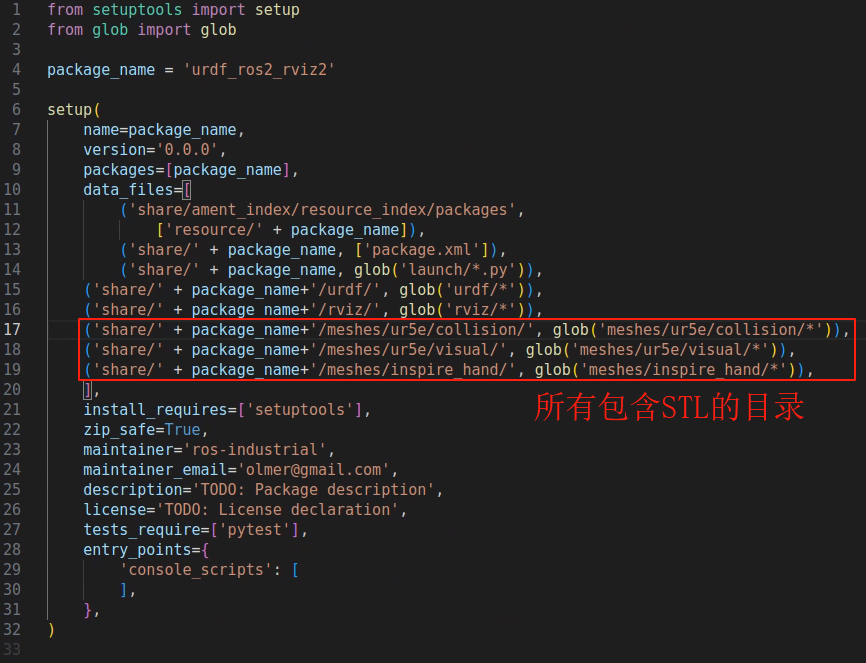
(6) Modify the URDF file
Copy your urdf file into the your_package_name urdf directory.
Then edit it: mainly change the package name and check that the mesh paths are correct, for example
<mesh filename="package://urdf_ros2_rviz2/meshes/ur5e/visual/base.dae"/>
<!-- ⬆️修改为⬇️ -->
<mesh filename="package://your_package_name/meshes/your_path/base.dae"/>
(7) Modify the launch file
Update the package name and the URDF filename:
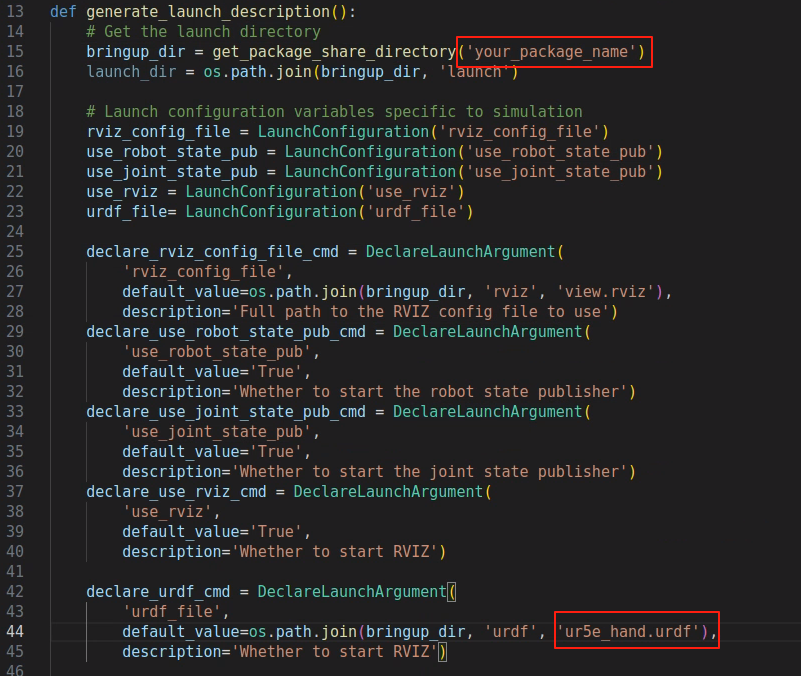
(8) Modify rviz
Open the rviz/view.rviz file, go to line 85, and modify:
# 你的模型的基坐标系
Fixed Frame: base_link
(8) Test
colcon build
source install/setup.bash
ros2 launch test_urdf view_robot_launch.py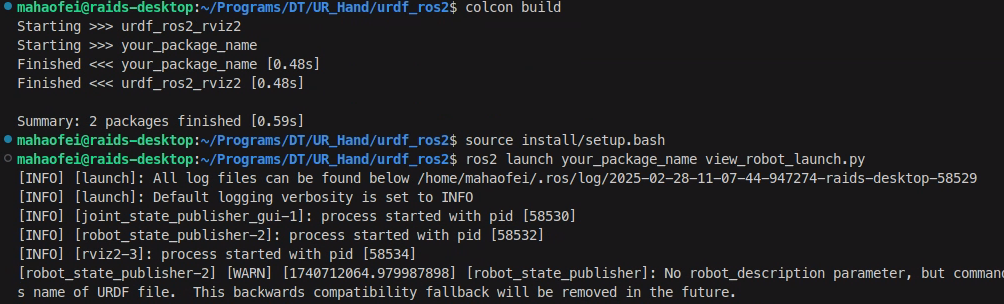
References:
Comments