
Contents
I. About Anaconda
Environment = “like a building where you assign a room for each ‘package’ to live in, and the packages in each room do not affect one another”
Activating an environment = “telling the computer that I am going to use the ‘packages’ in this room to do work now, so I need to enter this room”
Removing an environment = “the things I originally needed in this room are no longer needed, so kick them out to save disk space”
Creating an environment with Conda is equivalent to creating a virtual space and installing all those packages in that location. When I no longer need it, I can pack it up and throw it in the trash. I can also choose different Conda virtual environments to run different programs.
For example:
One program of mine needs python3.8 and a bunch of other packages, while another program needs python2.7 plus some other packages. That means I need to create a separate virtual environment for each program.
This way, I can write programs in multiple Python versions on one computer, and when I want to package a program as an exe, it will not bundle other unused packages.
II. Installing Anaconda
Anaconda official website: https://www.anaconda.com/
You can download and install the Anaconda installer for each system version directly.
III. Using Anaconda
3.1 Configuring Anaconda Mirrors
By default, Anaconda’s default repositories are overseas, so download speeds can be very slow and may even cause network errors that make package downloads fail. Open Anaconda Prompt and use the following method to add the Tsinghua mirror to Anaconda.
conda config --add channels https://mirrors.tuna.tsinghua.edu.cn/anaconda/pkgs/free/
conda config --add channels https://mirrors.tuna.tsinghua.edu.cn/anaconda/pkgs/main/
conda config --set show_channel_urls yes
Use the following command to view the current channels:
conda info3.2 Common Anaconda Commands
conda version
conda --versionList all virtual environments
conda env list
conda info --envs
Create a virtual environment
conda create -n 环境名

# conda create --name python39 python=3.9
Delete an existing environment and its installed packages
conda remove --name 环境名 --allClone an environment
conda create --name 新环境名 --clone 原环境名Activate an environment
activate 环境名Exit the current environment
conda deactivateView packages in the current environment
conda listInstall a package into the current environment with conda or pip
conda install 包名称Update packages
conda update numpy3.3 Anaconda Navigator
A graphical user interface for managing tool packages and environments. Many of the management commands covered later can also be done manually in Navigator.
Using in PyCharm
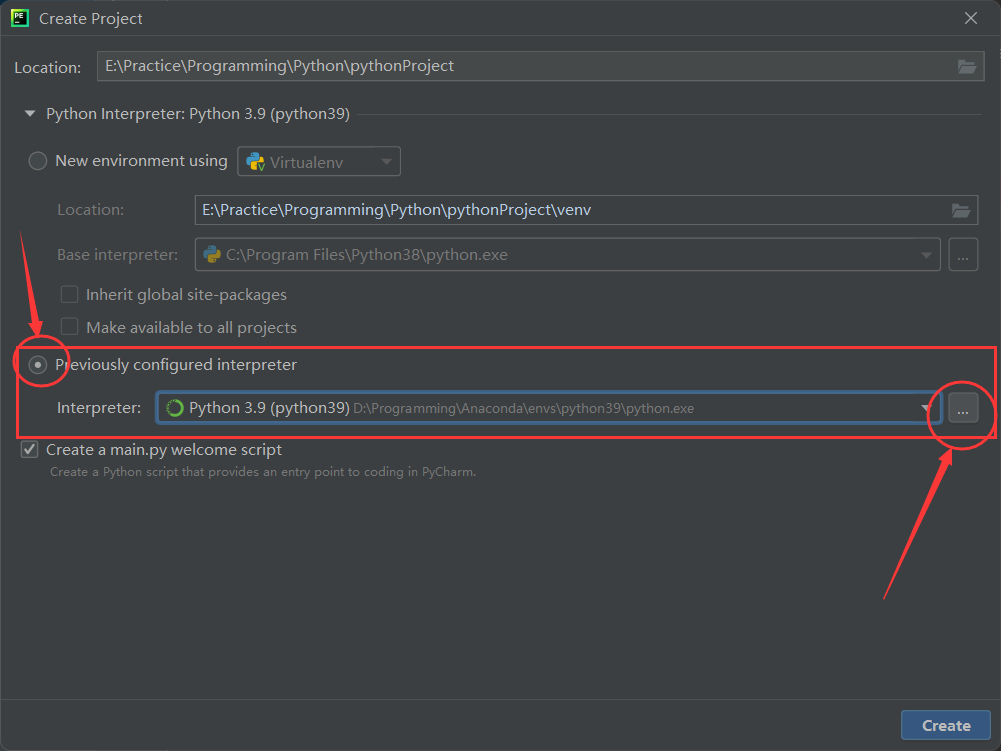
1. After creating a new project, choose to use an existing interpreter
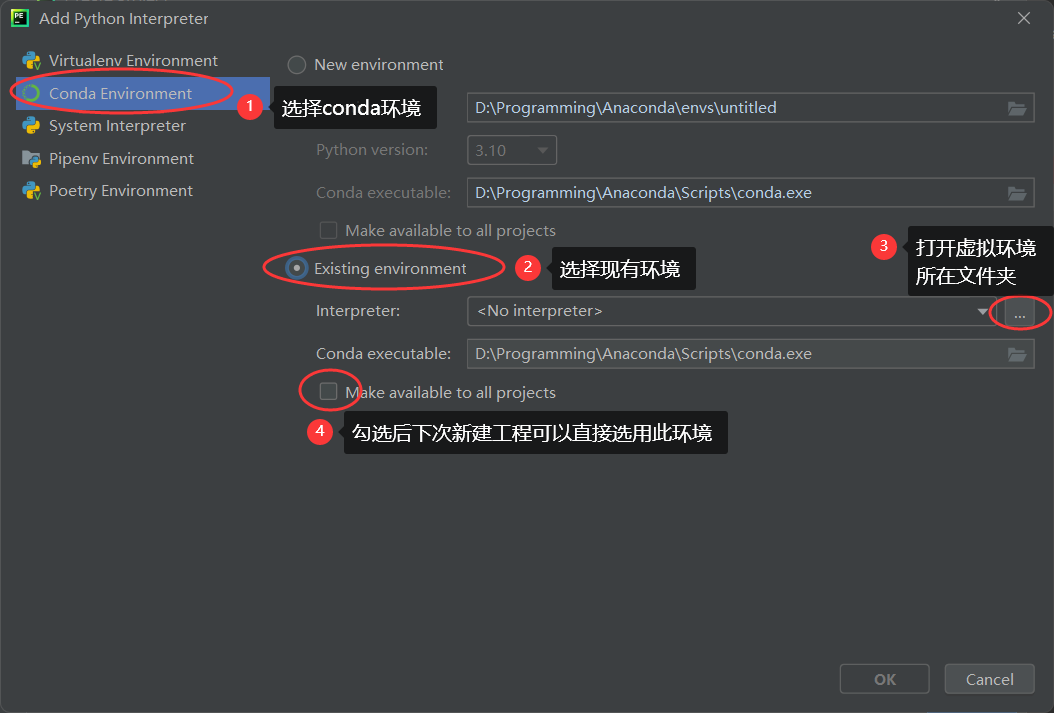
2. Select the virtual environment you created
Comments