Abstract A project needed a small feature for recognizing text and numbers in images, so I found EasyOCR, a useful open-source library. This article explains how to use it.
Introduction to EasyOCR
EasyOCR is an open-source project that can be used directly. It currently has 20k+ stars on GitHub, supports recognition in more than 80 languages, and offers very high accuracy.
Project repository: https://github.com/JaidedAI/EasyOCR
Installing EasyOCR
Note: The instructions assume Ubuntu, where this experiment was tested. The same steps should theoretically work on Windows.
(1) Set Up the Environment
To avoid confusion and conflicts among Python packages, the usual first step is to create a Conda environment. See this article to configure Anaconda.
conda create -n easyocr python=3.9(2) Install PyTorch
EasyOCR depends on PyTorch, so PyTorch must be installed in the environment. Version 1.12 is used here as an example. Installation commands for other versions are available here.
conda activate easyocr
conda install pytorch==1.12.1 torchvision==0.13.1 torchaudio==0.12.1 cudatoolkit=11.6 -c pytorch -c conda-forge
(3) Install EasyOCR
Installing EasyOCR is very simple. Run the following command:
pip install easyocrBasic EasyOCR Usage
Example code for using EasyOCR is shown below: The example imports the libraries and uses an image from either an online or local source. Reader selects the recognition languages: ch_sim means Simplified Chinese, and en means English. readtext can also accept an OpenCV image object represented as a NumPy array; with detail set to zero, it returns only the recognized text, while with detail set to one, it returns the text and its position. The code then extracts the bounding box, text, and confidence, converts the floating-point coordinates to integers, draws the rectangle, text, and confidence, and displays the image.
# 库
import os
import easyocr
import cv2
import numpy as np

# 1. 获取图像,既可以是在线图像,也可以是本地图像
# IMAGE_PATH = 'https://img.mahaofei.com/img/202401011439226.png'
image_path = './src/digital_recognition/image/digit/2000-1400-Trans.png'

# 2. 识别文字
# reader = easyocr.Reader(['ch_sim','en']) # 要识别的语言,ch_sim是简体中文,en是英文
reader = easyocr.Reader(['en'])
result = reader.readtext(image_path)     # 也可以传入opencv的图像对象(numpy数组),detail为0表示只返回识别的文字,为1表示返回识别的文字和位置
print(result)

# 3. 绘制文字矩形框和文字
image = cv2.imread(image_path)
for detection in result:
    # 提取文字框坐标和识别结果
    (bbox, text, prob) = detection
    # 将浮点数坐标转换为整数
    bbox = np.array(bbox).astype(int)
    # 在图像上绘制矩形框
    cv2.rectangle(image, (bbox[0][0], bbox[0][1]), (bbox[2][0], bbox[2][1]), (0, 255, 0), 2)
    # 在矩形框左上角绘制文字和置信度
    text_position = (bbox[0][0], bbox[0][1] - 20)
    confidence_position = (bbox[0][0], bbox[0][1] - 5)
    cv2.putText(image, text, text_position, cv2.FONT_HERSHEY_SIMPLEX, 1, (0, 0, 255), 2)
    cv2.putText(image, f"Confidence: {prob:.2f}", confidence_position, cv2.FONT_HERSHEY_SIMPLEX, 0.5, (255, 0, 0), 2)

# 显示图像
cv2.imshow("OCR Result", image)
cv2.waitKey(0)
cv2.destroyAllWindows()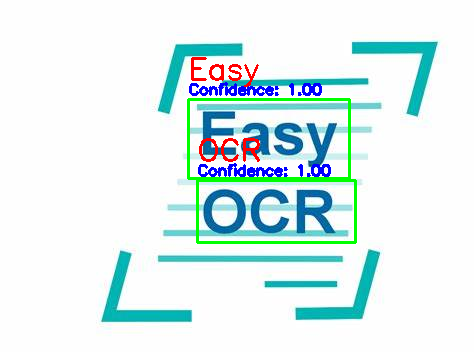
Comments