Contents
Remember: This method is for learning and exchange only. Commercial use is prohibited. Accessing any websites other than those for study and research is strictly forbidden; otherwise users bear all consequences themselves. All information on this page comes from the internet and is for learning reference only.
For many reasons, many external websites and services cannot be accessed directly. Examples include literature search platforms such as Google Scholar and Web of Science, the research project code hosting platform Github, and the research demo video platform Youtube.
You need to use some tools to break through the restrictions and connect to the outside internet. This is also called “climbing the wall, using a ladder, accessing the open internet……”
I. General Methods
The most common and cost-effective approach is to use an airport node together with a client to connect to the outside internet
Airport node: a “relay server” provided by certain service providers that can access overseas networks. “Airport” is a metaphor for going online abroad and for network transit. Users need to purchase a given airport node service and obtain a set of specific server addresses (including IP, port, and other information). These nodes are usually deployed overseas; by relaying network requests through these overseas servers, users can bypass China’s firewall and access global internet resources.
Client: a common kind of software for connecting to airport nodes. It encrypts the user’s network connection and forwards traffic through an airport server, thereby hiding the user’s real IP and enabling access to restricted content. Common client tools include Clash, V2Ray, and others.
1.1 Airport Recommendations
So-called airports are providers of network nodes.
This article is not advertising; these are purely personal recommendations for my own use
The most complete airport summary I have found so far is at honver-Paid Airport Recommendations /SSR-v2ray Dedicated-Line Airport Reviews. If anyone has better airport recommendations, you are welcome to share them in the comments—thank you!
Broadly speaking, they fall into two types: monthly billing and traffic billing.
I recommend that individual users choose traffic-billed airports. For example, if you usually only browse the web / read papers / use Github / GPT / light video, buying traffic once for a dozen yuan or so may last a few months, half a year, or even a year. Unless your goal is to watch movies and TV shows or download large datasets.
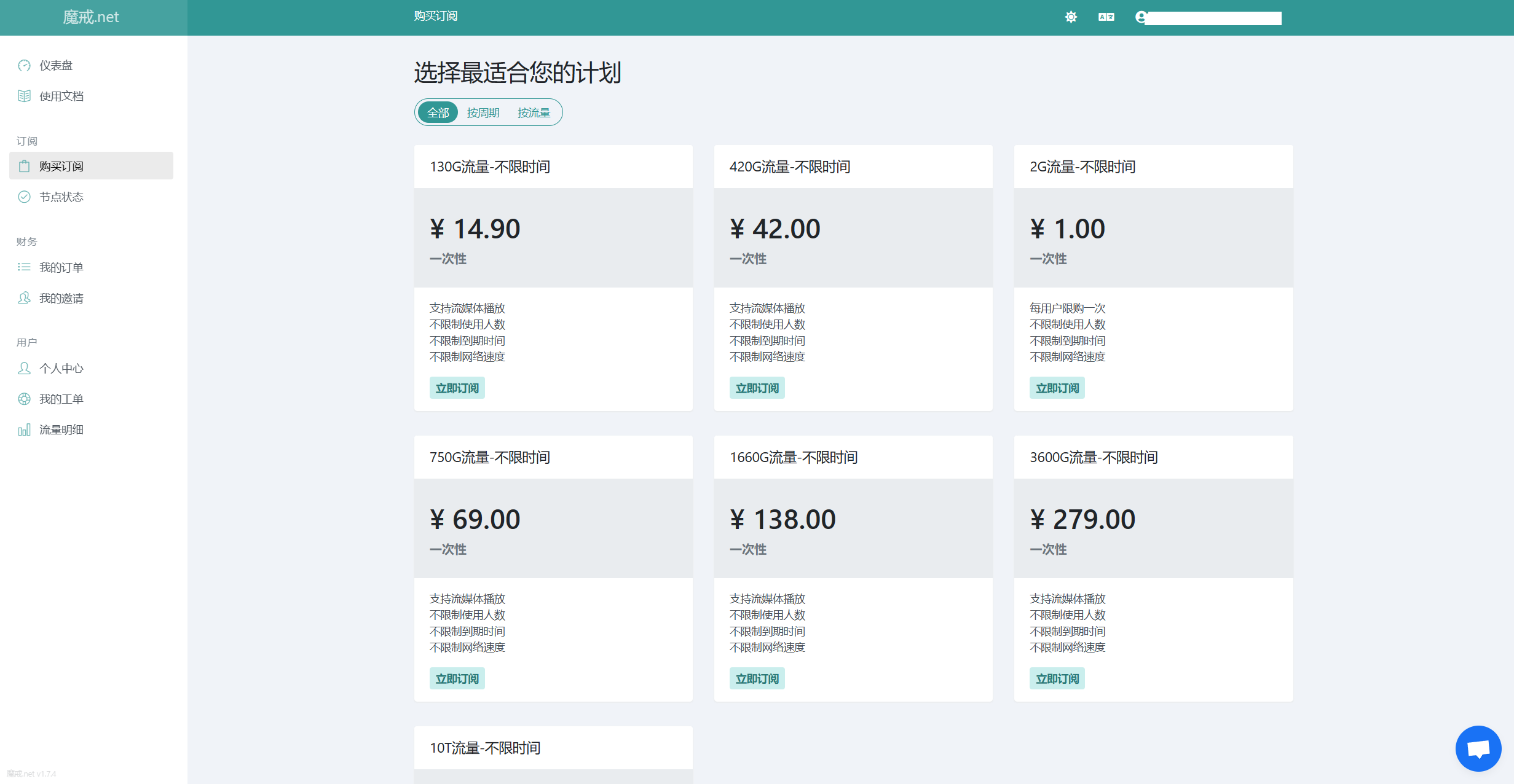
The airport I use myself is Mojie—no ads; I really use it myself.
I recommend the traffic plans (no time limit). For users who only look up literature, use chatgpt, and so on, and do not watch video, I personally think they are quite suitable.
2.2 How to Use
Here we take Mojie as an example
1. Download and install clash verge reg
First download the latest clash verge rev from GitHub
Download link: https://github.com/clash-verge-rev/clash-verge-rev/releases/latest
(If the link above does not open, you can download from this backup: https://clashverge.net/clash-verge-rev/)
Download Clash.Verge_x.xx.xx_x64-setup.exe (note that it is the x64 build—do not download the wrong one)
2. Add a subscription
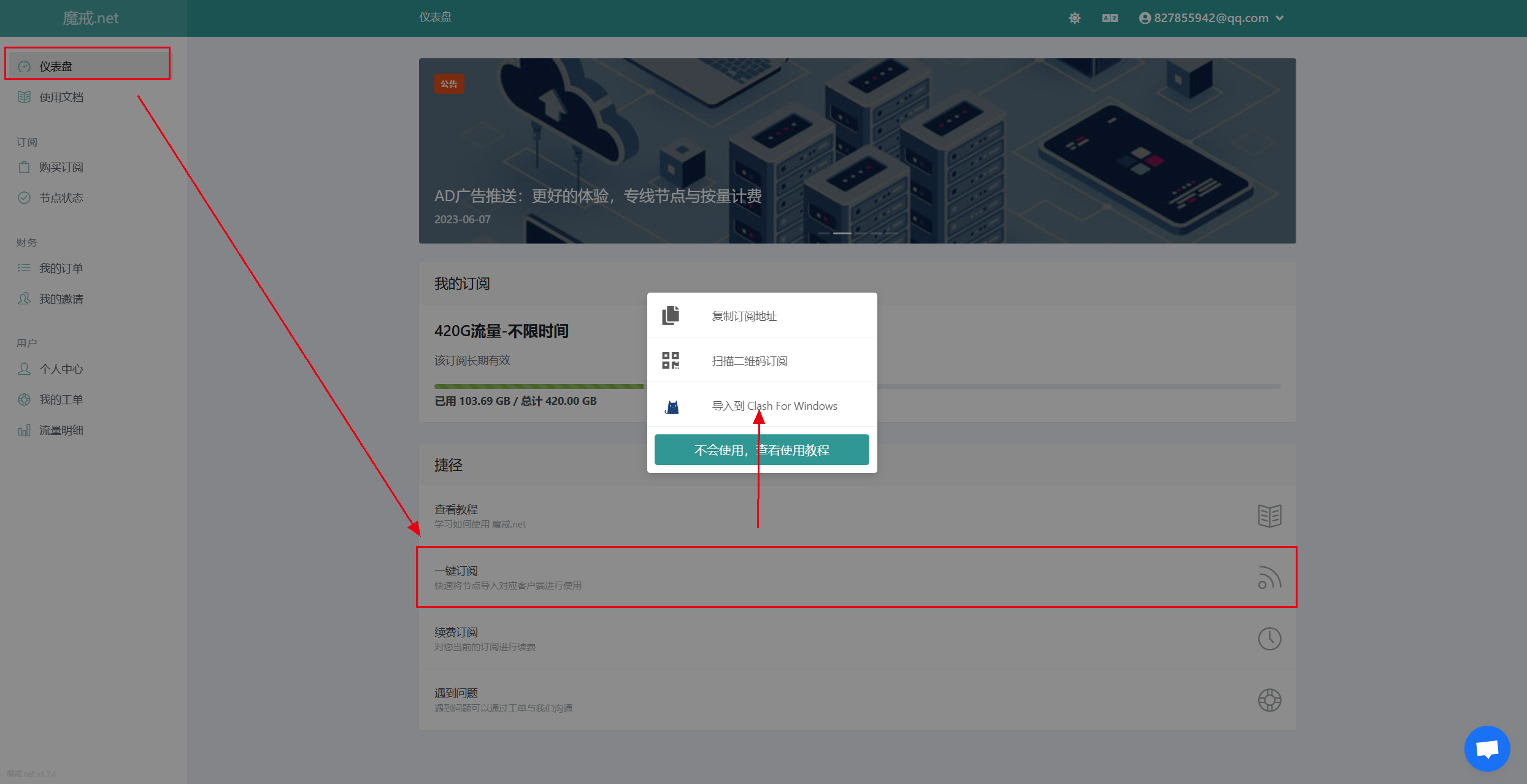
Open the airport website, find [Dashboard -> One-click Subscribe -> Import to Clash], and the subscription will be added successfully.
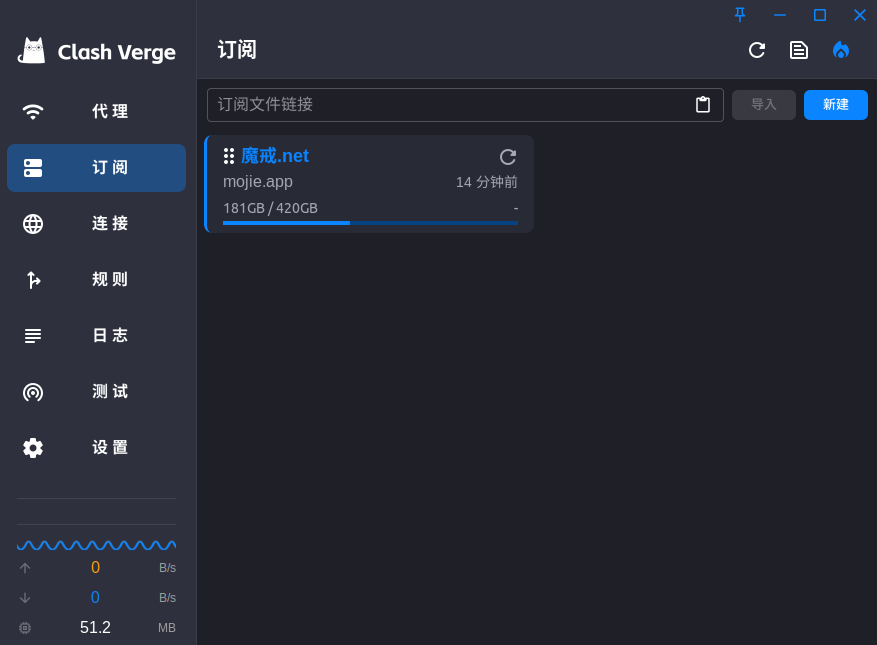
Or copy the subscription address, paste it into the subscription file URL shown below in Clash, and click Import—you can add the subscription the same way.
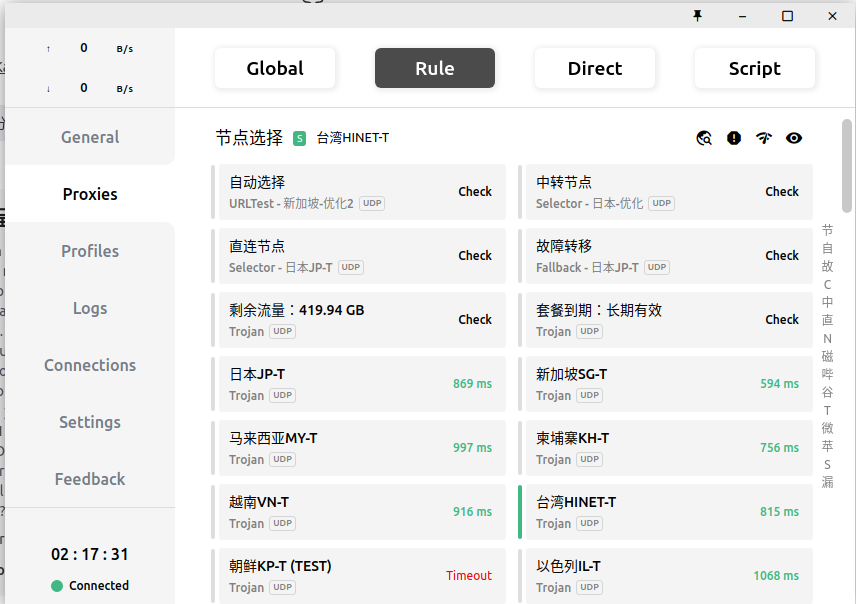
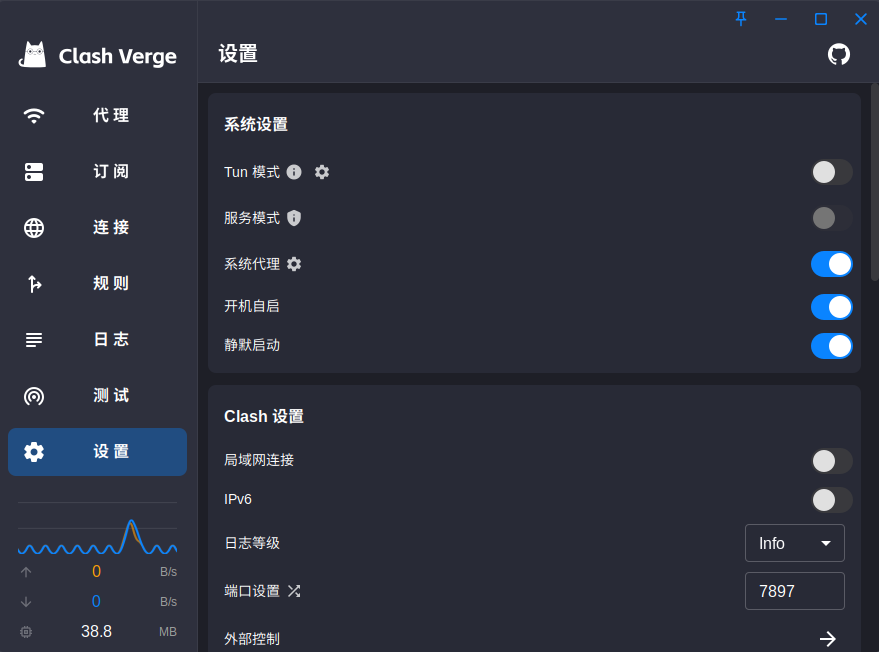
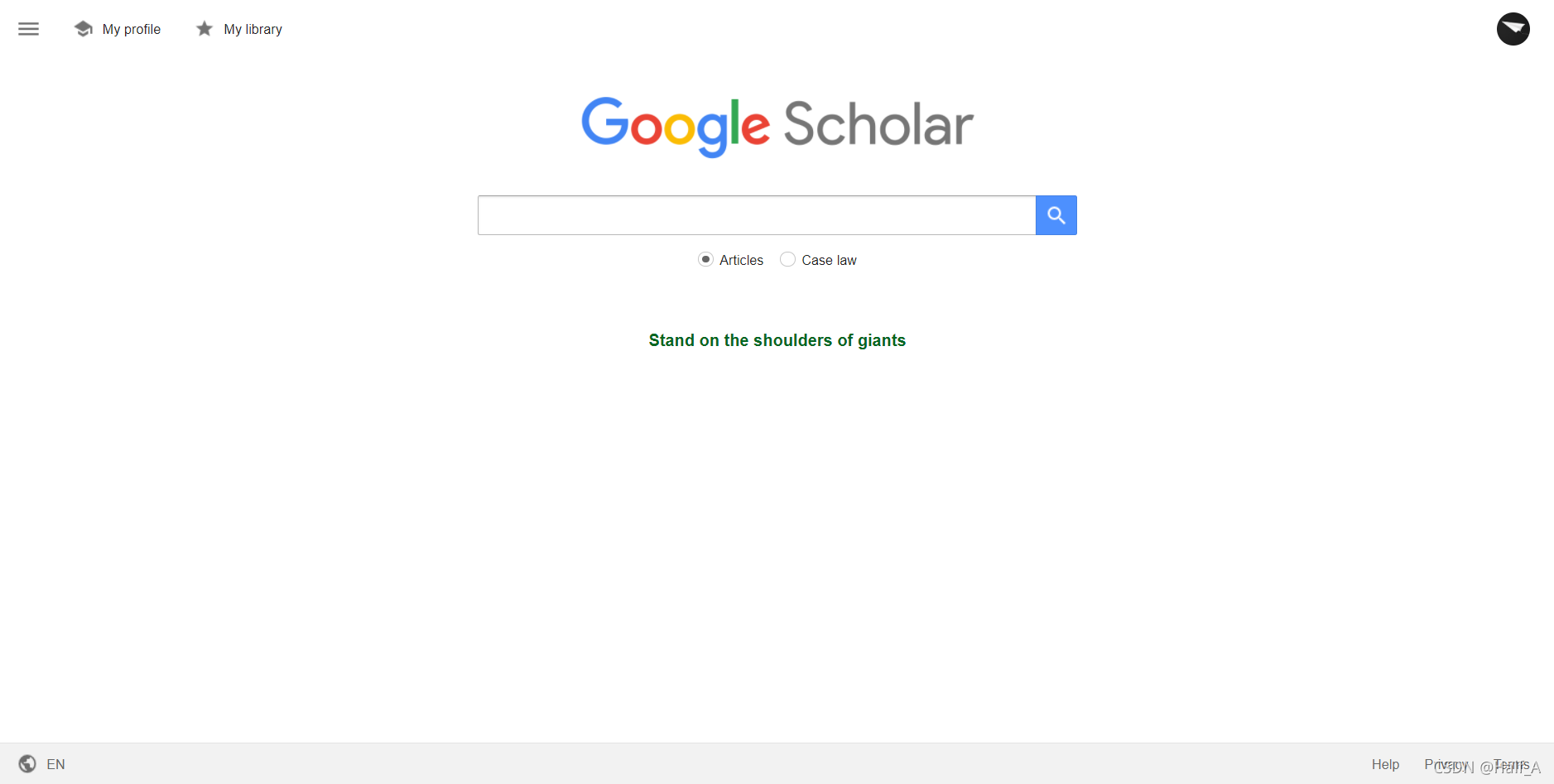
3. Go to [Settings - System Proxy], or right-click the tray icon and click System Proxy, and you can connect to the outside internet. Test on your own that you can successfully visit sites such as Google Scholar.
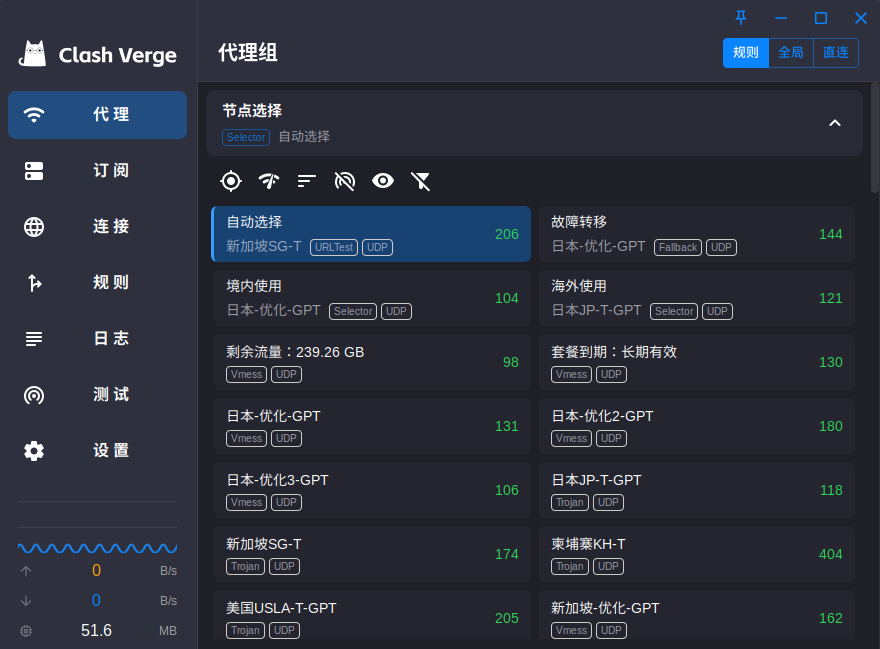
In [Proxies] you can choose a node; generally, choosing nodes in the United States, Europe, or Taiwan Province tends to give more stable access to ChatGPT.
2.3 Common Issues
(1) Unable to receive Outlook mail after opening Clash
Find Clash Verge’s [Settings - Open UWP tool].
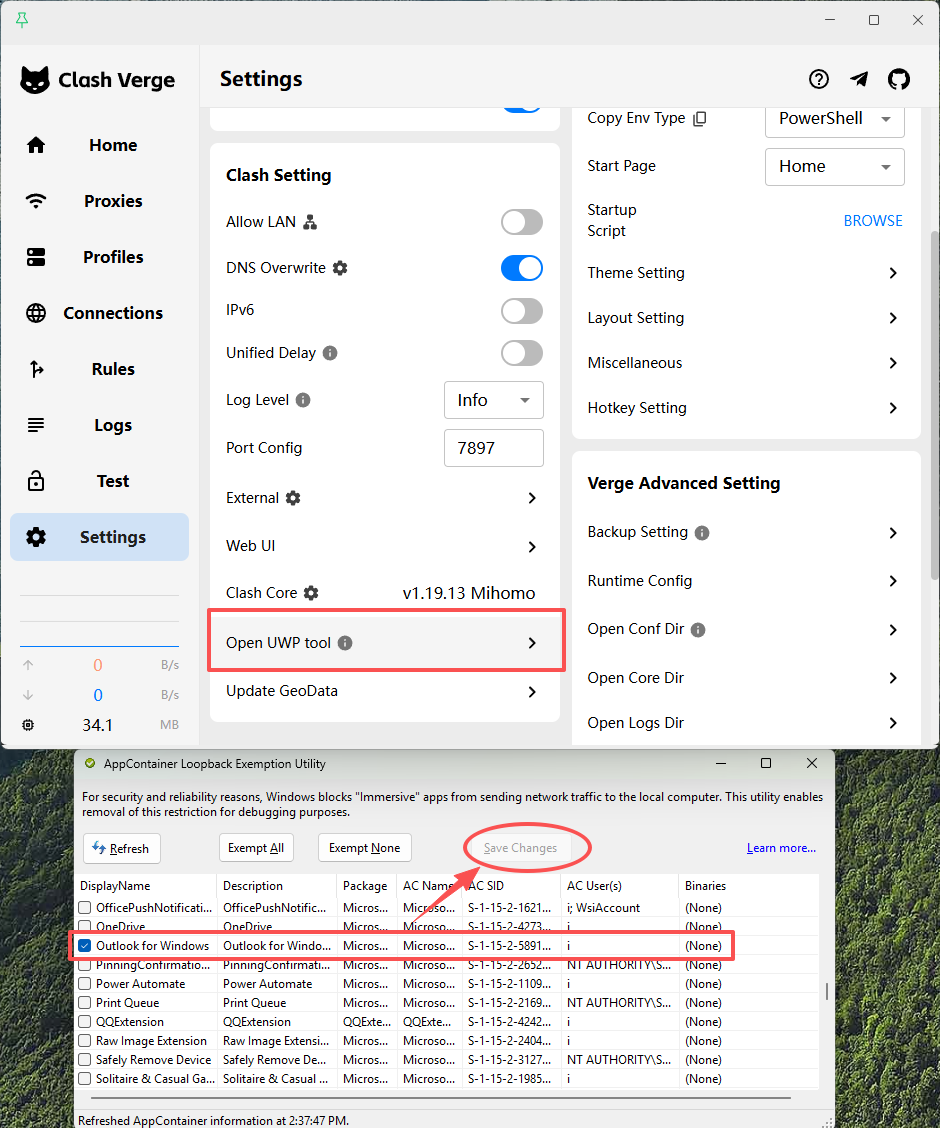
Select [Outlook for Windows], and enable the UWP loopback so Outlook can receive mail normally.
Reference: https://linux.do/t/topic/79661/7
(2) How to set a given app / a given URL not to go through the proxy
For example, Windows Outlook cannot receive mail normally when connected to a VPN, so you need to set that app not to go through the proxy.
- Find the app’s real process name
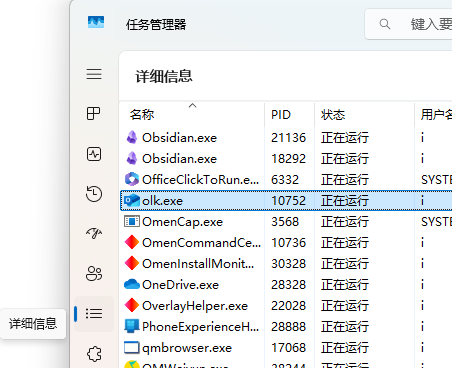
Open Task Manager, click the second option from the bottom on the left: Details, and find the process name of the app you need to configure. For example, Outlook’s process name is not outlook, but olk.
- Configure the proxy
Open the Clash Verge Rev main panel, [Profiles -> right-click Global Extend Config -> Edit File]
# Profile Enhancement Merge Template for Clash Verge

profile:
  store-selected: true

dns:
  use-system-hosts: false

prepend-rules:
- PROCESS-NAME,olk,DIRECT
- DOMAIN,baidu.com,DIRECT
Then turn on the proxy and you are done (note that this method and Tun mode do not seem to work at the same time)
Possible issues
- After restarting the computer the proxy page is blank, and Settings - Core shows
-: See the Github Issue; in [Control Panel - System and Security - Windows Defender Firewall - Advanced settings - Inbound Rules - New Rule], add port 9097 /TCP protocol.
II. Free Methods
Cloudflare is currently (2024) quite unstable in testing. It was very smooth when used in 22; after 23, inability to connect gradually appeared, and even after connecting you still need to pick your own IP and so on to get decent performance. It is rather fiddly; beginners are not advised to use it.
2.1 Application Introduction
Cloudflare is currently (2024) quite unstable in testing. It was very smooth when used in 22; after 23, inability to connect gradually appeared, and even after connecting you still need to pick your own IP and so on to get decent performance. It is rather fiddly; beginners are not advised to use it.**==
Cloudflare is a leading global cloud network service provider. It offers a range of network security, performance optimization, and CDN acceleration solutions, and is also the largest DNS provider. The application recommended this time is a virtual private network (VPN) service launched by Cloudflare.
Enter the IP address 1.1.1.1 in the browser to open the WARP app homepage. The app currently supports all platforms, including Windows, Linux, Android, iOS, and macOS.

Note: This method currently cannot access ChatGPT, but it can normally access ordinary sites such as Google, Github, and youtube. To access ChanGPT, see II. Paid Methods
1.2 How to Use
Cloudflare is currently (2024) quite unstable in testing. It was very smooth when used in 22; after 23, inability to connect gradually appeared, and even after connecting you still need to pick your own IP and so on to get decent performance. It is rather fiddly; beginners are not advised to use it.**==
Go to 1.1.1.1 and download the installer for your platform.
(1) Windows
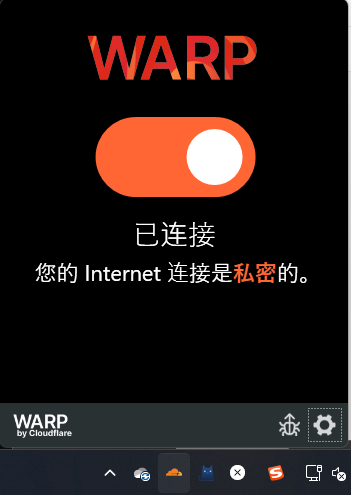
After downloading, install directly. Then you will see a cloud icon in the lower-right corner; click the enable button to start accessing the open internet.
(2) Ubuntu
(Not recommended for installation on a server; using this method on a server may make SSH and remote desktop unavailable)
Supports Ubuntu versions 16.04-22.04. Install according to the official guide. The installation steps are as follows:
# Add cloudflare gpg key
curl https://pkg.cloudflareclient.com/pubkey.gpg | sudo gpg --yes --dearmor --output /usr/share/keyrings/cloudflare-warp-archive-keyring.gpg

# Add this repo to your apt repositories
echo "deb [arch=amd64 signed-by=/usr/share/keyrings/cloudflare-warp-archive-keyring.gpg] https://pkg.cloudflareclient.com/ $(lsb_release -cs) main" | sudo tee /etc/apt/sources.list.d/cloudflare-client.list

# Install
sudo apt-get update && sudo apt-get install cloudflare-warp
For the command-line startup method, see these usage instructions. Common commands are as follows:
# 注册客户端
warp-cli register

# 连接客户端
warp-cli connect

# 检查是否连接(warp=on)
curl https://www.cloudflare.com/cdn-cgi/trace/

# 断开连接
warp-cli disconnect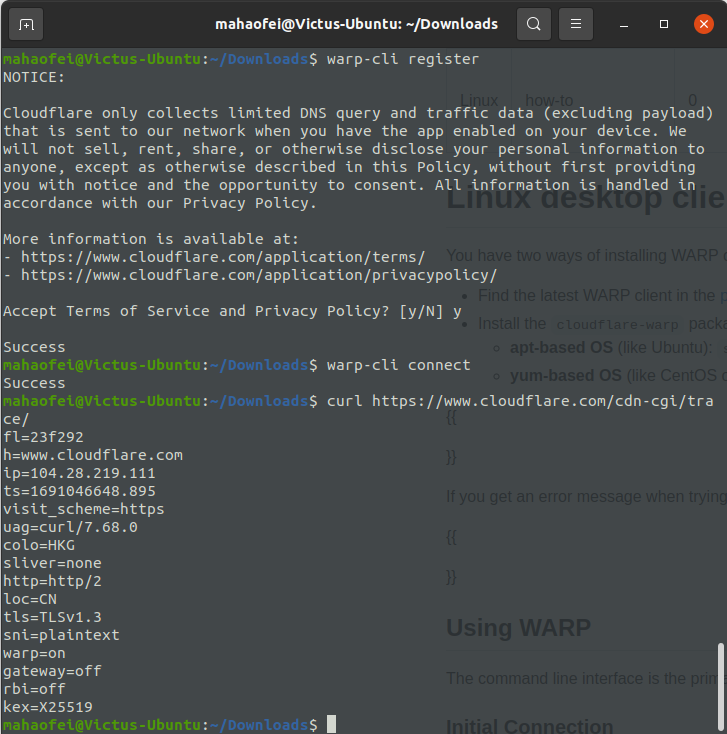
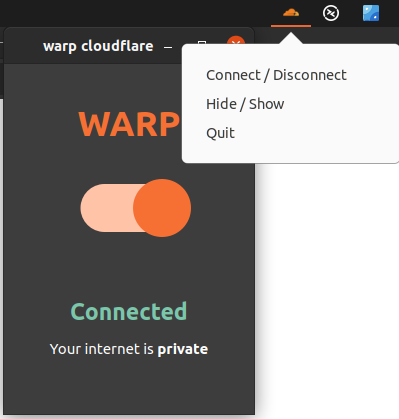
For a graphical interface startup method, because the official product does not provide a GUI, I found a third-party interface developed on Github:
git clone https://github.com/mrmoein/warp-cloudflare-gui
cd warp-cloudflare-gui
python3 install.py
sudo chmod +x ~/.local/share/applications/warp-gui.desktop
After installation you can find Warp Cloudflare directly in the application list; the result looks like this
To set it to start on boot, open Startup Applications Preferences or 应用启动程序, and add a startup application.
In the package from the git clone just now, find the main.py path and add it to the startup application command field:
# 如果想启动的时候最小化到右上角,则添加--hide
python3 /home/【你的路径】/warp-cloudflare-gui/main.py --hide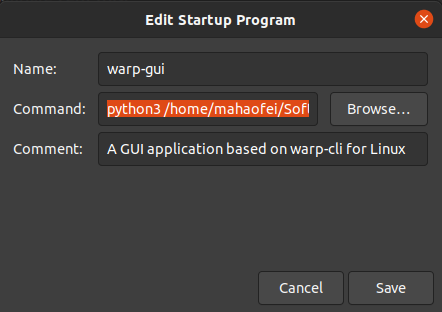
Save, and you are done.
If it keeps showing “Connecting” and cannot be used, you can use the tool below Download [this tool]( https://pan.kejicode.cn/d/Onedrive/WIN%E7%AB%AFwarp%E8%87%AA%E9%80%89IP (%E6%89%8B%E5%8A%A8%2B%E8%87%AA%E5%8A%A8).rar?sign=RqBdHIMyyhge4edls16b7Km0rGoqxuNqVboC-09h5cA=:0), and configure it according to the requirements inside
- Disconnect all node connections
- Double-click
手动方式1to generate aresult.csvfile- Open the
result.csvfile and copy the IP address and port from the first row- Double-click
手动方式2, paste in the copied IP address and port, and press Enter to finish.
(3) Android
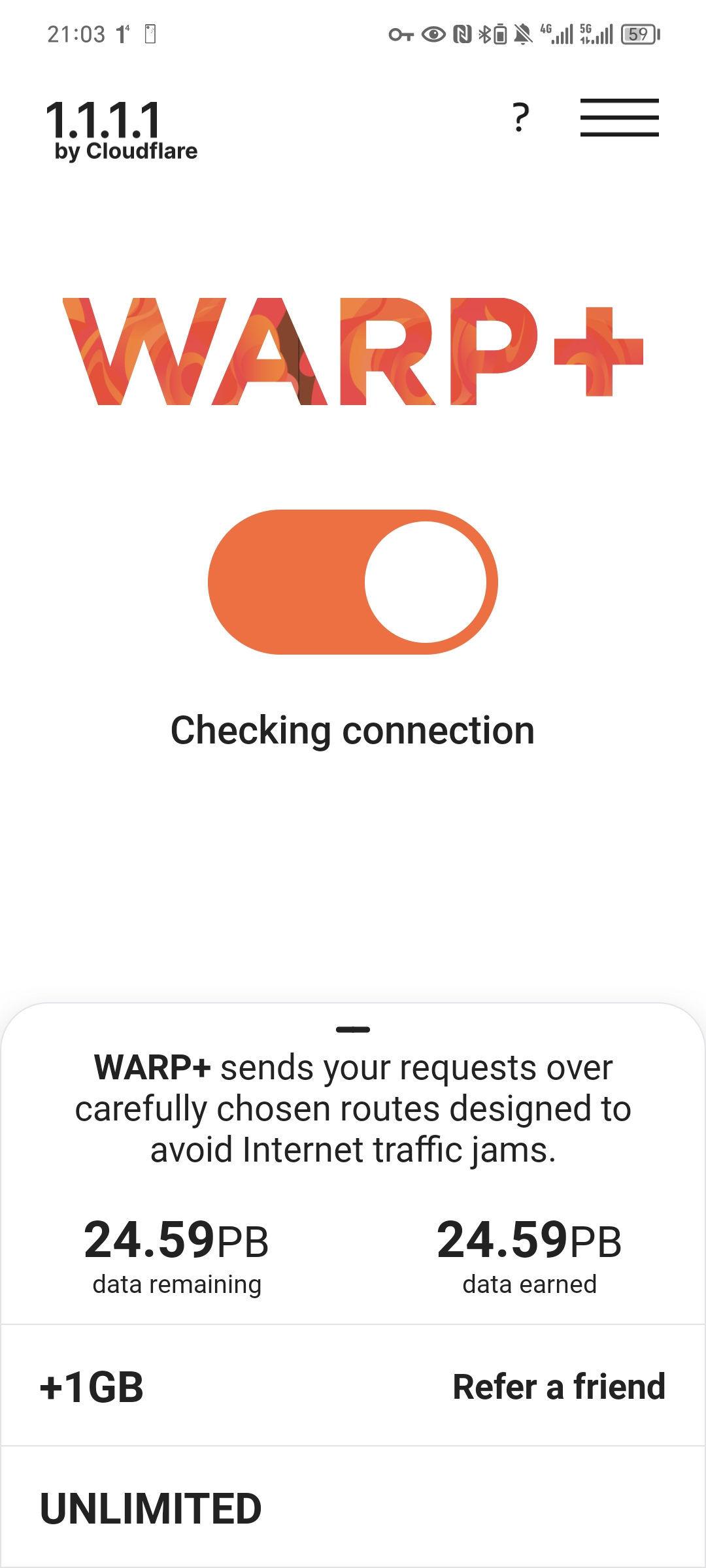
Download the 1.1.1.1 installer from sites such as APK Pure; after installation you can use it.
(4) iOS/macOS
I do not have the relevant devices, so I cannot test for now.
Remember: This method is for learning and exchange only. Commercial use is prohibited. Accessing any websites other than those for study and research is strictly forbidden; otherwise users bear all consequences themselves. All information on this page comes from the internet and is for learning reference only.
Comments