Contents
1 Screenshot Tool: Shutter
1.1 Introduction
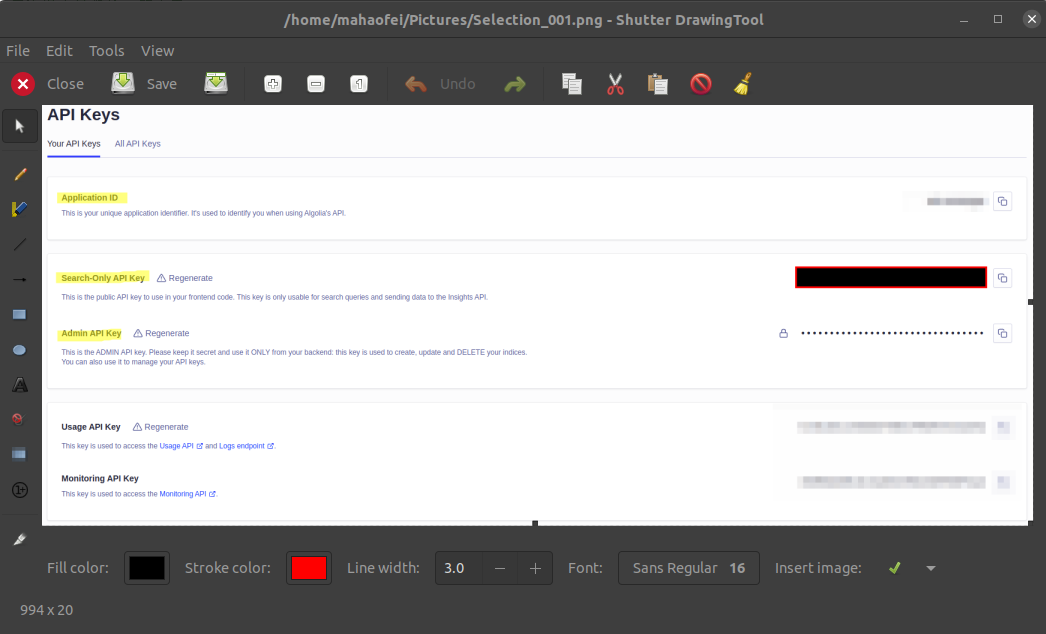
Shutter is a screenshot tool applicable to all major Linux distributions. Its features are very powerful, and in recent years it is known to have kept updating, and its features are stable.
It provides the following features:
- Capture a specific area, the entire desktop, an entire frame, or a website
- Take screenshots after a countdown
- Annotate screenshots afterward (text, arrows, hold, ellipses, mosaic, automatic numbering)
1.2 Installation
Install Shutter:
sudo apt install shutter gnome-web-photo1.3 Usage
Find Shutter in the launcher and open it to use it.
To set up a keyboard shortcut, open System Settings - Keyboard Shortcuts, add a custom shortcut, and configure it as shown below.
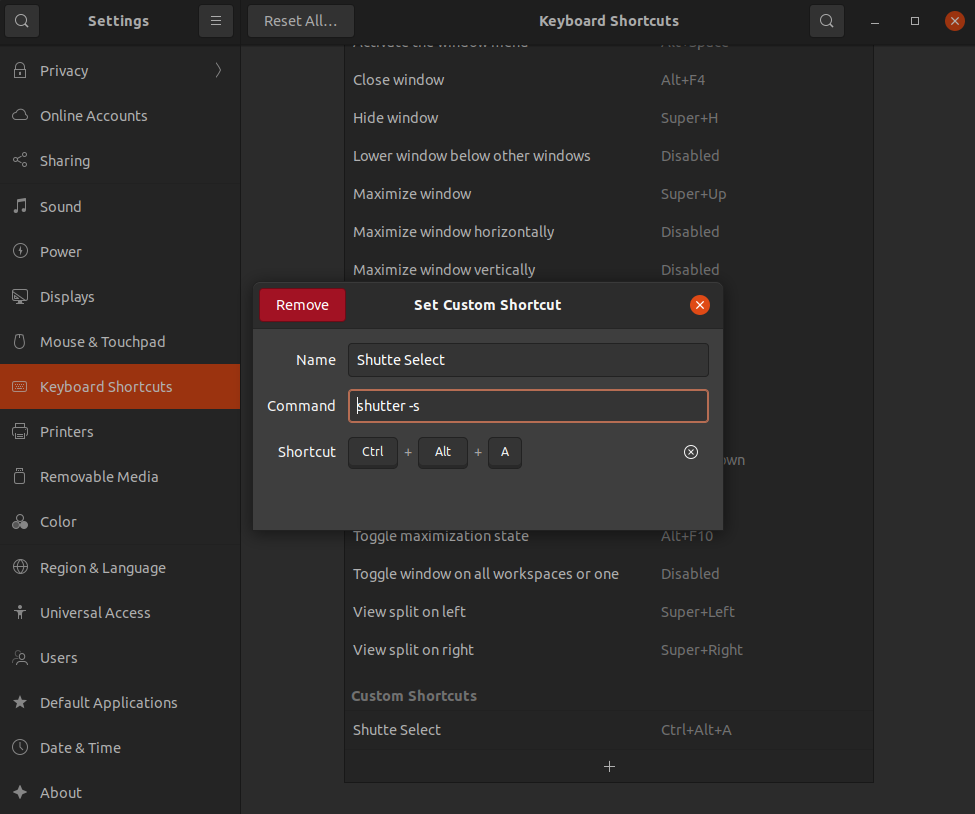
After completing the setup, you can take screenshots directly with 【Ctrl + Alt + A】.
2 Screen Recording Tool: OBS Studio
2.1 Introduction
OBS Studio is free, lightweight, open-source software for video recording and live streaming. It can capture, record, stream, and encode video content. It can simultaneously record video from multiple sources, combine it, and stream it to streaming platforms.
Simply put, it can place the screen, camera, and other sources into one frame for recording or live streaming. Here, I only use it for screen recording.
2.2 Installation
sudo add-apt-repository ppa:obsproject/obs-studio
sudo apt install obs-studio
2.3 Usage
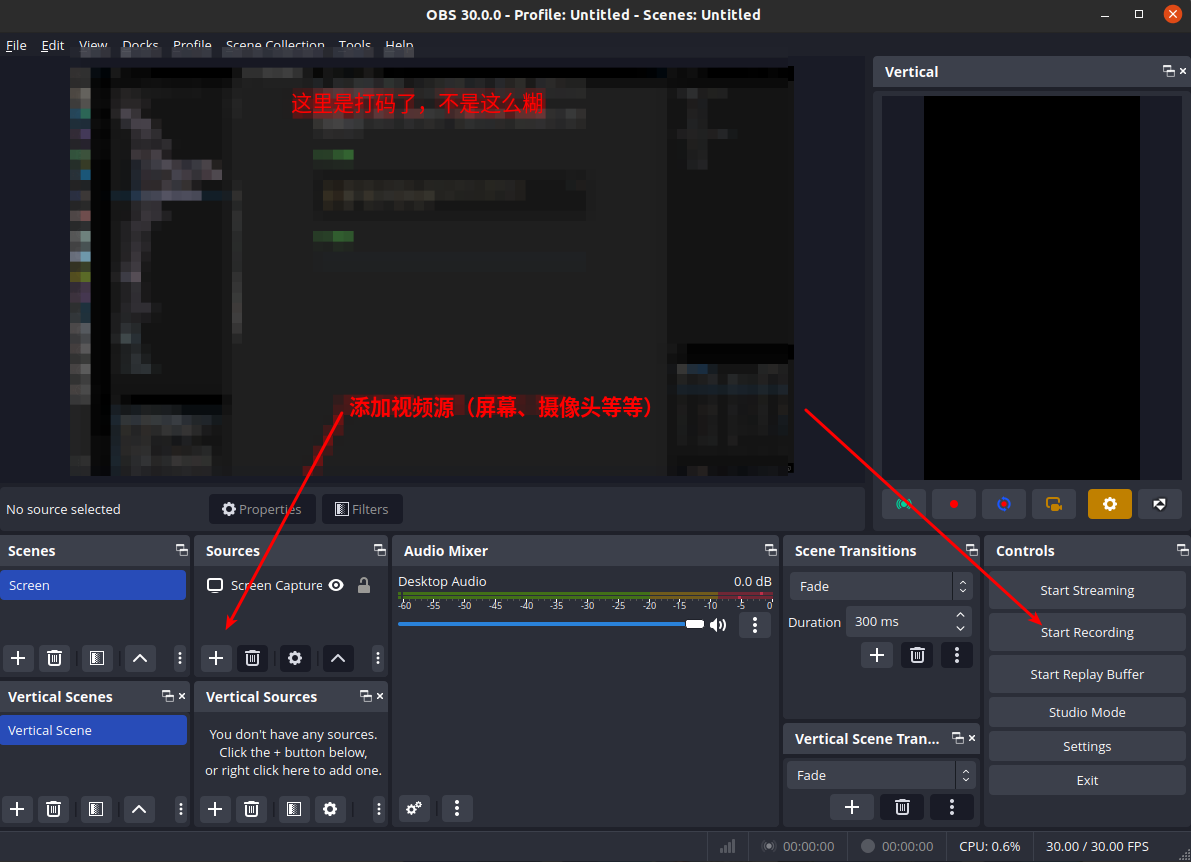
Use the small plus button under Sources to add the screen, camera, and other sources.
After adding the screen, hold down alt in the OBS main interface and drag the edge of the frame to crop it.
Comments