Contents
I. Keyboard Input
1.1 Basics
Reading keypresses only requires the waitKey() function and is very simple.
int waitKey(int delay=0)The function parameter is the delay time (ms). When delay<=0, the waiting time is unlimited. The function ends when a key is pressed and returns the key value. · When delay>0, the function waits delay milliseconds for a key response. If no key is pressed before the waiting period ends, it returns -1.
In my hands-on testing with opencv4+vs2019, no value is returned when no key is pressed; when a key is pressed, the corresponding key value is returned.
1.2 Identifying Key Values
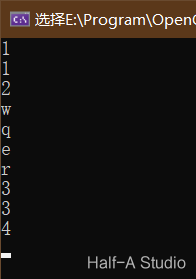
You can use the following code to test which value corresponds to each key on your keyboard.
void MyDemo::key_Demo(Mat& image) {
	while(true) {
		char k = waitKey(0);
		std::cout << k << std::endl;
	}
}
1.3 Adjusting Brightness with Keys
/*按下1时:图片亮度增大
按下2时,图片亮度减小
按下q时,程序退出*/
void MyDemo::key_Demo(Mat& image) {
	Mat m = Mat::zeros(image.size(),image.type());
	m = Scalar(10, 10, 10);	//增大或减小图片亮度的变化量
	while(true) {
		char k = waitKey(10);
		if (k == 'q') {	// Quit
			break;
		}
		if (k == '1') {	//Key 1
			std::cout << "You enter key 1 - Lightness Up." << std::endl;
			add(image, m, image);
		}
		if (k == '2') {	//Key 2
			std::cout << "You enter key 2 - Lightness Down." << std::endl;
			subtract(image, m, image);
		}
		imshow("Key", image);
	}
}
II. Mouse Input
1.1 Basics
The primary function used to handle mouse input is setMouseCallback().
 void setMousecallback(
	 const string& 	winname,	//窗口的名字
	 MouseCallback 	onMouse,	//鼠标响应回调函数
	 void* 			userdata=0	//传给回调函数的参数
 );
Here, onMouse is the mouse event callback function: a function pointer that is invoked whenever a mouse event occurs in the specified window. Its prototype should be as follows:
void on_Mouse(
	int 	event,		//事件回传代号
	int 	x,			//鼠标指针在图像坐标系的坐标x
	int		y,			//鼠标指针在图像坐标系的坐标y
	int 	flags,		//CV_EVENT_FLAG的组合
	void* 	userdata	//传递的参数
);| Event | Action |
|---|---|
| EVENT_MOUSEMOVE | Move |
| EVENT_LBUTTONDOWN | Left-button click |
| EVENT_RBUTTONDOWN | Right-button click |
| EVENT_MBUTTONDOWN | Middle-button click |
| EVENT_LBUTTONUP | Release left button |
| EVENT_RBUTTONUP | Release right button |
| EVENT_MBUTTONUP | Release middle button |
| EVENT_LBUTTONDBLCLK | Double-click left button |
| EVENT_RBUTTONDBLCLK | Double-click right button |
| EVENT_MBUTTONDBLCLK | Double-click middle button |
1.2 Example Program
This implements a drawing-board feature that lets you drag on the image to draw a rectangle.
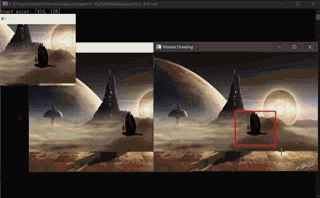
Point sp(-1, -1);	//起始点(初始值-1,-1)
Point ep(-1, -1);	//结束点(初始值-1,-1)
Mat temp;			//原图的克隆,用于实时刷新图片

static void on_draw(int event, int x, int y, int flags, void* userdata) {
	Mat bg = *(Mat*)userdata;	//回调函数传过来的图像数据
	if (event == EVENT_LBUTTONDOWN) {	//如果左键被按下
		sp.x = x;	//保存左键按下时的xy值
		sp.y = y;
		std::cout << "Start point: " << sp << std::endl;
	}
	else if (event == EVENT_LBUTTONUP) {//如果左键被抬起
		ep.x = x;	//保存左键抬起时的xy值
		ep.y = y;
		int dx = ep.x - sp.x;	//计算矩形长宽
		int dy = ep.y - sp.y;
		if (dx > 0 && dy > 0) {	//当矩形长宽都为正数时
			Rect box(sp.x, sp.y, dx, dy);
			rectangle(bg, box, Scalar(0, 0, 255), 2, 8, 0);	//绘制矩形
			imshow("Mouse Drawing", bg);
			imshow("ROI", temp(box));	//显示ROI区域(被框选的区域)
			sp.x = -1;	//起始点坐标复位
			sp.y = -1;
		}
	}
	else if (event == EVENT_MOUSEMOVE) {
		if (sp.x > 0 && sp.y > 0) {		//当起始点坐标不是初始值,且鼠标移动时
			ep.x = x;
			ep.y = y;
			int dx = ep.x - sp.x;
			int dy = ep.y - sp.y;
			if (dx > 0 && dy > 0) {
				Rect box(sp.x, sp.y, dx, dy);
				temp.copyTo(bg);	//刷新屏幕,清除上一循环绘制的矩形
				rectangle(bg, box, Scalar(0, 0, 255), 2, 8, 0);	//绘制新矩形
				imshow("Mouse Drawing", bg);
			}
		}
	}
}

void MyDemo::mouseDrawing_Demo(Mat& image) {
	namedWindow("Mouse Drawing", WINDOW_AUTOSIZE);	//创建一个窗口
	setMouseCallback("Mouse Drawing", on_draw,(void*)(&image));	//调用鼠标回调函数
	imshow("Mouse Drawing", image);
	temp = image.clone();
}
Comments