Contents
Automatically Remove Watermarks
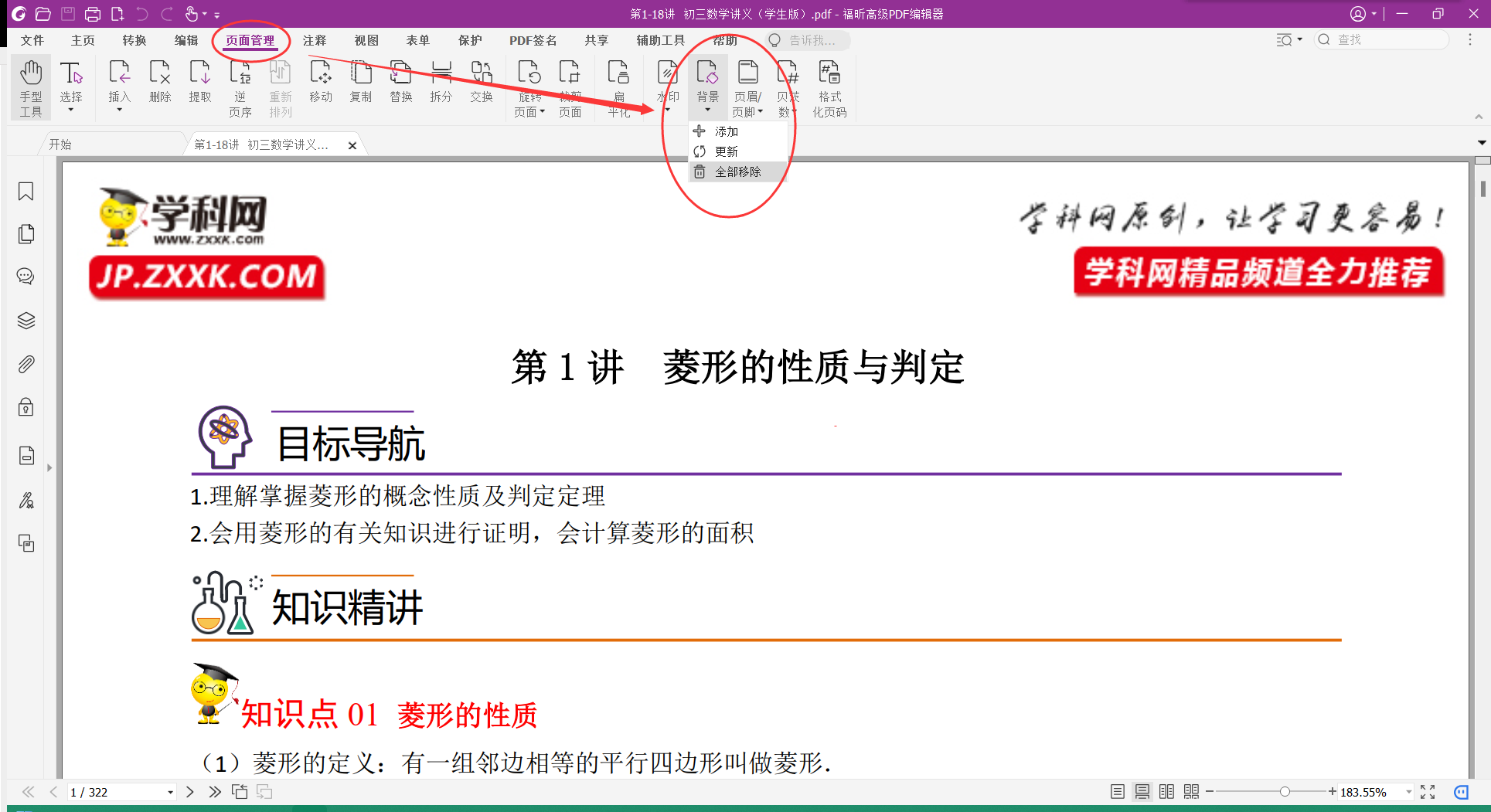
Using Foxit PDF Editor, open 【Organize - Watermark - Remove All】. Most watermarks added afterward can then be removed automatically.

Remove Background Watermarks
Using Foxit PDF Editor, open 【Organize - Background - Remove All】. Some watermarks are added as backgrounds and can also be removed this way.
Remove Text Watermarks
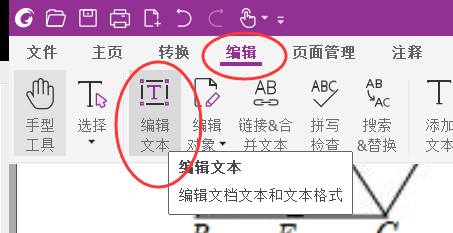
Using Foxit PDF Editor, open 【Edit - Edit Text】. At this point, all the text in the PDF file becomes editable.
Select and copy the text to be deleted. Open the 【Search & Replace】 window in the upper-right corner and paste the text to be deleted into it.


Set the search content to 【the text to be deleted】 and the replacement content to 【a space】, then select Replace All.

Cover Watermarks
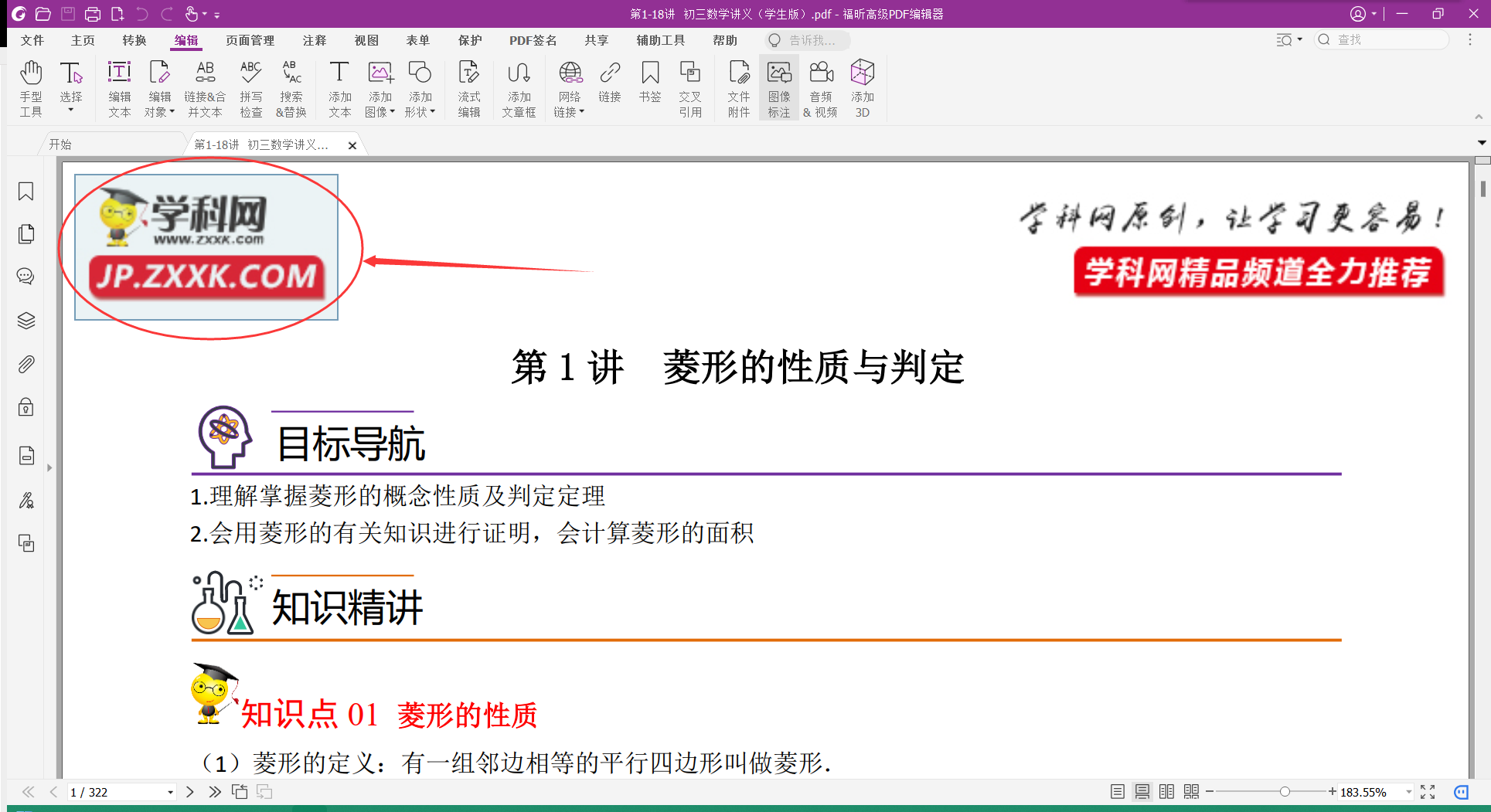
The principle is to cover the watermark image with a white rectangle, thereby removing the watermark.

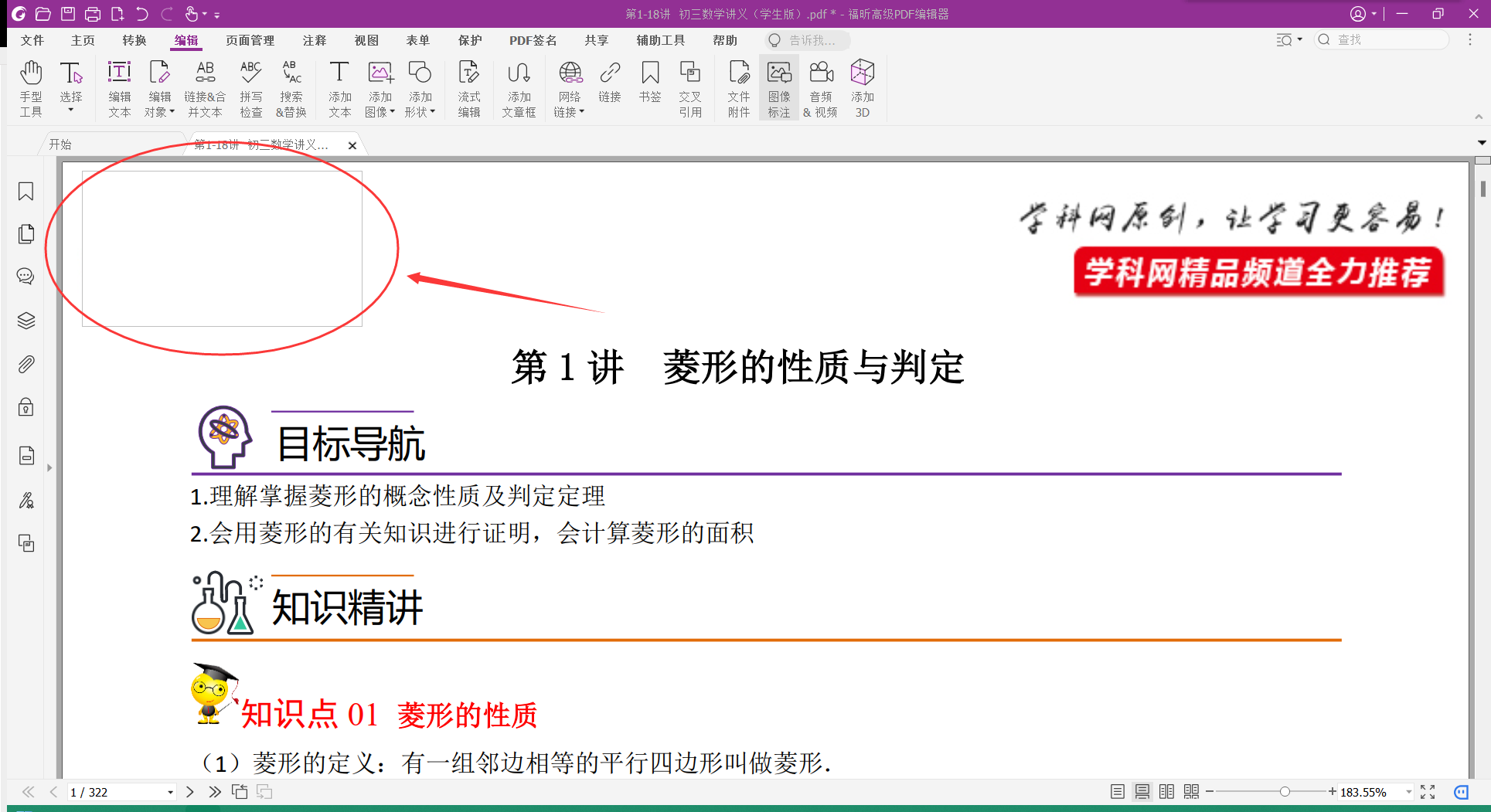
Draw a box over the area that needs to be covered:
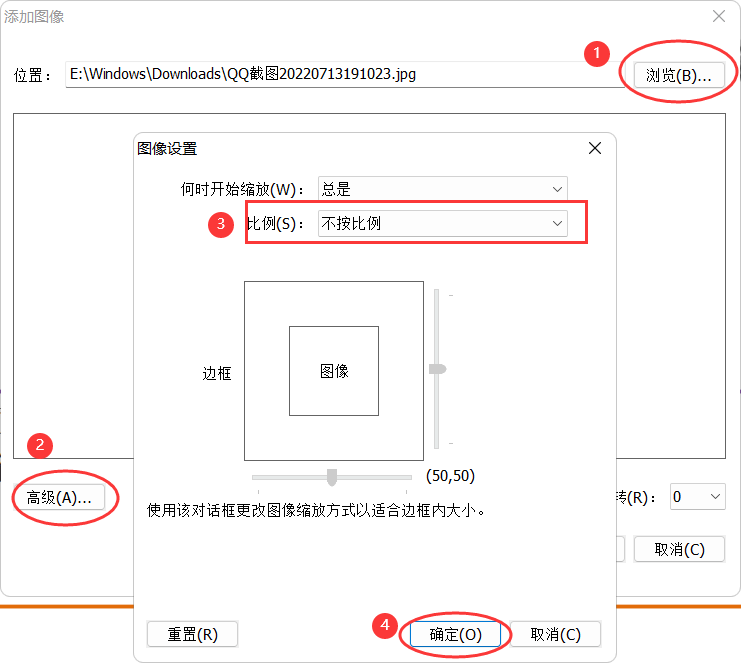
Click Browse, select a solid white image file, then click Advanced and set the scale to Non-proportional. After that, click OK.
You can see that the watermark has been covered by the white rectangle. (This border appears only during editing; it is not visible during normal viewing or printing.)
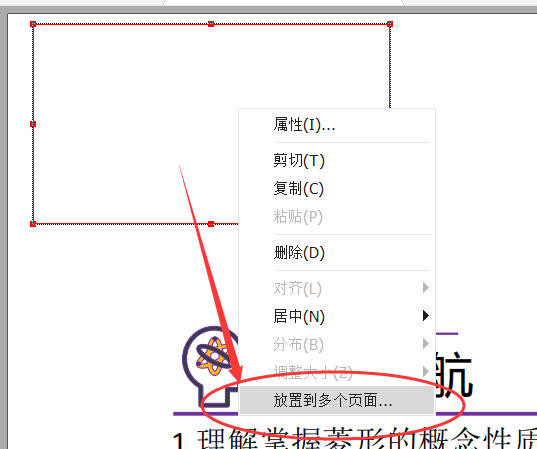
Right-click the white rectangle and select Place on Multiple Pages.
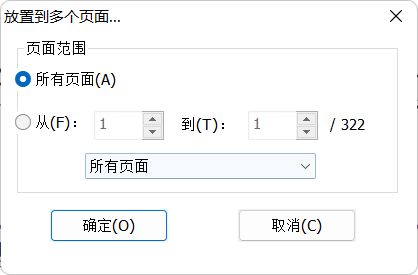
In my case, every page has a watermark in the same position. You can configure this according to your needs. After clicking OK, you can see that the same position on every page has been covered by the white rectangle.
If there are other watermarks, repeat the same procedure. The process is identical.
Comments