
Contents
Install the OneDrive client
Reference project: https://github.com/abraunegg/onedrive
(1) Install dependencies
sudo apt update
sudo apt install build-essential
sudo apt install libcurl4-openssl-dev libsqlite3-dev pkg-config git curl
sudo apt install libnotify-dev
curl -fsS https://dlang.org/install.sh | bash -s dmd
Activate DMD (adjust the command for your own version number)
source ~/dlang/dmd-2.082.0/activate(2) Install the onedrive client
Download the onedrive 2.5.x source. Note that 2.4.x and 2.5.x must not be used at the same time, or you may accidentally delete files. URL: https://github.com/abraunegg/onedrive/releases
git clone https://github.com/abraunegg/onedrive.git
cd onedrive-2.5.5
./configure
make clean
make
sudo make install
(3) First-time configuration
Run the following command: onedrive
onedriveClick the link in the terminal, sign in to your OneDrive account, and you will be redirected to a blank page.
Copy the page URL into the terminal and press Enter. You should see successfully authorised, which means it succeeded.
Download the config file
mkdir -p ~/.config/onedrive
wget https://raw.githubusercontent.com/abraunegg/onedrive/master/config -O ~/.config/onedrive/config
nano ~/.config/onedrive/config
Uncomment the following lines in the config file
sync_dir = "~/disk/ubuntu/onedrive"
monitor_interval = "60"
skip_dir = "图片" #跳过同步的路径,可以用|来分割,例如:"Desktop|Documents/IISExpress*"
(4) Sync
First sync
onedrive --synchronizeLive sync (you can add this to startup programs)
onedrive --monitorGUI
Reference project: https://github.com/bpozdena/OneDriveGUI
With the setup above, you cannot see the live sync process.
You can download the AppImage from the OneDriveGUI project.
Grant execute permission (use the filename of your current latest OneDriveGUI version)
chmod +x OneDriveGUI-1.1.1-x86_64.AppImageFor the first launch, double-click or start it from the terminal
- Consider moving
OneDriveGUI-1.1.1-x86_64.AppImageto another directory so you do not delete it by mistake when cleaning up theDownloadsfolder later
/home/【你的路径】/OneDriveGUI-1.1.1-x86_64.AppImageChoose 【Create New Config】, enter your Microsoft account as the username, and select the path where you want OneDrive files saved.
That gives you OneDrive with a GUI. Click the small triangle on the left to start syncing.
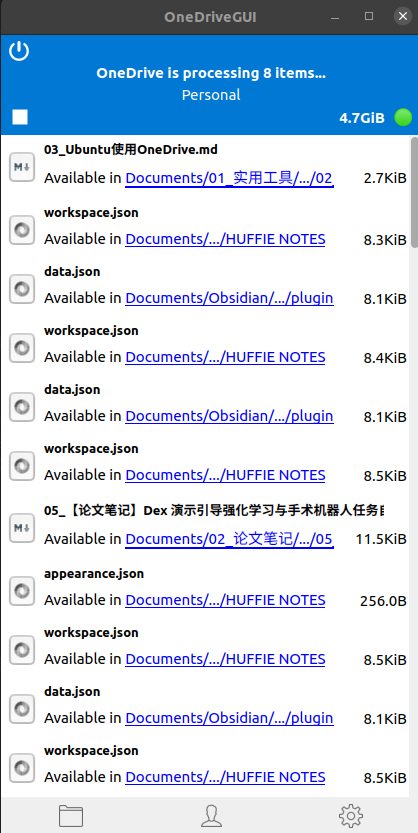
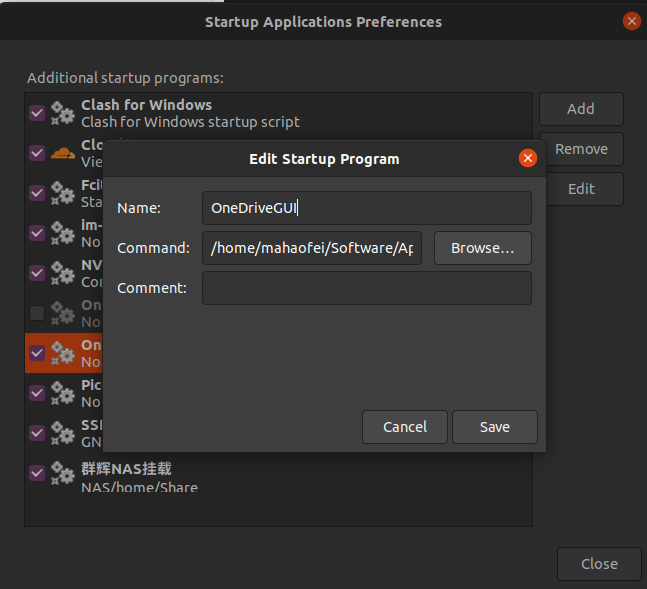
For convenience, I recommend adding the /home/mahaofei/Downloads/OneDriveGUI-1.1.1-x86_64.AppImage command to 【Startup Applications】 in the start menu and setting it to launch on boot. That way OneDrive files will start syncing automatically every time you boot.
Reference links
Comments