Contents
- I. QMainWindow
- 1.1 Overview of the QMainWindow Structure
- 1.2 Menu Bar: QMenuBar
- 1.3 Toolbar: QToolBar
- 1.4 Status Bar: QStatusBar
- 1.5 Dock Widget: QDockWidget
- 1.6 Central Widget: QTextEdit
- 1.7 Designing a Graphical Interface with UI Tools
- II. Resource Files
- 2.1 Importing Resource Files
- 2.2 Using Resources in Code
- Appendix
I. QMainWindow
1.1 Overview of the QMainWindow Structure
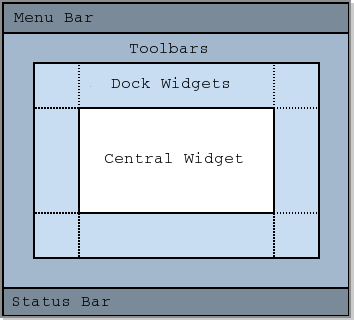
QMainWindow consists of one menu bar, multiple toolbars, multiple dock widgets, one status bar, and one central widget. The specific layout area of each component is shown in the figure.
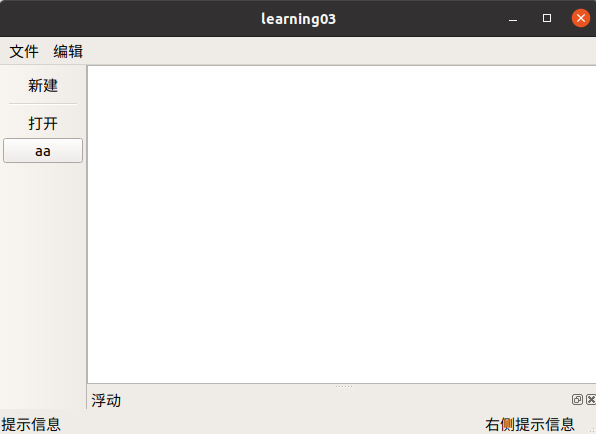
The code and comments used for the image above are included at the end of this article.
1.2 Menu Bar: QMenuBar
The menu bar is the area at the top of the window. Almost every application has a row like this below its title bar: this is the menu bar.

Note: Only one menu bar can be created.
Code Example
Include the QMenuBar header
#include <QMenuBar>Create the menu bar
QMenuBar * bar = menuBar();Place the menu bar in the window
setMenuBar(bar);Create menus on the menu bar (such as File, Edit, Tools, and Help)
QMenu * fileMenu = bar->addMenu("文件");
QMenu * editMenu = bar->addMenu("编辑");
Create menu items (such as New and Open under the File menu)
QAction * newAction = fileMenu->addAction("新建");
//添加分割线
fileMenu->addSeparator();
QAction * openAction = fileMenu->addAction("打开");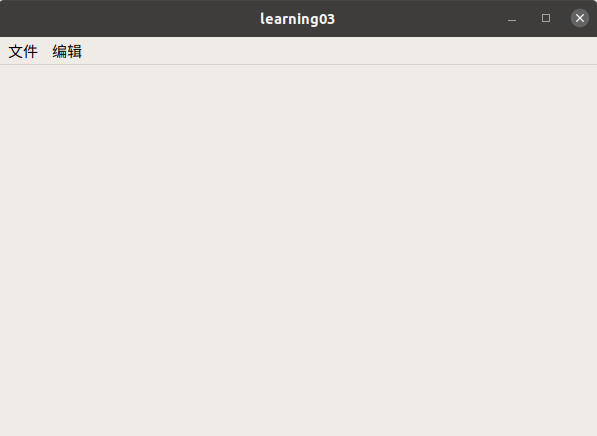
1.3 Toolbar: QToolBar
The toolbar is generally located below the menu bar, on the left or right side, or at the bottom.

Note: Multiple toolbars can be created.
Code Example
Include the toolbar header
#include <QToolBar>Create a toolbar (after it is created, it can be dragged freely)
QToolBar * toolBar = new QToolBar(this);Add the toolbar to the window. Qt::TopToolBarArea places it on the top by default, and the other values work similarly.
addToolBar(Qt::LeftToolBarArea,toolBar);Allow docking only on the left and right
toolBar->setAllowedAreas( Qt::LeftToolBarArea | Qt::RightToolBarArea );Configure floating (it can be dragged, but it cannot be moved)
toolBar->setFloatable(false);Configure movement (the master switch; after it is set to false, it cannot be dragged)
toolBar->setMovable(false);Add content to the toolbar
//将刚才创建的菜单项Action添加到工具栏中
toolBar->addAction(newAction);
//添加分割线
toolBar->addSeparator();
//添加另一个菜单项
toolBar->addAction(openAction);
//工具栏中添加控件
QPushButton * btn = new QPushButton("aa" , this);
toolBar->addWidget(btn);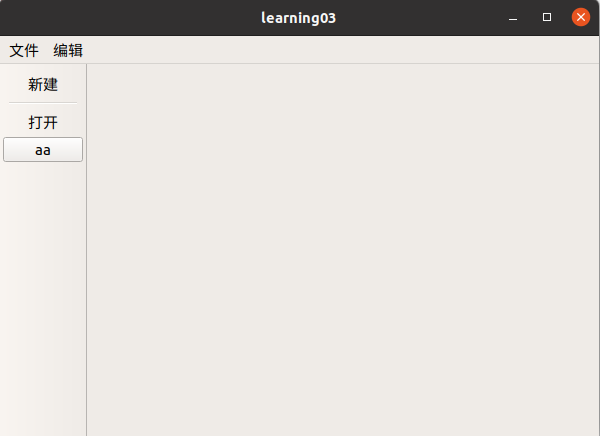
1.4 Status Bar: QStatusBar
The status bar is the bar at the very bottom of the window that displays application status. (For example, the bottom row in PowerPoint and Word shows the word count or number of slides.)

Note: There can be at most one status bar.
Code Example
Include the status bar header
#include <QStatusBar>Create the status bar
QStatusBar * stBar = statusBar();Set the status bar on the window
setStatusBar(stBar);Add label widgets to the menu bar
//引入头文件
#include <QLabel>
QLabel * label = new QLabel("提示信息",this);
stBar->addWidget(label);
QLabel * label2 = new QLabel("右侧提示信息",this);
stBar->addPermanentWidget(label2);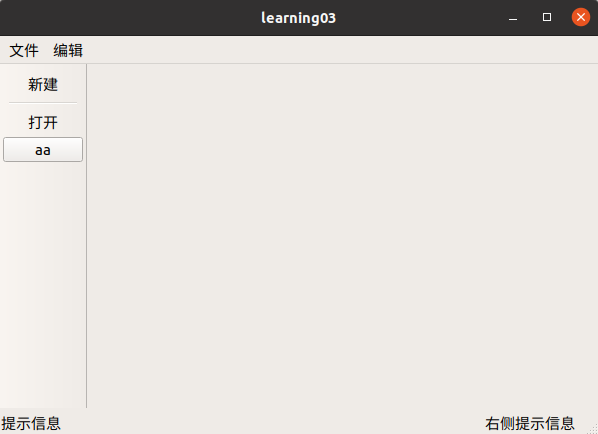
1.5 Dock Widget: QDockWidget
Dock widgets are also called floating windows. They are components positioned around the central widget in a window. Their positions can usually be changed; they can be dragged out to become separate windows, and double-clicked to return them to the parent window.
Common dock widgets include project panes on the left or right of an IDE and the compile output pane at the bottom.
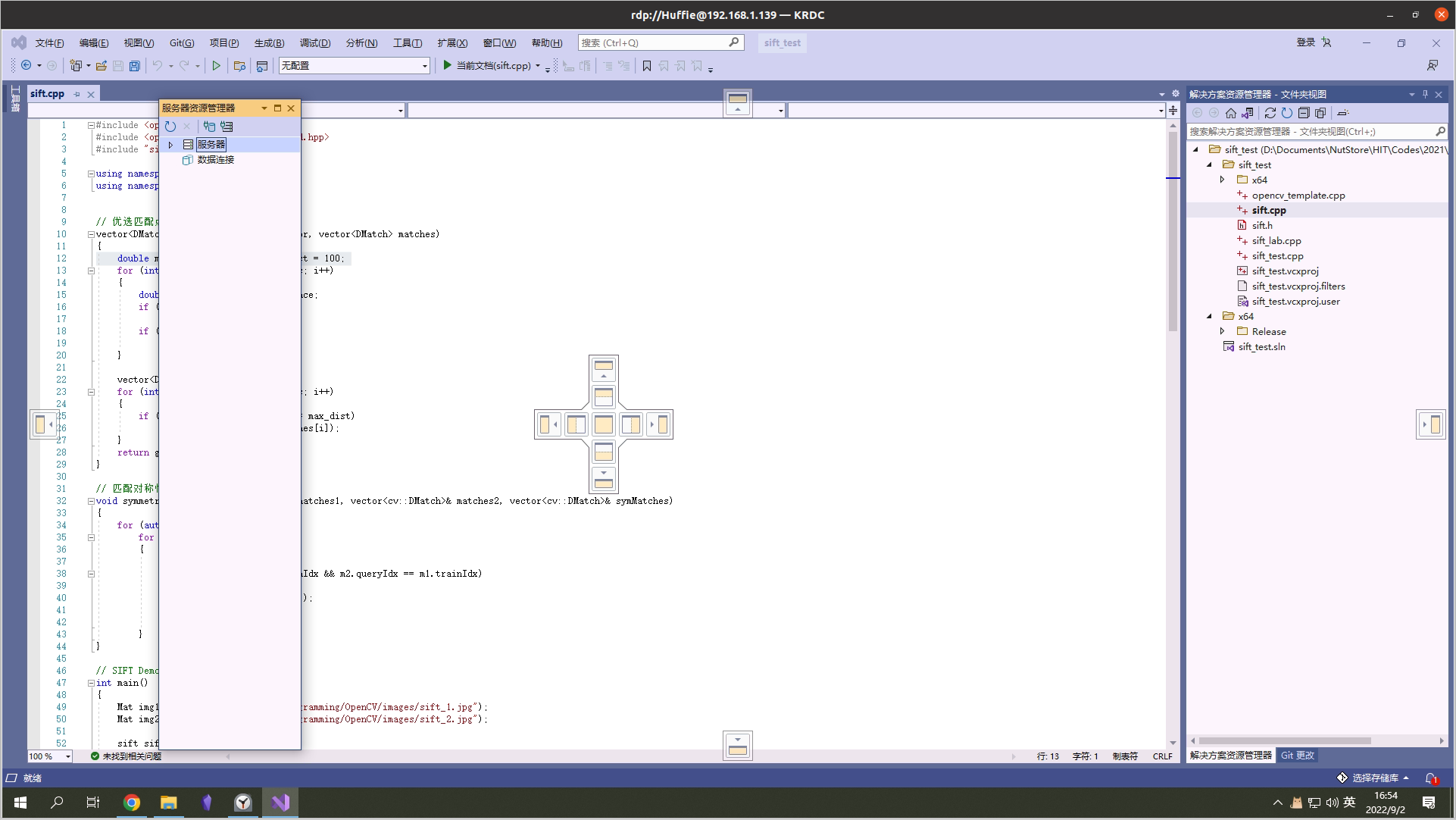
Multiple dock widgets can be created.
Code Example
Include the header
#include <QDockWidget>Create a dock widget
QDockWidget * dockWidget = new QDockWidget("浮动",this);Add the dock widget to the window
addDockWidget(Qt::BottomDockWidgetArea,dockWidget);Set the dock widget’s permitted docking areas, such as allowing only the top and bottom (the parameters are the same as for the toolbar)
dockWidget->setAllowedAreas( Qt::TopDockWidgetArea | Qt::BottomDockWidgetArea );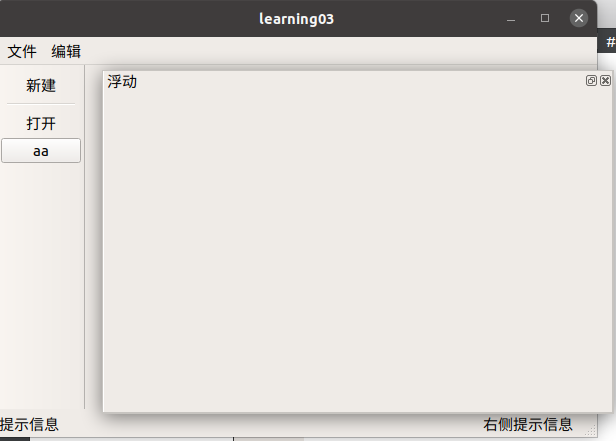
1.6 Central Widget: QTextEdit
The central widget is the central part of a program, such as the code editing area in an IDE or the text editing area in WPS.
Only one central widget can be set.
Code Example
Include the header
#include <QTextEdit>Create the central widget
QTextEdit * edit = new QTextEdit(this);Set the central widget on the parent window
setCentralWidget(edit);
The white area in the middle is the central widget.
1.7 Designing a Graphical Interface with UI Tools
Qt also provides a graphical UI design interface.
Double-click the xxx.ui file in the project files to open the design page.

Here, all the components mentioned above (the menu bar, toolbar, and so on), along with their respective properties, can be placed directly by dragging, and their properties can be modified in the lower-right corner.
All created widgets can be found in the code through ui->abcd.
However, the code structure generated by this layout method is poor.
Typically, a rough version is written in code and then fine-tuned in the designer.
II. Resource Files
Often, a window needs not only text but also icons, images, and other elements to make the application more user-friendly. This requires importing resource files into the project.
2.1 Importing Resource Files
-
First, copy the images to the project folder (note that the images must be in PNG format; directly changing the username has no effect, and they must be converted with image editing software)
-
Right-click the project name -> Add New File -> Qt -> Qt Resource File
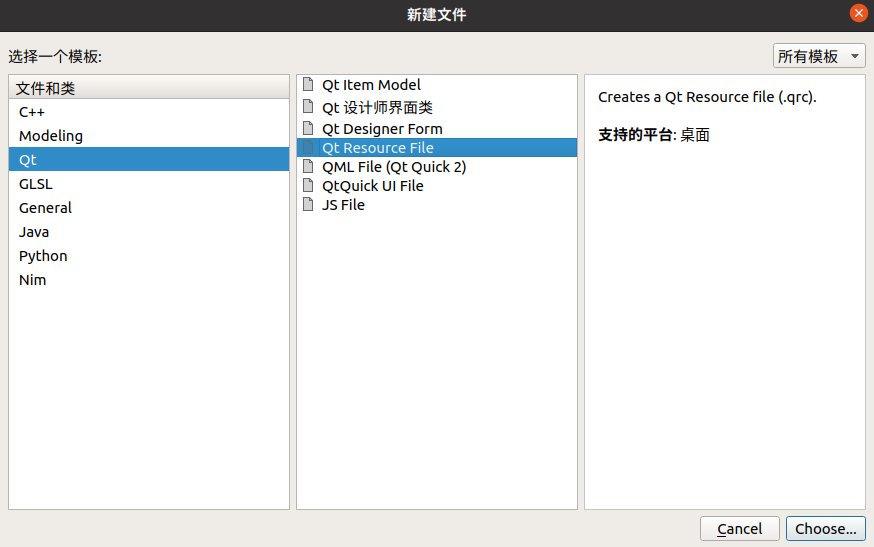
-
This creates a
.qrcfile. Right-click it and selectopen in edit -
Select Add Prefix, then set a prefix yourself
-
Select Add Files -> locate the image folder -> select all images -> Open
-
You can see that a “prefix” folder has appeared under the
.qrcfile
2.2 Using Resources in Code
An example of using a resource in code is shown below:
`ui->actionNew->setIcon(QIcon(``":/前缀/图片文件夹名/图片文件名.png"``));`Appendix
//mainwindow.cpp
#include "mainwindow.h"
#include <QMenuBar>
#include <QToolBar>
#include <QDebug>
#include <QPushButton>
#include <QStatusBar>
#include <QLabel>
#include <QDockWidget>
#include <QTextEdit>
MainWindow::MainWindow(QWidget *parent)
: QMainWindow(parent)
{
//重置窗口大小
resize(600,400);
//菜单栏 只能最多有一个
//菜单栏创建
QMenuBar * bar = menuBar();
//将菜单栏放入到窗口中
setMenuBar(bar);
//创建菜单
QMenu * fileMenu = bar->addMenu("文件");
QMenu * editMenu = bar->addMenu("编辑");
//创建菜单项
QAction * newAction = fileMenu->addAction("新建");
//添加分割线
fileMenu->addSeparator();
QAction * openAction = fileMenu->addAction("打开");
//工具栏 可以有多个
QToolBar * toolBar = new QToolBar(this);
addToolBar(Qt::LeftToolBarArea,toolBar);
//后期设置 只允许 左右停靠
toolBar->setAllowedAreas( Qt::LeftToolBarArea | Qt::RightToolBarArea );
//设置浮动
toolBar->setFloatable(false);
//设置移动 (总开关)
toolBar->setMovable(false);
//工具栏中可以设置内容
toolBar->addAction(newAction);
//添加分割线
toolBar->addSeparator();
toolBar->addAction(openAction);
//工具栏中添加控件
QPushButton * btn = new QPushButton("aa" , this);
toolBar->addWidget(btn);
//状态栏 最多有一个
QStatusBar * stBar = statusBar();
//设置到窗口中
setStatusBar(stBar);
//放标签控件
QLabel * label = new QLabel("提示信息",this);
stBar->addWidget(label);

QLabel * label2 = new QLabel("右侧提示信息",this);
stBar->addPermanentWidget(label2);
//铆接部件 (浮动窗口) 可以有多个
QDockWidget * dockWidget = new QDockWidget("浮动",this);
addDockWidget(Qt::BottomDockWidgetArea,dockWidget);
//设置后期停靠区域,只允许上下
dockWidget->setAllowedAreas( Qt::TopDockWidgetArea | Qt::BottomDockWidgetArea );
//设置中心部件 只能一个
QTextEdit * edit = new QTextEdit(this);
setCentralWidget(edit);
}
MainWindow::~MainWindow()
{
}
Comments