Contents
Software Used (Deskflow)
Deskflow is free software that lets you control multiple computers with a single keyboard and mouse (on a local network).
My setup is to share a keyboard, mouse, and clipboard between a Windows 11 host and an Ubuntu 20.04 host on the same local network, with the keyboard and mouse connected to the Windows machine as the server and Linux as the client.
Software Installation
1.1 Windows
On the Github page above, download the latest release, for example: deskflow-1.24.0-win-x64.msi, and install it directly.
1.2 Ubuntu
On the Github page above, download the latest release deskflow-1.24.0-ubuntu-plucky-x86_64.deb
sudo dpkg -i deskflow-1.24.0-ubuntu-plucky-x86_64.debSoftware Configuration
Make sure both computers are on the same local network
2.1 Launch the Software
On Windows, open Deskflow. After launching the app, check Use this computer’s keyboard and mouse.
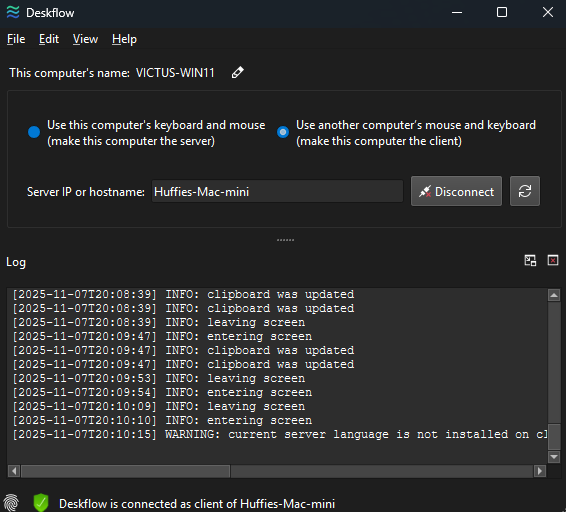
On Ubuntu, open Deskflow from the application menu, or run deskflow from the command line. After launching the app, select Use another computer’s mouse and keyboard, then enter the Windows computer’s IP below.
You can find the IP in Settings under the Wi-Fi details, or run
ipconfigin the command line to check the wlan IP.
2.2 Configure the Server
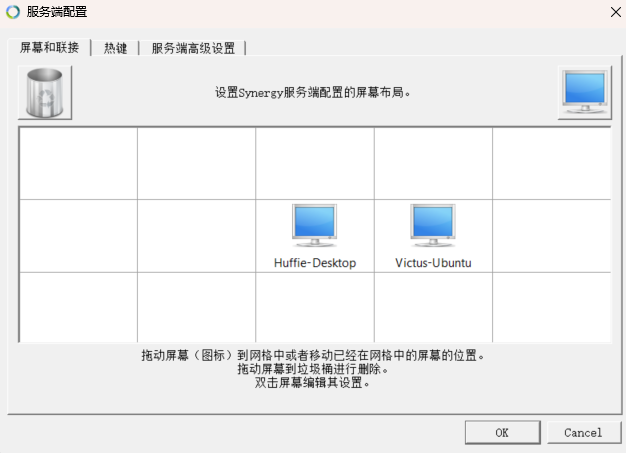
On the server computer, click Configure Server, then drag a computer icon from the upper-right corner to a spot next to your computer. For Screen name, enter the computer name shown under Client on Ubuntu.
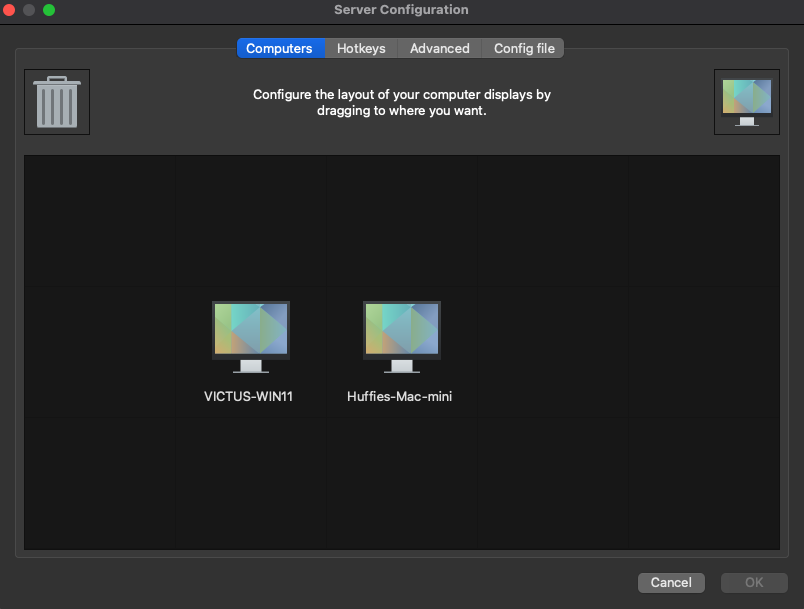
The computer name is the text after @ in the Ubuntu terminal, or on Windows you can check it in Settings > System.
Comments