Scenario
I have two computers, one running Windows and the other Ubuntu. I use Deskflow to control both with the same keyboard and mouse and to share the clipboard, but transferring files between the two devices is still inconvenient. I therefore decided to create a shared folder in Ubuntu and add it in Windows to enable file transfers.
Ubuntu Configuration
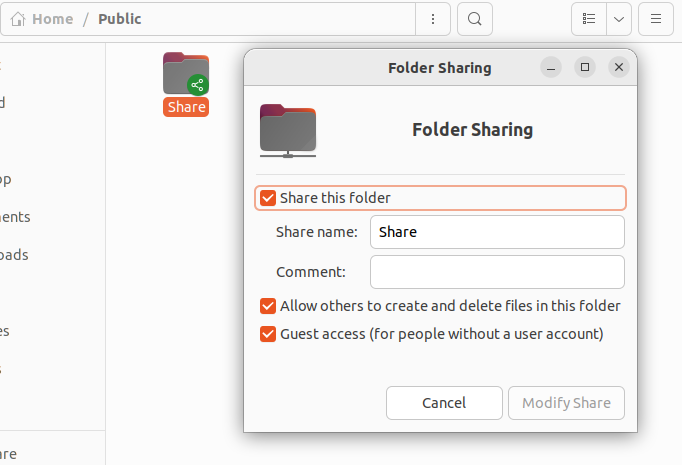
(1) Create a shared folder
At /home/username/Public/Share, you can create the Share folder, as I did.
You can also share another folder, such as
/home/usrnamedirectly.
(2) Configure Samba
Back up the original /etc/samba/smb.conf.
sudo cp /etc/samba/smb.conf /etc/samba/smb_bk.confEdit /etc/samba/smb.conf and append the shared-directory information to the end of the file. For example, the following shares the entire user’s home directory:
[共享目录名]
	path = /path/共享目录名
# 例如
[share]
	path = /home/username
	browseable = yes
	writable = yes
	read = yes
	directory mask = 0775
	create mask = 0775
Create a Samba user.
sudo touch /etc/samba/smbpasswd
sudo smbpasswd -a 用户名
Then enter a password as prompted (this username and password are the credentials required to access the shared folder).
(3) Start Samba
Restart the Samba service.
sudo /etc/init.d/smbd restartConfigure the Samba service to start automatically at boot.
sudo systemctl enable smbdWindows Configuration
(1) Method 1: Add a network location
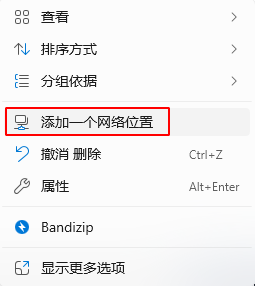
Open 此电脑 (This PC), right-click an empty area, and select 添加一个网络位置 (Add a network location).
Enter the path in the format \\IP地址\共享目录名, as shown below:
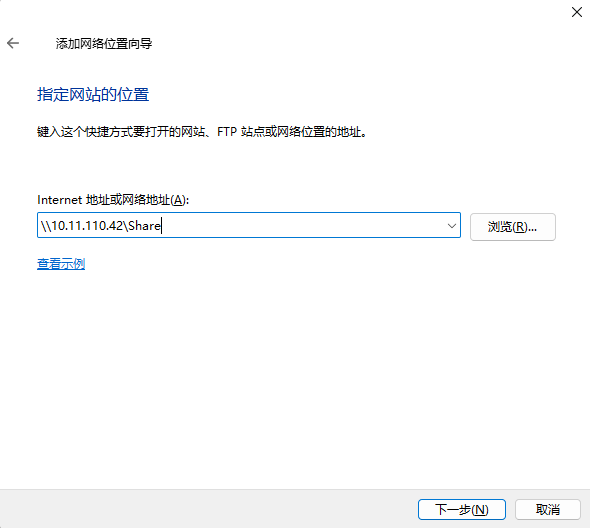
Click Next, enter the username and password you just configured, and the connection will be established.
P.S. If a previous attempt to add the location failed, opening it this way may produce an error. In that case, you need to remove the existing connection between them.
- Open a CMD window.
- Run
net useto view the currently established connections.- Run
net use */deleteto close all current connections.
(2) Method 2: Map it as a drive
In Windows, open This PC, click Map network drive, and enter the address \\IP\Share.
Then enter your username and password.
References:
Comments