Contents
1. Pair the Bluetooth Device in Ubuntu
This generates a configuration file.
2. Pair the Bluetooth Device Again in Windows
Retrieve the Bluetooth pairing information. Windows stores Bluetooth pairing information in the registry, and a special method is required to view it.
Download PsTools and extract PsExec.exe or PsExec64.exe from PSTools.zip. Run cmd with administrator privileges, cd to the directory containing PsExec64.exe, and use the following command to launch regedit.exe:
psexec64.exe -si regeditLocate the following Bluetooth pairing information:
HKEY_LOCAL_MACHINE\SYSTEM\CurrentControlSet\Services\BTHPORT\Parameters\Keys\【本机蓝牙 MAC】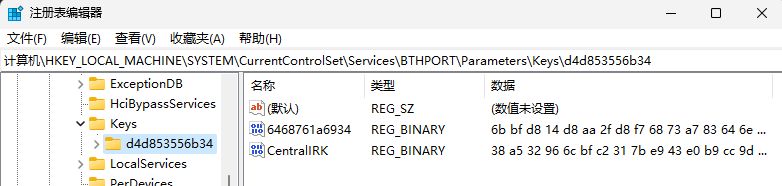
You can see values of type REG_BINARY, with each value corresponding to a device. Record each value’s name and data, or simply export it. I exported the data and opened it in Notepad, as shown below:
Windows Registry Editor Version 5.00

[HKEY_LOCAL_MACHINE\SYSTEM\CurrentControlSet\Services\BTHPORT\Parameters\Keys\d4d853556b34]
"CentralIRK"=hex:38,a5,32,96,6c,bf,c2,31,7b,e9,43,e0,b9,cc,9d,d6
"6468761a6934"=hex:6b,bf,d8,14,d8,aa,2f,d8,f7,68,73,a7,83,64,6e,8f
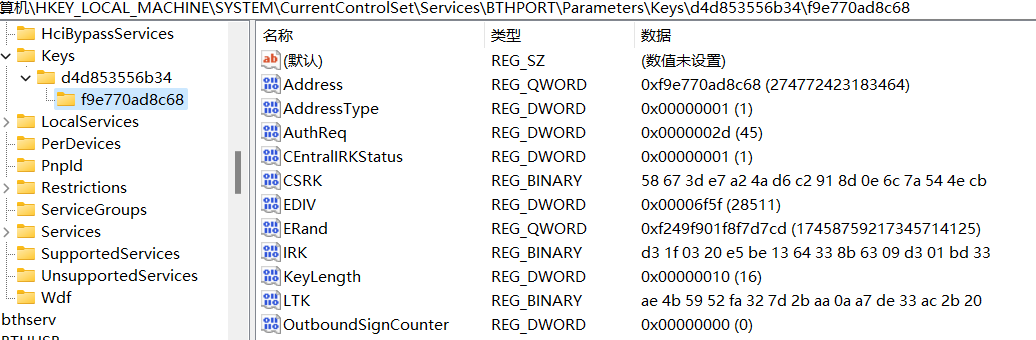
Additionally, for a Logitech device, such as my Logitech mouse, you need to export the subkey under
【本机蓝牙 MAC】. The subkey’s name is the Logitech mouse’s MAC address, and its values are what must be entered in Ubunut.
3. Modify the Bluetooth Pairing Information in Linux
3.1 General Devices
In Linux, Bluetooth device pairing information is stored under /var/lib/bluetooth/【本机蓝牙 MAC】, for example, /var/lib/bluetooth/D4:D8:53:55:6B:34. All letters in the MAC address are uppercase, and the address uses colons as separators.
Enter this directory:
sudo su
cd /var/lib/bluetooth/D4\:D8\:53\:55\:6B\:34/
You can see the Bluetooth devices already paired with the system:
root@Victus-Ubuntu:/var/lib/bluetooth/D4:D8:53:55:6B:34# ll
total 44
drwx------ 7 root root  4096 12月 13 22:19 ./
drwxr-xr-x 3 root root  4096 5月  13  2023 ../
drwx------ 2 root root  4096 12月 13 22:19 64:68:76:1A:69:34/
drwx------ 2 root root  4096 12月 13 22:19 A4:C1:38:AB:43:5C/
drwx------ 2 root root 16384 12月 13 22:20 cache/
drwx------ 2 root root  4096 12月 13 22:19 EC:B3:D5:3C:5F:92/
drwx------ 2 root root  4096 12月 13 22:20 F9:E7:70:AD:8C:64/
-rw------- 1 root root    50 12月 13 22:19 settings
Based on the reg file we exported, enter the directory for the Bluetooth mouse we want to configure:
cd 64\:68\:76\:1A\:69\:34/We need to modify the info file in this directory. Here is mine as an example (it has already been modified; you only need to replace Key with the key exported from the Windows registry—specifically, remove the commas and convert the lowercase letters to uppercase):
[General]
Name=EDIFIER W820NB 双金标版
Class=0x240404
SupportedTechnologies=BR/EDR;
Trusted=true
Blocked=false
Services=00001101-0000-1000-8000-00805f9b34fb;0000110b-0000-1000-8000-00805f9b34fb;0000110c-0000-1000-8000-00805f9b34fb;0000110d-0000-1000-8000-00805f9b34fb;0000110e-0000-1000-8000-00805f9b34fb;0000111e-0000-1000-8000-00805f9b34fb;66666666-6666-6666-6666-666666666666;edf00000-edfe-dfed-fedf-edfedfedfedf;

[LinkKey]
Key=6BBFD814D8AA2FD8F76873A783646E8F
Type=4
PINLength=0
3.2 Logitech Devices
Reverse the byte order of the Windows IRK, convert it to uppercase, and remove the commas to obtain Ubuntu’s IdentityResolvingKey:
"IRK"=hex:d3,1f,03,20,e5,be,13,64,33,8b,63,09,d3,01,bd,33

[IdentityResolvingKey]
Key=33BD01D309638B6413BEE520031FD3
For the Windows LTK, convert it to uppercase and remove the commas to obtain Ubuntu’s LontermKey. EDIV must be converted to base 10 to become Ubuntu’s EDiv. For ERand, remove the commas and convert it to base 10 to obtain Ubuntu’s Rand.
"LTK"=hex:ae,4b,59,52,fa,32,7d,2b,aa,0a,a7,de,33,ac,2b,20
"ERand"=hex(b):cd,d7,f7,f8,01,f9,49,f2
"EDIV"=dword:00006f5f

[LongTermKey]
Key=AE4B5952FA327D2BAA0AA7DE33AC20
Authenticated=0
EncSize=16
EDiv=28511
Rand=14832596542325082602
Then restart the computer, and you can connect over Bluetooth directly.
Comments