Create a More Efficient Shell Environment with Zsh
Zsh is fully compatible with Bash, supports intelligent command completion, offers a wide range of UI themes and plugins, and greatly improves both efficiency and aesthetics.
17 posts
Zsh is fully compatible with Bash, supports intelligent command completion, offers a wide range of UI themes and plugins, and greatly improves both efficiency and aesthetics.
Certain needs, such as restarting a task at scheduled times, publishing blog updates on a schedule, or regularly backing up files, require certain tasks to be run on a schedule.
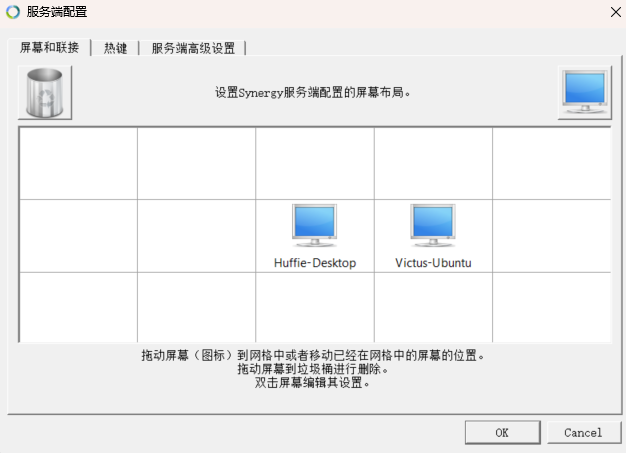
Deskflow is free software that lets you control multiple computers with a single keyboard and mouse.
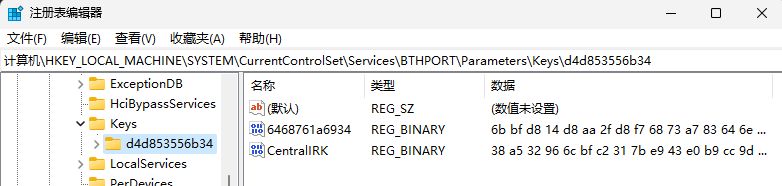
I have Ubuntu and Windows installed in a dual-boot setup and usually use a Bluetooth mouse and headphones. However, I have to re-pair the devices every time I switch operating systems, so I wanted to make pairing work across both systems.
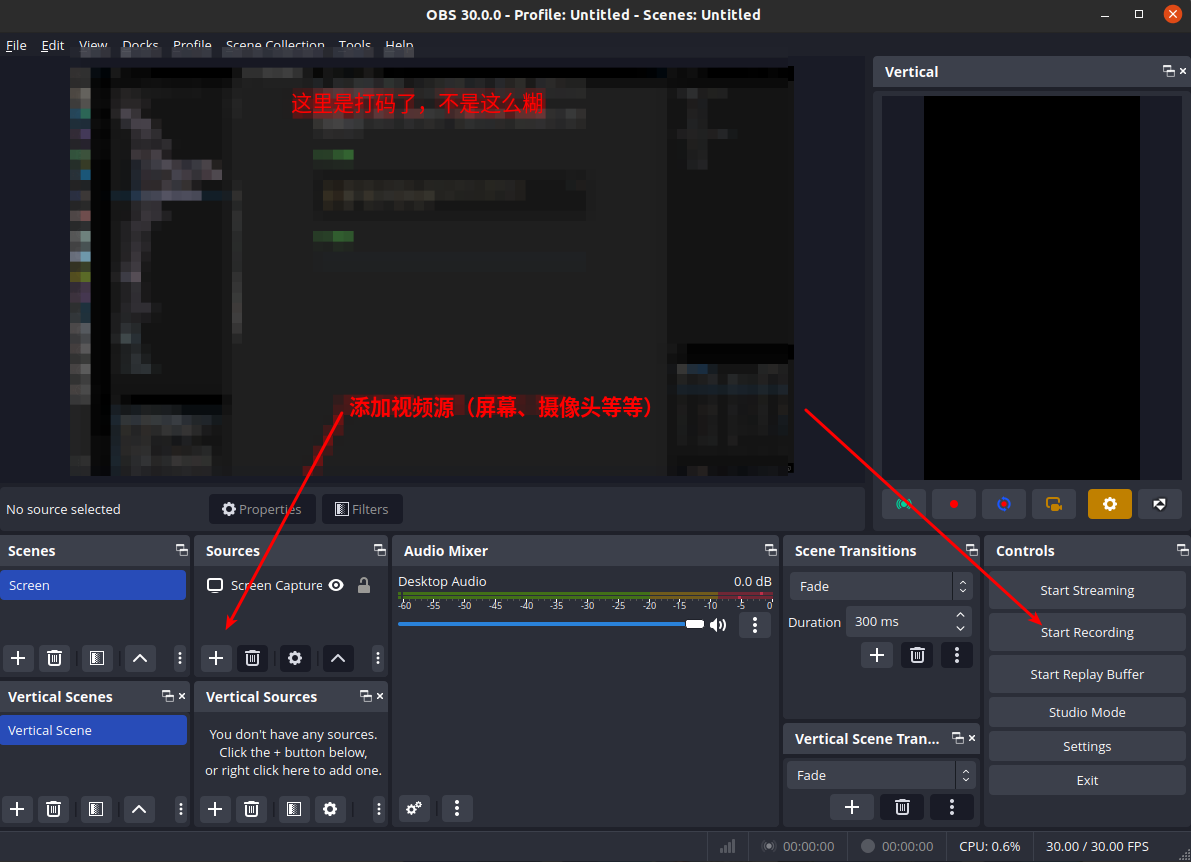
By default, Ubuntu can only take screenshots but cannot take screenshots, and the experience is very poor, so this article introduces two screenshot and screen recording tools I commonly use.
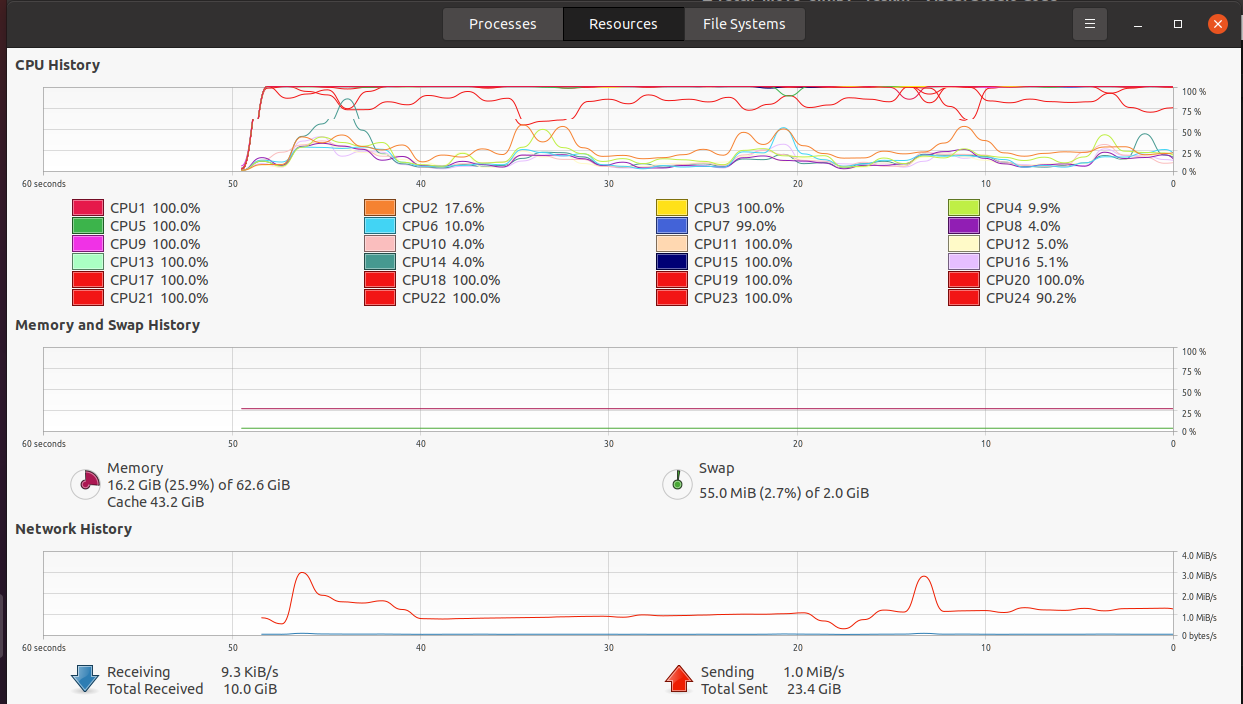
When running certain algorithms, you may sometimes need to check system resource usage to see whether the algorithm needs optimization or whether multithreading can be enabled. This requires checking the available system resources.
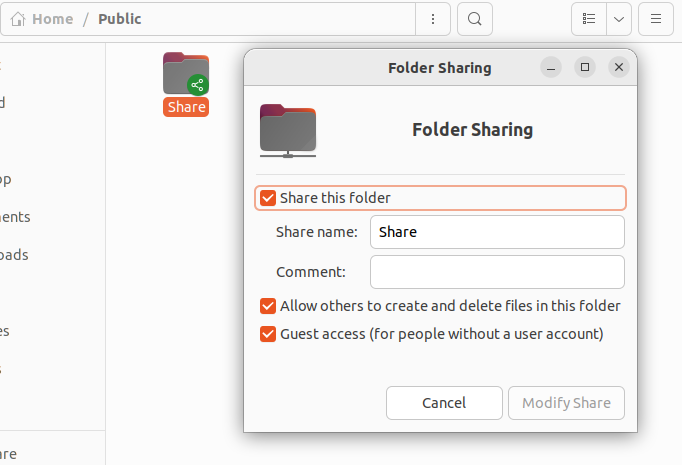
Explains how to set up a shared folder between Ubuntu and Windows for convenient file transfers.
I previously used Nutstore for multi-device sync, but Nutstore only provides 1G of traffic per month, which is not enough. So I switched to OneDrive. This post records the OneDrive setup process on Ubuntu.
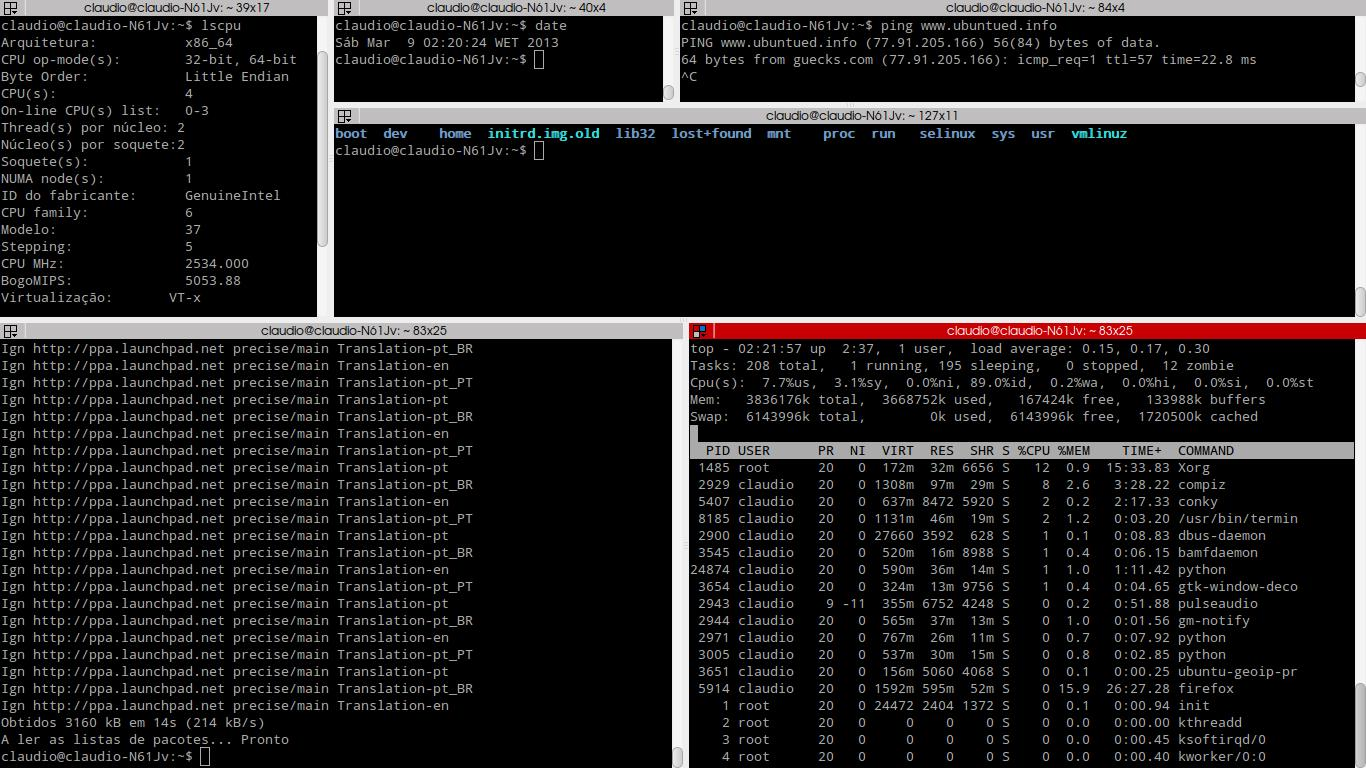
A handy terminal emulator.
Environment setup can be tedious, and many programs' dependency environments can conflict with the local environment. Docker is a good way to avoid these issues.
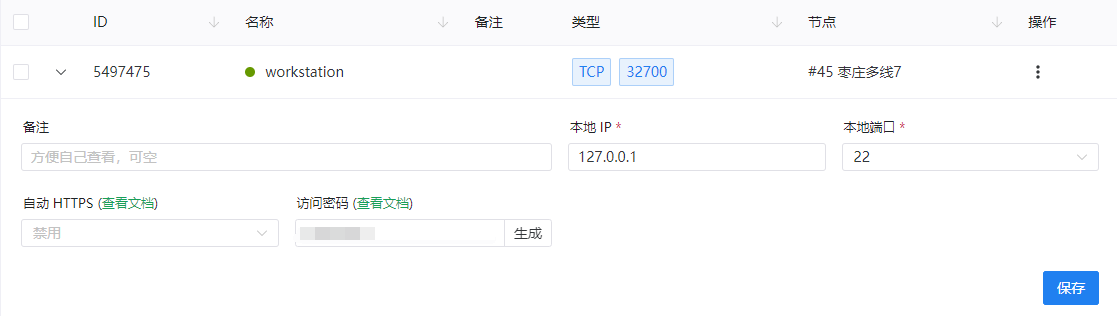
I don't want to use remote desktop tools such as Sunlogin and ToDesk. My personal computer and the server are not on the same LAN, but I need remote access to the server, so I'm considering NAT traversal.
Notes from configuring Ubuntu after installation. I recently set up dual-boot systems and also tinkered with a Raspberry Pi; here is a summary.
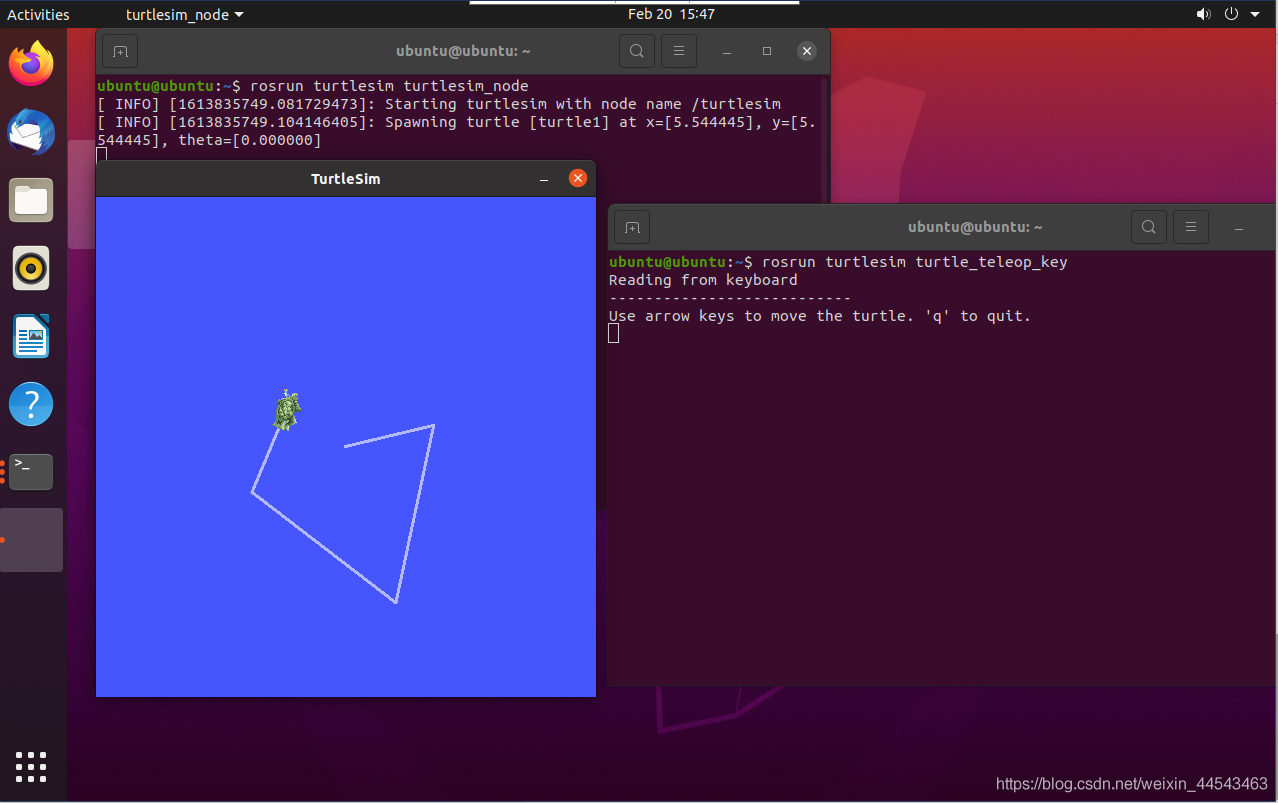
Add the ROS software repository: open Software & Updates and select the first four download options. Make sure all of them are checked, or dependency issues will occur during installation. Then run the following commands to add the software repository and public key.
I tried using PicGo on Ubuntu, but every time I installed a plugin, it prompted me to install Node.js. Following the installation steps did not solve the issue, so I reinstalled Node.js.
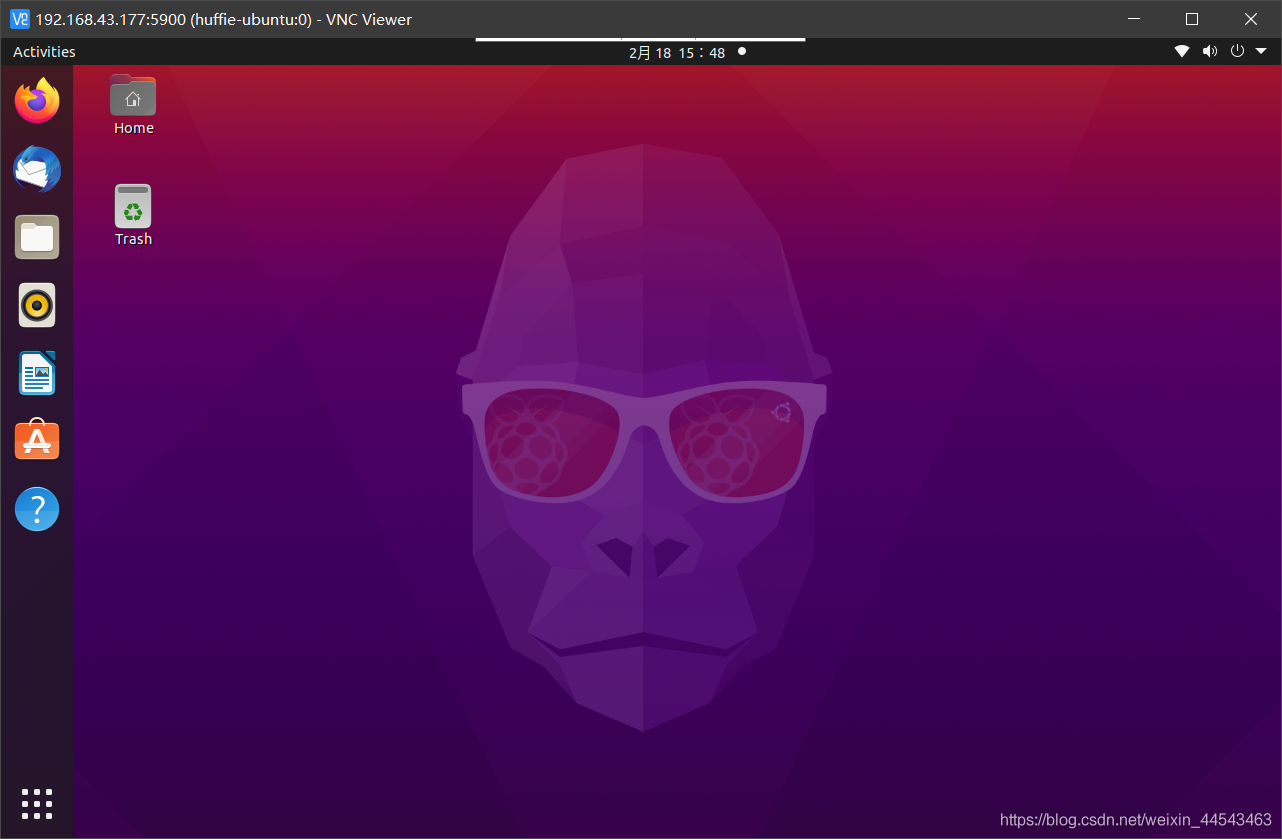
I wanted to connect to my Raspberry Pi remotely using VNC. I searched online and tried many related blog posts and various methods, but I kept running into problems. Finally, after much effort, I found a method that works.
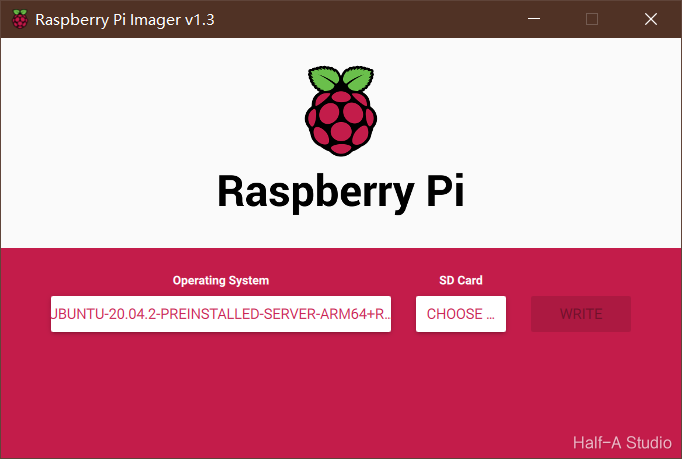
Go to the official Ubuntu website and download the Ubuntu installation package for Raspberry Pi. Use DiskGenius to format the SD card, delete all sectors, and then format it. Download the official imaging tool, select the .xz file you just downloaded as the image, select your SD card, and write the image. Then configure the Ubuntu environment...
A collection of issues encountered while using Ubuntu.