
Because most distributions ship with Bash as the default shell, Bash is typically the one you’re most familiar with.
For example, the !#/bin/bash at the start of Bash/Python scripts, the frequently used command source ~/.bashrc, and so on.
Zsh is a Bash-compatible shell designed for interactive use, though it is also a powerful scripting language. Many useful features from Bash, ksh, and tcsh have been incorporated into Zsh, along with many original features.
Compared with Bash, Zsh offers the following advantages:
- Powerful Tab completion. Commands, command arguments, and file paths can all be completed.
- A rich plugin ecosystem. Quickly reuse previously entered commands, jump between folders, and display system load—these can all be achieved through plugins.
- Rich themes.
- High customizability.
Importantly, Zsh is fully compatible with Bash. If your Bash scripts start with !#/bin/bash, they remain fully Bash-compatible under Zsh.
Install Zsh
Check which shells are available on your system:
cat /etc/shellsInstall Zsh
sudo apt-get install zshRecheck the shells available on the system and you’ll see Zsh has been added:
cat /etc/shells$ cat /etc/shells
# /etc/shells: valid login shells
/bin/sh
/bin/bash
/usr/bin/bash
/bin/rbash
/usr/bin/rbash
/bin/dash
/usr/bin/dash
/usr/bin/tmux
/bin/zsh
/usr/bin/zshCheck the current default shell:
echo $SHELL
Change the default shell: change the terminal shell for both your user account and the root user.
sudo chsh -s /bin/zsh
chsh -s /bin/zsh
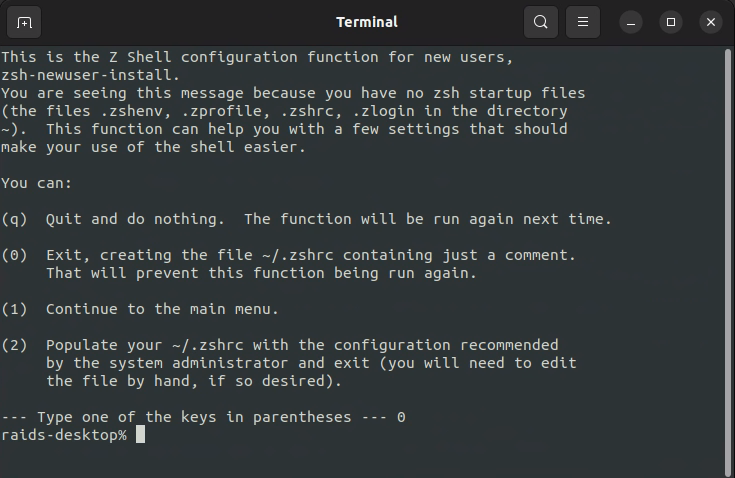
Restart the system, open a terminal, and on the first launch Zsh will enter the setup interface. Enter 0 to skip.
Install Oh My ZSH!
Because Zsh configuration is complex and has a high barrier to entry, developers created oh my zsh, which greatly lowers the barrier to getting started.
sh -c "$(curl -fsSL https://raw.githubusercontent.com/ohmyzsh/ohmyzsh/master/tools/install.sh)"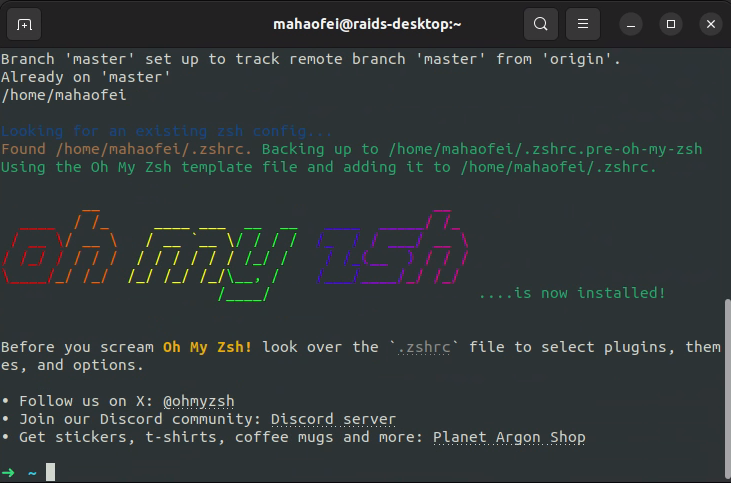
Configure the Theme: powerlevel10k
Reference: https://github.com/romkatv/powerlevel10k
(0) Install fonts
Download the following files:
- MesloLGS NF Regular.ttf
- MesloLGS NF Bold.ttf
- MesloLGS NF Italic.ttf MesloLGS NF Italic.ttf
- MesloLGS NF Bold Italic.ttf
Open Terminal->Preferences, select a profile, and set the custom font to MesloLGS NF Regular.
(1) Install the theme
Clone the repository:
git clone --depth=1 https://github.com/romkatv/powerlevel10k.git ${ZSH_CUSTOM:-$HOME/.oh-my-zsh/custom}/themes/powerlevel10k(2) Set the theme
Open ~/.zshrc, find the line containing ZSH_THEME, and change its value to "powerlevel10k/powerlevel10k".
vim ~/.zshrcZSH_THEME="powerlevel10k/powerlevel10k"Finally, run source ~/.zshrc to apply the configuration. You will then be prompted to configure the theme; follow the prompts.
Install Plugins
(0) Built-in oh-my-zsh command completion
By default, oh-my-zsh provides the following automatic command completion features:
- Automatic directory listing: type cd and press tab; directories are listed automatically, and press tab again to cycle through them
- Automatic abbreviated directory completion: to access the long path
/usr/local/bin, just typecd /u/l/band press Tab to complete it automatically - Automatic case correction: to access the Desktop folder, just type
cd deand press Tab to complete it, or to viewREADME.md, just typecat reafor automatic correction and completion - Automatic command completion: type
kubectland press Tab to see available commands - Automatic command-argument completion: type
killand press Tab to display process IDs automatically
(1) zsh-completions: additional command completion
Additional automatic completion that supplements commands not yet supported in Zsh.
Install:
git clone --depth=1 https://github.com/zsh-users/zsh-completions ${ZSH_CUSTOM:-${ZSH:-~/.oh-my-zsh}/custom}/plugins/zsh-completionsAdd the following to ~/.zshrc before source "$ZSH/oh-my-zsh.sh".
fpath+=${ZSH_CUSTOM:-${ZSH:-~/.oh-my-zsh}/custom}/plugins/zsh-completions/srcOpen a new shell or run source ~/.zshrc to apply the configuration.
(2) zsh-autosuggestions: completion based on command history
It provides instant suggestions based on your command history, and you can accept a suggestion by pressing the right → key.
Install:
git clone --depth=1 https://github.com/zsh-users/zsh-autosuggestions.git ${ZSH_CUSTOM:-${ZSH:-~/.oh-my-zsh}/custom}/plugins/zsh-autosuggestionsEdit ~/.zshrc, find the line plugins=(git), and change it to:
plugins=( git zsh-autosuggestions )Open a new shell or run source ~/.zshrc to apply the configuration.
(3) zsh-syntax-highlighting: syntax highlighting
Effect: incorrect commands are shown in red until you type them correctly, at which point they turn green; valid paths are also underlined.
Install:
git clone --depth=1 https://github.com/zsh-users/zsh-syntax-highlighting.git ${ZSH_CUSTOM:-~/.oh-my-zsh/custom}/plugins/zsh-syntax-highlightingEdit ~/.zshrc and add the plugin name to the following section:
plugins=( git zsh-autosuggestions zsh-syntax-highlighting)Open a new shell or run source ~/.zshrc to apply the configuration.
(4) z: folder jumping
z is a quick folder-jump plugin. For directories you have visited before, you only need to type the destination folder name to jump there quickly, avoiding long paths and improving the efficiency of switching folders.
Because oh-my-zsh includes the z plugin by default, you only need to add z to the plugin list in .zshrc:
plugins=( git zsh-autosuggestions zsh-syntax-highlighting z)Example usage:
# 任意位置下使用命令
z grasp_ros_ws
# 直接跳转至以前曾进入过的文件夹~/Programs/Grasp/6D_Grasp/grasp_ros_ws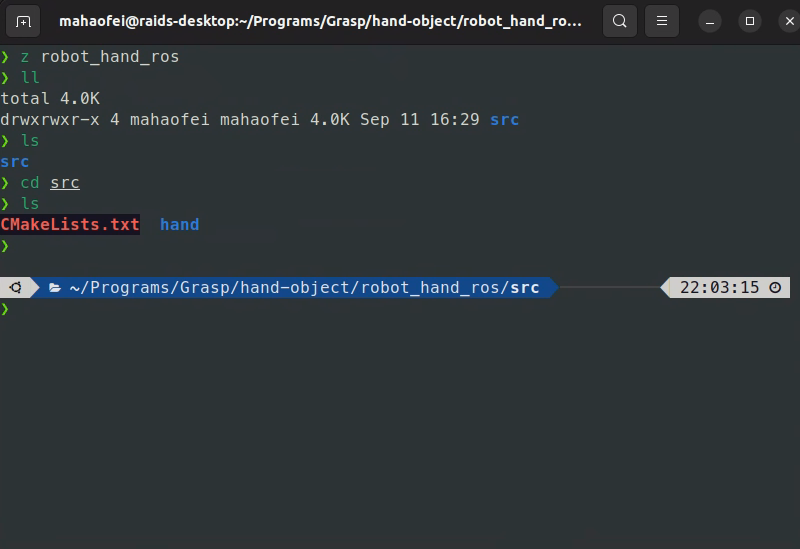
References:
Comments