Contents
This article refers to the ROS official website http://wiki.ros.org/ and its relevant installation tutorial.
I. Preparation
1. Add the ROS Software Repository
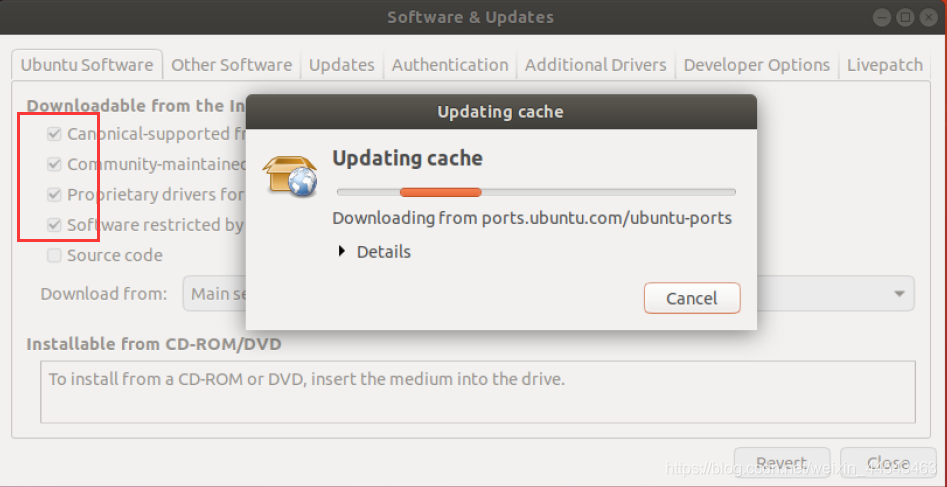
Open Software & Updates and select the first four download options.
Make sure all of them are checked, or dependency issues will occur during installation.
 Then run the following command to add the software repository.
sudo sh -c 'echo "deb https://mirrors.tuna.tsinghua.edu.cn/ros/ubuntu $(lsb_release -sc) main" > /etc/apt/sources.list.d/ros-latest.list'2. Add the Public Key
sudo apt-key adv --keyserver 'hkp://keyserver.ubuntu.com:80' --recv-key C1CF6E31E6BADE8868B172B4F42ED6FBAB17C6543. Update the Package Index
sudo apt-get updateII. Install ROS
1. Install ROS
Installing the full desktop version is recommended.
sudo apt install ros-noetic-desktop-full2. Set Environment Variables
echo "source /opt/ros/noetic/setup.bash" >> ~/.bashrc
source ~/.bashrc
3. Initialize rosdep
Before using many ROS tools, you need to initialize rosdep. rosdep is required to run some core ROS components. First, install rosdep.
sudo apt install python3-rosdepThen initialize it.
sudo rosdep init
rosdep update
If rosdep init reports 【ERROR: cannot download default sources list from:… Website may be down.】 If rosdep update times out: Solution: 1.
sudo apt-get install python3-pip2.sudo pip3 install rosdepc3.sudo rosdepc init4.rosdepc update
4. Install Other Tools and Dependencies
sudo apt install python3-rosdep python3-rosinstall python3-rosinstall-generator python3-wstool build-essentialIII. Test
Open a terminal, enter roscore, and run ROS.
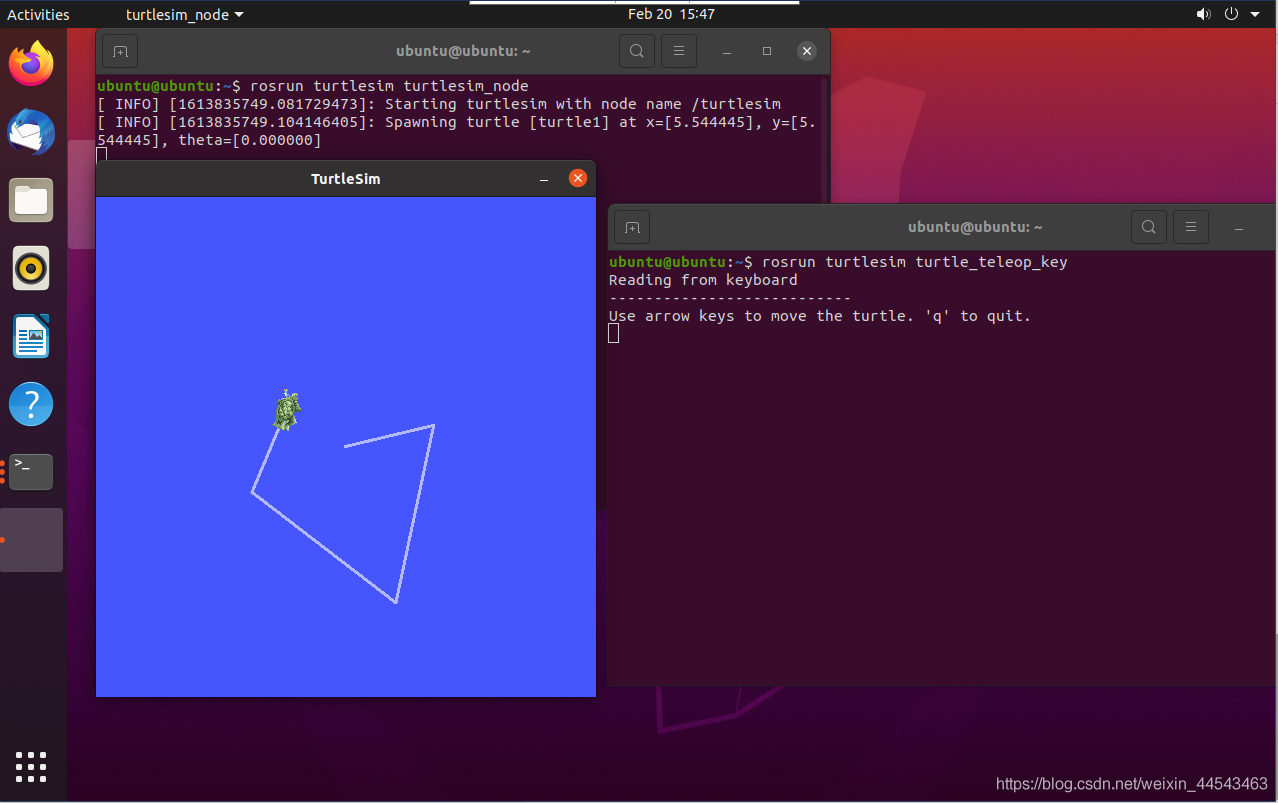
Then open a new terminal and enter rosrun turtlesim turtlesim_node. The turtle simulation interface will open. Then open another new terminal and enter the command rosrun turtlesim turtle_teleop_key. In this terminal, you can use the keyboard arrow keys to control the turtle’s movement in the interface.
Comments