Linux Setup
(1) SSH configuration
Install the OpenSSH server and client
sudo apt -y install openssh-server
sudo apt -y install openssh-client
Configure the SSH client
sudo gedit /etc/ssh/sshd_config- Change
PermitRootLogin prohibt-passwordtoPermitRootLogin yes - Remove the leading # before
PasswordAuthentication yesto uncomment it
Restart the SSH service
sudo /etc/init.d/ssh restartCheck the SSH service status
sudo /etc/init.d/ssh status(2) Sakura configuration
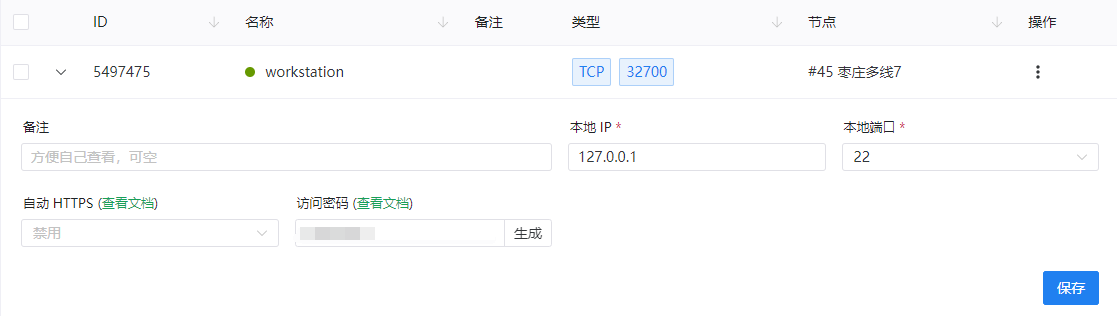
Go to the tunnel list and create a new tunnel:
- Prefer a domestic node when possible
- Set the tunnel type to TCP
- Set the local port to SSH
- The default host IP 127.0.0.1 is fine (it refers to the local machine used for NAT traversal)
Download the matching frpc build from the official site and copy the download link
wget -O frpc <下载地址>
chmod 755 frpc
ls -ls frpc
md5sum frpc
frpc -v
Copy the tunnel key from the tunnel configuration page
On Ubuntu, start the tunnel with the following command
frpc -f <复制的密钥>Windows Setup
Open Settings > Apps > Optional features and add OpenSSH Server and OpenSSH Client.
Open Services, find OpenSSH SSH Server and OpenSSH Authentication Agent, then start each service and set it to start automatically.
Open PowerShell and use the following command to check installation and status
Get-Service sshdOpen the Sakura website, go to the tunnel list, select the tunnel you want to connect to, click one-click authentication, then download and run the exe authentication program.
Then use ssh -p <端口号> <用户名>@<地址> for remote access.
VS Code Remote SSH Development Environment
Install the Remote - SSH extension.
Comments