Baidu Netdisk link: https://pan.baidu.com/s/1EHGewnvjcnEpPbXnR1qLIA Extraction code: pr89
(How to download from Baidu Netdisk without speed limits: How to Download from Baidu Netdisk Without Speed Limits)
-
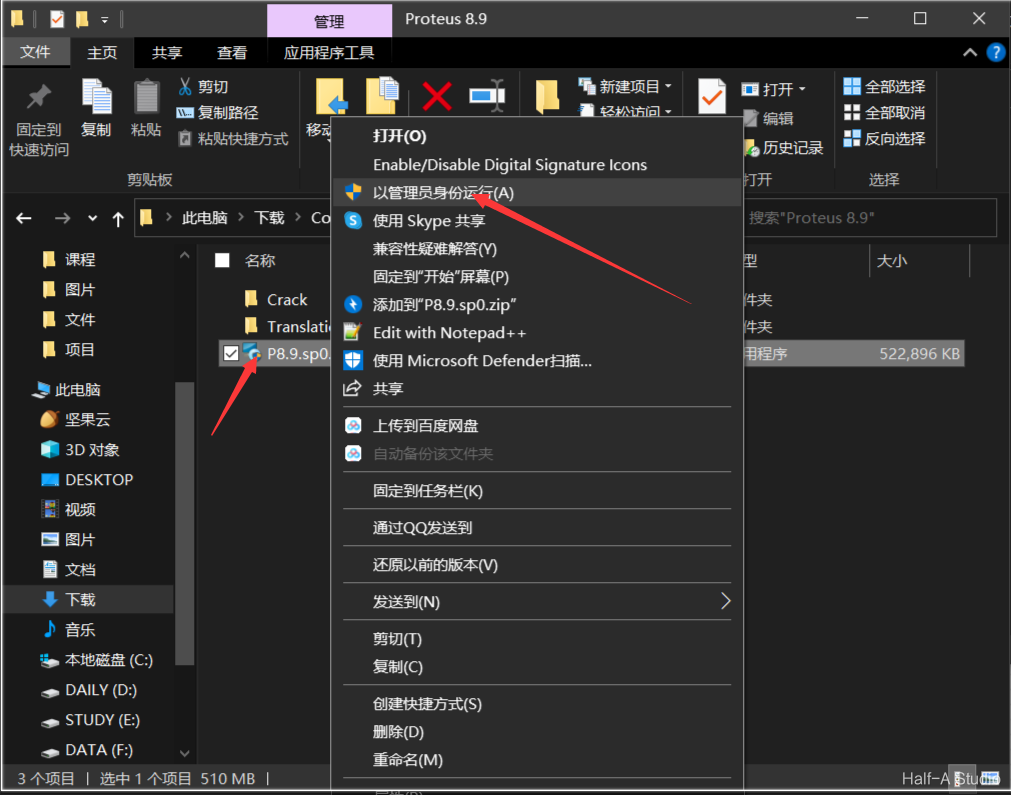
Right-click the archive and extract it. Open the extracted folder, right-click the p8.9.sp0.exe file, and run it as administrator.

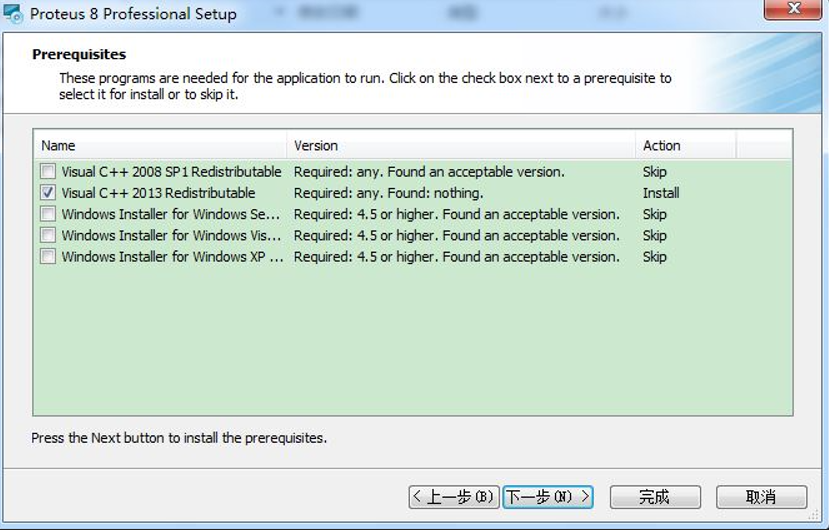
On some computers, a Visual C++ installation screen may appear first. Be sure to install the selected components; otherwise, you will encounter problems later in the installation.
-
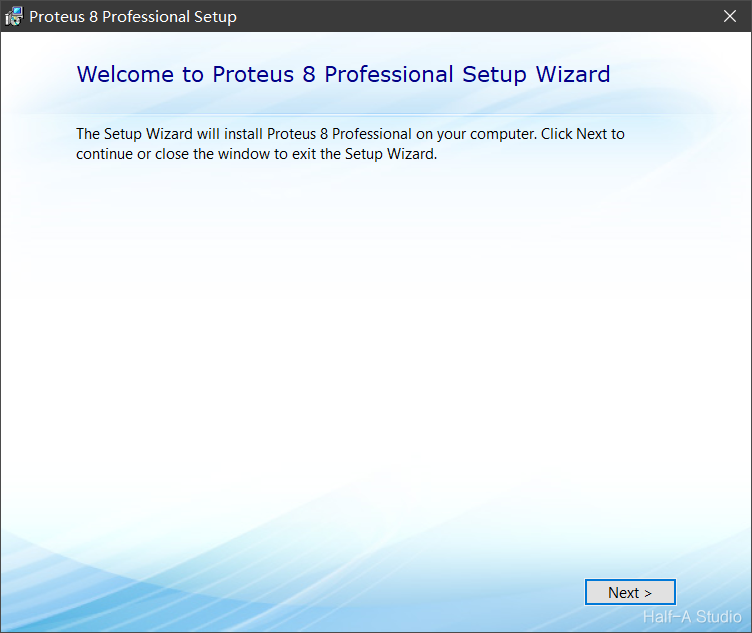
There are no options to choose from, so click Next.
-
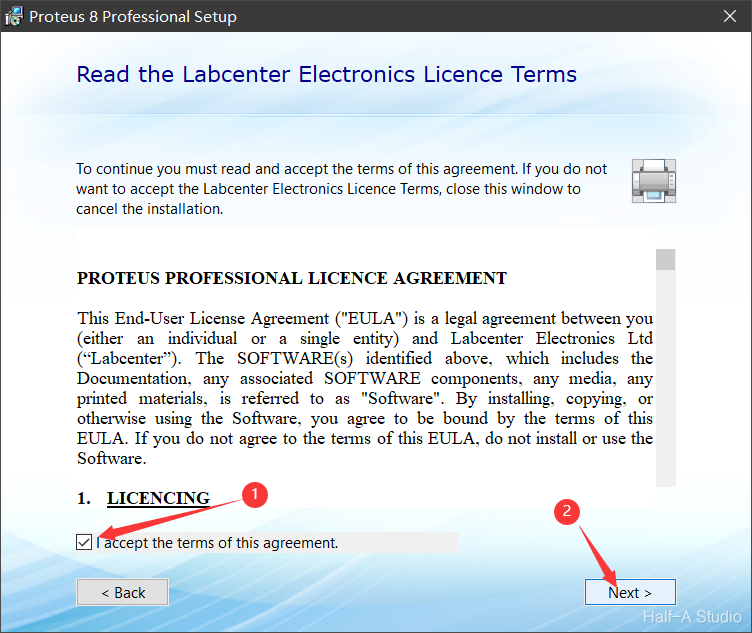
Select I accept, then click Next.
-
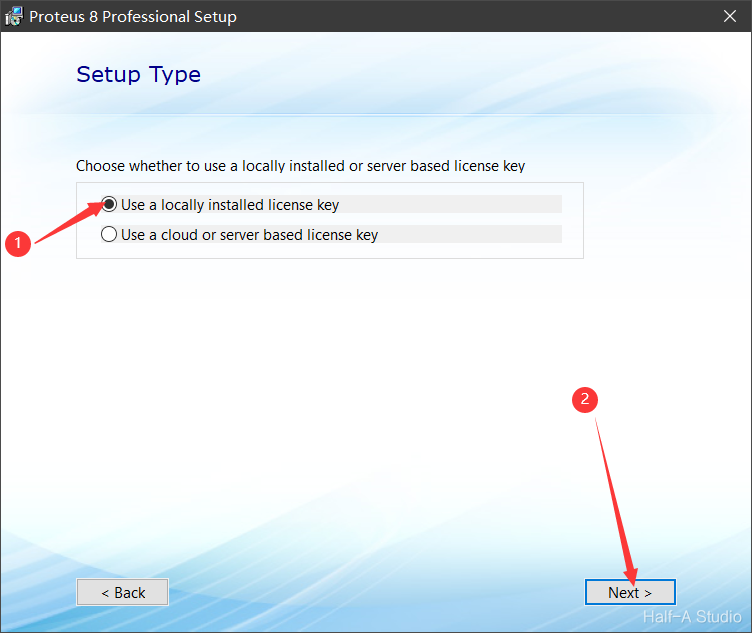
Choose to use a local activation certificate license key.
-
Click Next to continue.

-
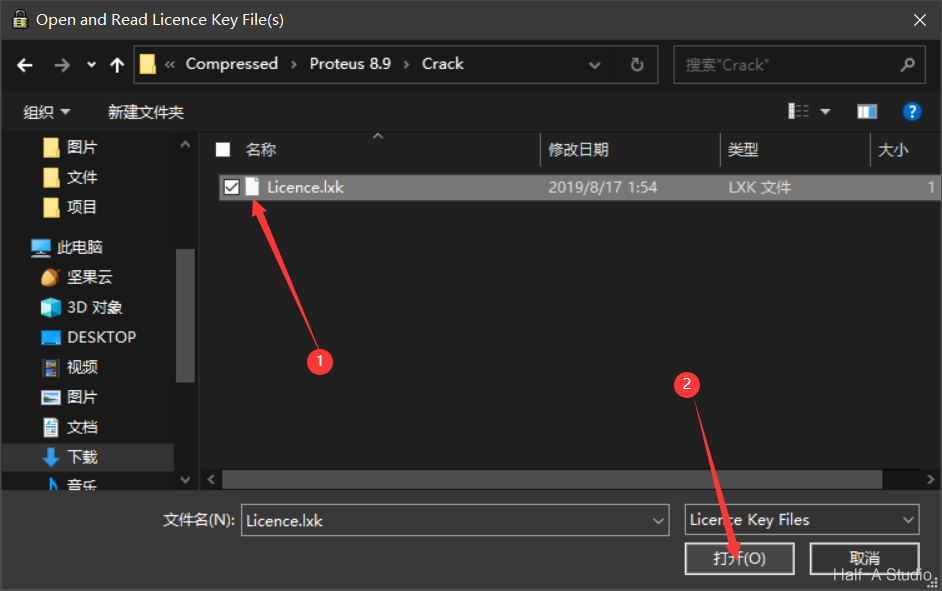
An activation certificate management window will open. Click 【Browse For Key File】 in the lower-left corner, locate the folder you just extracted, find the 【Licence.lxk】 file under the 【Crack】 folder inside the extracted 【Proteus 8.9】 folder, and click 【Open】.

-
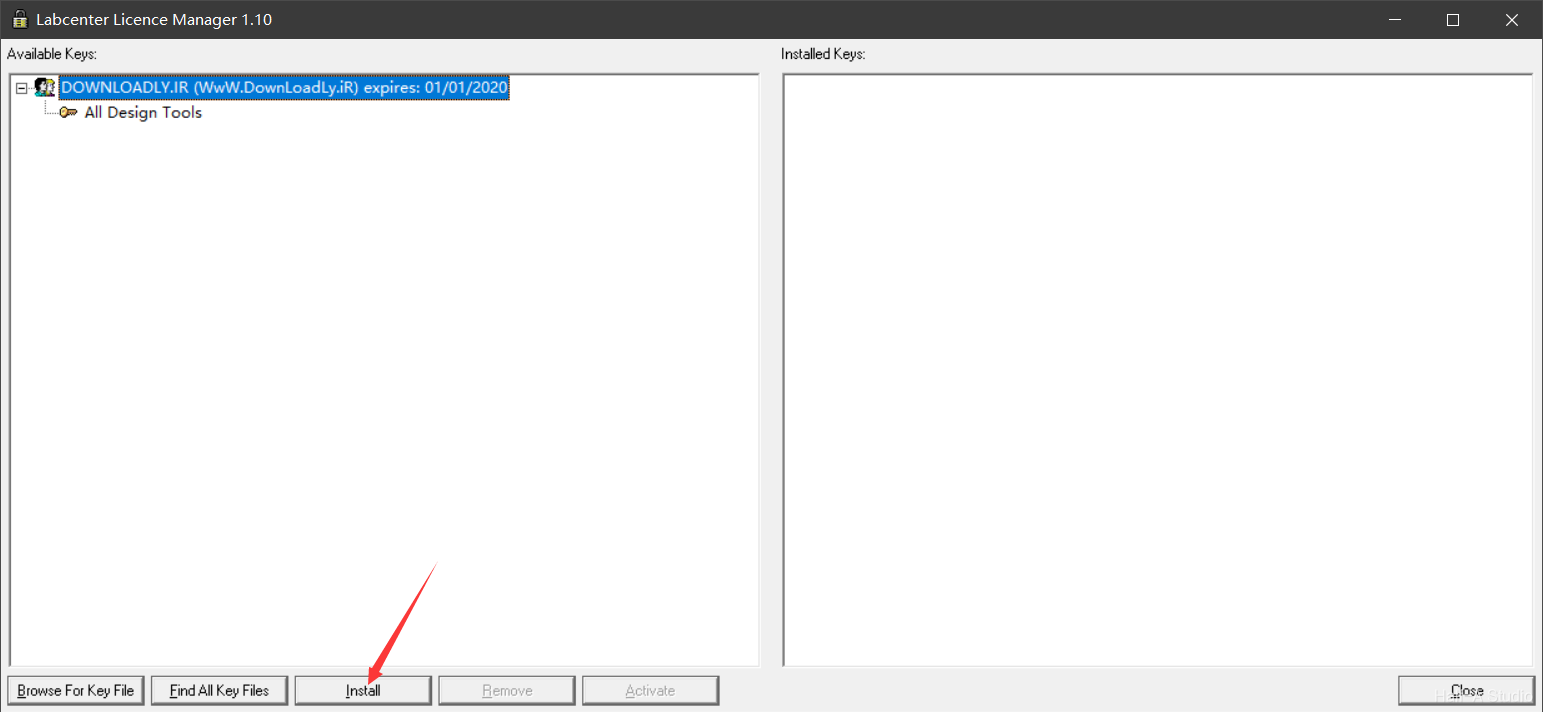
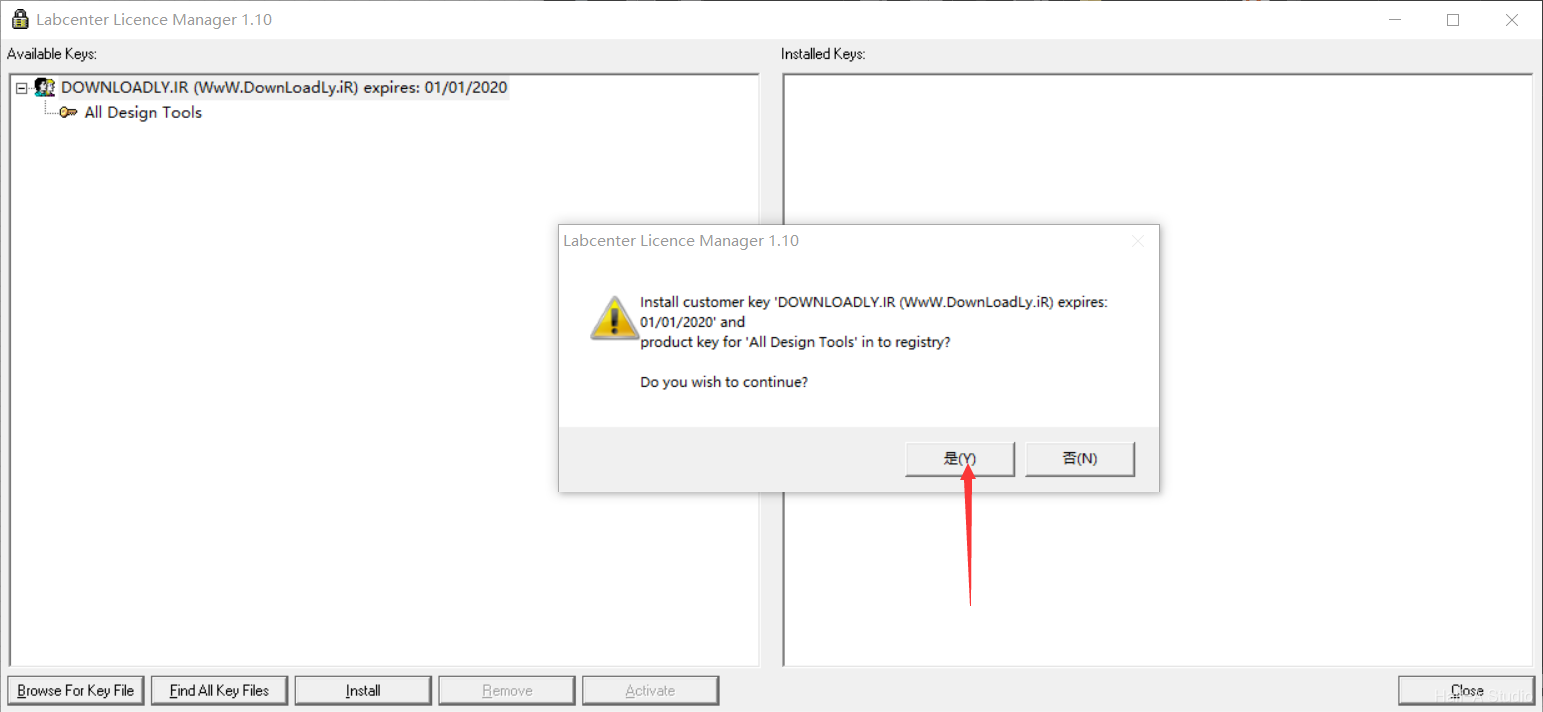
Click 【Install】. When the dialog box asks whether to continue, select 【Yes】. After the installation is complete, click 【Close】.

-
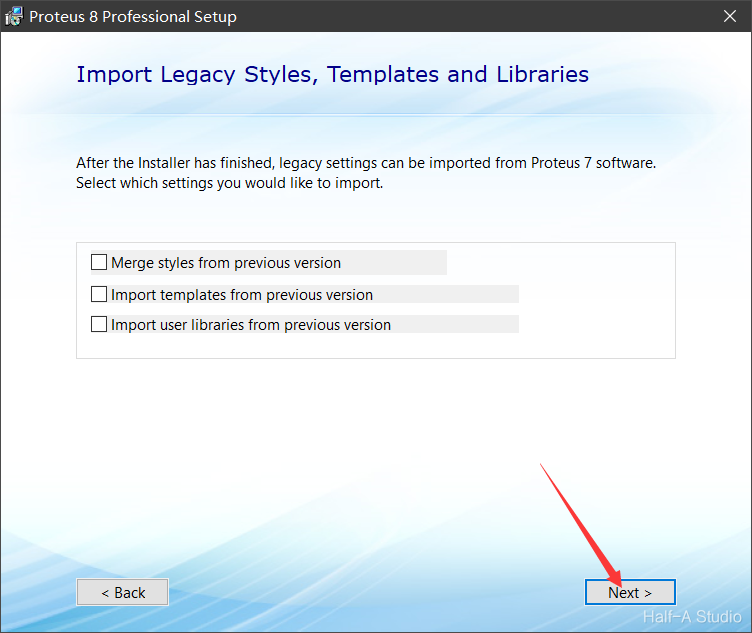
Do not select any of the checkboxes; just click 【Next】.
-
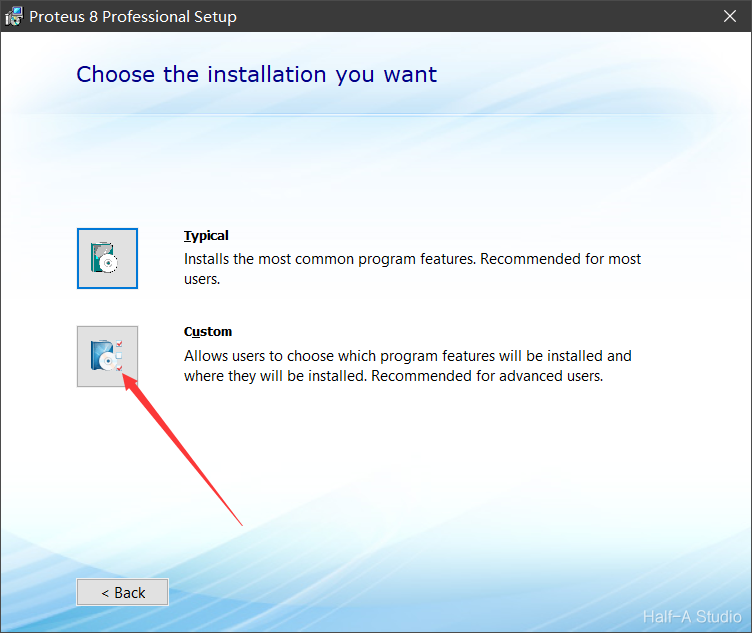
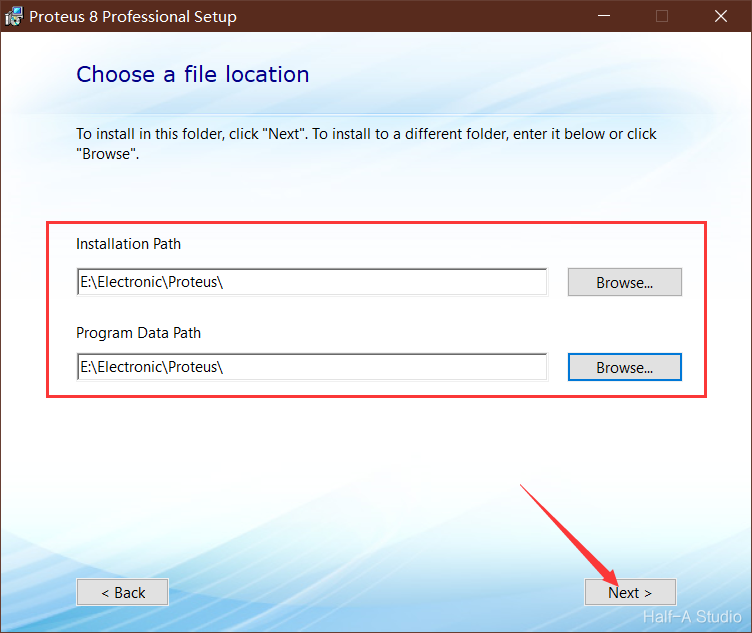
Choose the installation type here. Select 【Custom】, then choose the installation paths. Note: the two paths must be exactly the same; otherwise, the software will crash when you use it later.
-
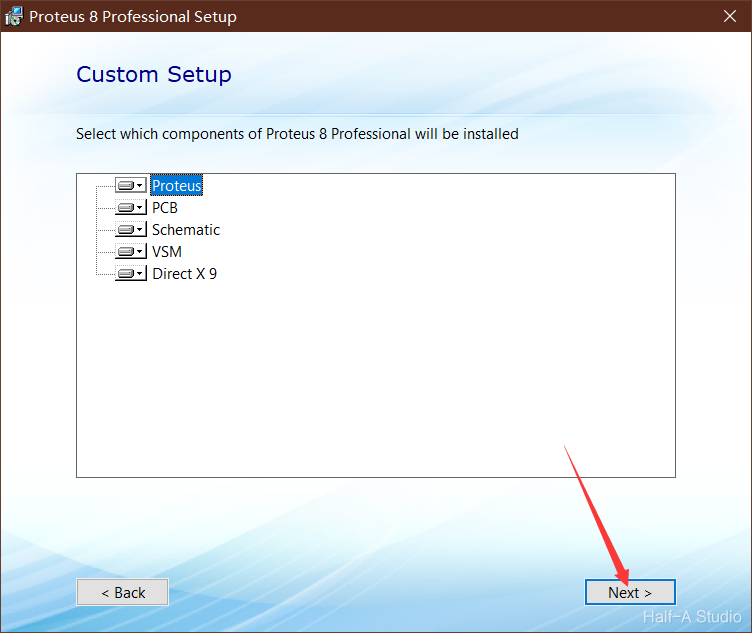
Leave everything here unchanged and simply click the default 【Next】.
-
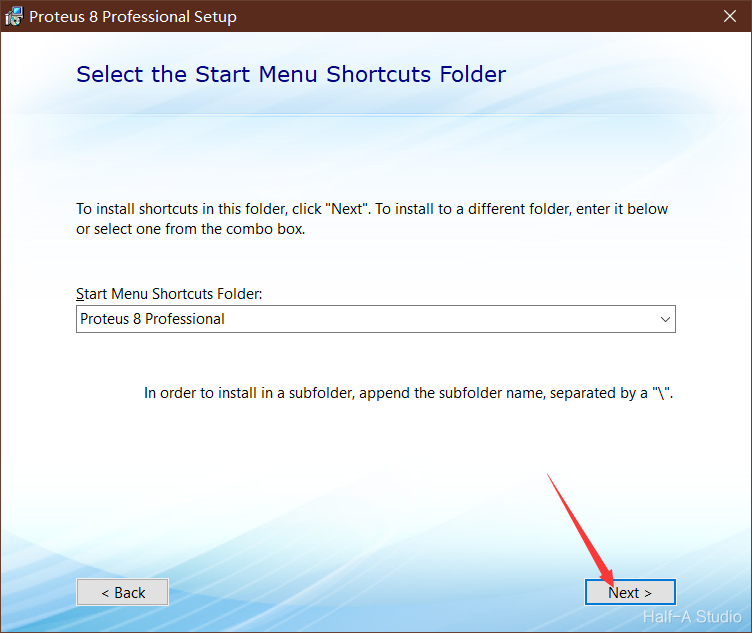
Click 【Next】 to continue.
-
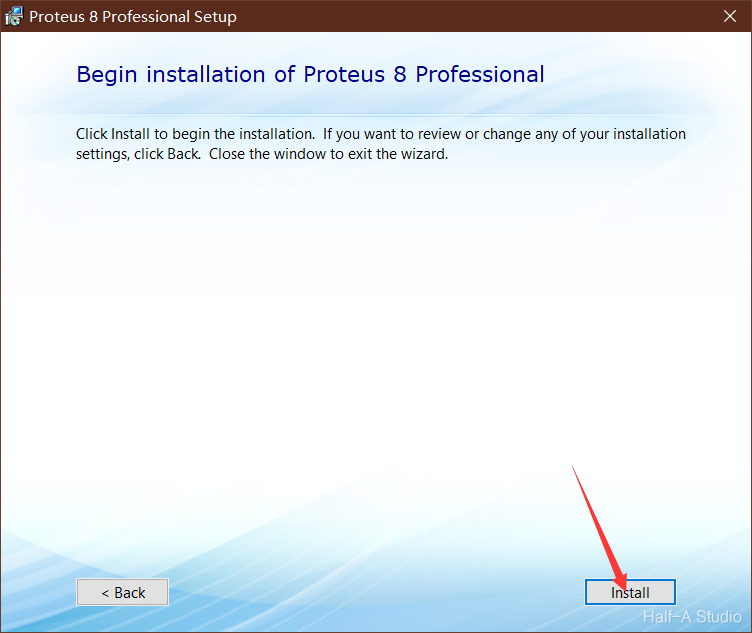
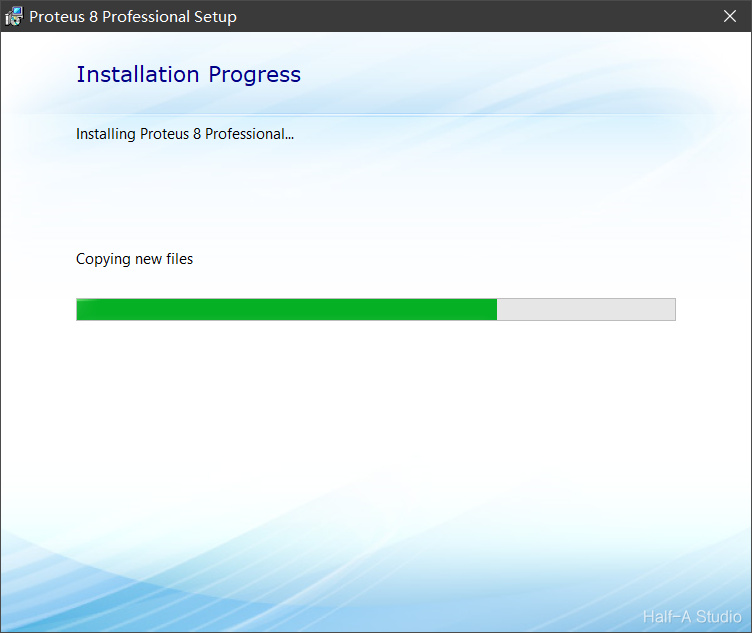
Click 【Install】 to start the installation. It takes about one minute.
-
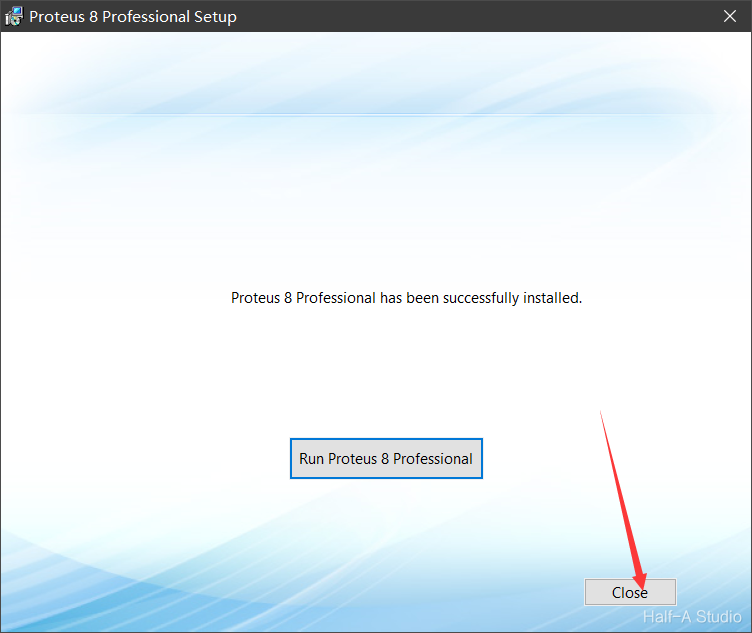
Click 【Close】. Do not run Proteus.
-
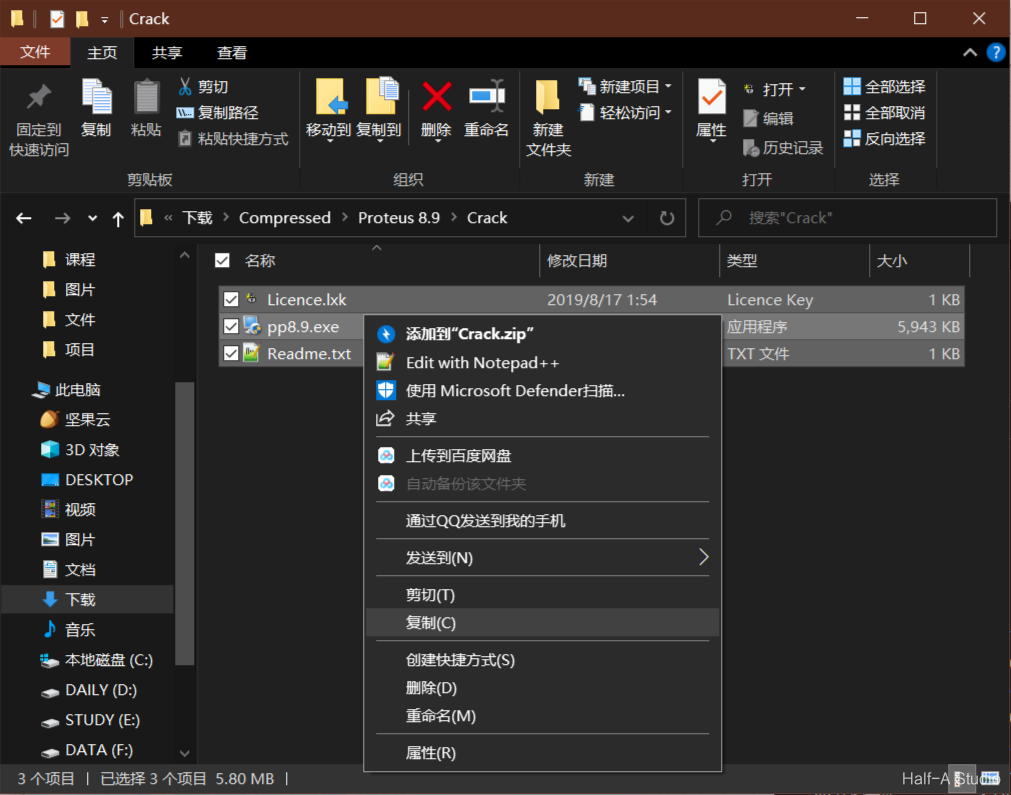
Go back to the 【Crack】 folder inside the 【Proteus 8.9】 folder extracted from the installation package, select all files, and click 【Copy】.
-
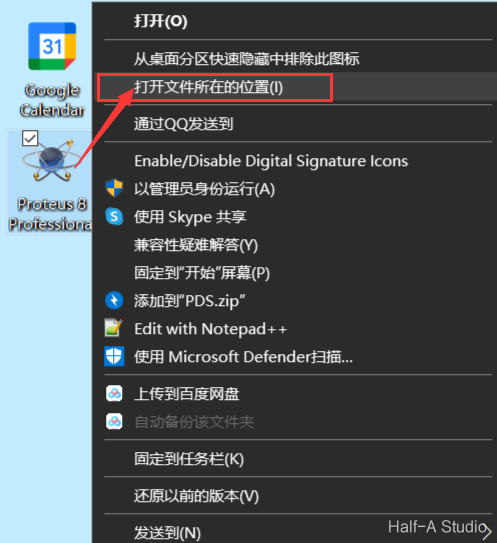
Find the 【Proteus 8.9】 shortcut on the desktop, right-click it, and select 【Open file location】.
-
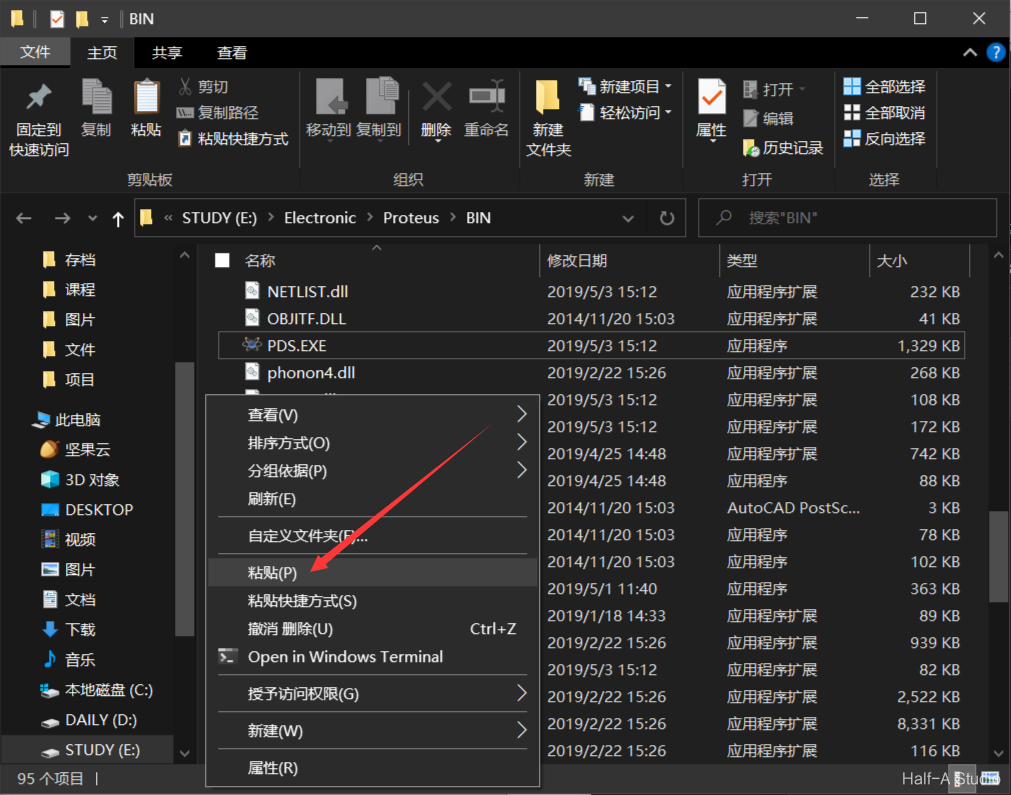
【Right-click and paste】 in an empty area to copy over the three files from the previous step.
-
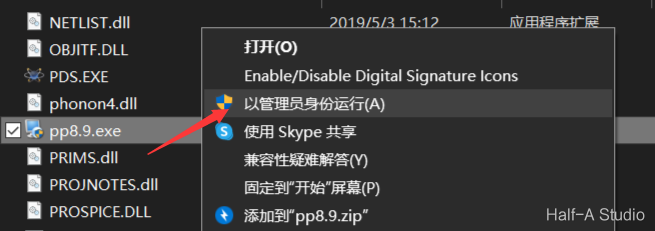
Right-click 【pp8.9】 after pasting it and select 【Run as administrator】. (No dialog box will appear after it finishes running; you only need to run it once.) It is recommended that you close any security management software before running it.
-
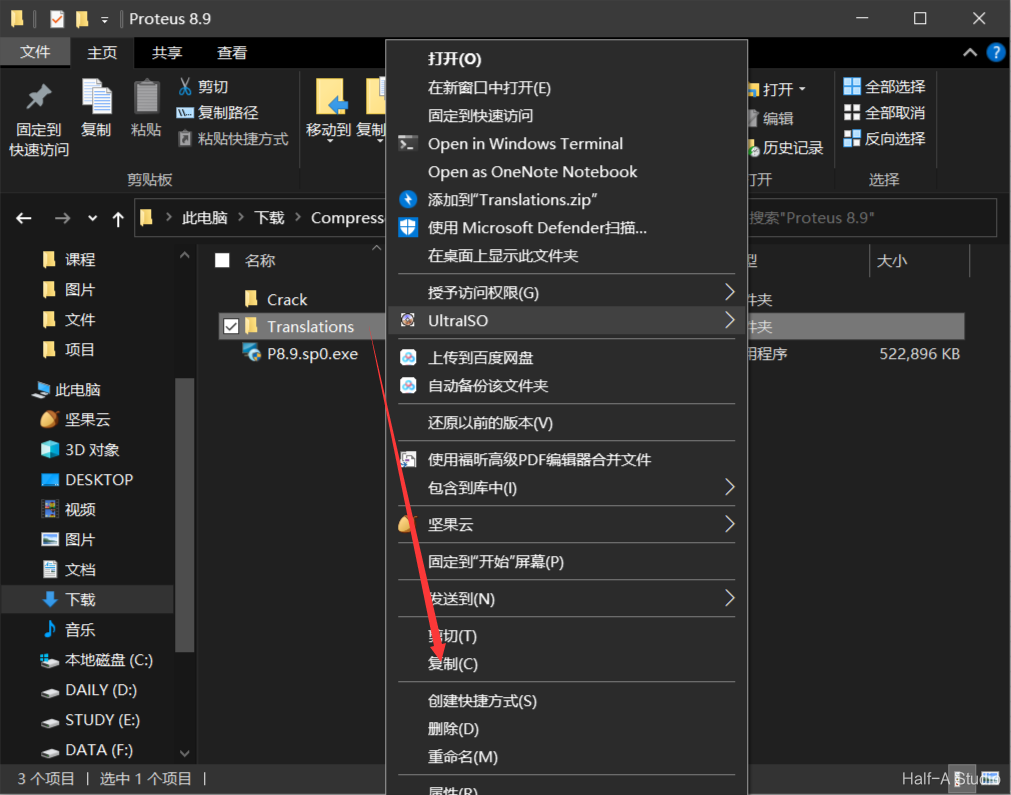
Open the extracted 【Proteus 8.9】 folder again, right-click 【Translations】, and select 【Copy】.
-
Right-click the 【Proteus 8.9】 shortcut on the desktop again and select 【Open file location】.

-
Click the 【Proteus】 folder in the path to go up one level.

-
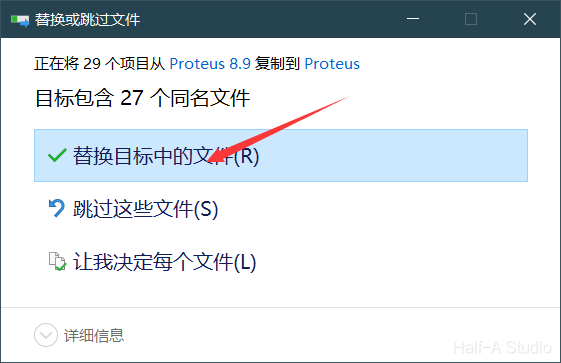
【Right-click and paste】 in an empty area to paste the Translation folder you just copied. There may be 27/28 files with the same names; click 【Replace the files in the destination】.

-
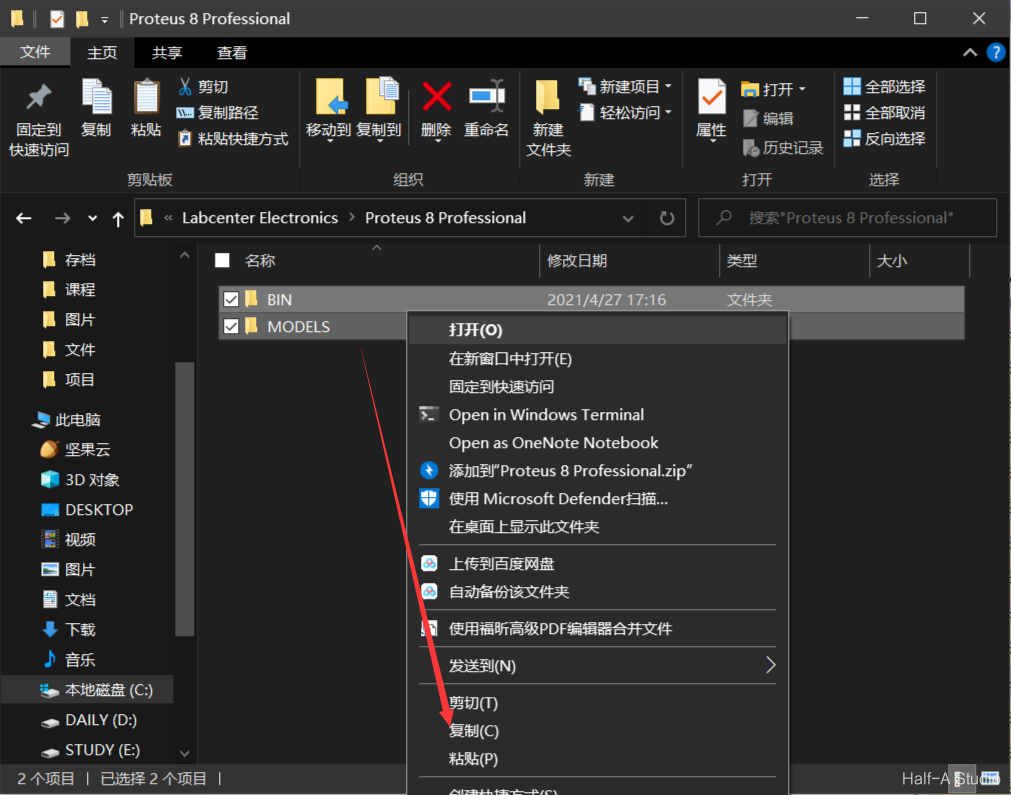
Go to the 【C:\Program Files (x86)\Labcenter Electronics】 directory. Open the 【Proteus 8 Professional】 folder inside it, then 【select all and copy these two folders】.
-
Return to the Proteus installation path (the same location used in Steps 19 and 20), then 【right-click and paste, replacing the files in the destination】.

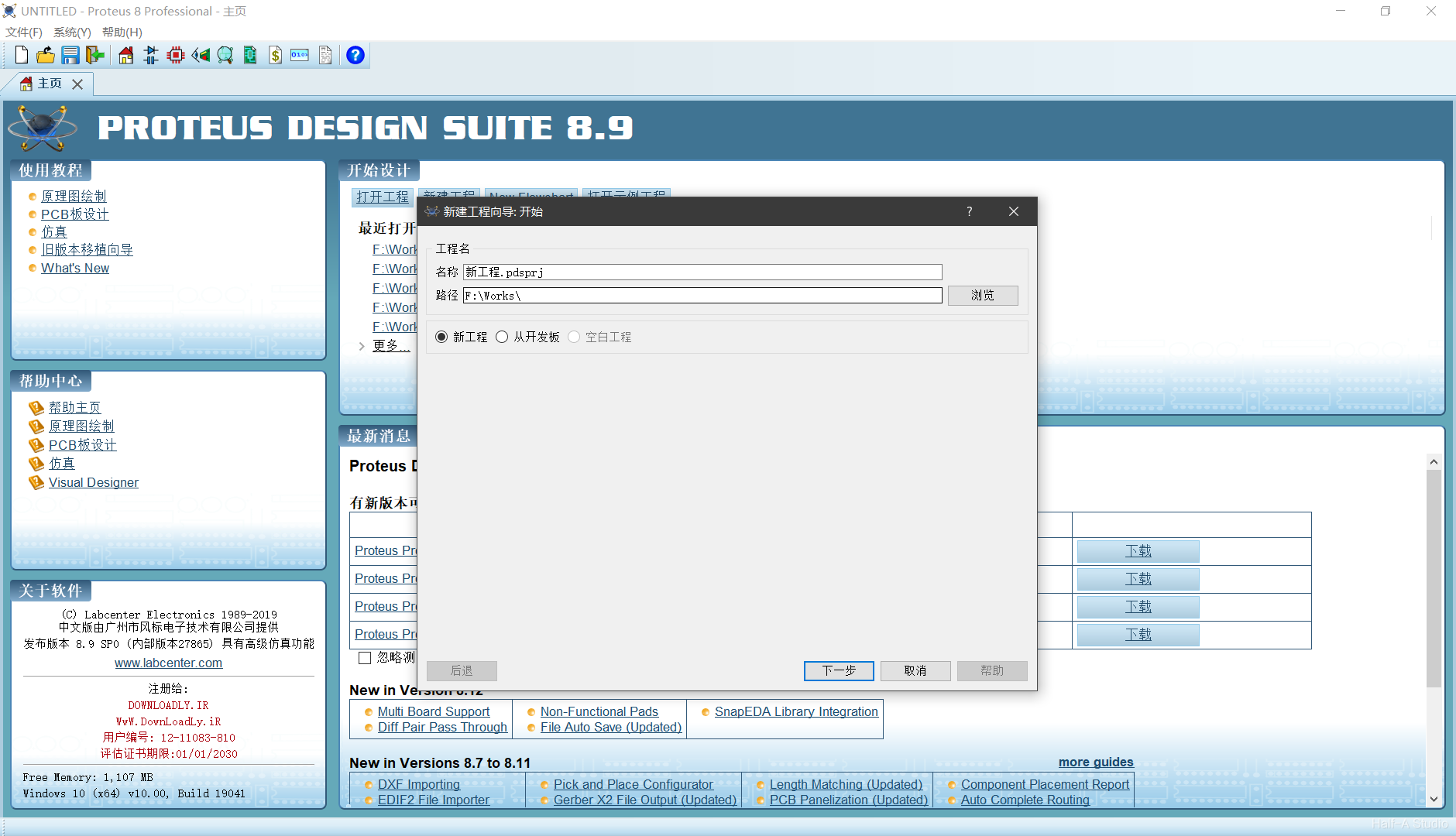
The installation is now complete!
Comments