Open a robot system and open the Virtual FlexPendant
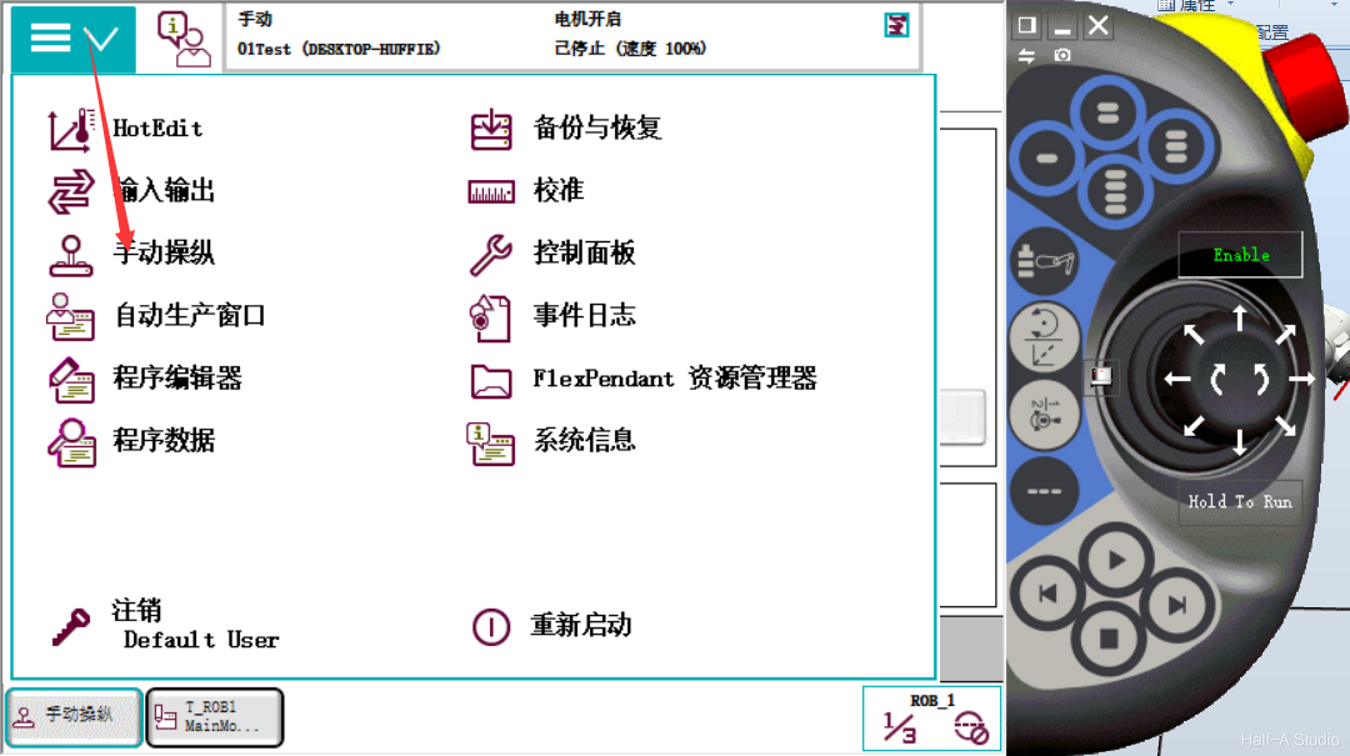
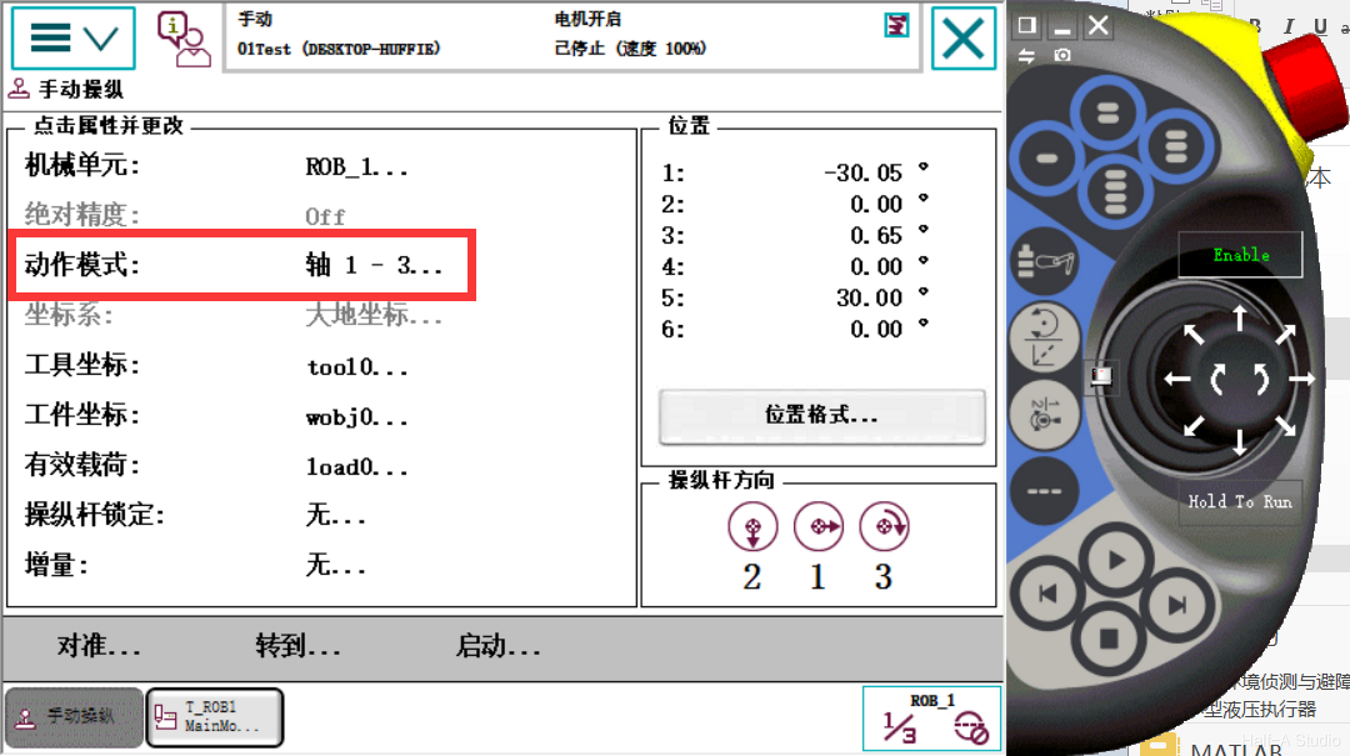
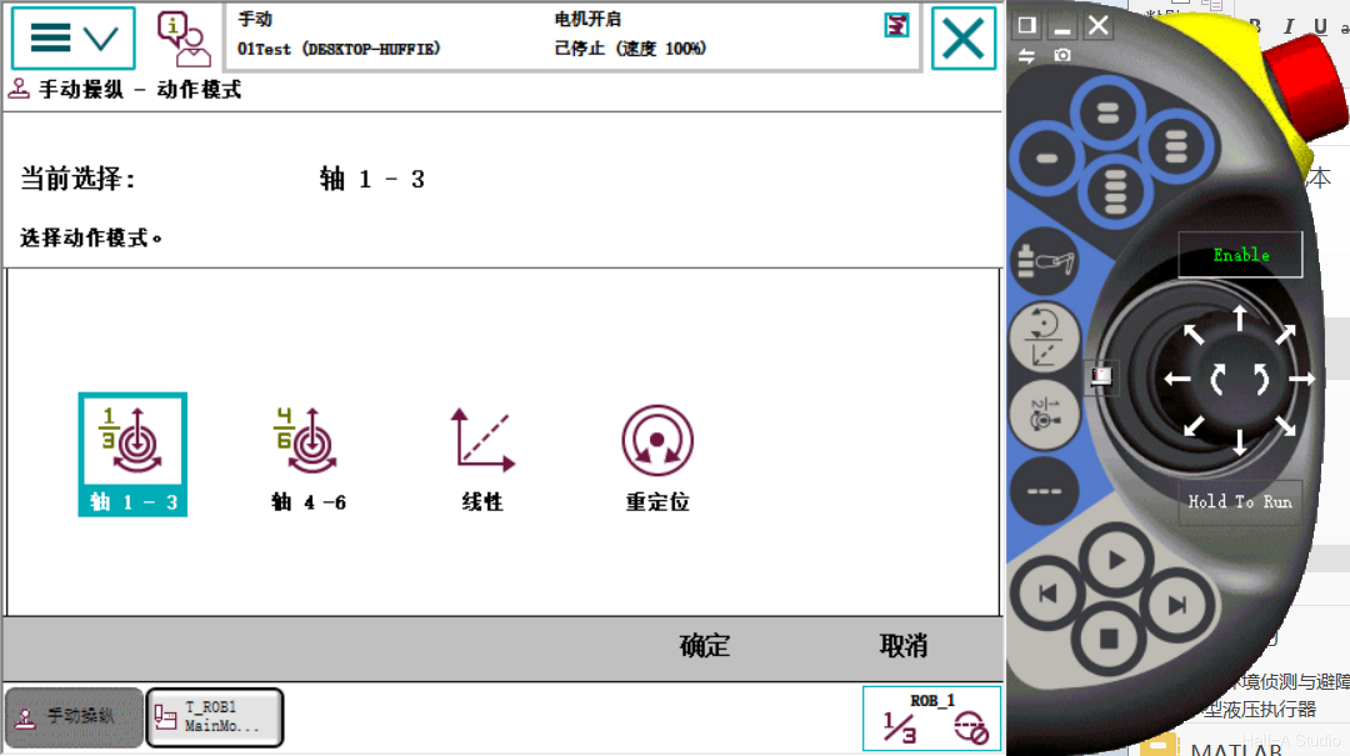
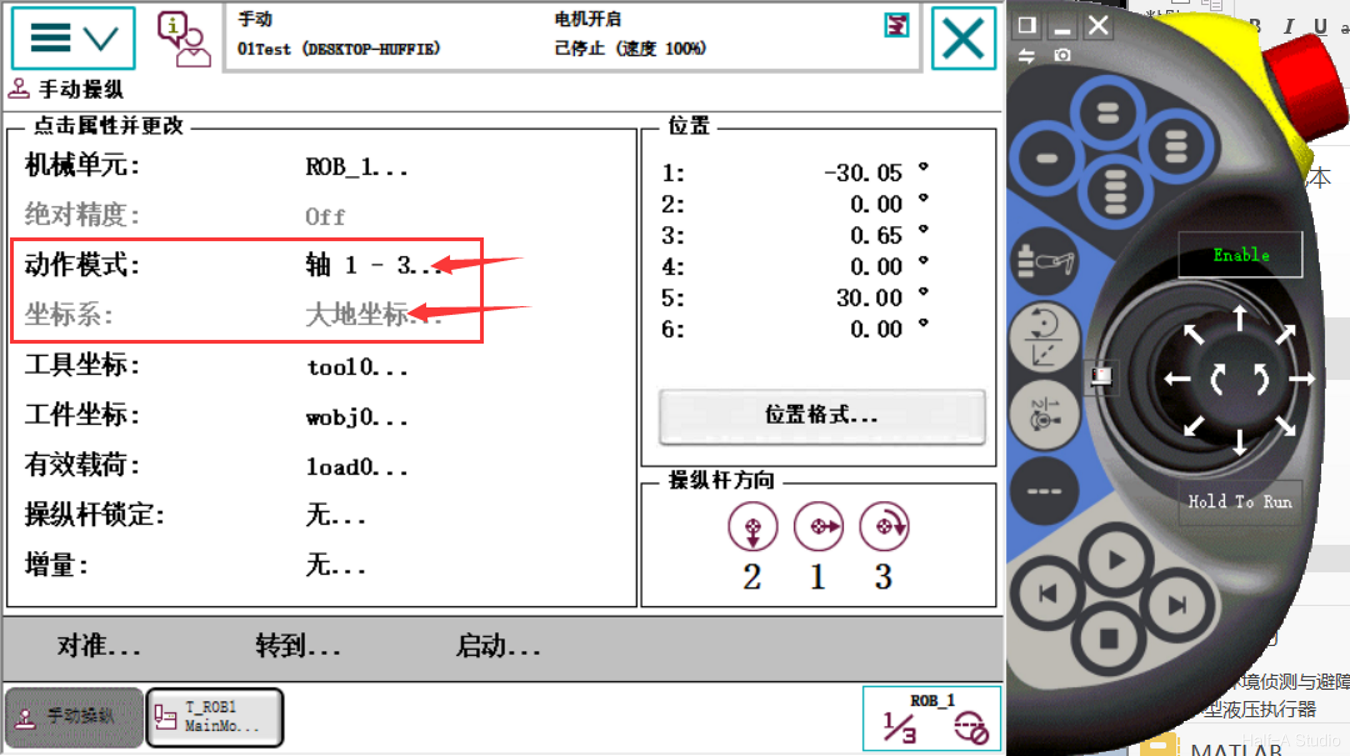
Click Menu - Manual Operation - Motion Mode. Four motion modes are displayed below. The single-axis options are Axes 1-3, plus Axes 4-6; these are followed by linear operation and reorientation. Select Axes 1-3 here and click OK.
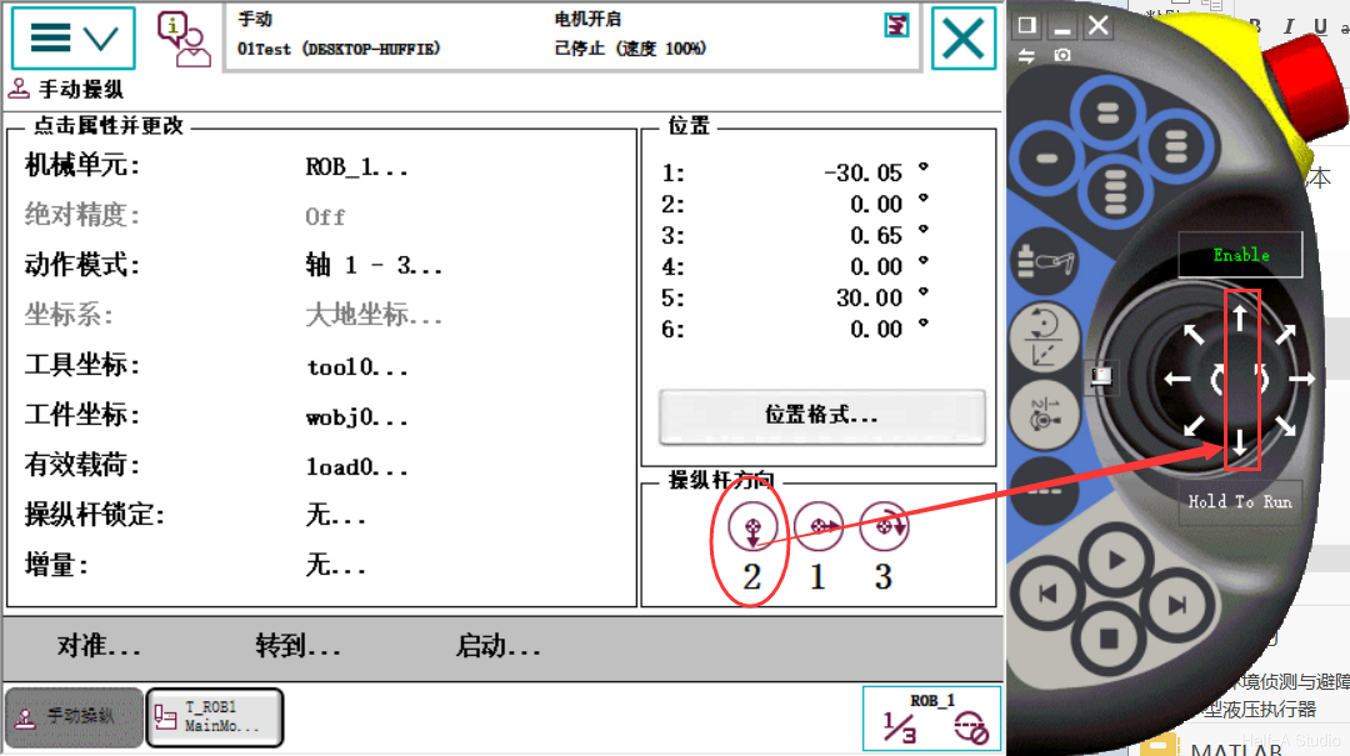
On the right side of the manual operation screen, you can see the robot’s position information and joystick directions. The arrows under Joystick Direction correspond to the arrows on the FlexPendant controls, and the numbers indicate the axis numbers. For example, the first means that the up and down arrows control the movement of the second axis, with the down arrow indicating the positive direction; the second means that the left and right arrows control the movement of axis 1; and the third means that the clockwise and counterclockwise buttons control the movement of axis 3. To control Axes 4-6, click Motion Mode and select Axes 4-6.
Manual Linear Operation
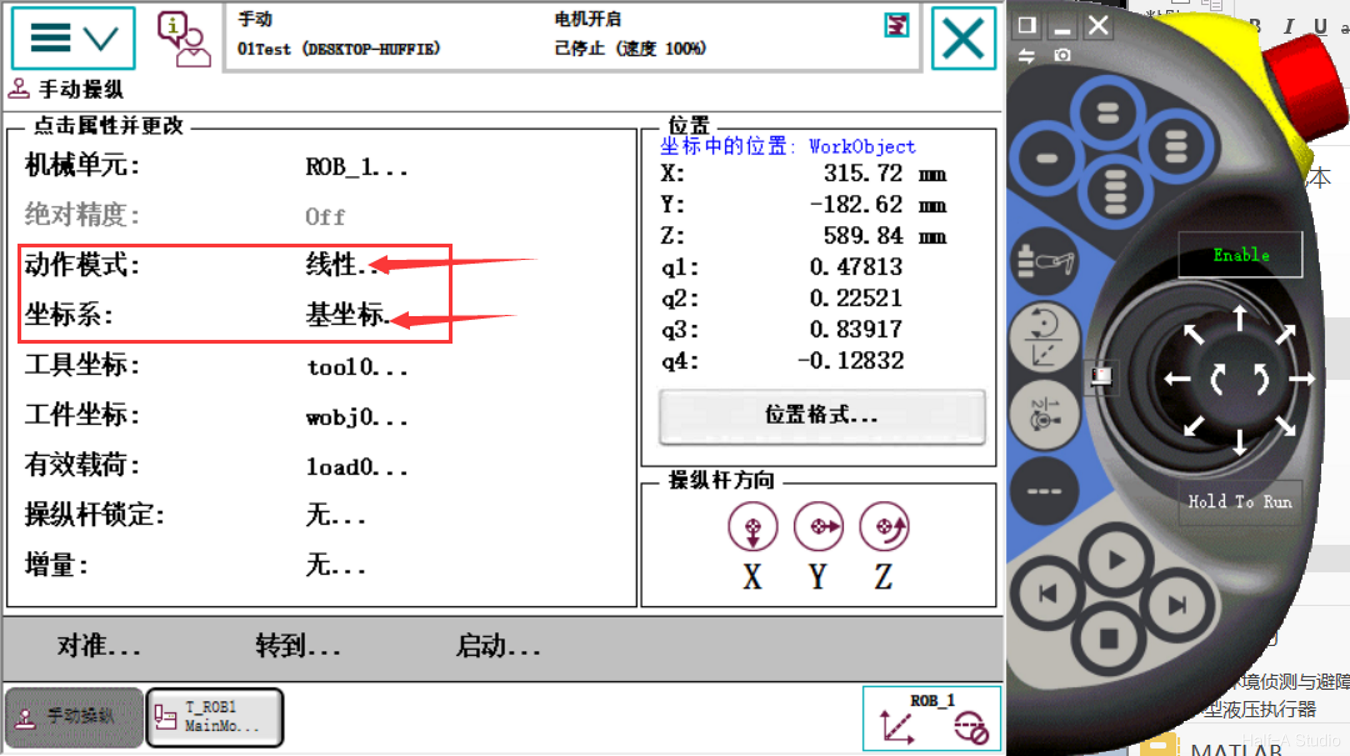
Open the Manual Operation menu bar. You can see that the current Motion Mode is single-axis motion and that Coordinate System cannot be selected.
Click Motion Mode, change Motion Mode to Linear, and click OK. You can then see that Coordinate System can now be selected.
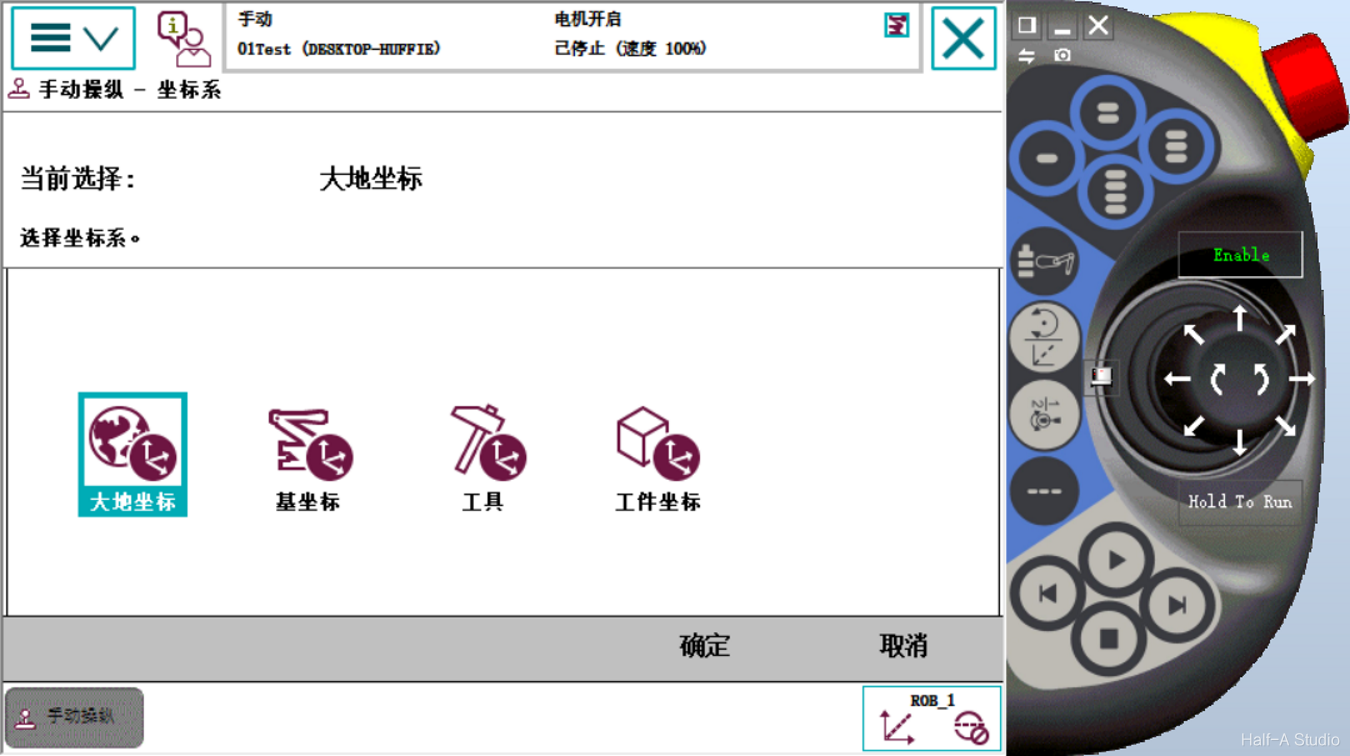
Open the Coordinate System menu. It shows four coordinate systems: World, Base, Tool, and Work Object.
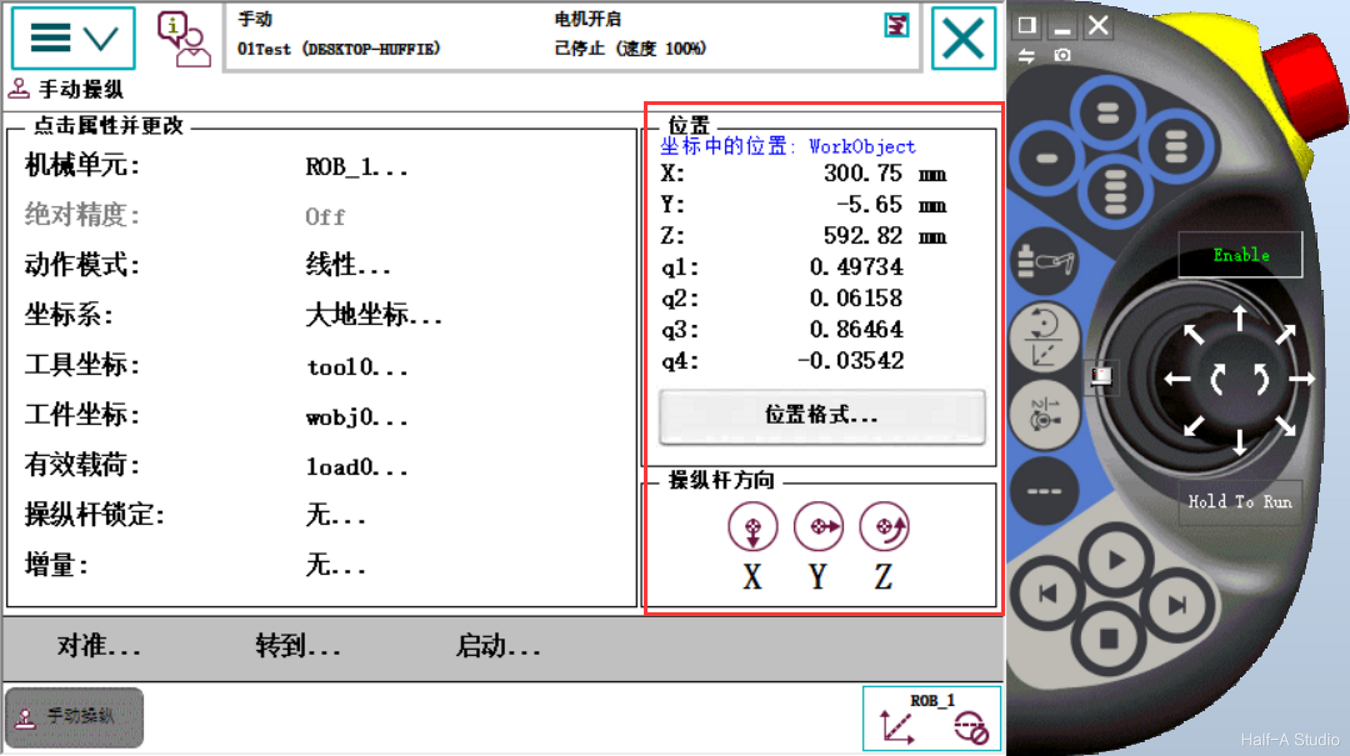
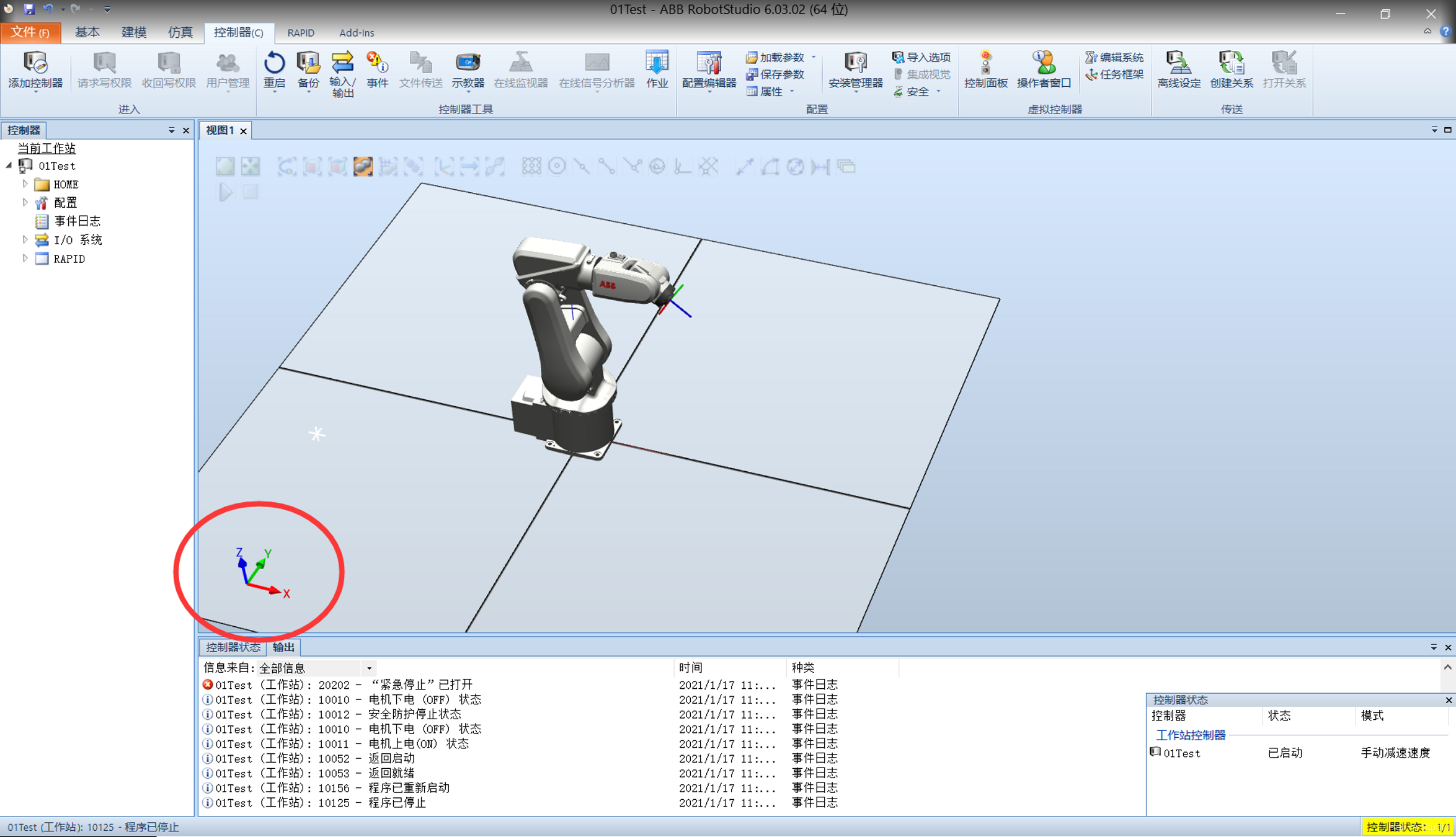
First, look at World. After selecting World and clicking OK, you can see that the position information on the right side of the controller changes to xyz coordinate values. The joystick directions also change to xyz. Motion in the world coordinate system is based on the coordinate system in the lower-left corner of the robot view.
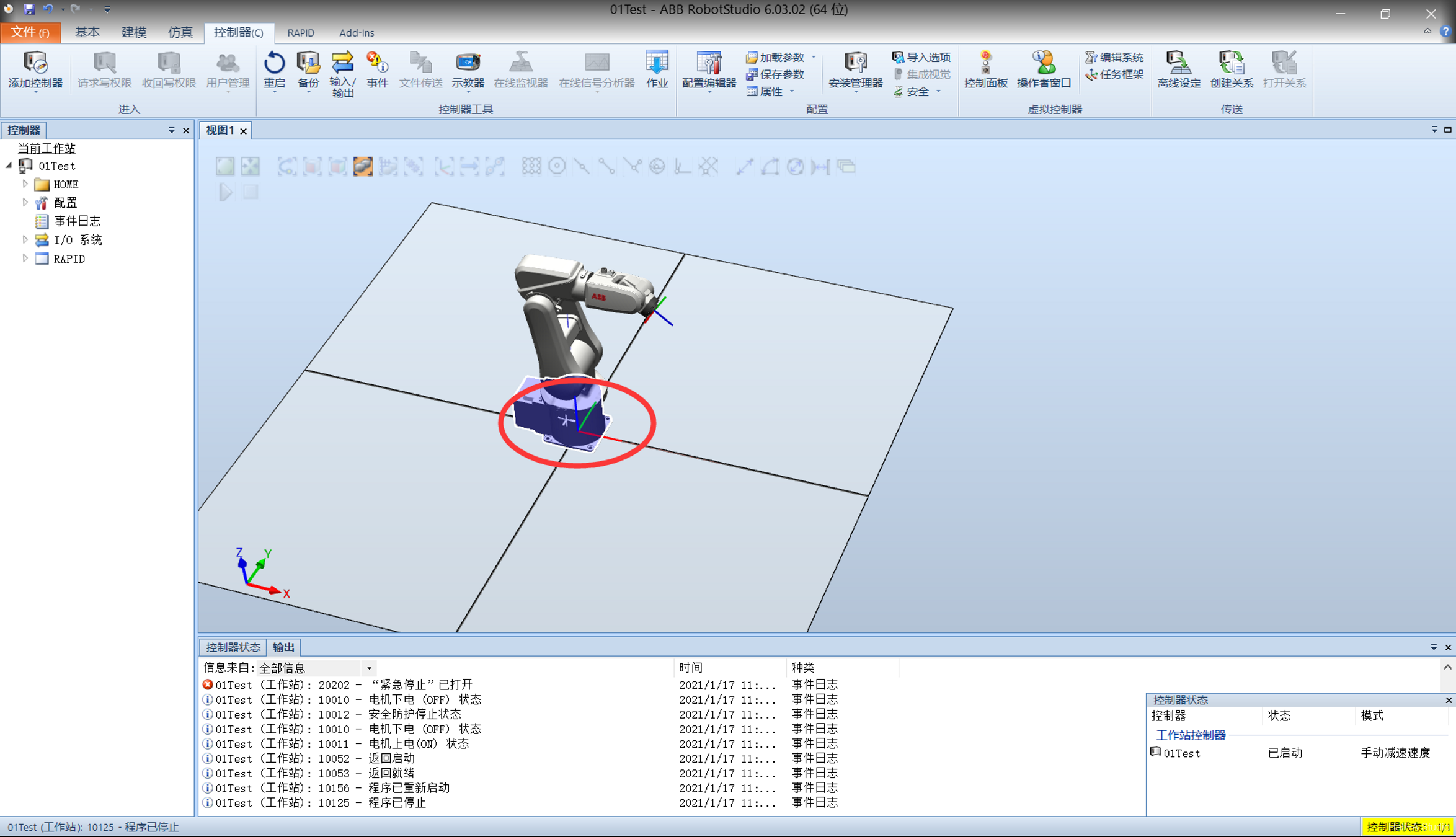
For the base coordinate system, select the robot base. You can see a coordinate system, and xyz is now defined along this coordinate system.
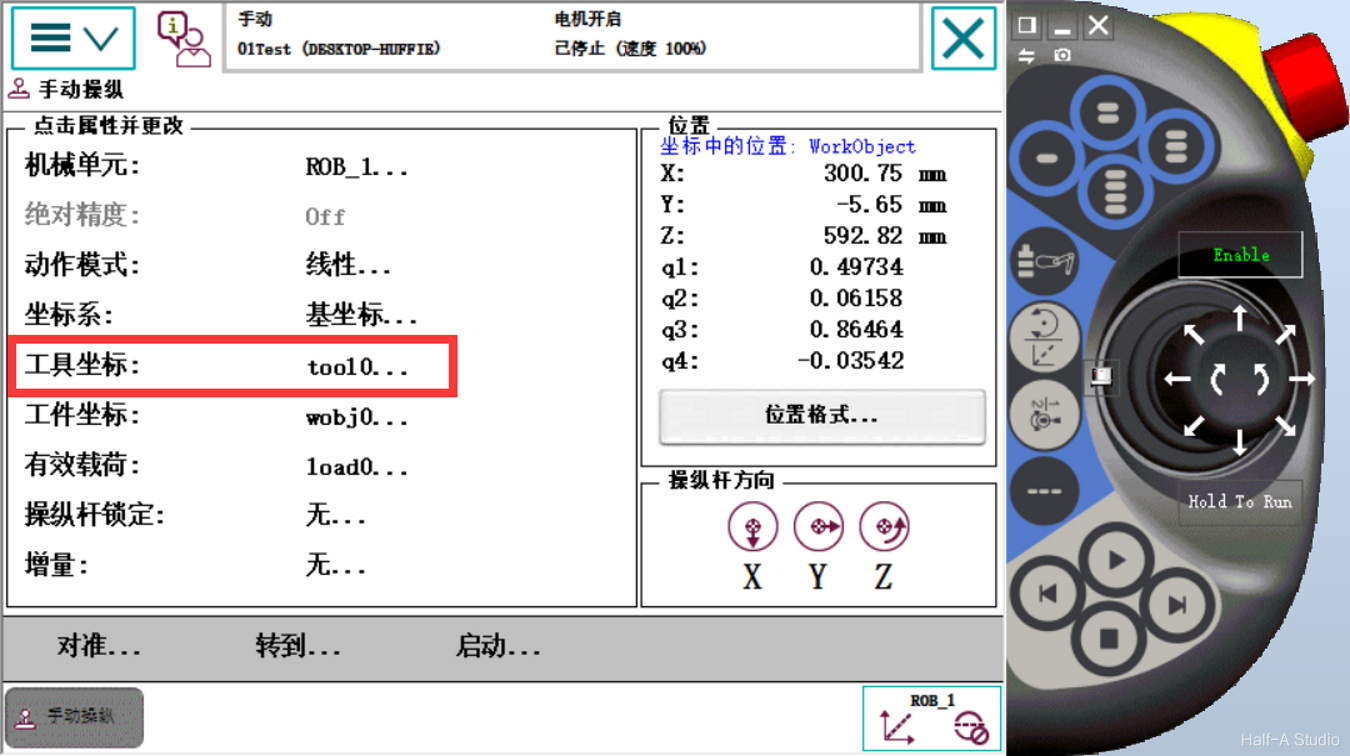
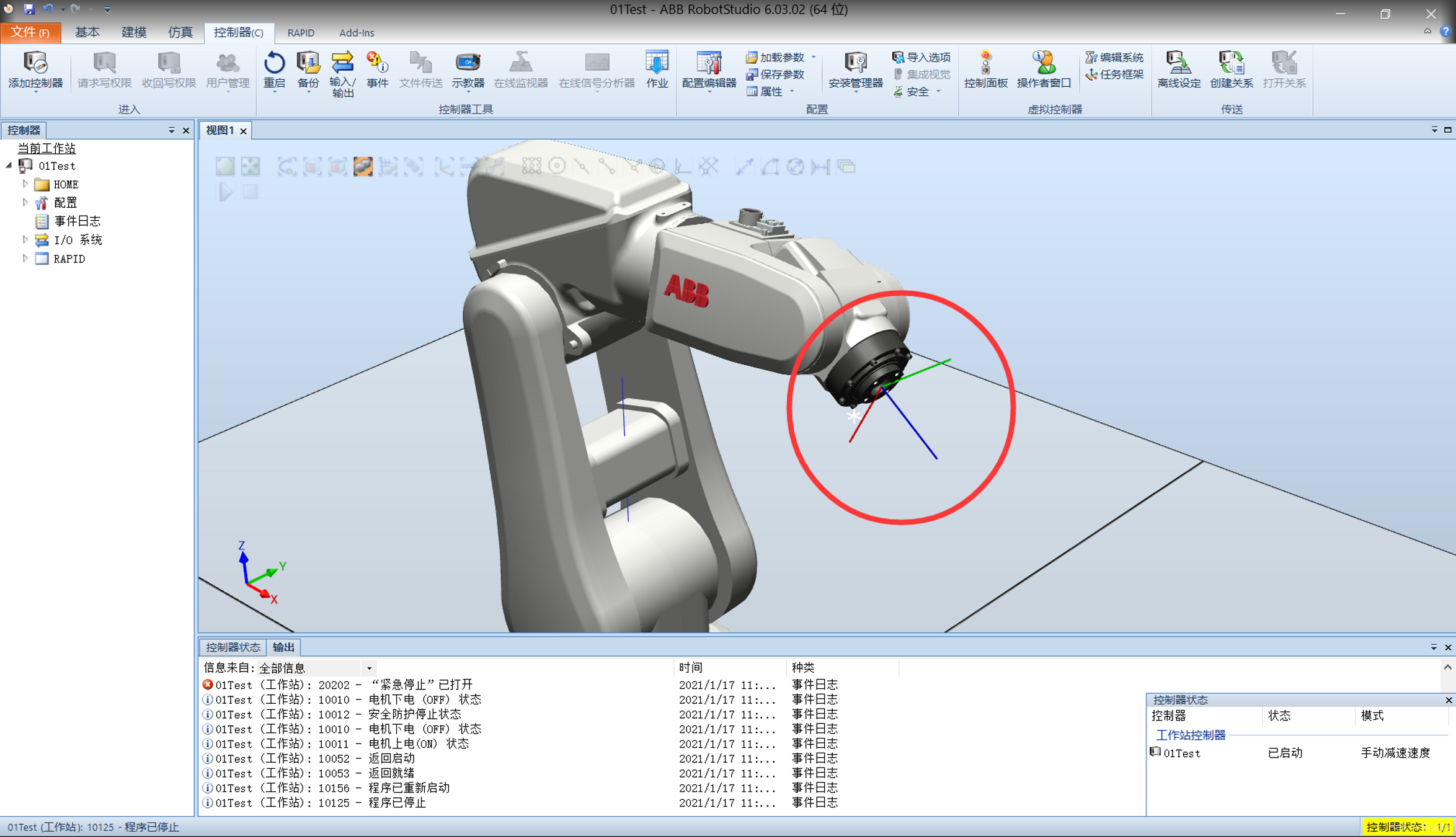
For tool coordinates, the menu bar contains a Tool Coordinates entry named tool0. Motion in this coordinate system follows the coordinates of the sixth joint at the end of the robot.
For work object coordinates, the menu bar contains a Work Object Coordinates entry named tool0. Motion in this coordinate system follows the work object’s coordinate system.
Reorientation Operation
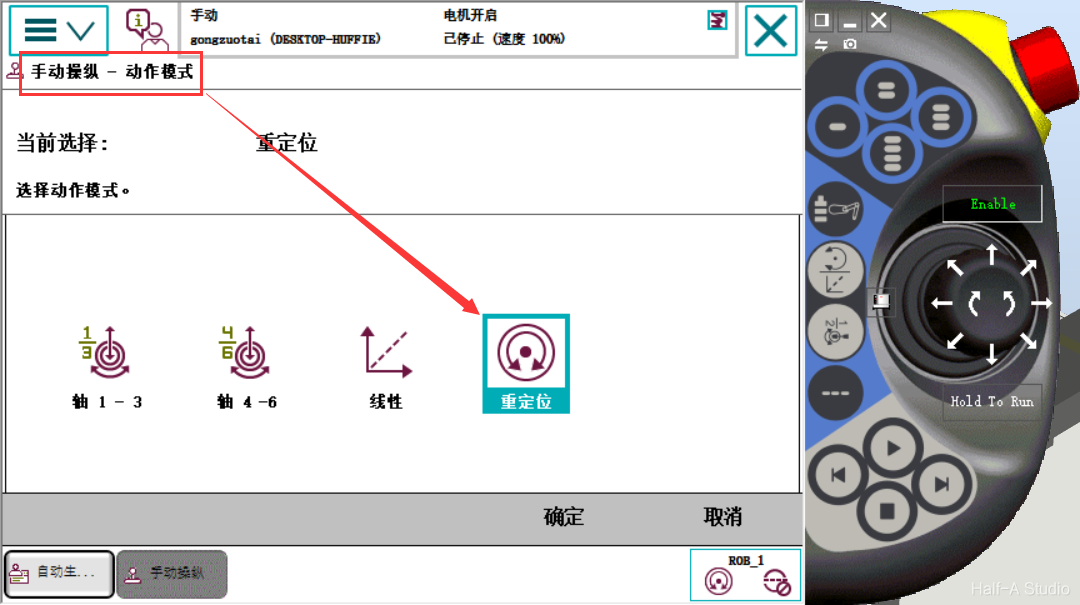
Open the Virtual FlexPendant, select Manual Operation - Motion Mode, and switch Motion Mode to Reorient.
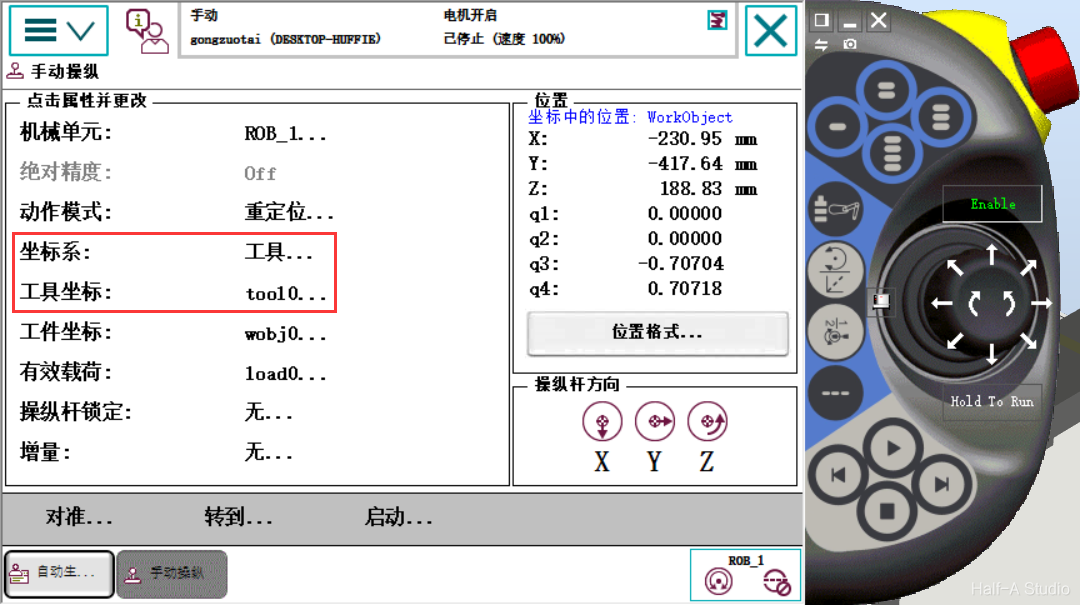
Return to the Manual Operation menu bar. The current Coordinate System is Tool, and Tool Coordinates is tool0
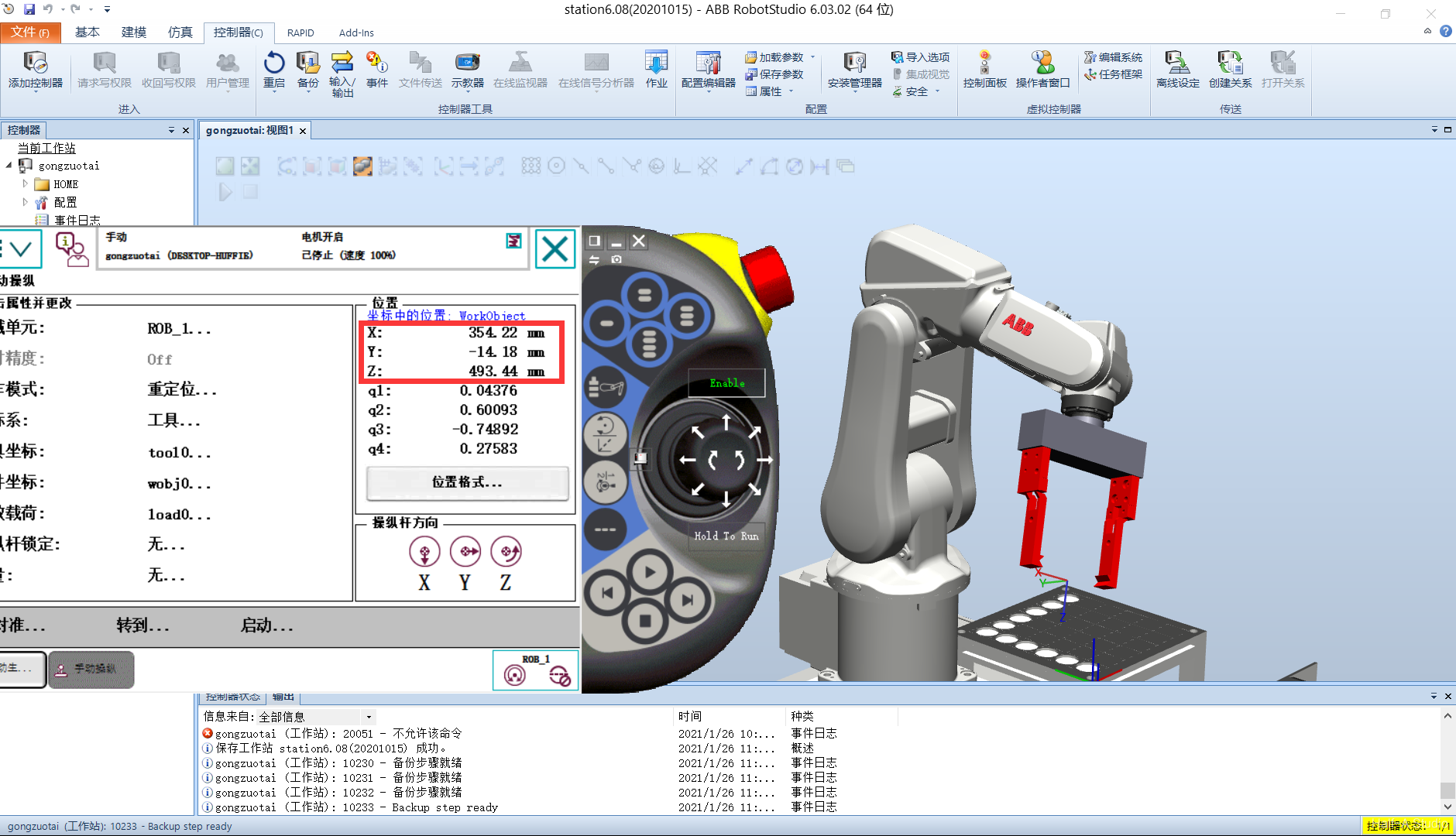
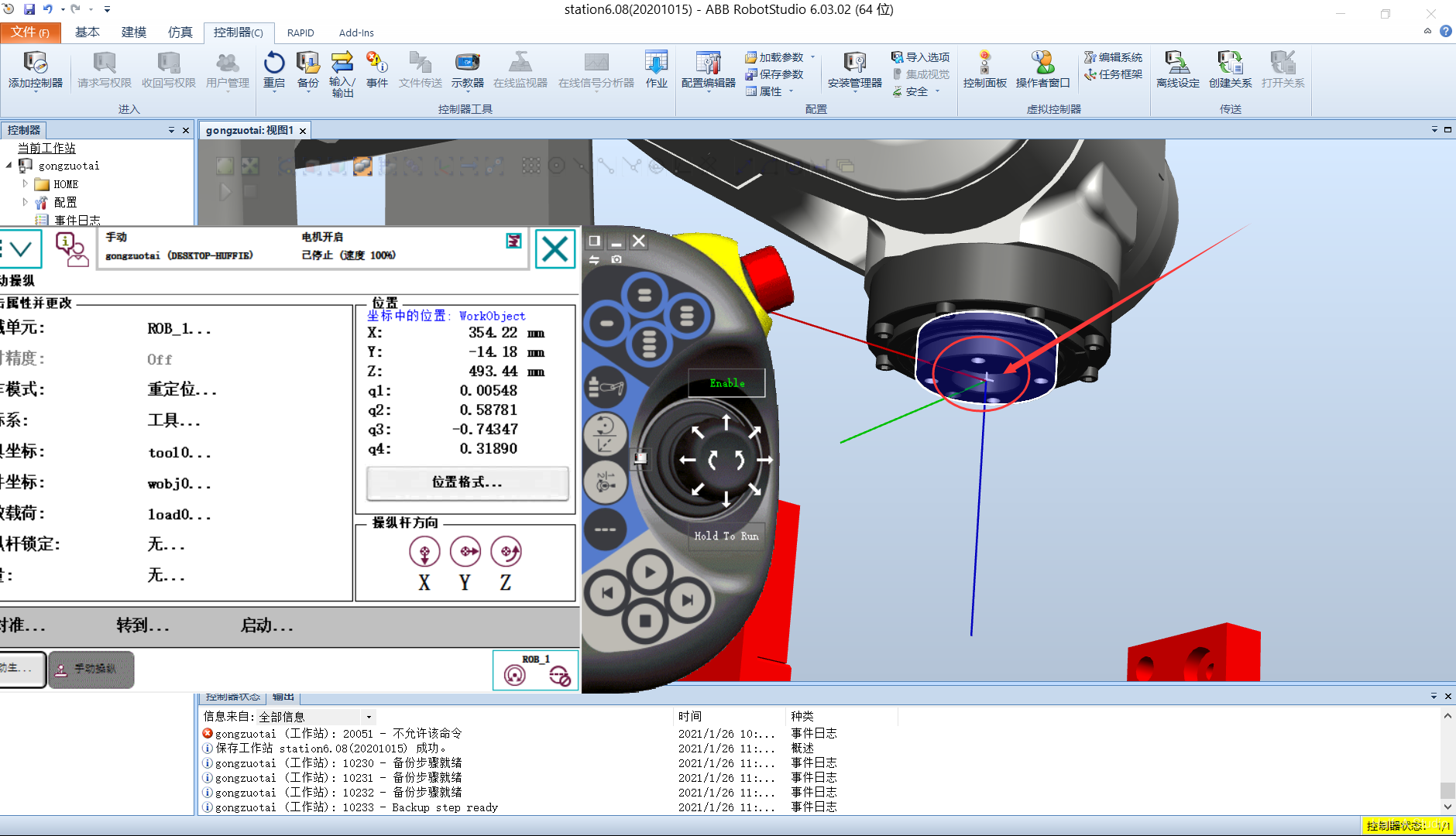
Press the arrows on the FlexPendant and observe during manual operation. You can see that the position coordinates XYZ never change.
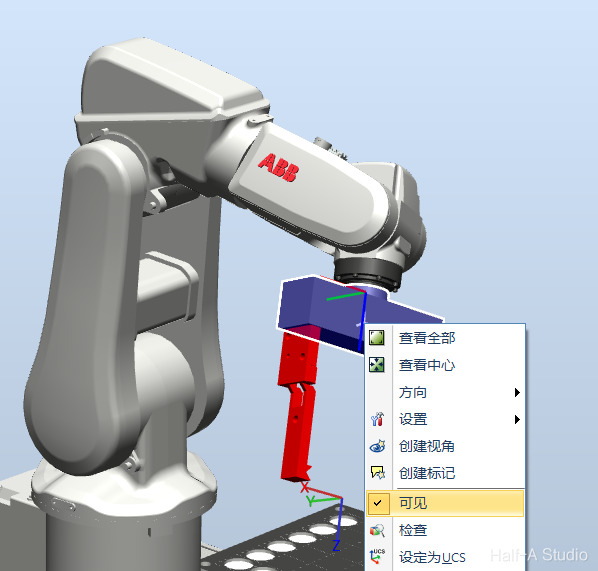
Hide the gripper. You can see that the position of the center point at the end of joint 6 remains unchanged while the system moves.
Switching Motion Modes
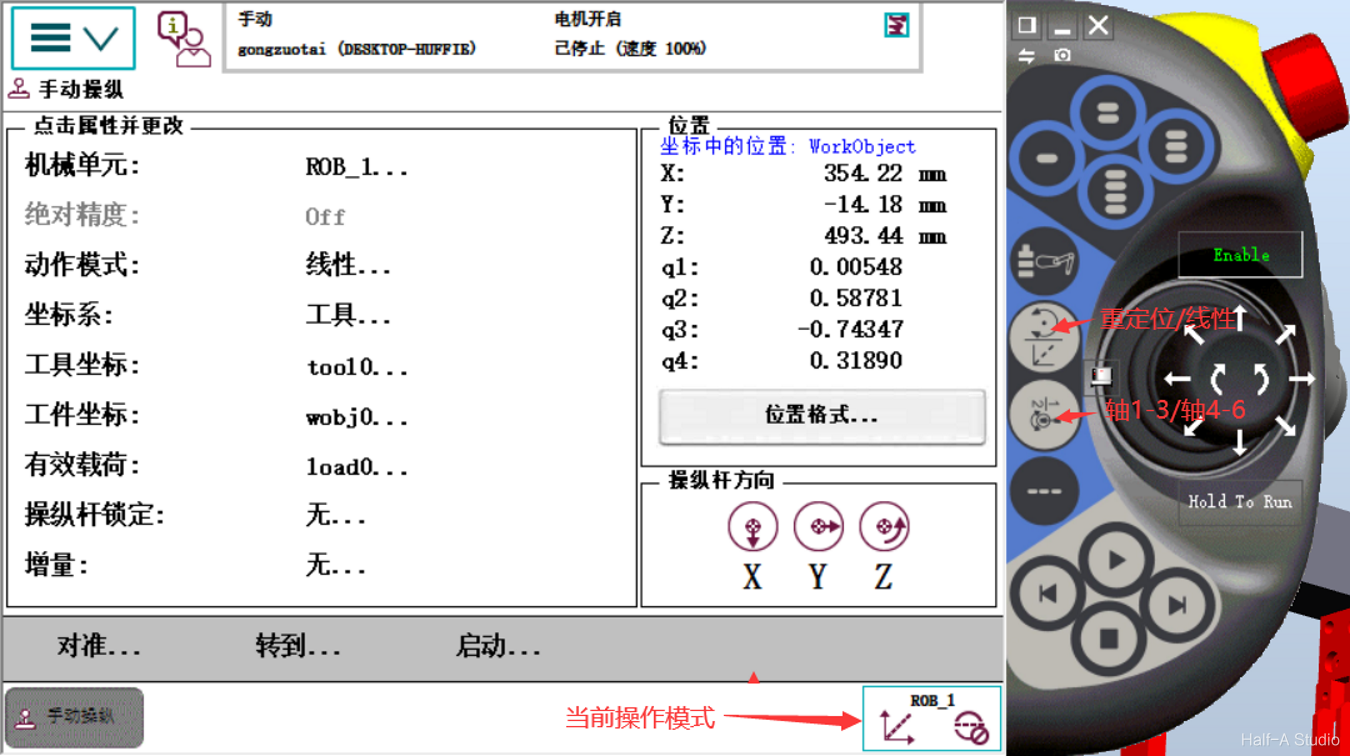
Switch the operating mode on the left side of the joystick. The second button switches between Reorient and Linear, while the third button switches the axis group (Axes 1-3 or Axes 4-6). The current operating mode is displayed in the lower-right corner of the panel.
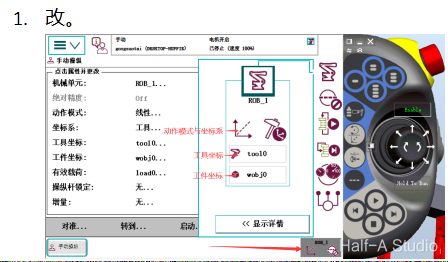
Click the icon in the lower-right corner of the FlexPendant to view detailed information about the robot system. All the options in the Manual Operation menu bar can also be changed here.
Comments