Contents
I. Instructions
- MoveJ: move to a position
- Set/Reset: control external devices
II. Implementation Process
- Add a MoveJ instruction at the initial position
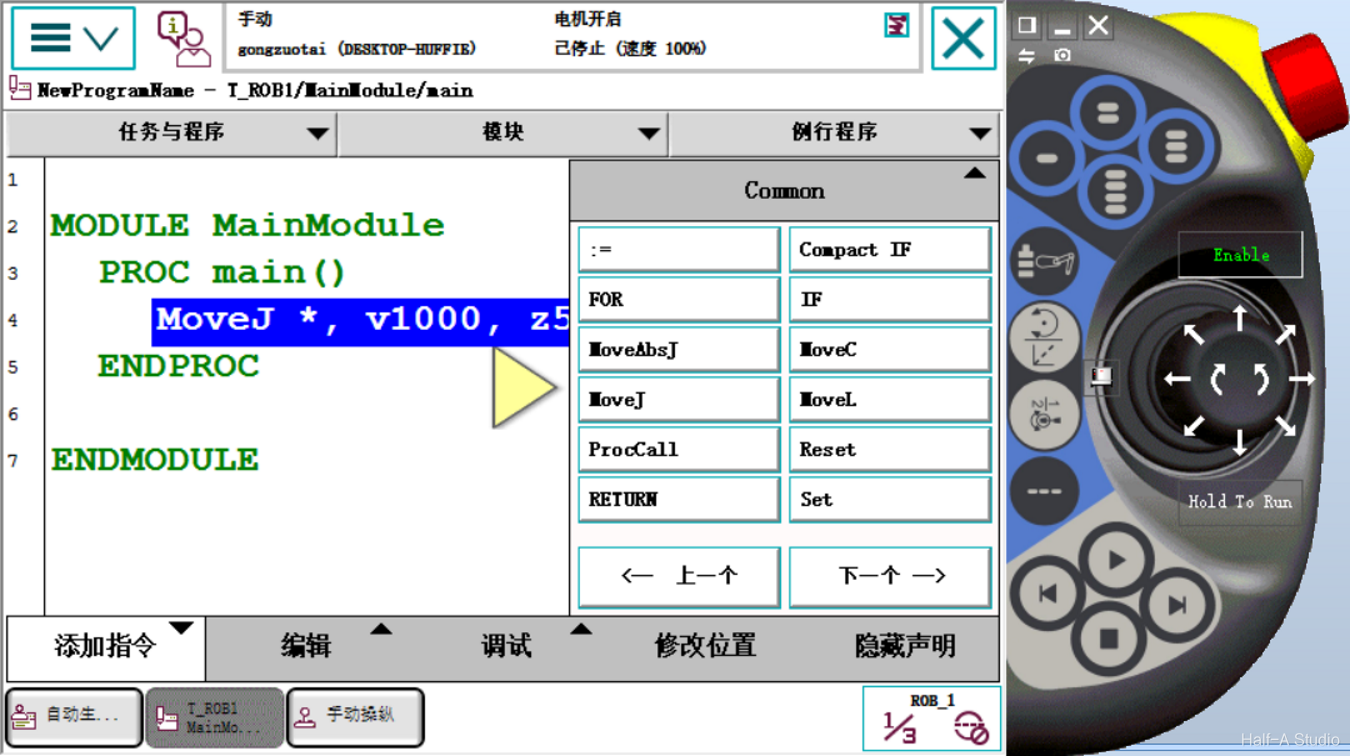
- Position the robot gripper directly above the workpiece, then add another MoveJ instruction (adding a waypoint above the workpiece prevents the robot from grasping directly and possibly colliding with the workpiece from the side)
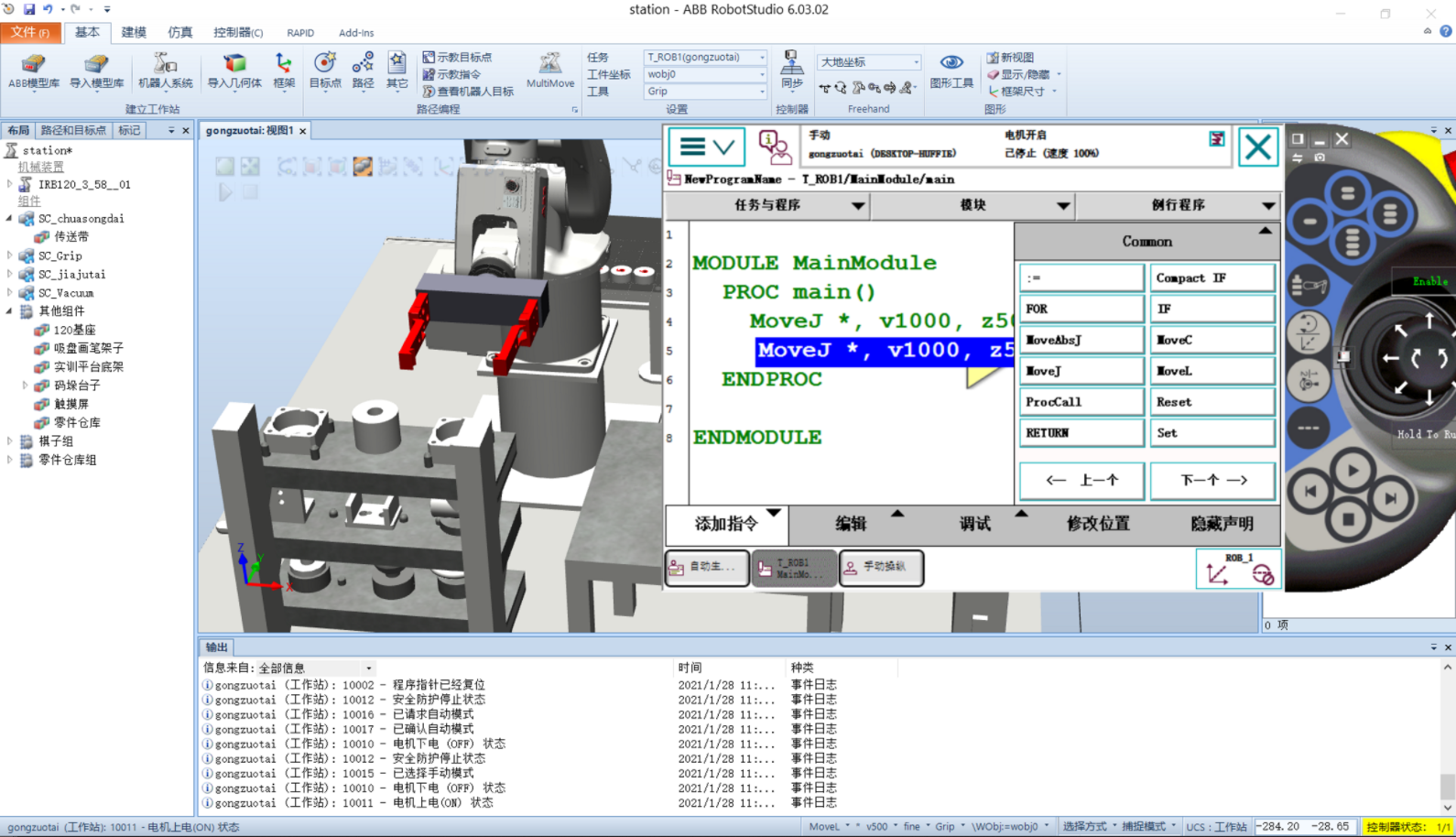
- Move the robot gripper downward to the position for grasping the workpiece, and add a MoveJ instruction
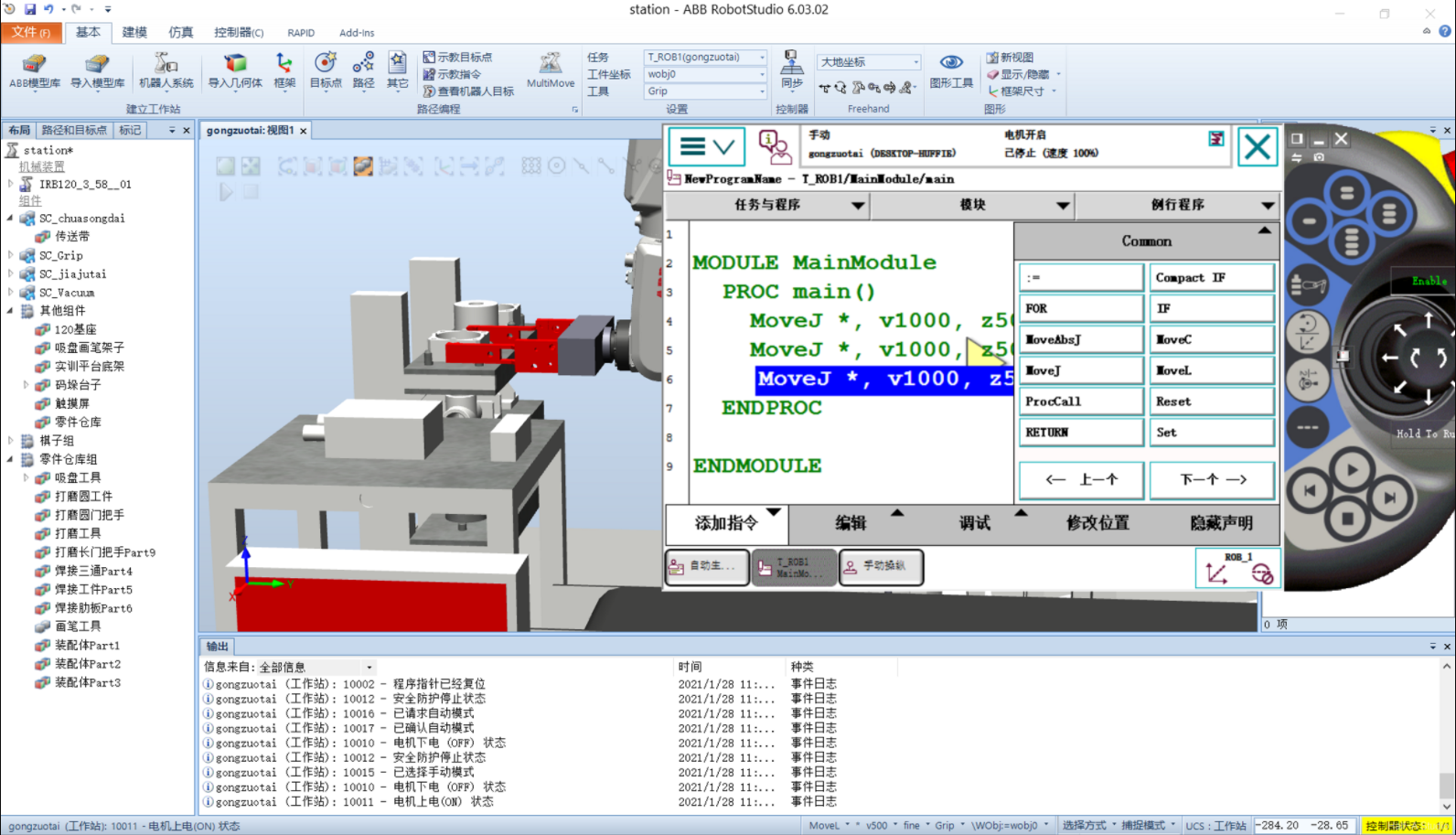
- Use a Set instruction to close the robot gripper and grip the workpiece.
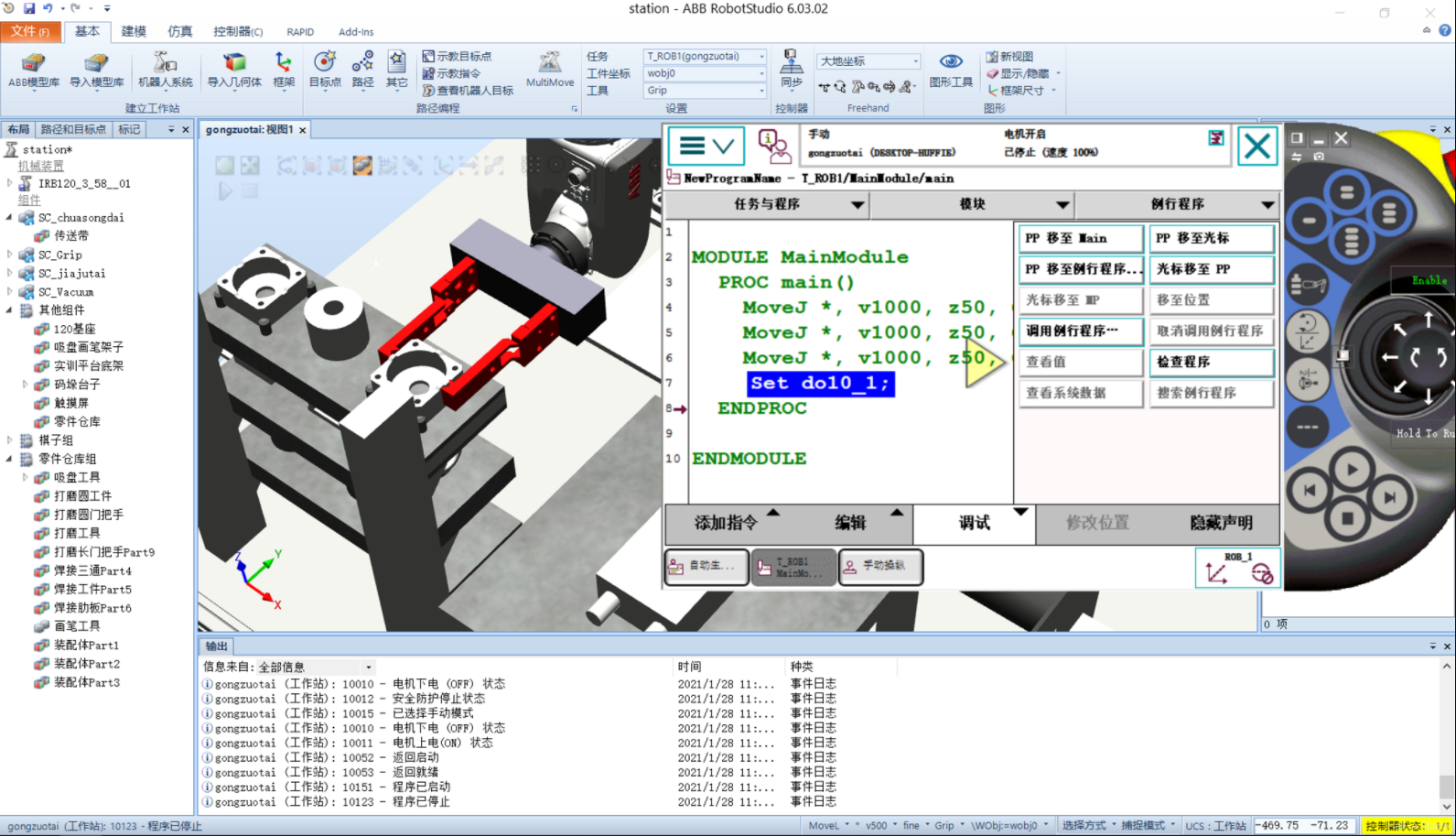
- Move the robot straight upward so the workpiece clears the workbench, and add a MoveJ instruction.
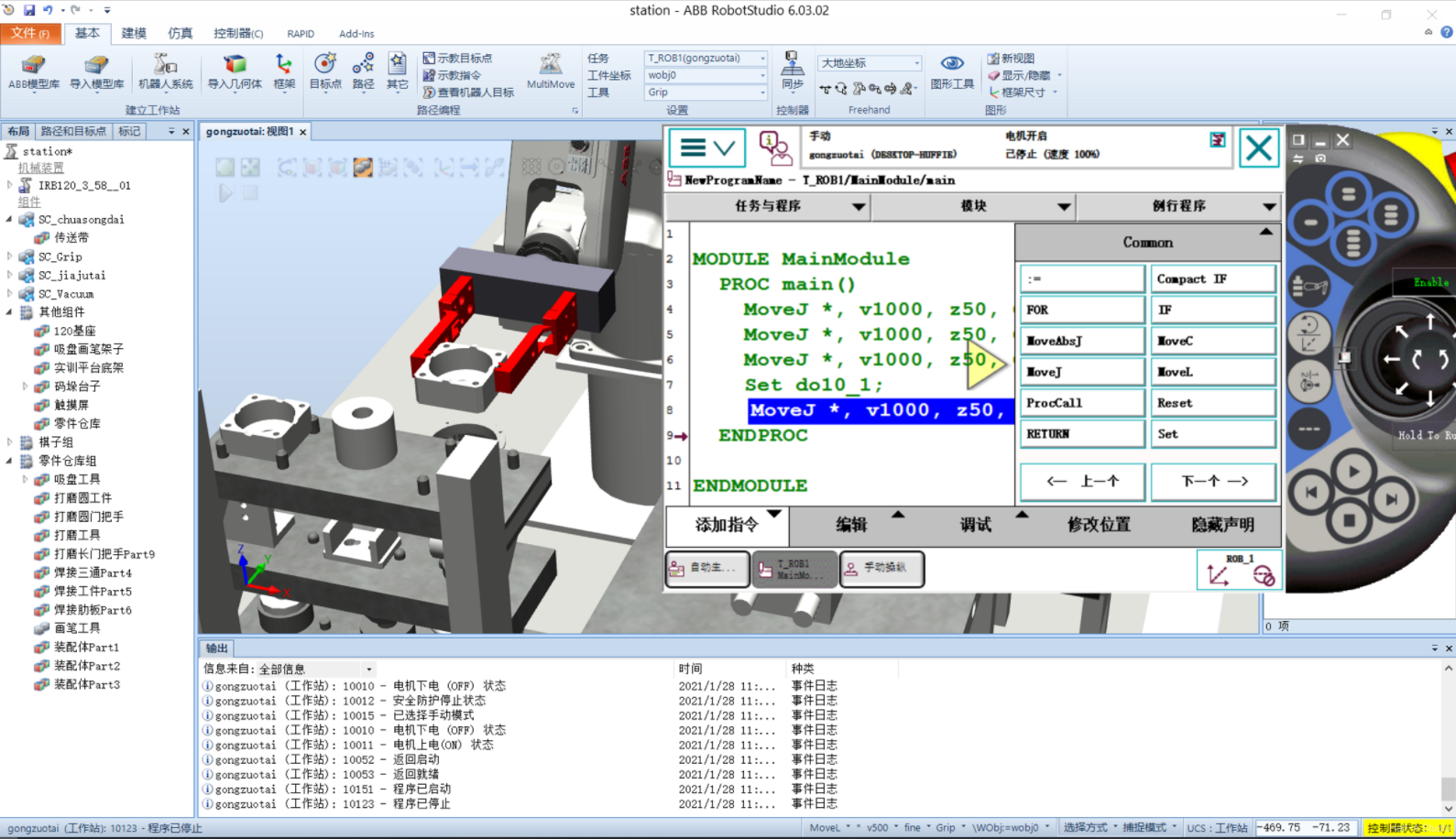
- Move the workpiece above the fixture stand, and add another MoveJ instruction.
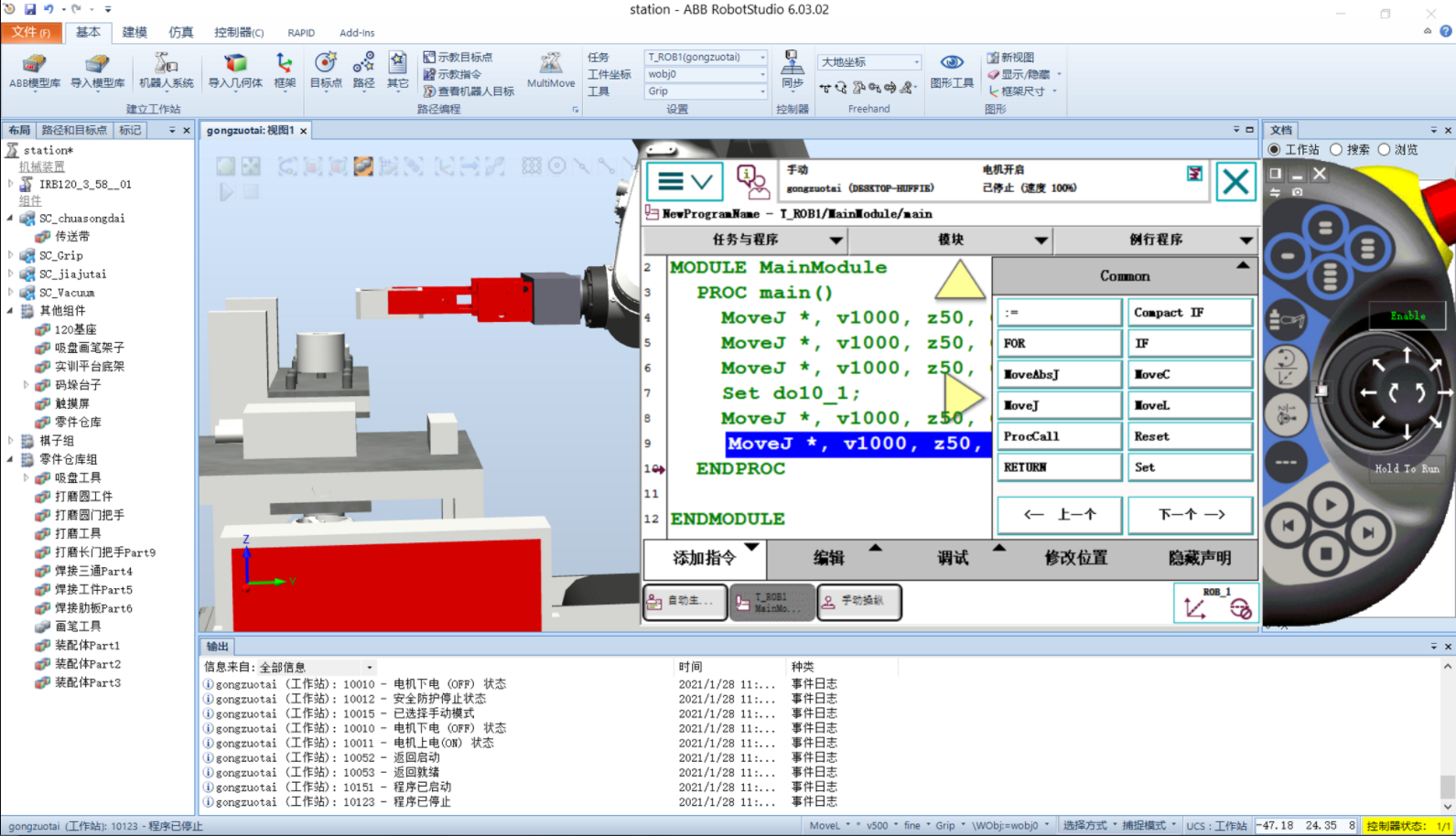
- Place the tool on the workbench, add a MoveJ instruction, then use a Reset instruction to open the gripper.
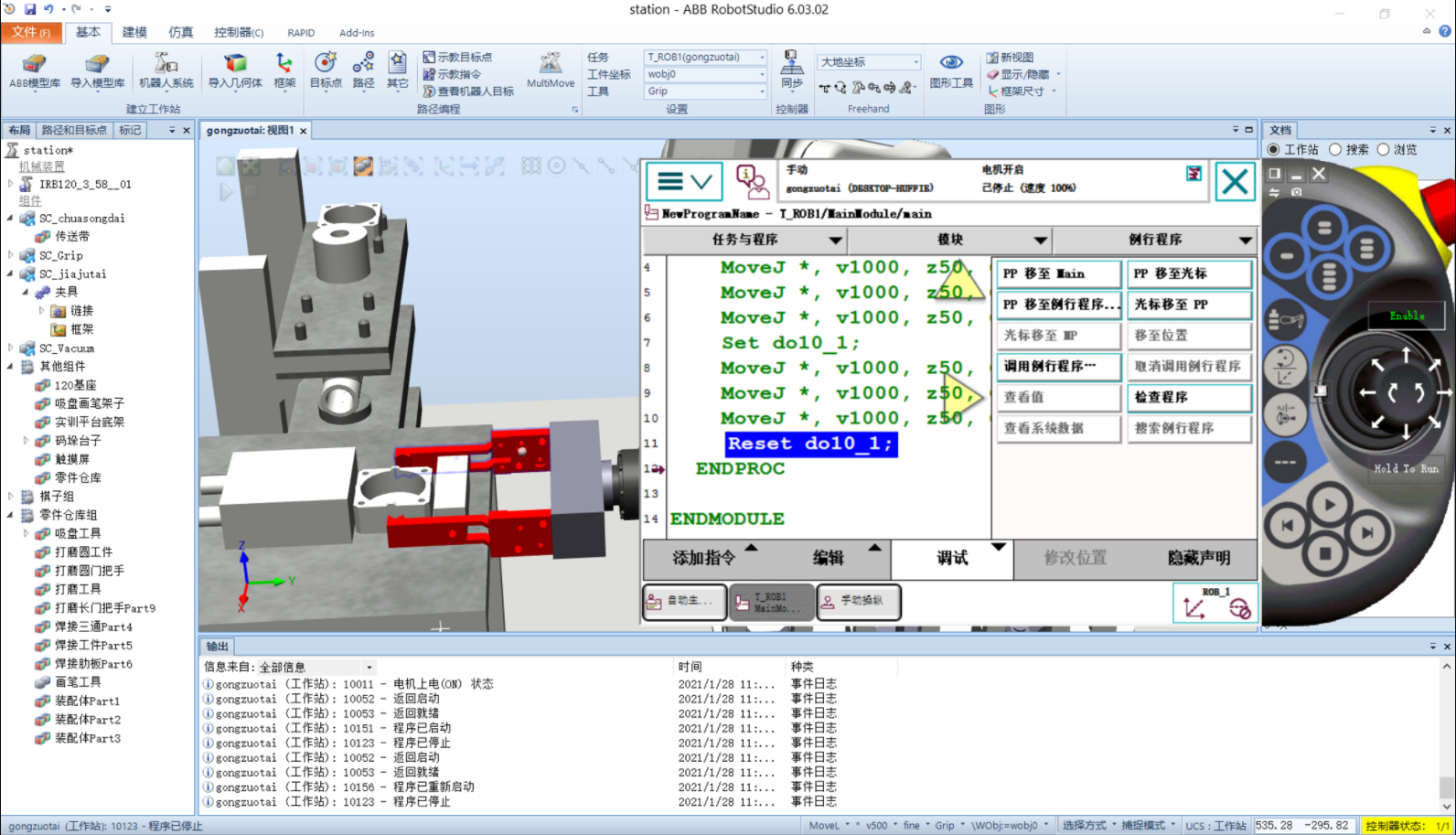
- Use MoveJ instructions to move the robot straight upward first, then return to the initial position to complete one motion cycle.
III. Improving Code Readability—Creating robtarget Data
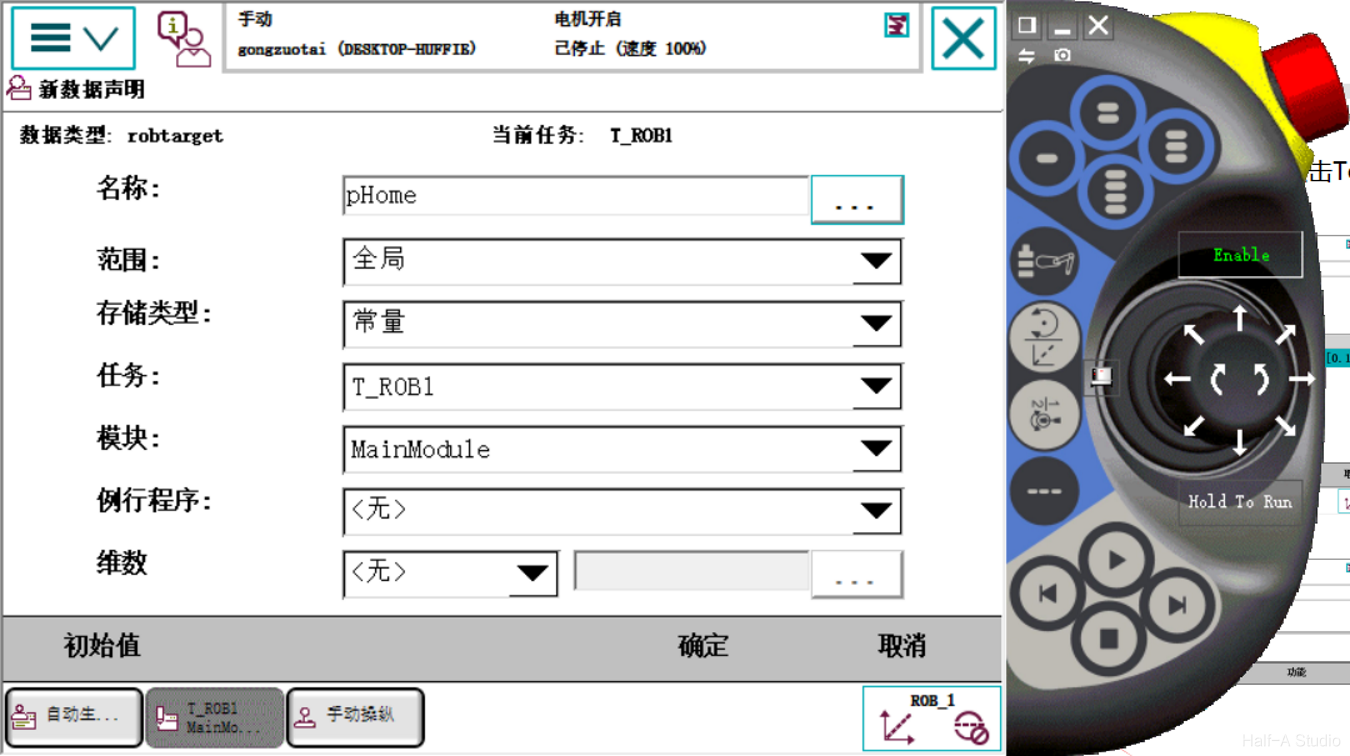
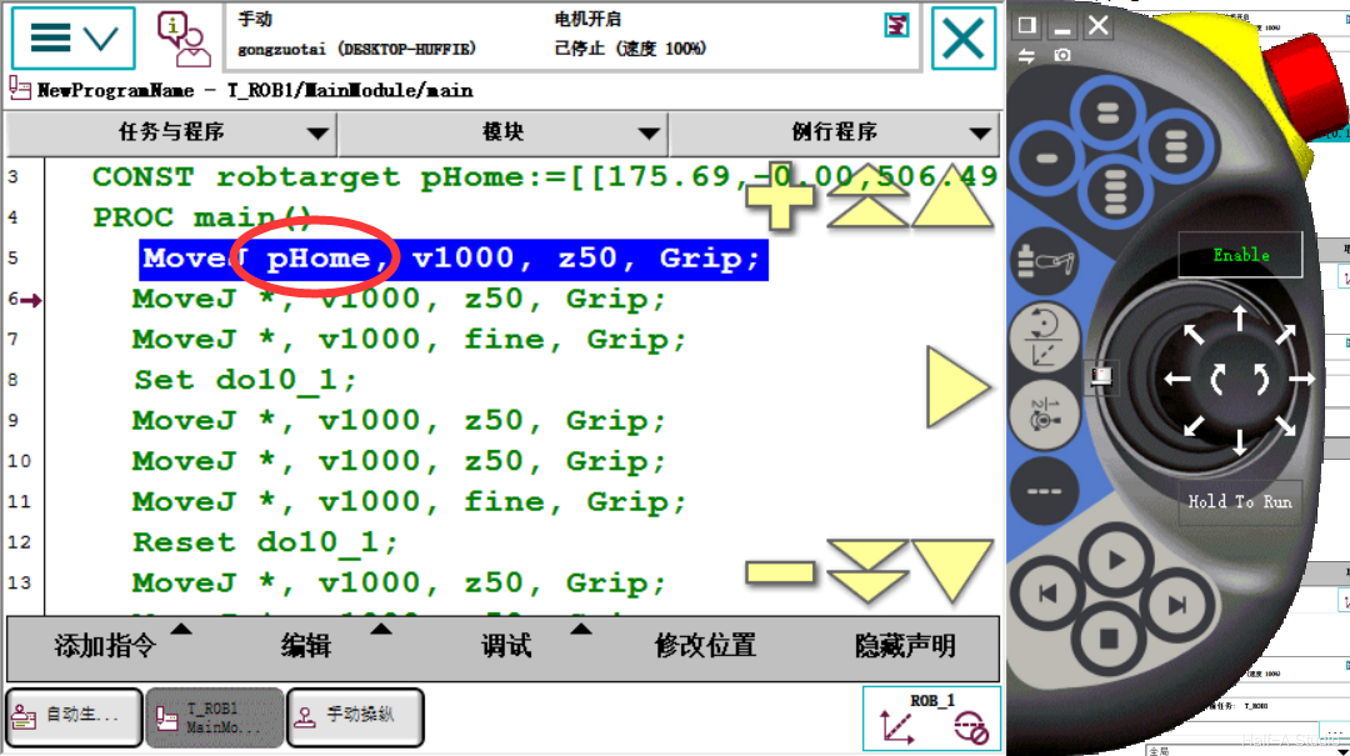
Click the * after a MoveJ instruction, click ToPoint, click New to create a robotarget data entry to replace the * at that position and improve program readability.
(Note: when creating new robtarget data, it records the robot’s current position, not the originally intended position)
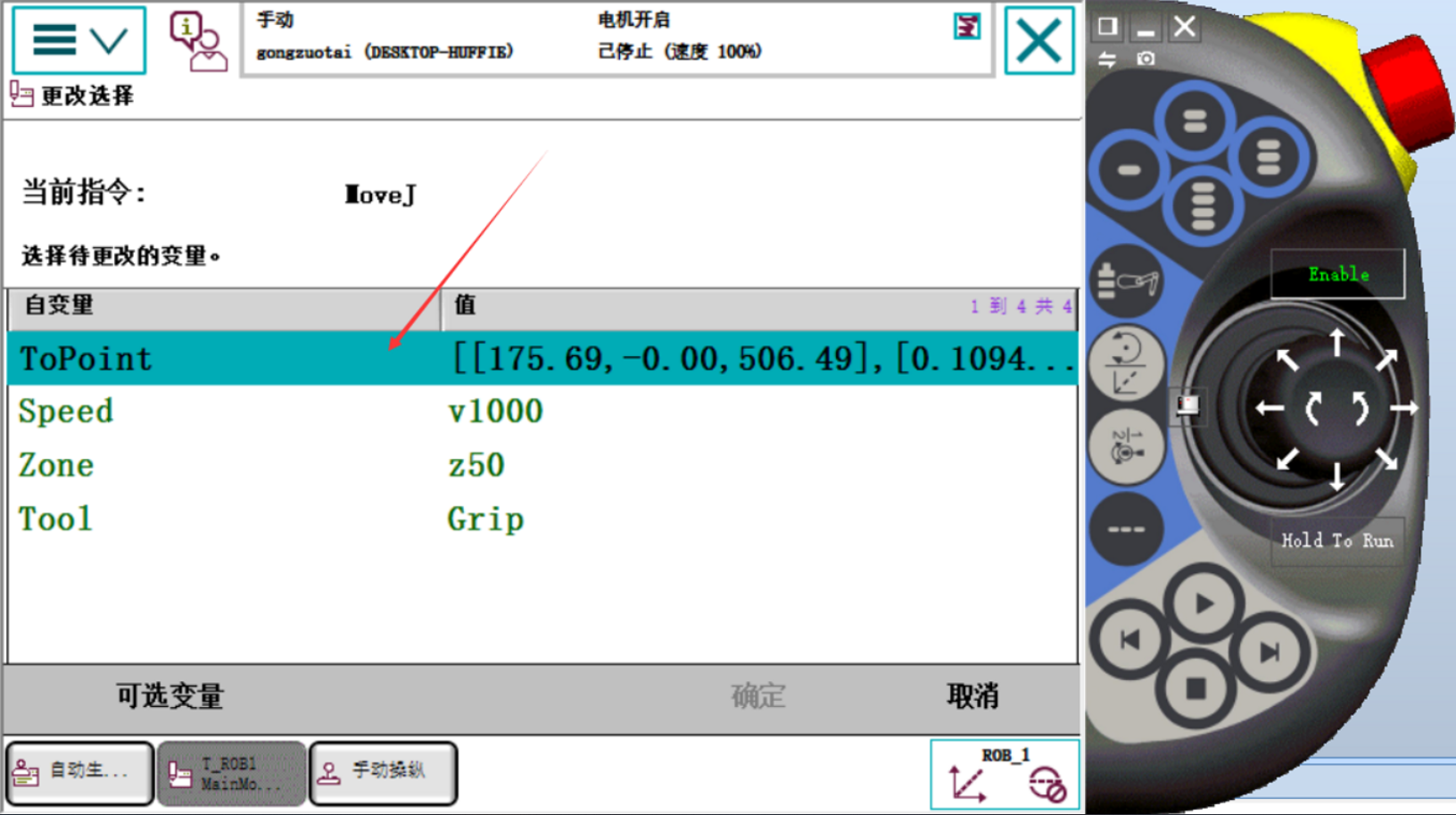

IV. Modifying Tool Data in the Program
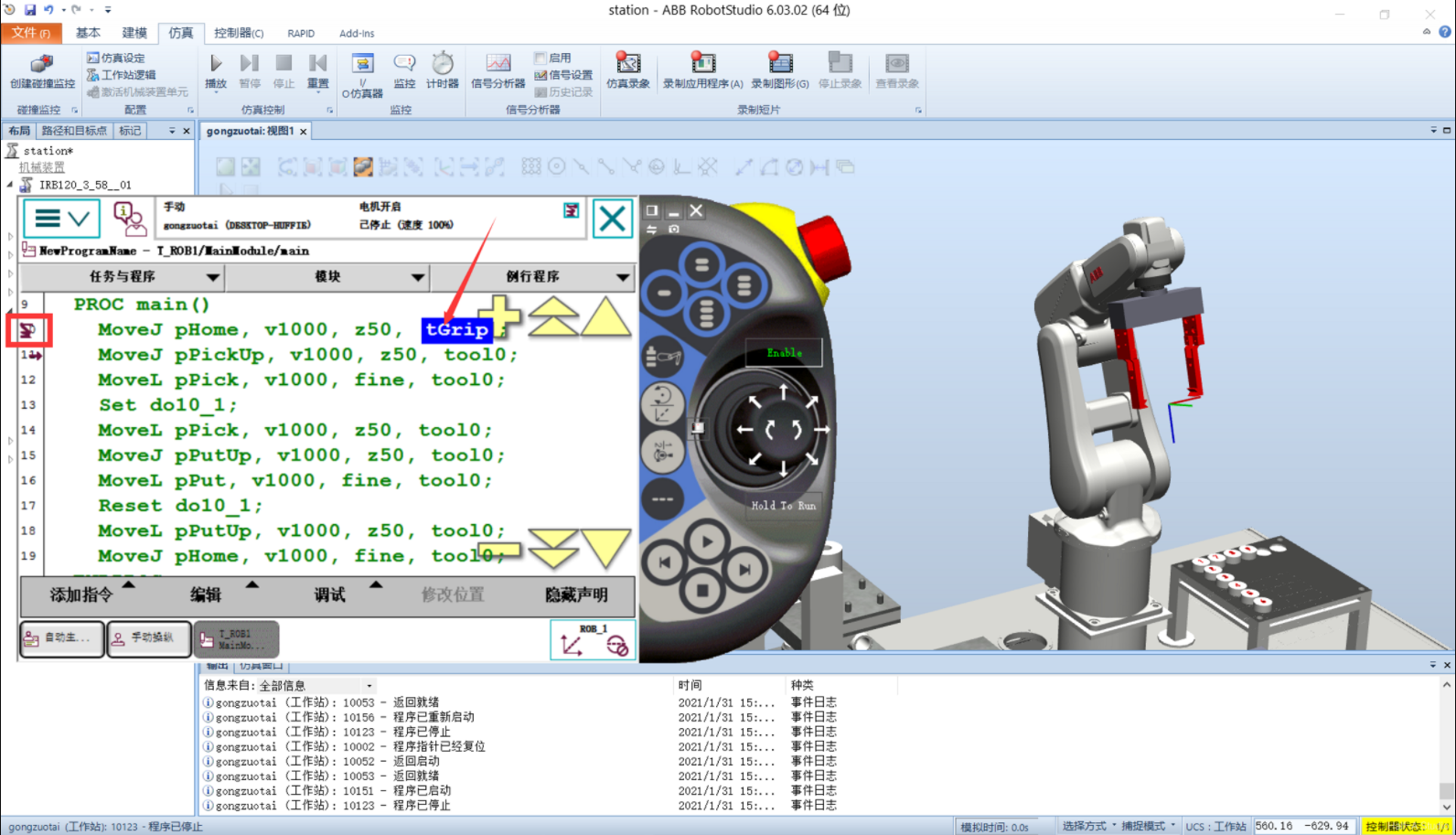
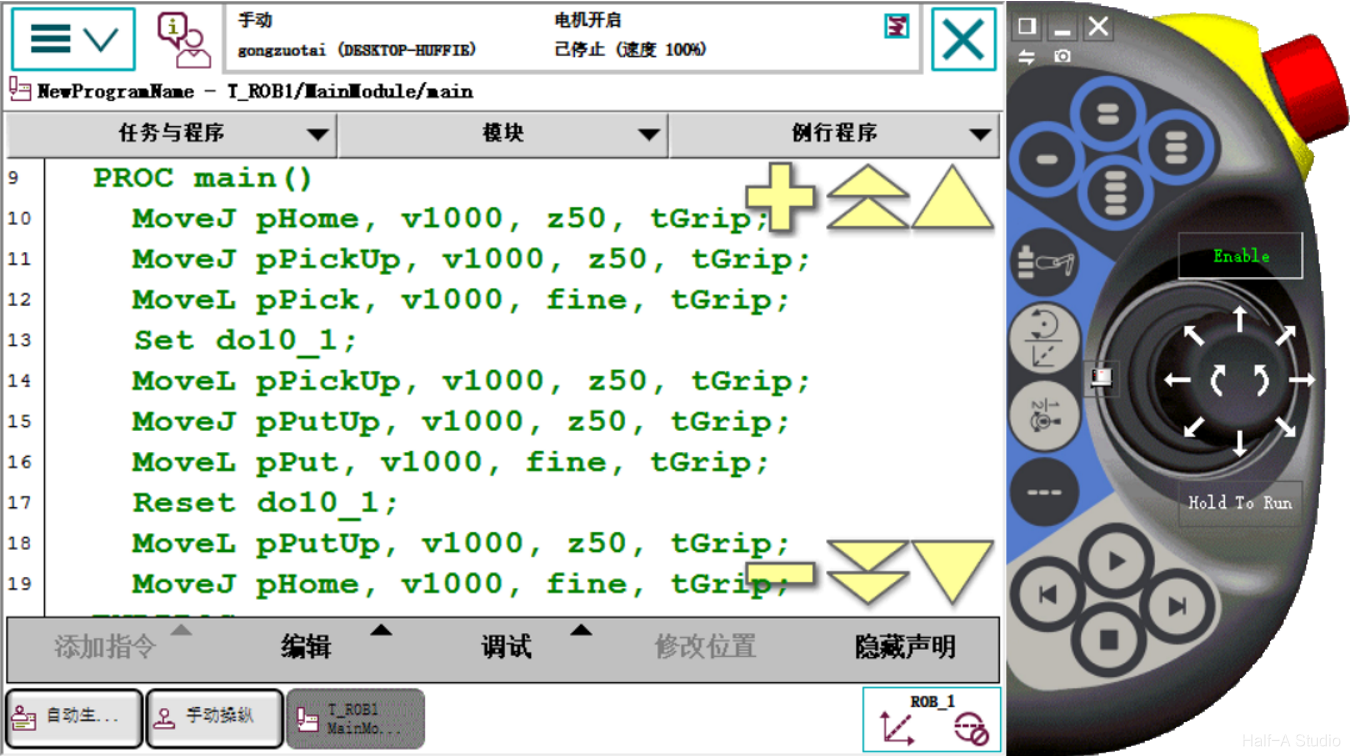
To ensure normal output of payload and other parameters and stable robot operation, change the tool coordinate after each instruction to the correct tool coordinate.
- When the robot system is at the position corresponding to this program line, click tool0 and change it to tGrip
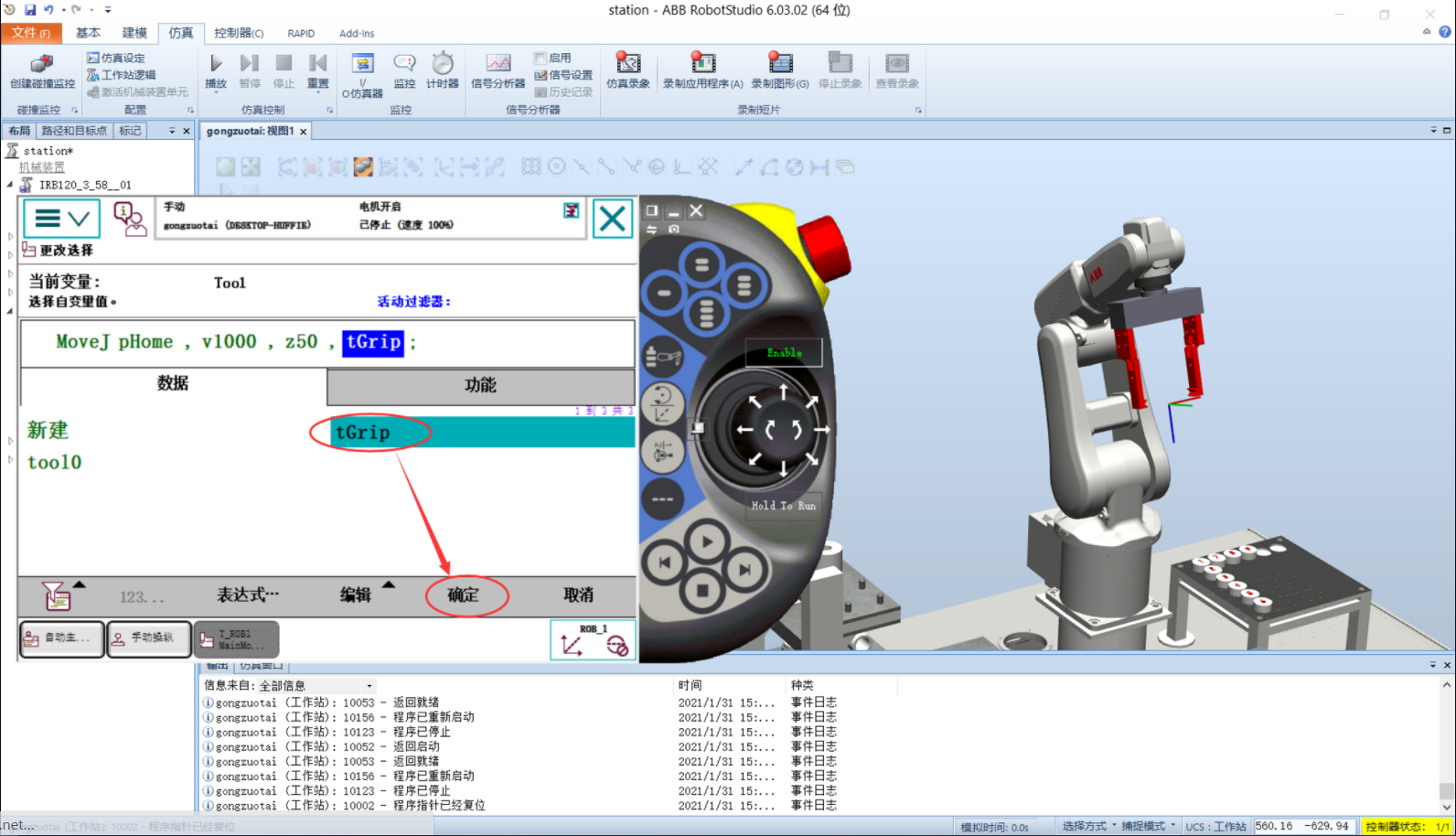
- Because the tool coordinate has changed, the corresponding position coordinate must also change; click Modify Position to change it to the correct position
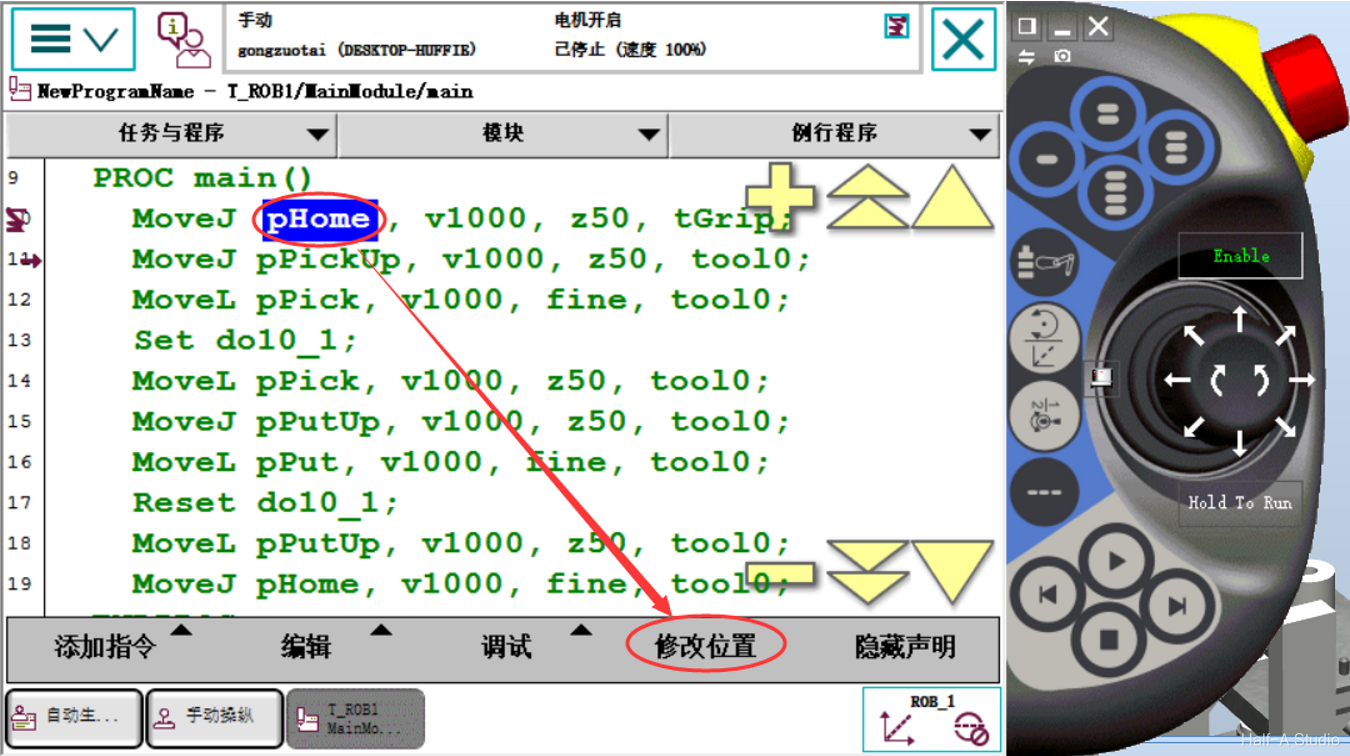
- Move the robot to the next position, then modify the tool coordinate again, then correct the position.
Comments