LabVIEW Study Notes: LabVIEW Study Notes (I): Basic Introduction LabVIEW Study Notes (II): Filter Experiment LabVIEW Study Notes (III): Basic Controls LabVIEW Study Notes (IV): Dynamic Data Types LabVIEW Study Notes (V): Comprehensive Data Type Experiment LabVIEW Study Notes (VI): While Loops and For Loops LabVIEW Study Notes (VII): Variables and Shift Registers LabVIEW Study Notes (VIII): Property Nodes LabVIEW Study Notes (IX): Arrays and Clusters LabVIEW Study Notes (X): Case Structures Other Experiment Records
1. Numeric Controls
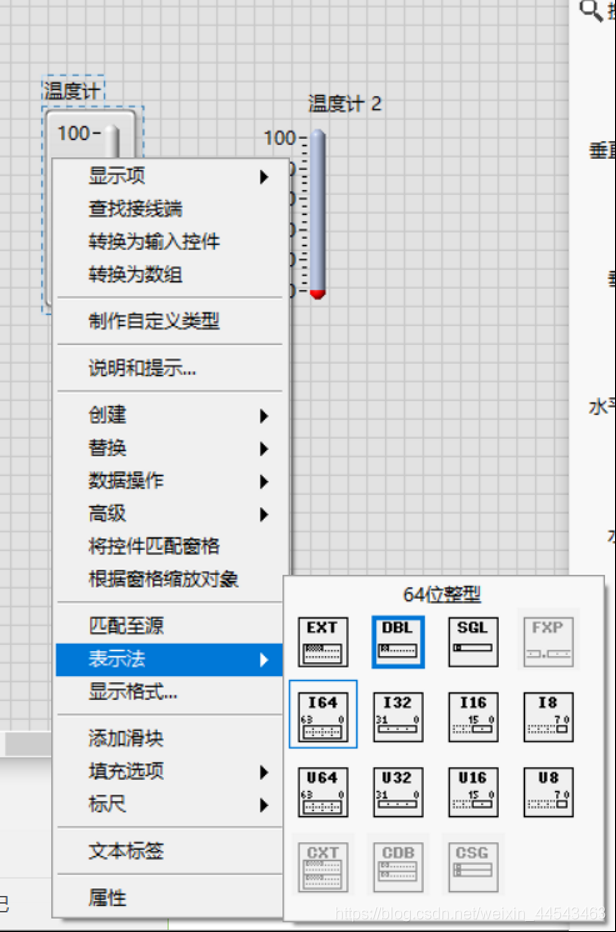
- Numeric controls can represent different types of numeric values
- On the block diagram or front panel, right-click a control, indicator, or constant and select Representation from the shortcut menu to change the representation of the numeric data
2. Boolean Controls
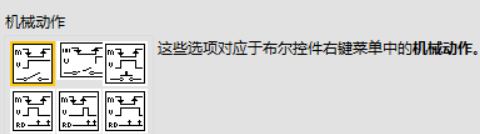
- The most important setting for a Boolean control is its mechanical action.
| Mechanical Action | Effect |
|---|---|
| Switch When Pressed | Changes state when the button is pressed. Remains in the changed state until another button is pressed |
| Switch When Released | Changes state when the button is released. Remains in the current state until another button is released |
| Switch Until Released | Changes state when the button is pressed. Returns to its original state when the button is released |
| Latch When Pressed | Changes state when the button is pressed. Returns to its original state after LabVIEW reads the control value |
| Latch When Released | Changes state when the button is released. Returns to its original state after LabVIEW reads the control value |
| Latch Until Released | Changes state when the button is pressed. Returns to its original state after the button is released and LabVIEW reads the control value |
3. String Controls
- The display type can be changed from the shortcut menu: Normal Display, ” Codes Display, Password Display, or Hex Display
- In LabVIEW, strings are pink
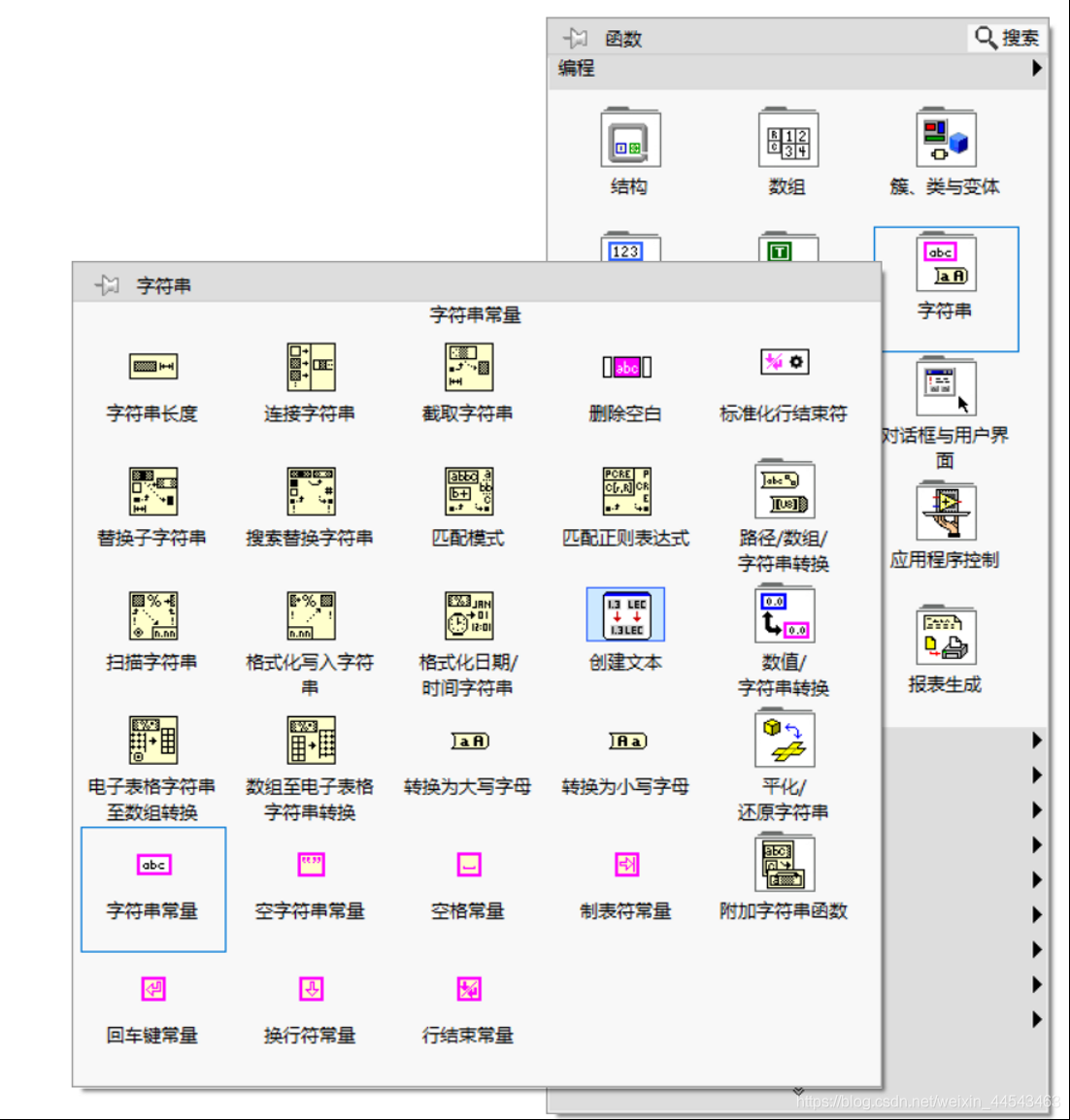
- Numeric/string conversion functions can convert string data/controls to and from various types of numeric data. String data can also be converted to and from paths and arrays
- String controls can use Concatenate Strings from the Functions palette, along with tab and carriage return/line feed characters, to convert multiple string values into a string in a specified format for creating reports
4. Enum and Ring Controls
- Ring control: Right-click the ring control and select Edit Items from the shortcut menu, or click the Edit Items tab in the Properties dialog box, to add items to the control’s drop-down list and change their order
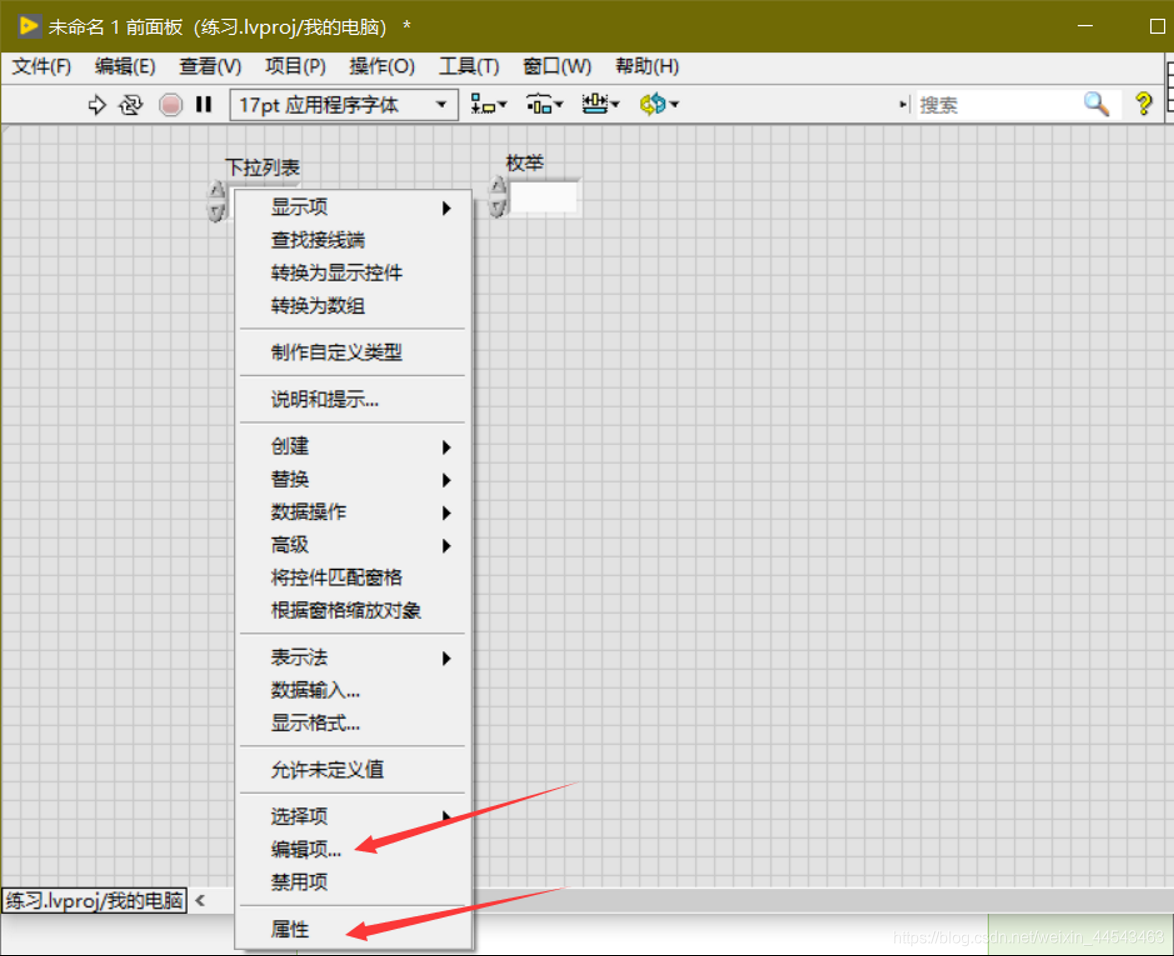
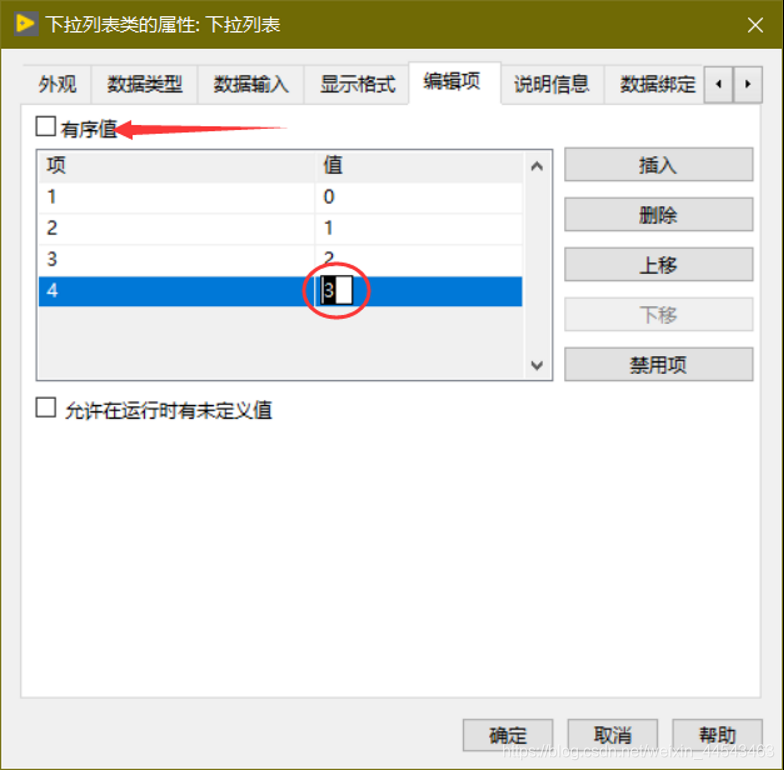
- Enum control: When an enum control is connected to the selector terminal of a Case Structure, LabVIEW compares the strings in the control with the case conditions rather than with the control’s numeric values
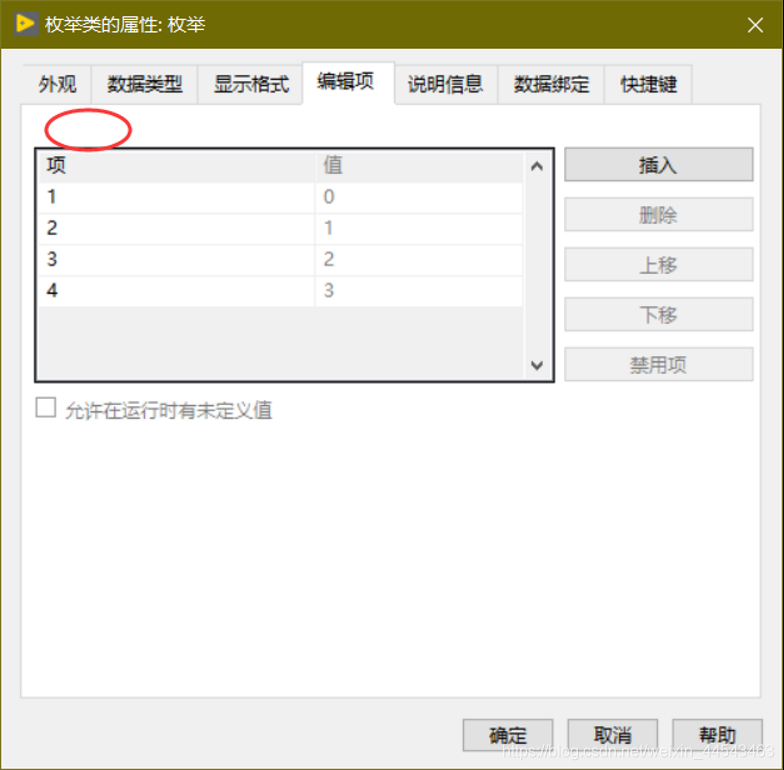
- When the data is too large, an enum can display it more effectively, whereas a ring control sometimes requires changing its data type to store larger data.

Comments