Installing RobotStudio 6.03.02
Link: https://pan.baidu.com/s/1NyDTu_OCcPJLbfaQLtCHCw Extraction code: robo
1. Installation Notes
(1) The PC username must use English characters. (2) The installation path must use English characters. (3) Stay connected to the internet throughout the installation.
2. Installation Method
(1) Extract the installation package, run the setup.exe program in the package, and follow the prompts to install it. The process is quite simple.
(2) After installation, double-click RobotStudio_5.61.02注册补丁.reg.
(3) Open RobotStudio to complete the installation.
Initial Test
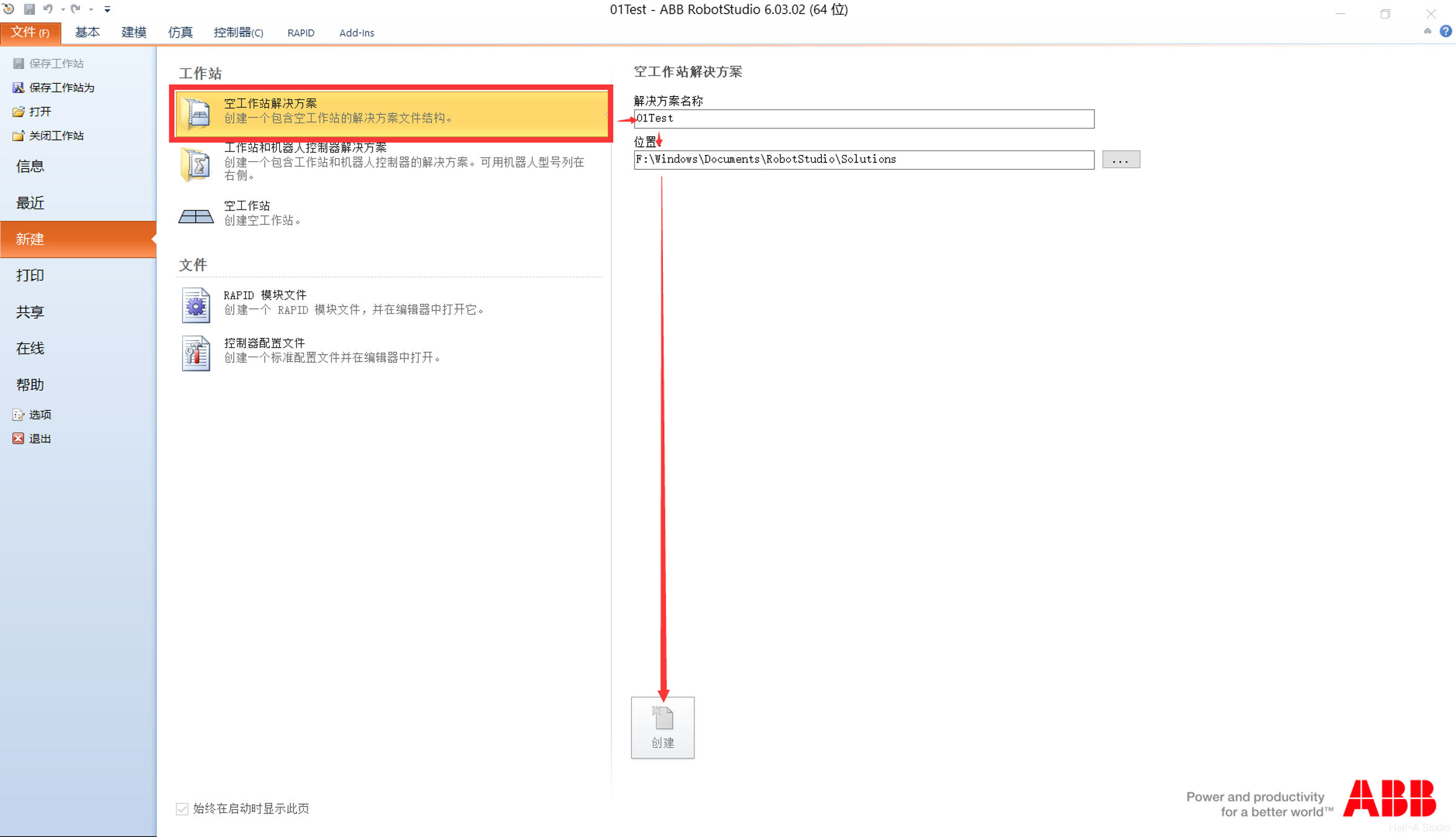
- Open RobotStudio and create a new empty station solution.
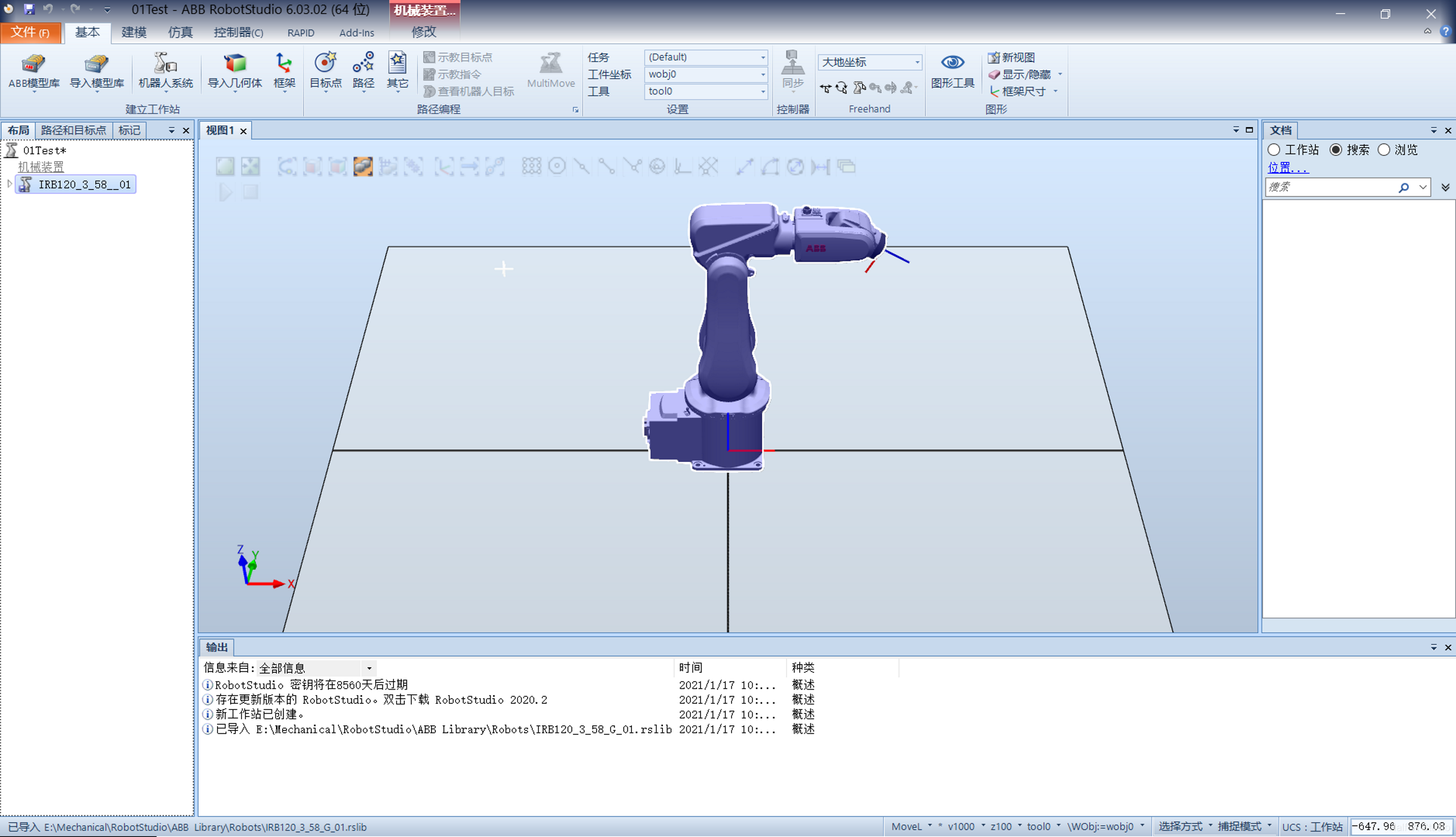
- Click the ABB model library in the upper-left corner, import an IRB 120, and click OK.


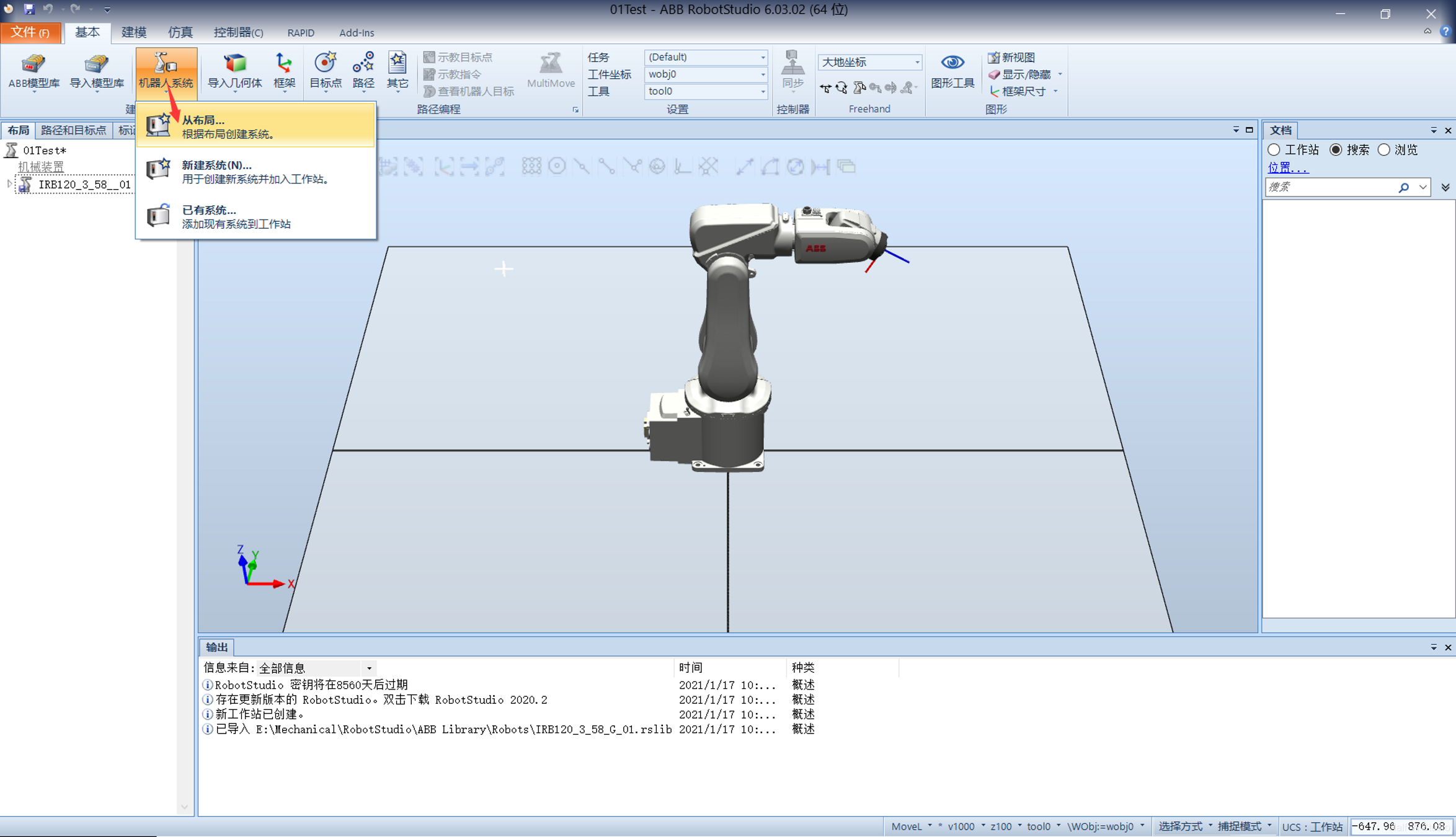
- Then click Robot Systems > Create System from Layout and select software version 6.03.
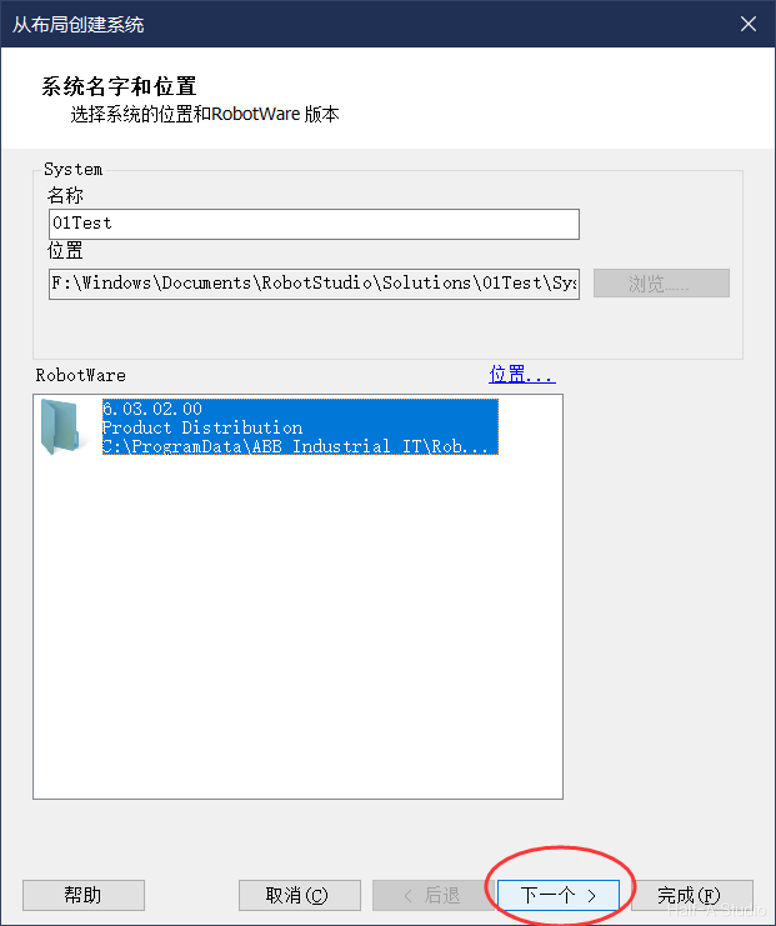
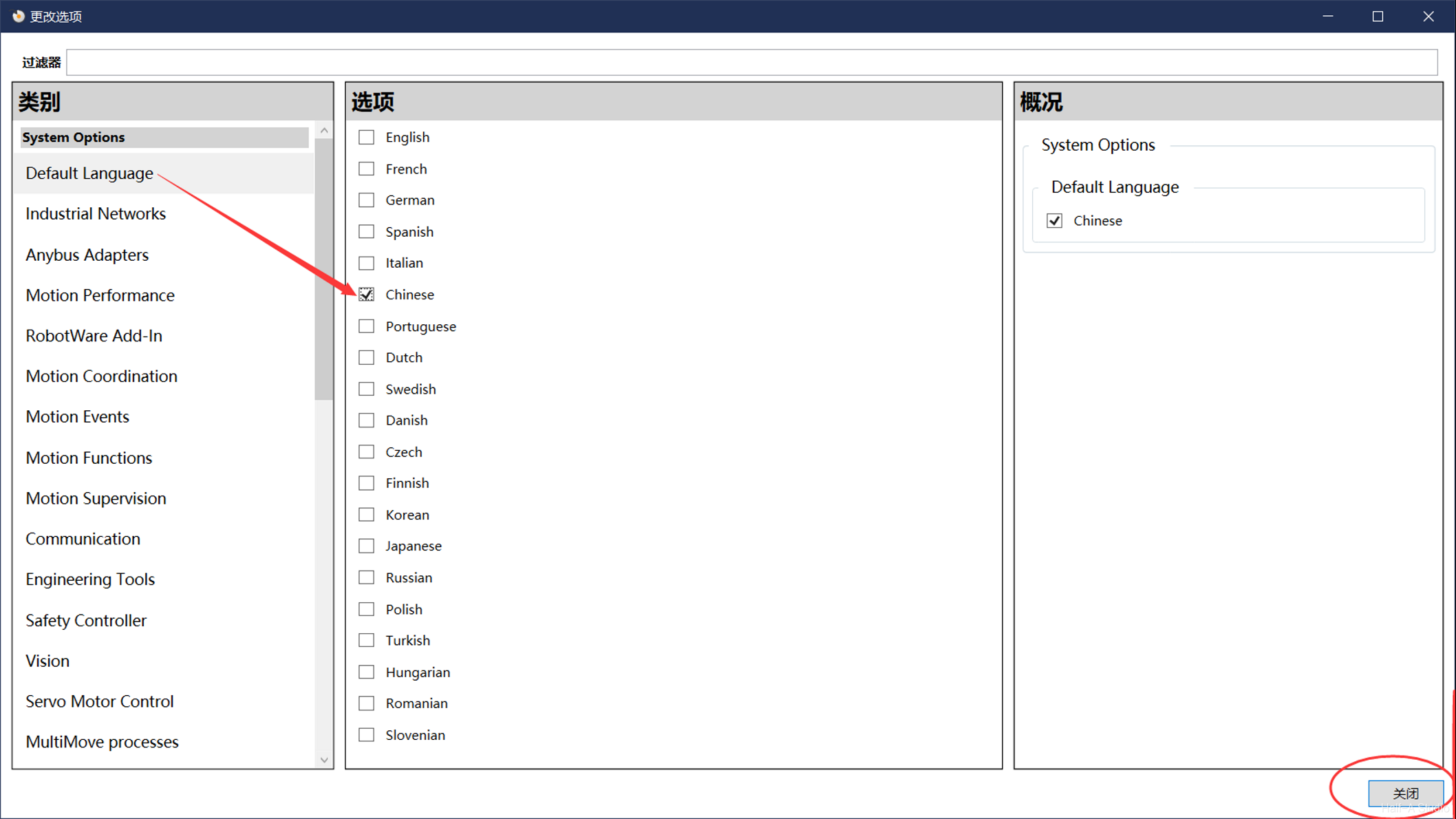
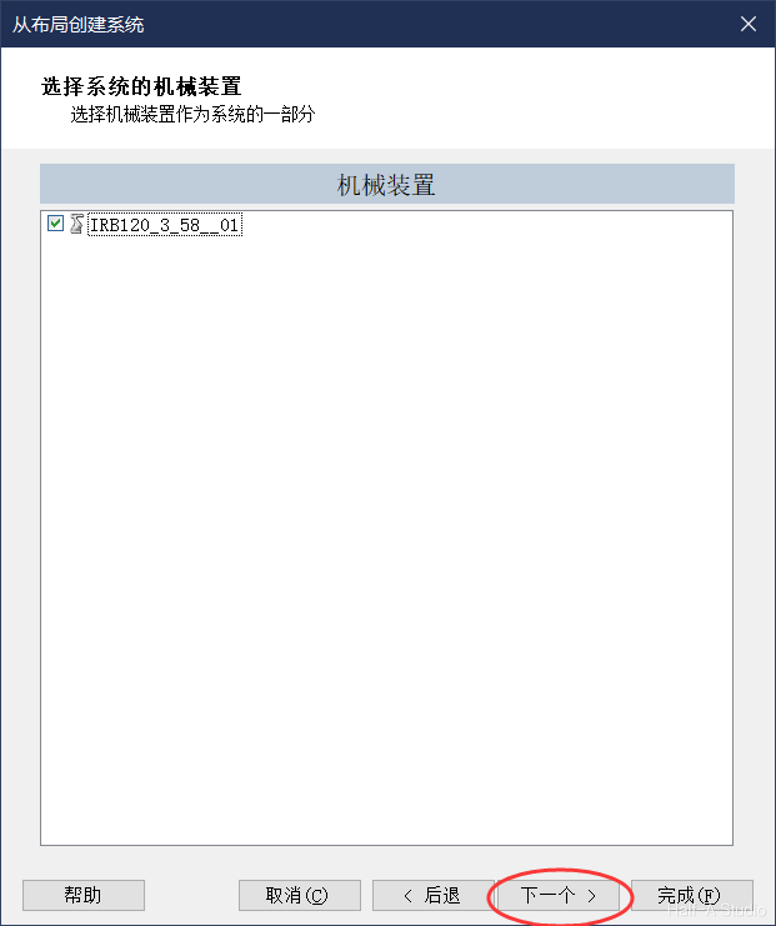 Click Options, change the default language to Chinese, and click Finish. Wait for the system to be created.

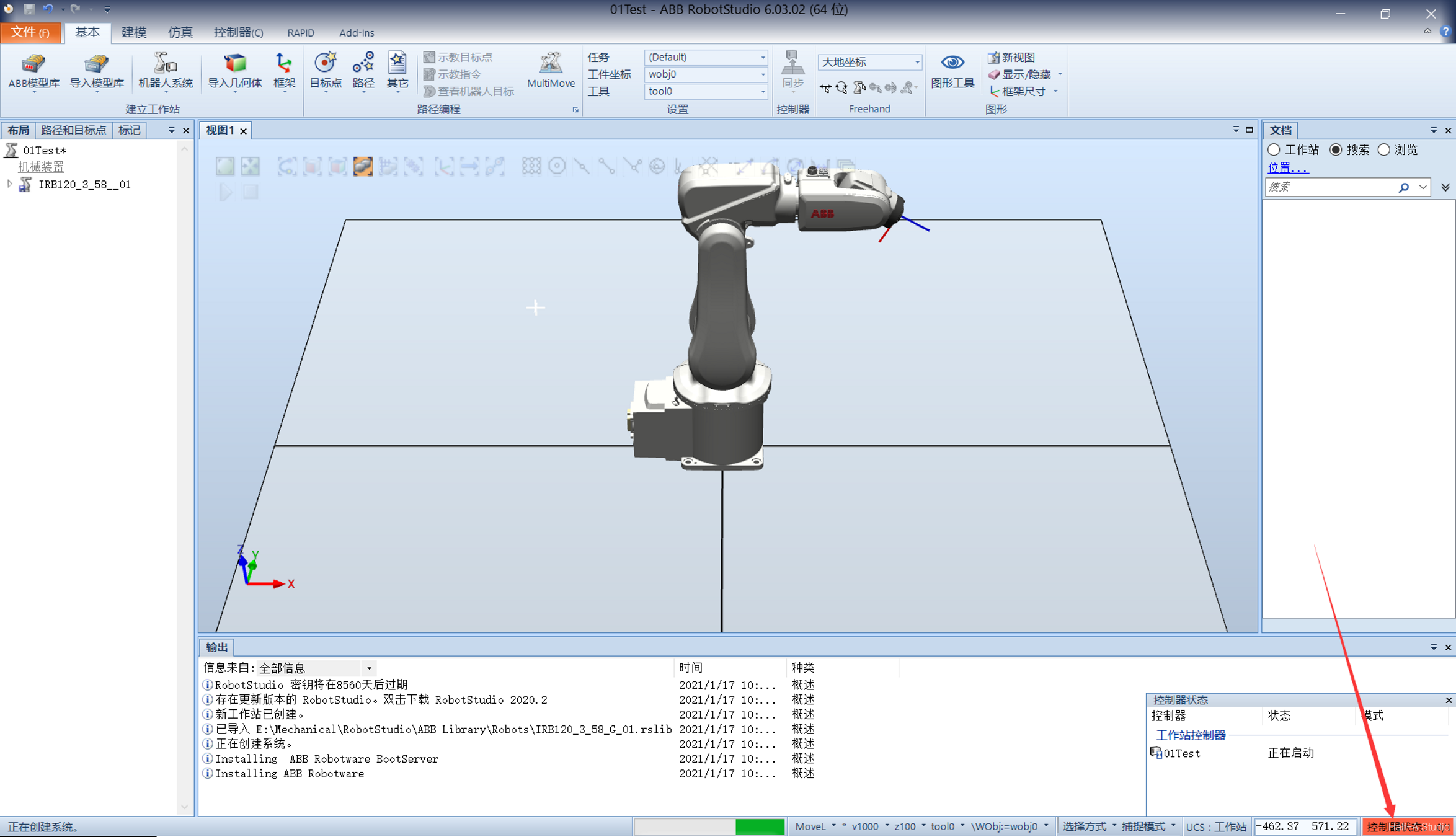
- When the controller status at the bottom turns green, the system has been created successfully.

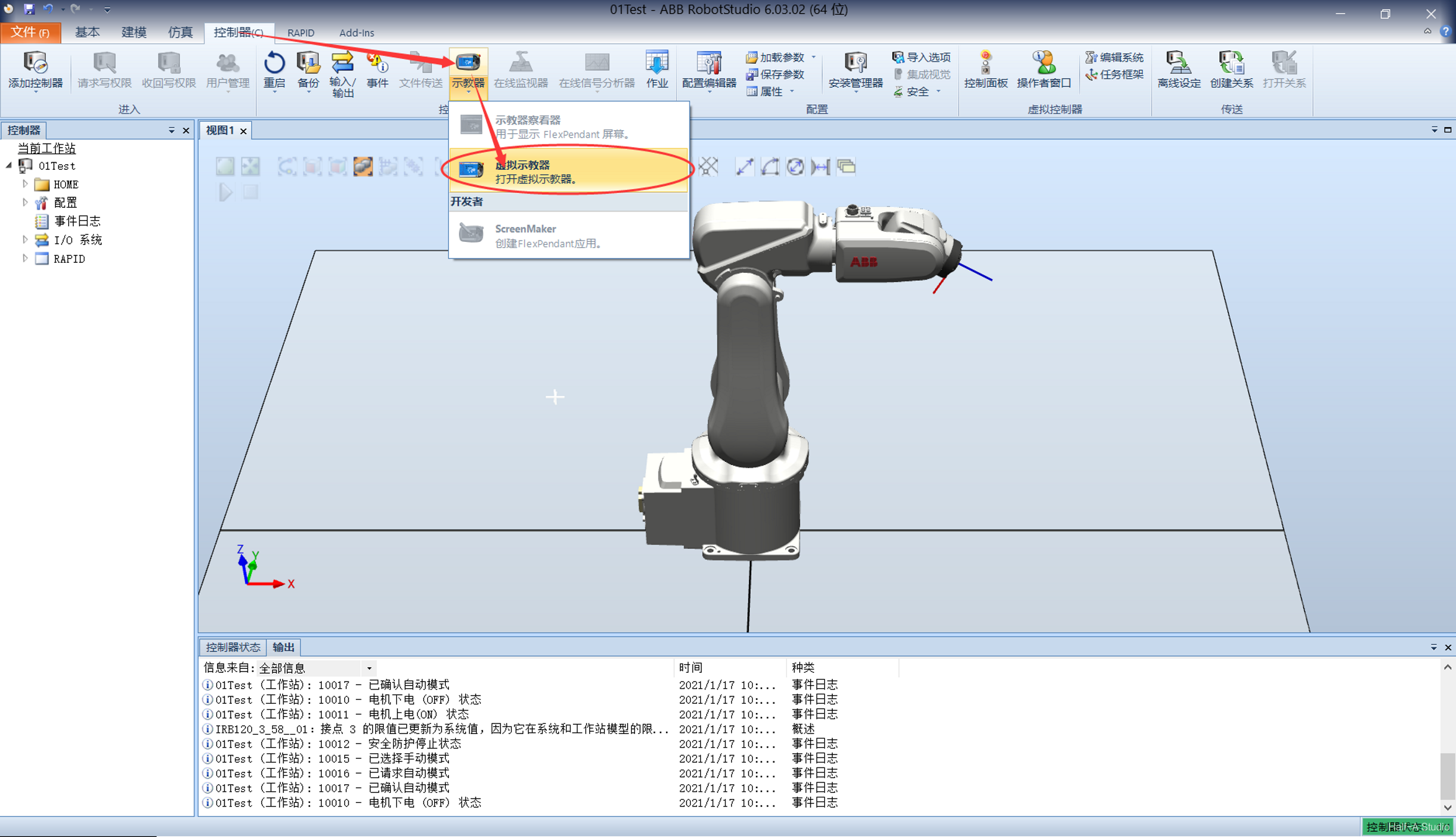
- Click Controller > FlexPendant > Virtual FlexPendant at the top.
 In the FlexPendant window that opens, open the Control Panel, switch to Manual mode, and enable operation.
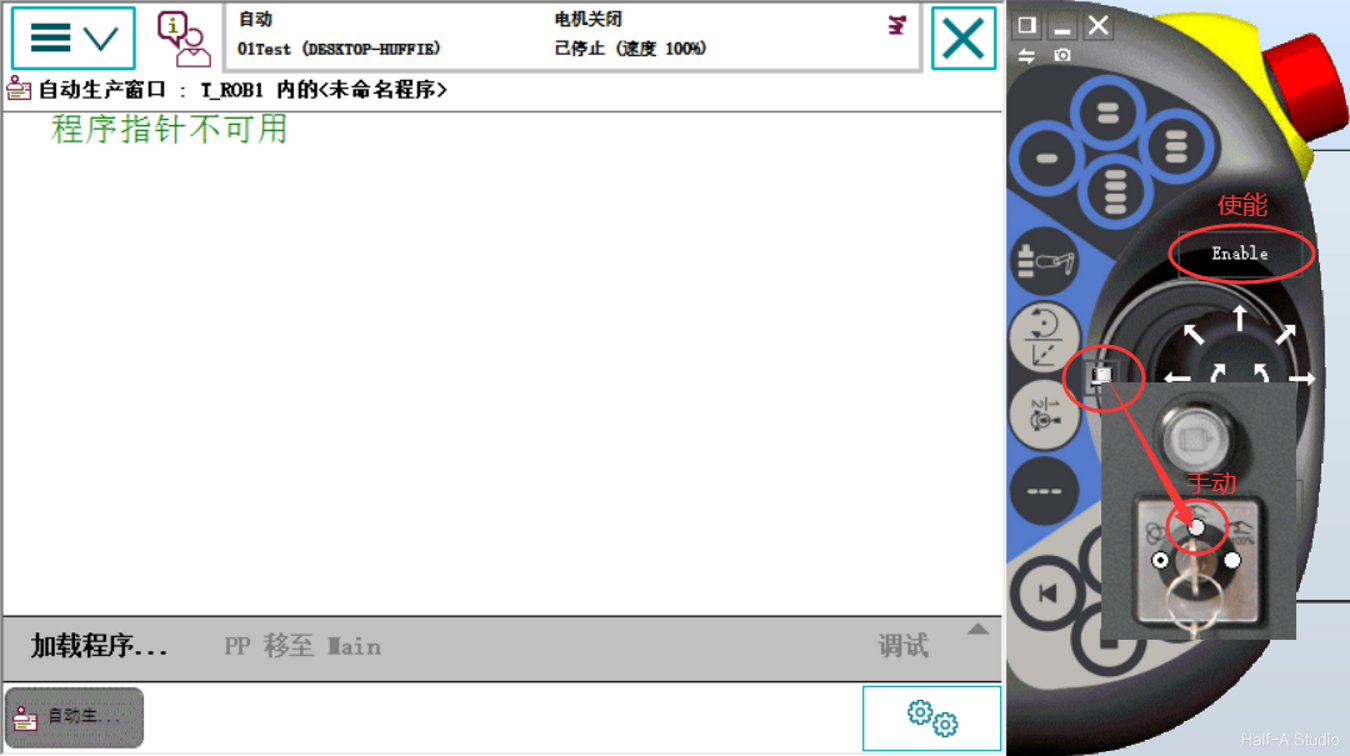
- In the robot view, Ctrl+left-click pans and Ctrl+Shift+left-click rotates. Adjust the view so that the virtual FlexPendant and the robot are both visible.
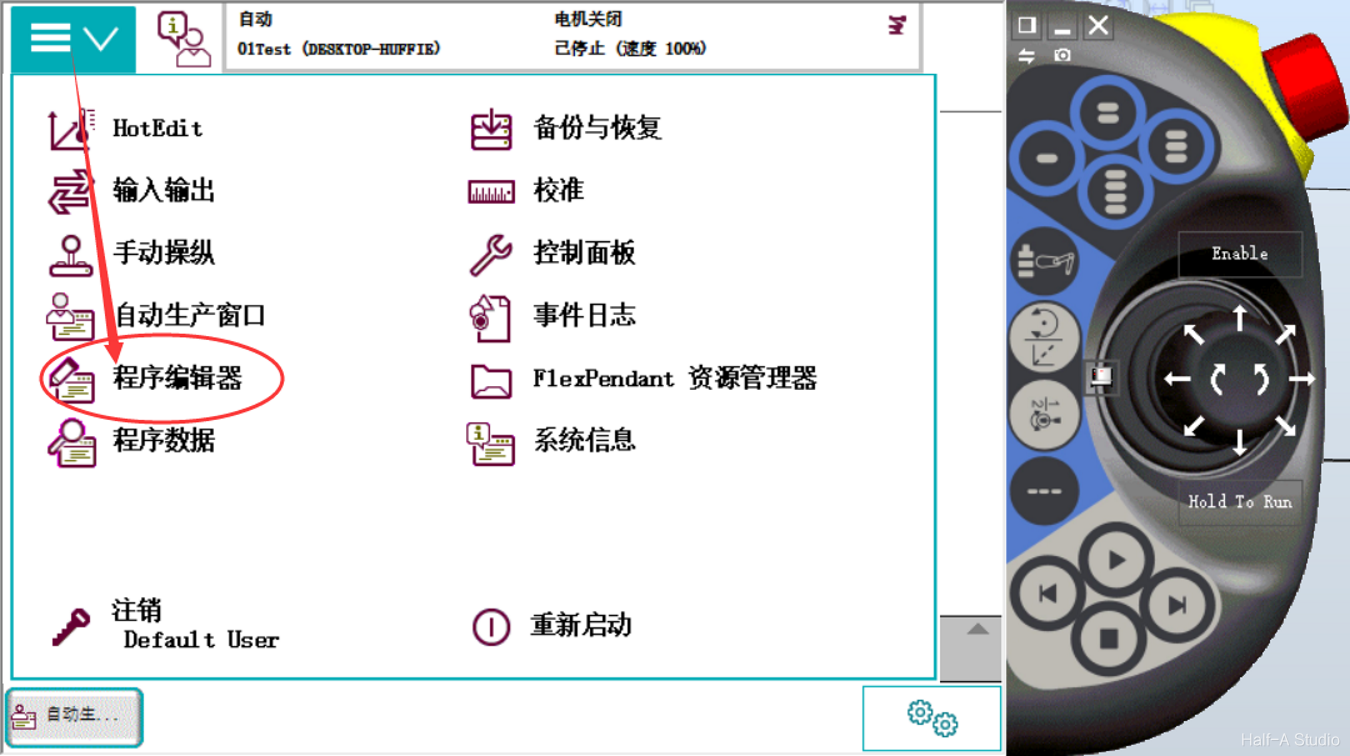
- Click Menu > Program Editor and create a new program.
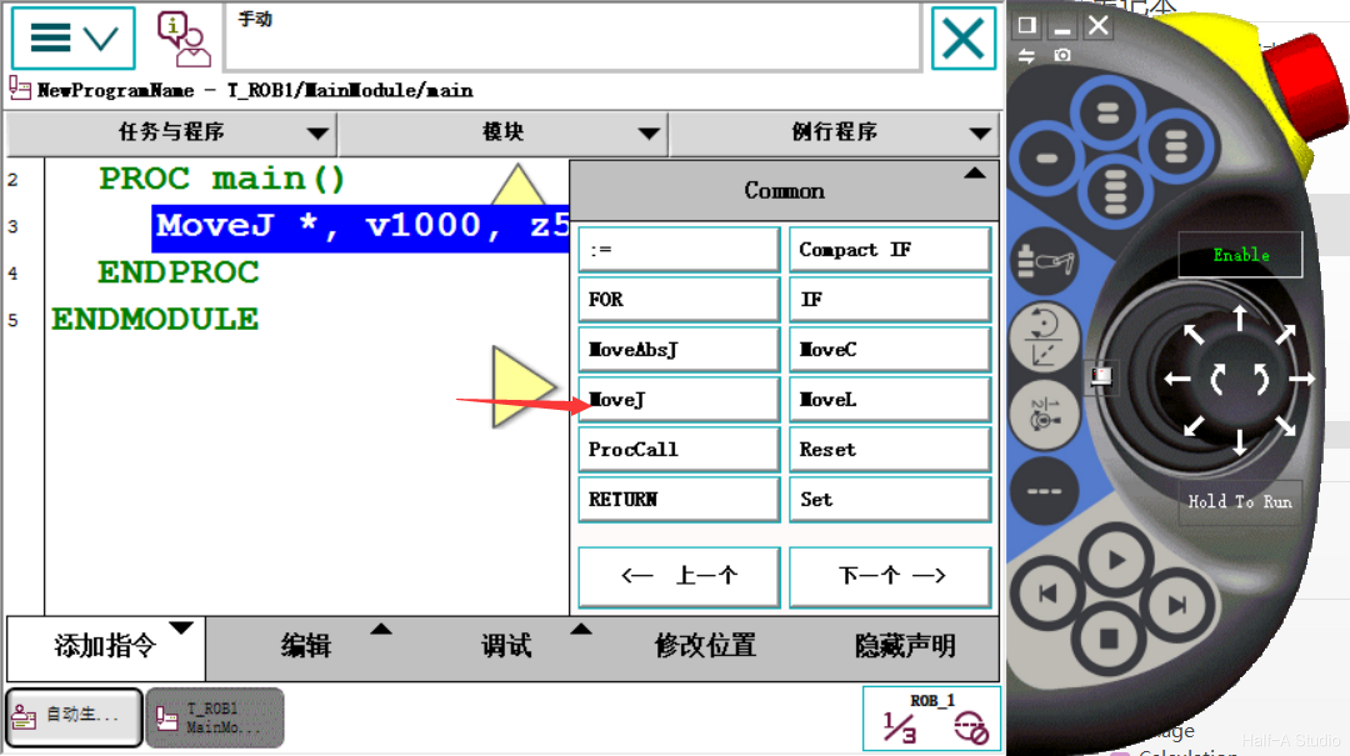
 Add a MoveJ instruction.
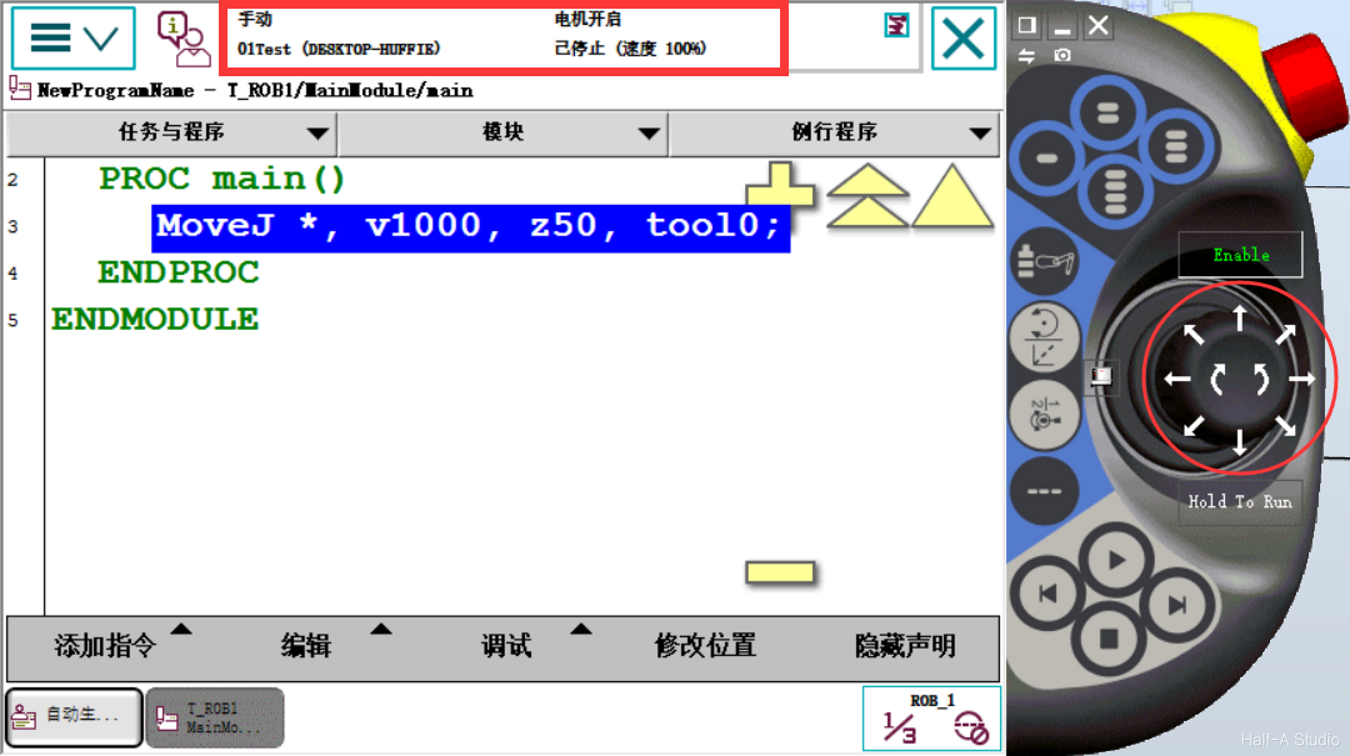
 Press and hold the arrow on the right side of the FlexPendant to rotate the robot through an angle, then add another MoveJ instruction below. (Be sure to check the status displayed on the FlexPendant and ensure that the robot is in manual control mode and the motors are on.)
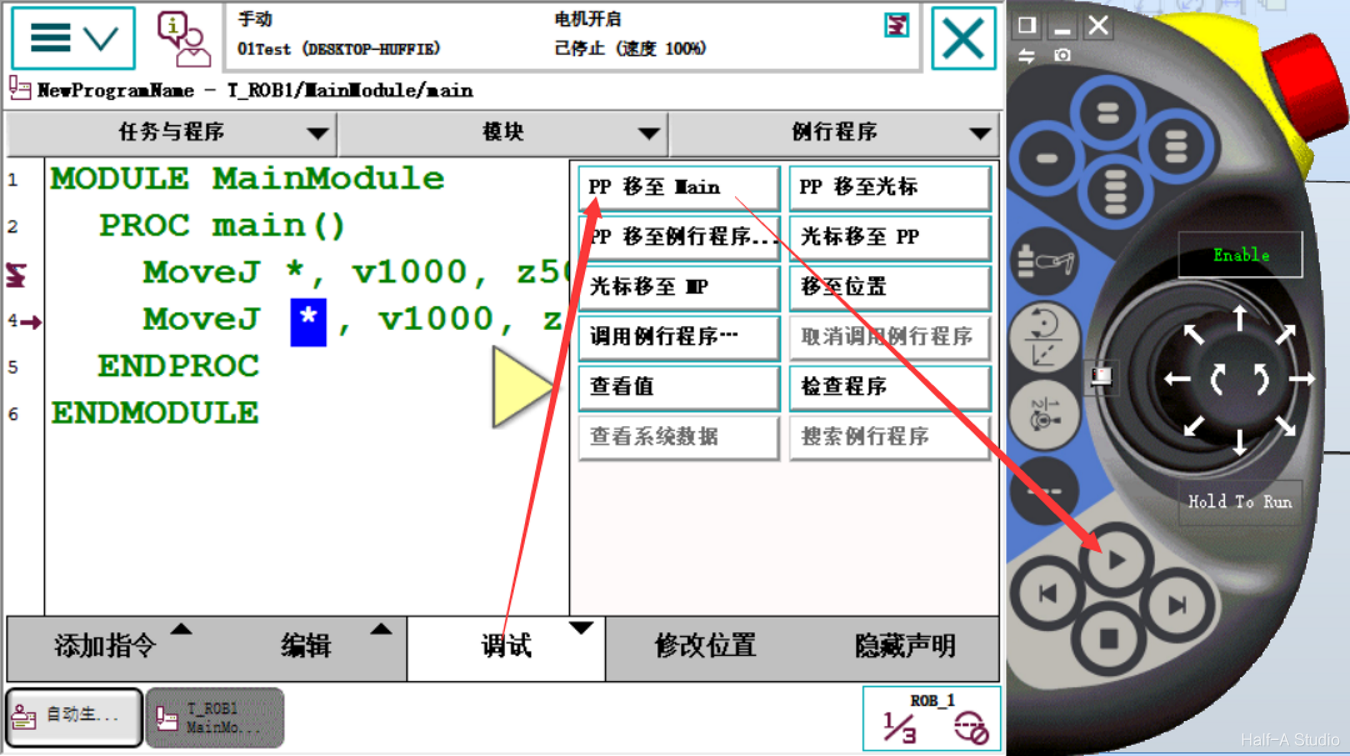
 Then click Debug > PP to Main, followed by the Run button in the lower-right corner. The robot will move back and forth between its initial position and the position to which it was just rotated.
Comments