Contents
- I. Parameter Model
- II. Usage
- 1. List All Current Parameters
- 2. Display a Parameter Value
- 3. Set a Parameter Value
- 4. Save Parameters to a File
- 5. Read Parameters from a File
- 6. Delete a Parameter
- III. Example
- 1. Create a Package
- 2. Open the Turtlesim Simulator
- 3. Using rosparam from the Command Line
- IV. Getting and Setting Parameter Values Programmatically
- 1. Write the C++ Program
- 2. Compile the Program
- 3. Run the Program
I. Parameter Model
ROS Master includes a Parameter Server, which is a global dictionary that stores configuration parameters. These configuration parameters are globally accessible to all nodes.
II. Usage
1. List All Current Parameters
rosparam list2. Display a Parameter Value
rosparam get param_key3. Set a Parameter Value
rosparam set param_key param_value4. Save Parameters to a File
rosparam dump file_name5. Read Parameters from a File
rosparam load file_name6. Delete a Parameter
rosparam delete param_keyIII. Example
1. Create a Package
cd ~/catkin_ws/src
catkin_create_pkg learning_parameter roscpp rospy std_srvs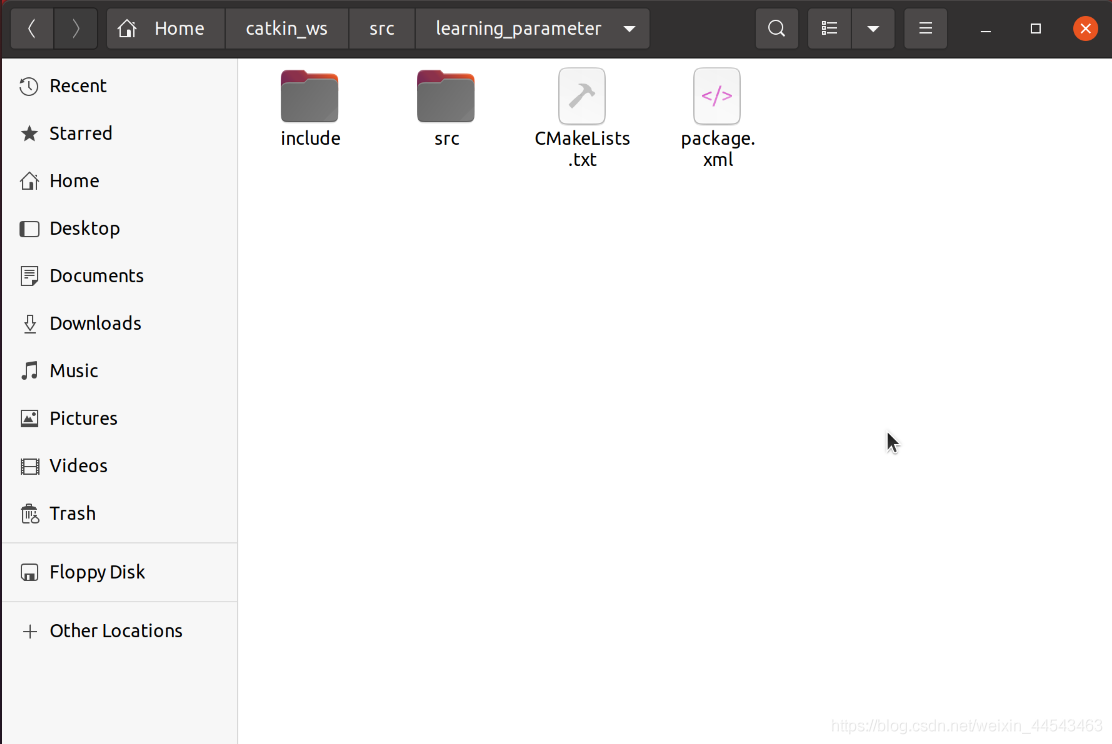
2. Open the Turtlesim Simulator
Open a terminal and start roscore:
roscoreOpen another terminal and run the turtlesim simulation:
rosrun turtlesim turtlesim_node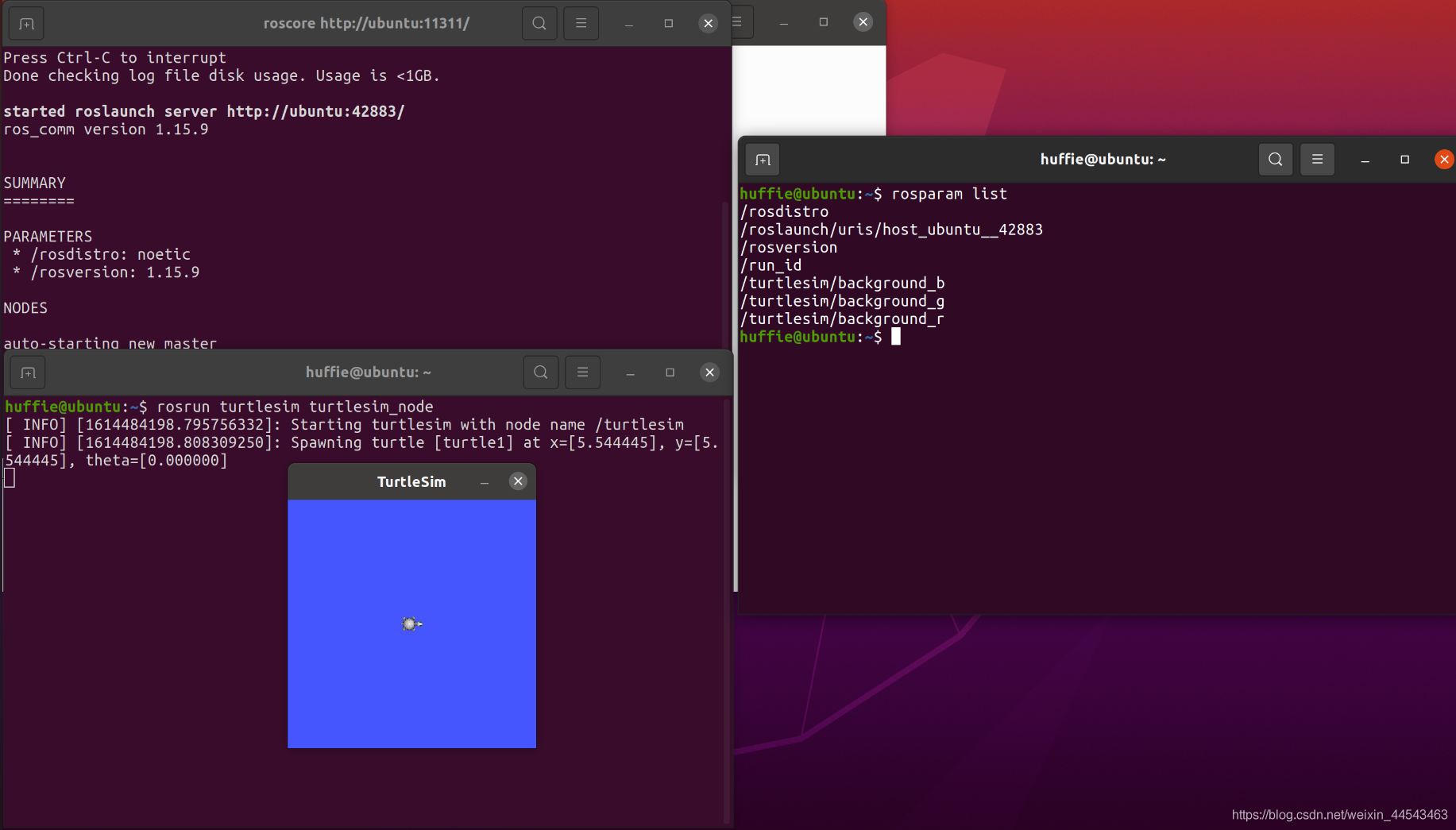
3. Using rosparam from the Command Line
(1) View the parameter list
rosparam list(2) Get the values: RGB values of the background color
rosparam get /turtlesim/background_r
rosparam get /turtlesim/background_g
rosparam get /turtlesim/background_b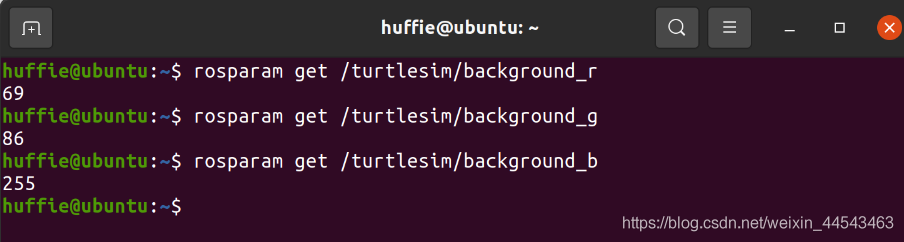
(3) Modify a value: change the background color
rosparam set /turtlesim/background_b 100Send the request again to refresh the background color:
rosservice call /clear "{}"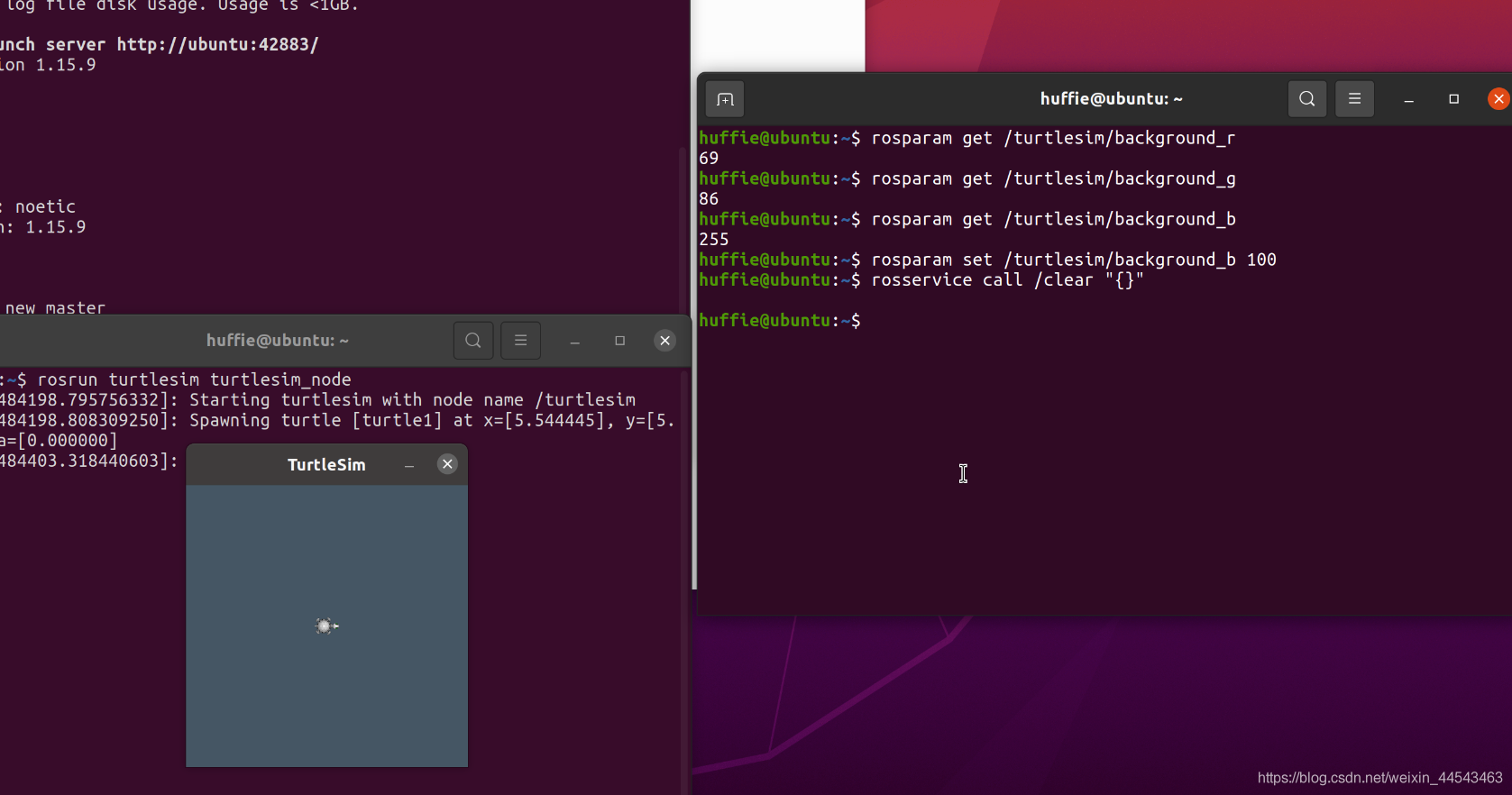
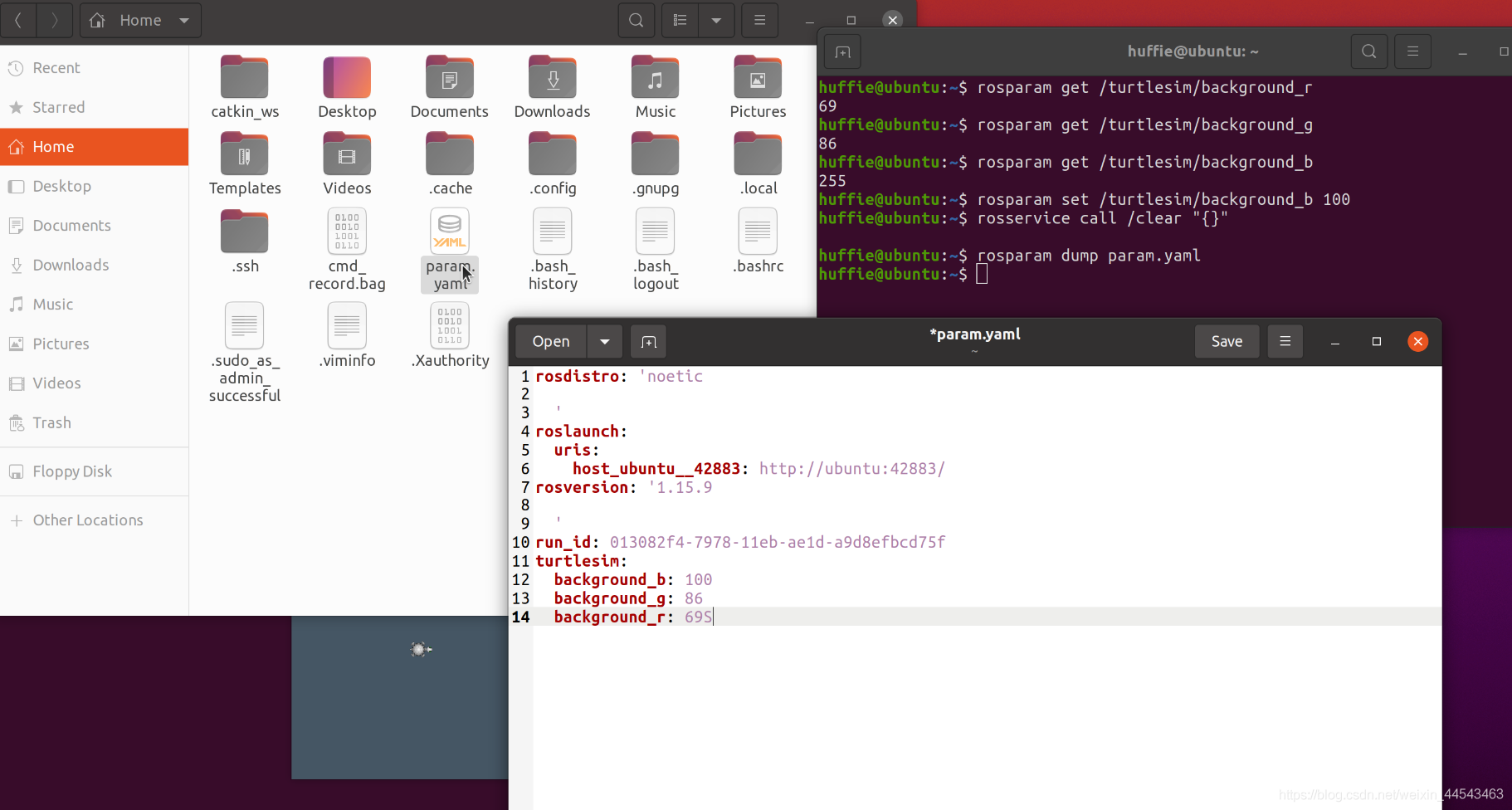
(4) Save parameters to a file
rosparam dump param.yamlBy default, the parameters are saved in the current directory.
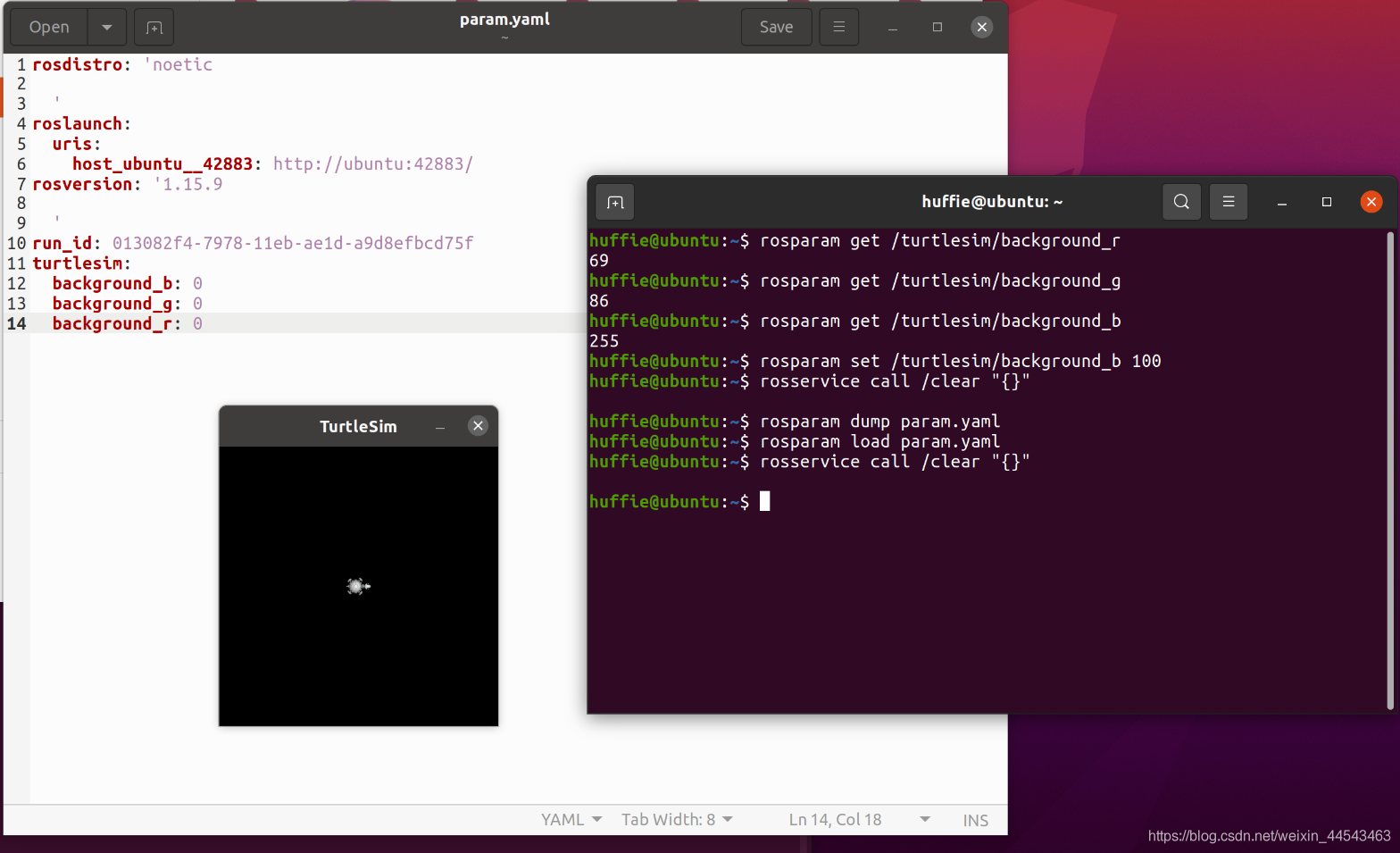
(5) Load a parameter file
Open the parameter file you just saved and modify its parameter values.
rosparam load param.yamlThis updates the system parameters with the parameter values in the file.
(6) Delete a parameter
rosparam delete /turtlesim/background_gView the parameter list:
rosparam listRefresh the turtlesim simulator’s background color:
rosservice call /clear "{}"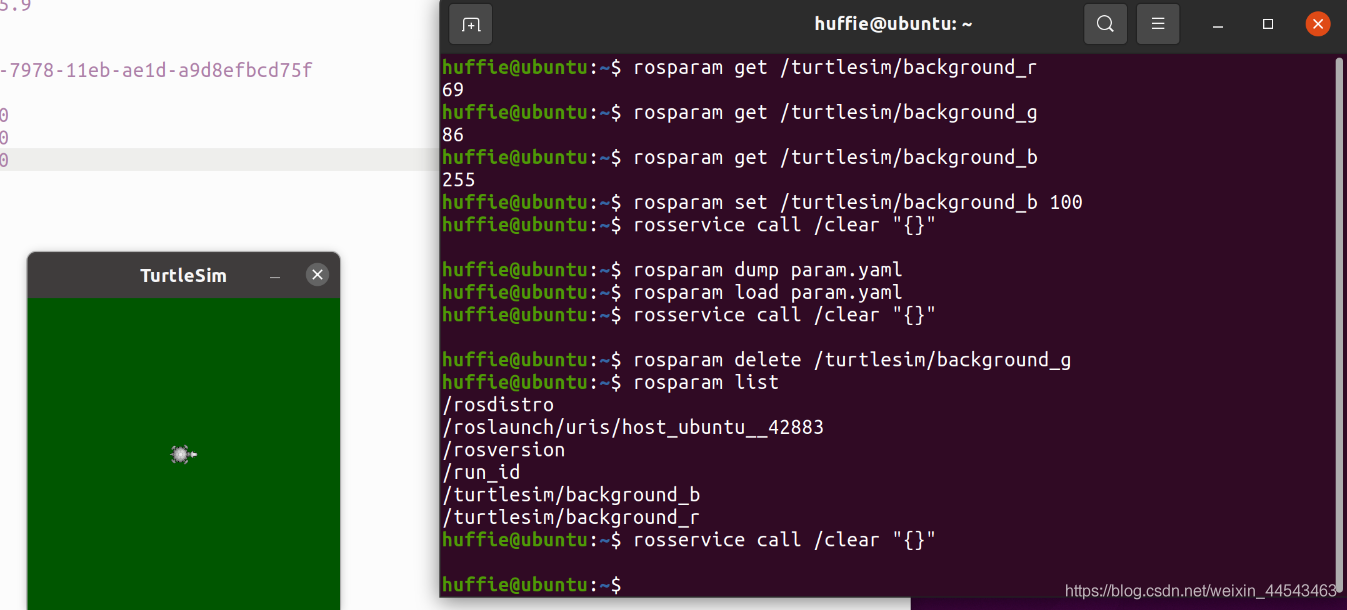
IV. Getting and Setting Parameter Values Programmatically
1. Write the C++ Program
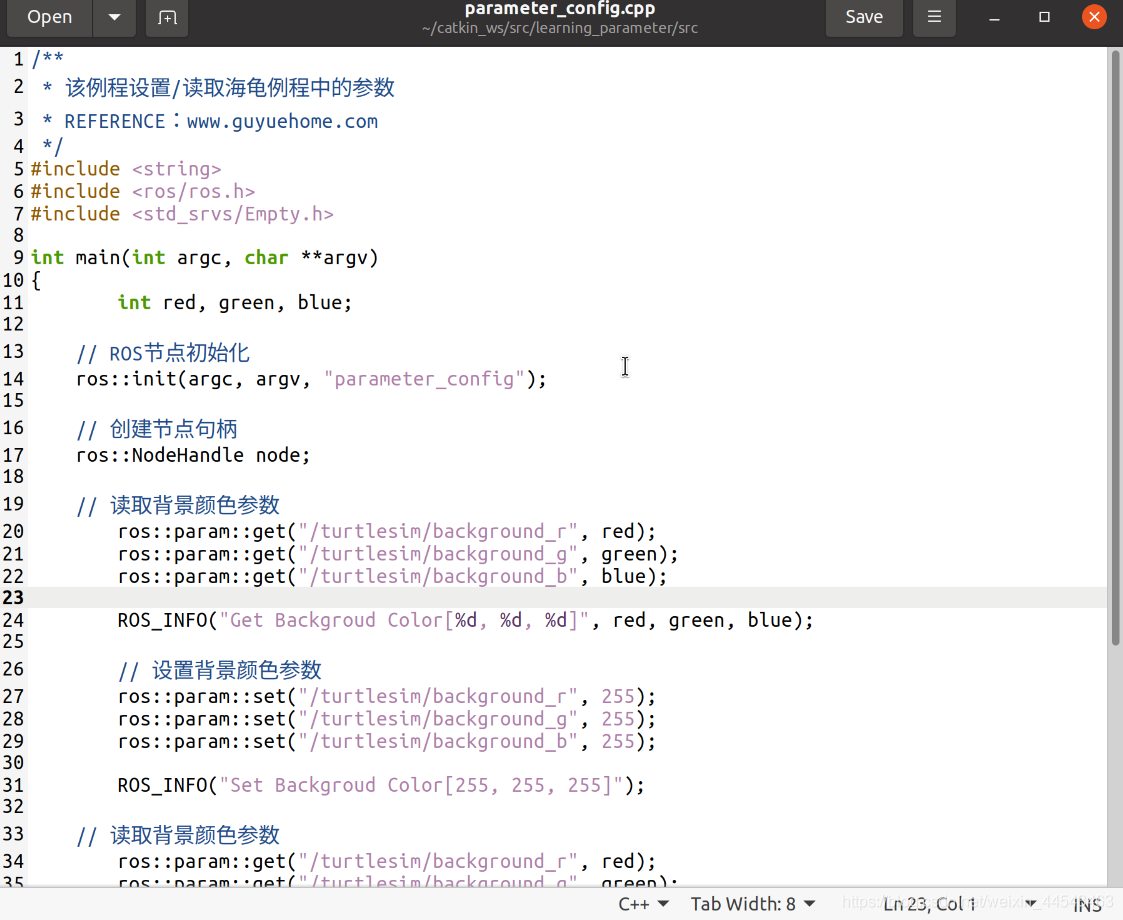
Create a file named parameter_config.cpp in the learning_parameter/src/ directory.
Its contents are:
/**
 * 该例程设置/读取海龟例程中的参数
 * REFERENCE:www.guyuehome.com
 */
#include <string>
#include <ros/ros.h>
#include <std_srvs/Empty.h>

int main(int argc, char **argv)
{
	int red, green, blue;

    // ROS节点初始化
    ros::init(argc, argv, "parameter_config");

    // 创建节点句柄
    ros::NodeHandle node;

    // 读取背景颜色参数
	ros::param::get("/turtlesim/background_r", red);
	ros::param::get("/turtlesim/background_g", green);
	ros::param::get("/turtlesim/background_b", blue);

	ROS_INFO("Get Backgroud Color[%d, %d, %d]", red, green, blue);

	// 设置背景颜色参数
	ros::param::set("/turtlesim/background_r", 255);
	ros::param::set("/turtlesim/background_g", 255);
	ros::param::set("/turtlesim/background_b", 255);

	ROS_INFO("Set Backgroud Color[255, 255, 255]");

    // 读取背景颜色参数
	ros::param::get("/turtlesim/background_r", red);
	ros::param::get("/turtlesim/background_g", green);
	ros::param::get("/turtlesim/background_b", blue);

	ROS_INFO("Re-get Backgroud Color[%d, %d, %d]", red, green, blue);

	// 调用服务,刷新背景颜色
	ros::service::waitForService("/clear");
	ros::ServiceClient clear_background = node.serviceClient<std_srvs::Empty>("/clear");
	std_srvs::Empty srv;
	clear_background.call(srv);

	sleep(1);

    return 0;
}
2. Compile the Program
In learning_parameter/, open CMakeList.txt and add the following build rules above install.
add_executable(parameter_config src/parameter_config.cpp)
target_link_libraries(parameter_config ${catkin_LIBRARIES})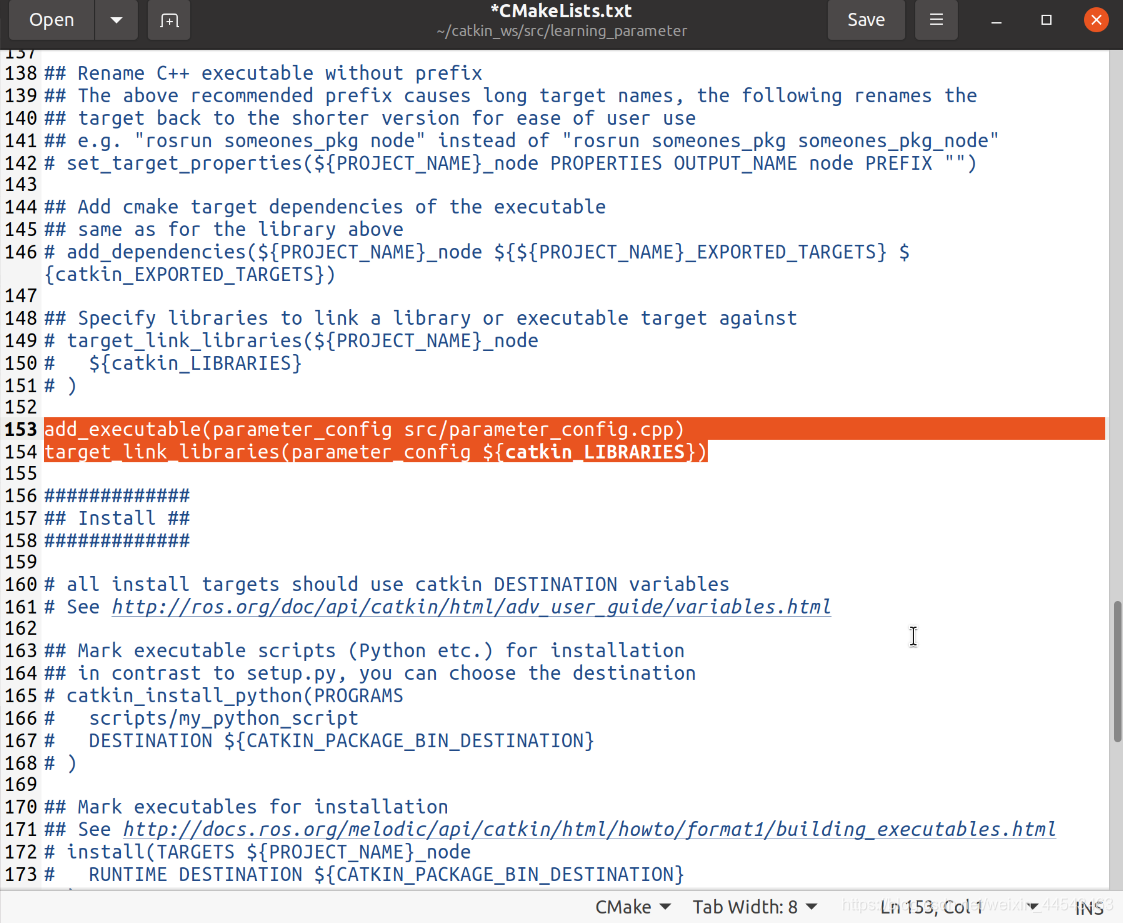
Compile the program:
cd catkin_ws
catkin_make
3. Run the Program
Run roscore:
roscoreRun the turtlesim simulation:
rosrun turtlesim turtlesim_nodeRun the node you just wrote:
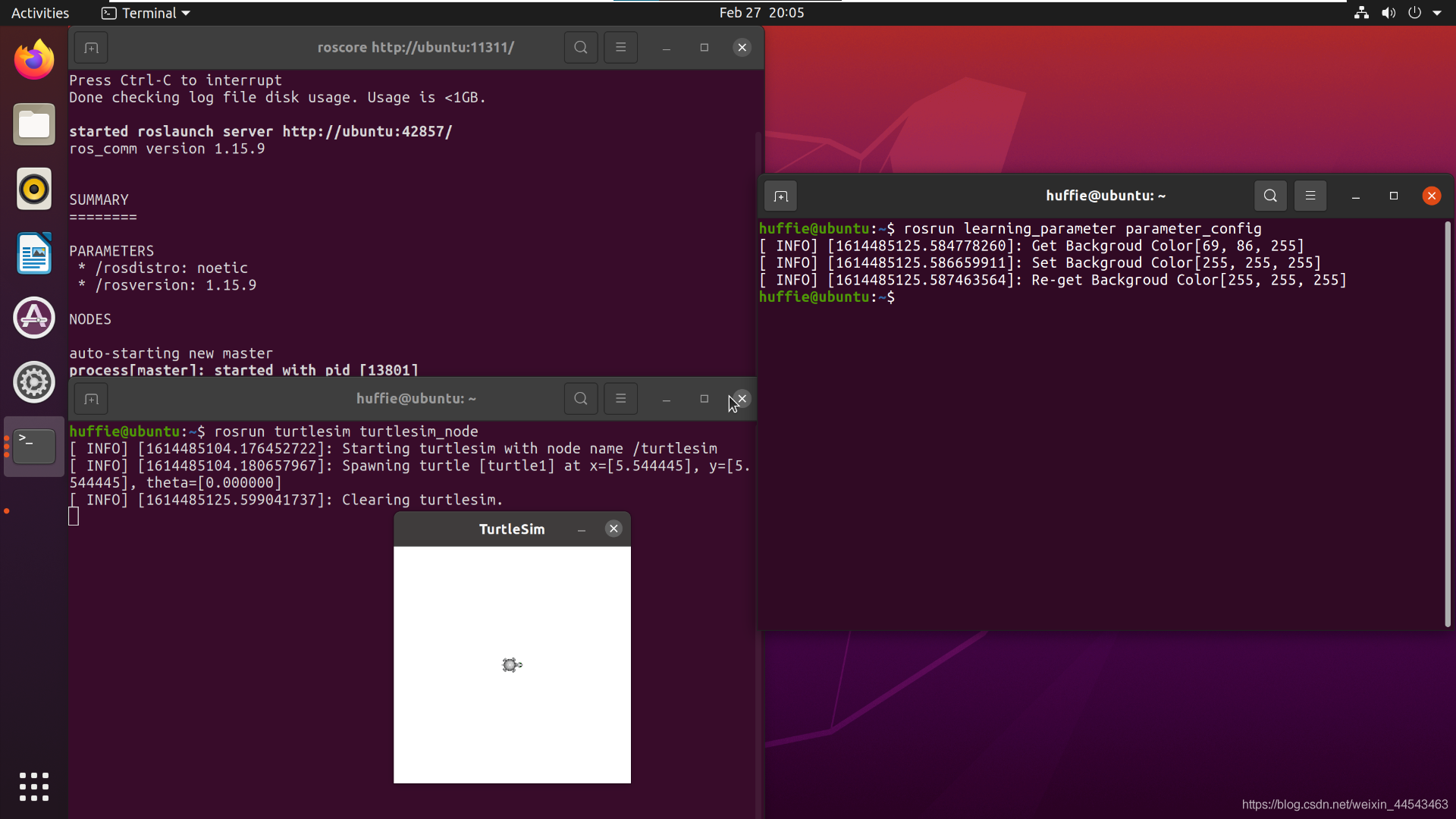
rosrun learning_parameter parameter_configYou will see that the turtle’s color has changed, indicating that the program ran successfully.
Comments