Contents
Download link:
Baidu Netdisk: https://pan.baidu.com/s/1X3hMP5n2DlMXB_wiGztarg?pwd=dpzk
Extraction code: dpzk
(How to download from Baidu Netdisk without speed limits: How to Download from Baidu Netdisk Without Speed Limits)
Preparation
When installing Siemens software, you are often prompted to restart, and the prompt may still appear even after restarting, which can be inexplicably frustrating. Follow the steps below to delete the registry entry, and you will no longer be prompted to restart. Note: Do not restart after deleting the registry entry. Continue with the installation directly. (Deleting this file will have no effect on the computer.)
- In Windows, press the WIN+R key combination, enter “regedit,” and open Registry Editor.
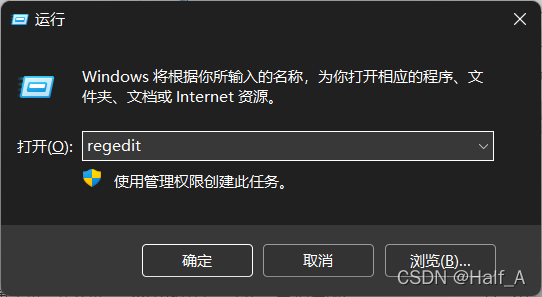 Locate the PendingFileRemameOpeaations entry under HEEY_LOCAL_MACHINE\SYSTEM\CURRENTCONTROLSET\CONTROL\SESSION MANAGE\ and delete the entry directly. You do not need to restart; simply continue installing the software.

Notes before installation:
- V15 supports WIN11 WIN10 WIN8 WIN7, but they must all be 64-bit systems.
- Once the files have finished downloading, if an error occurs during installation, reinstall or repair the software. If the problem still occurs when you install it again, you can only reinstall the operating system and then install the software again. This problem occurs because TIA Portal is a large software package, the database files it uses are very complex, and other third-party software on the system may prevent TIA Portal from installing successfully. Therefore, keep the system as clean as possible before installation. Remember: under no circumstances should you start any antivirus software, especially 360. Otherwise, there is no guarantee that the installation will succeed or that the software will work properly after installation.
Be sure to close all antivirus software before installation
Start Installing the Software
① Install STEP7 Professional
- Extract the installation package, open the 01-STEP7+Wincc Profesional V15 folder, and run TIA_Portal_STEP_7_Pro_WINCC_Pro_V15.exe. First install SETP7 Professional (PLC programming software + WINCC touchscreen and PC-based configuration software).
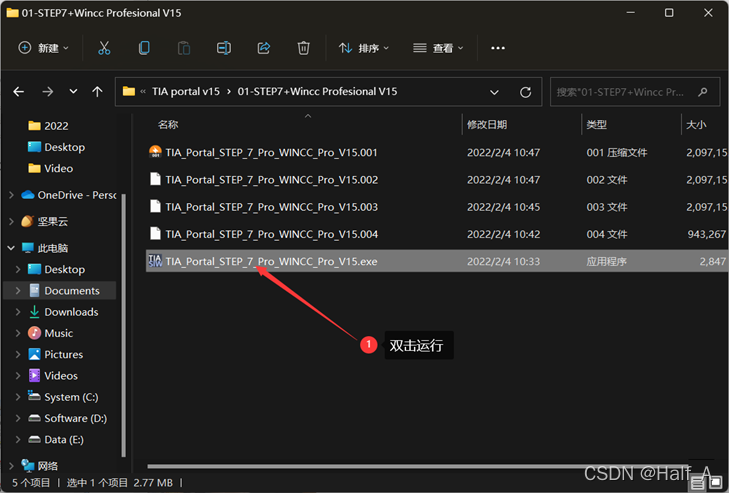
- Select the installation location (try to avoid extracting it to the C drive), then click Next and wait for extraction. The extraction process takes about 5 minutes.
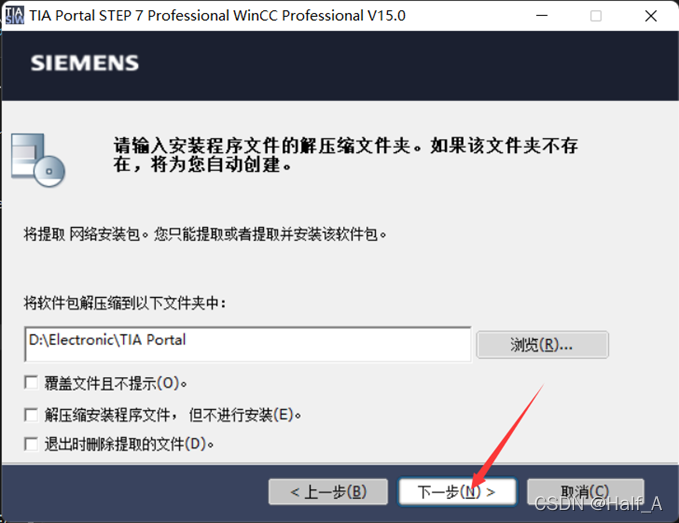
- Begin the formal installation and click Next directly.
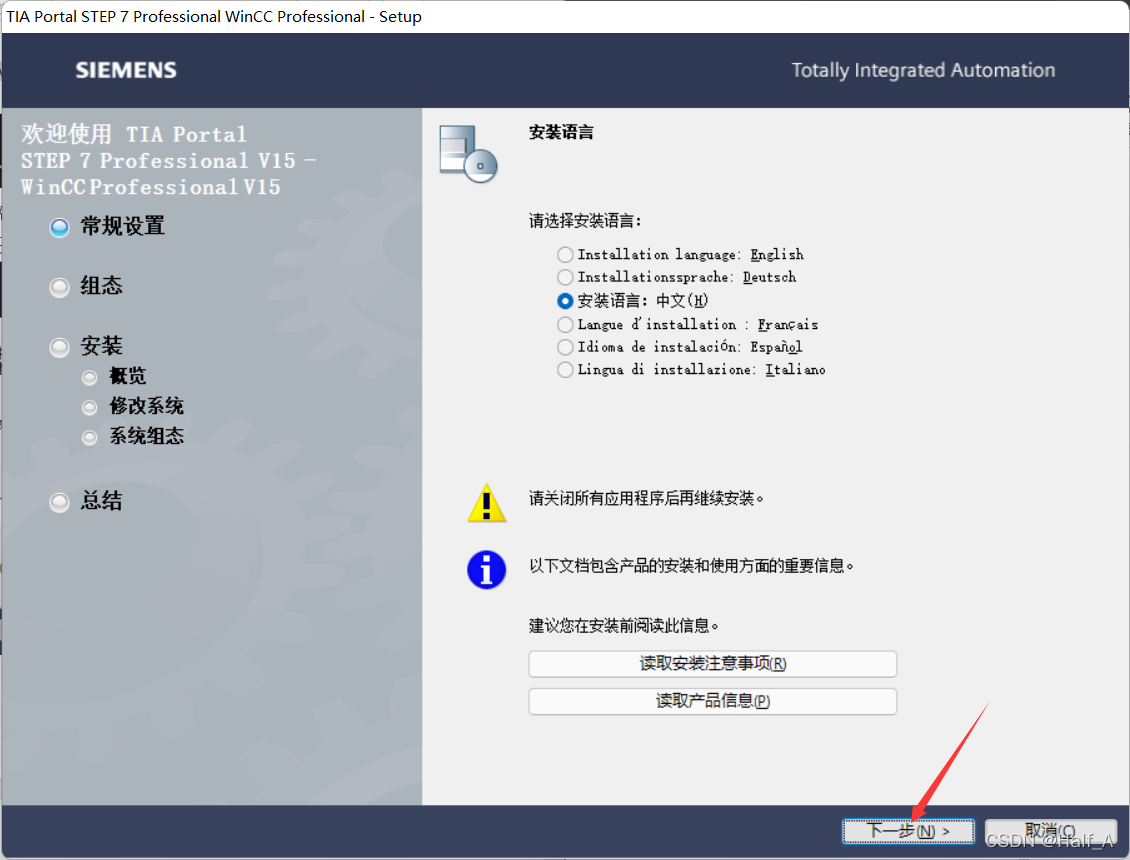
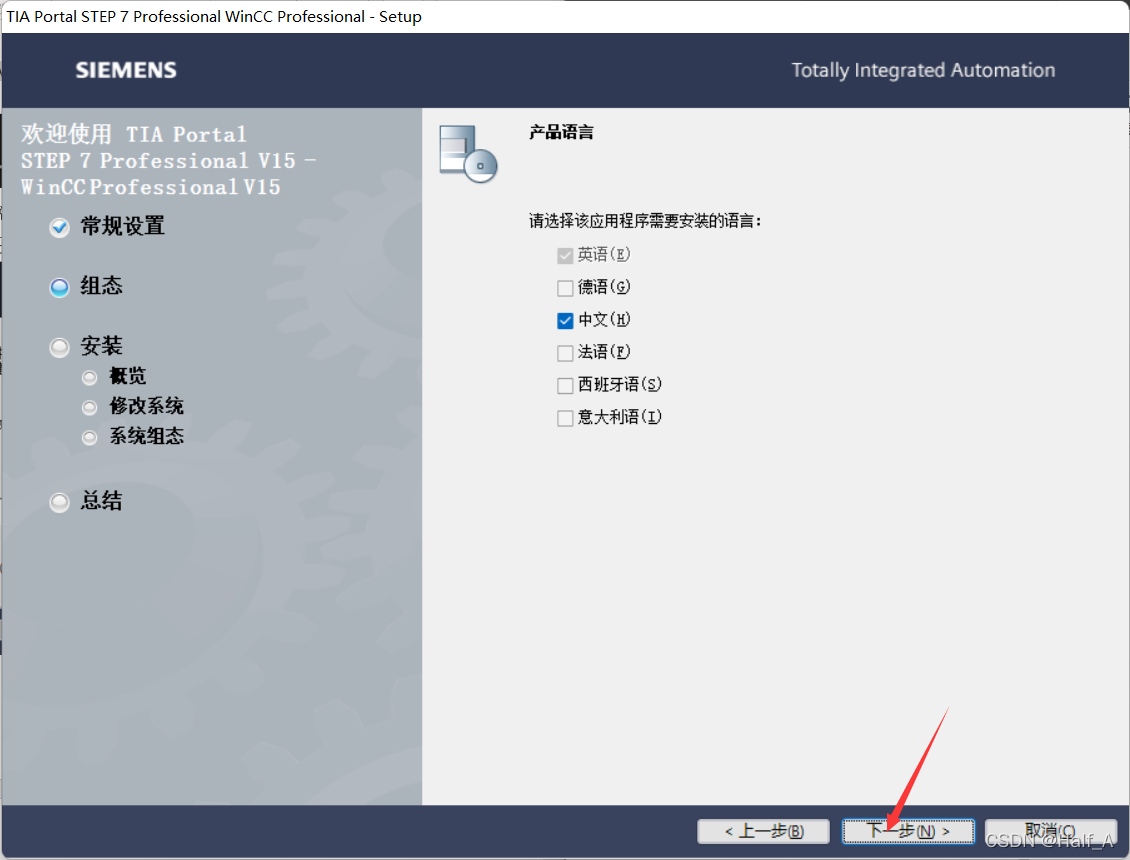
- Chinese is selected by default for the language. Go directly to the next step.
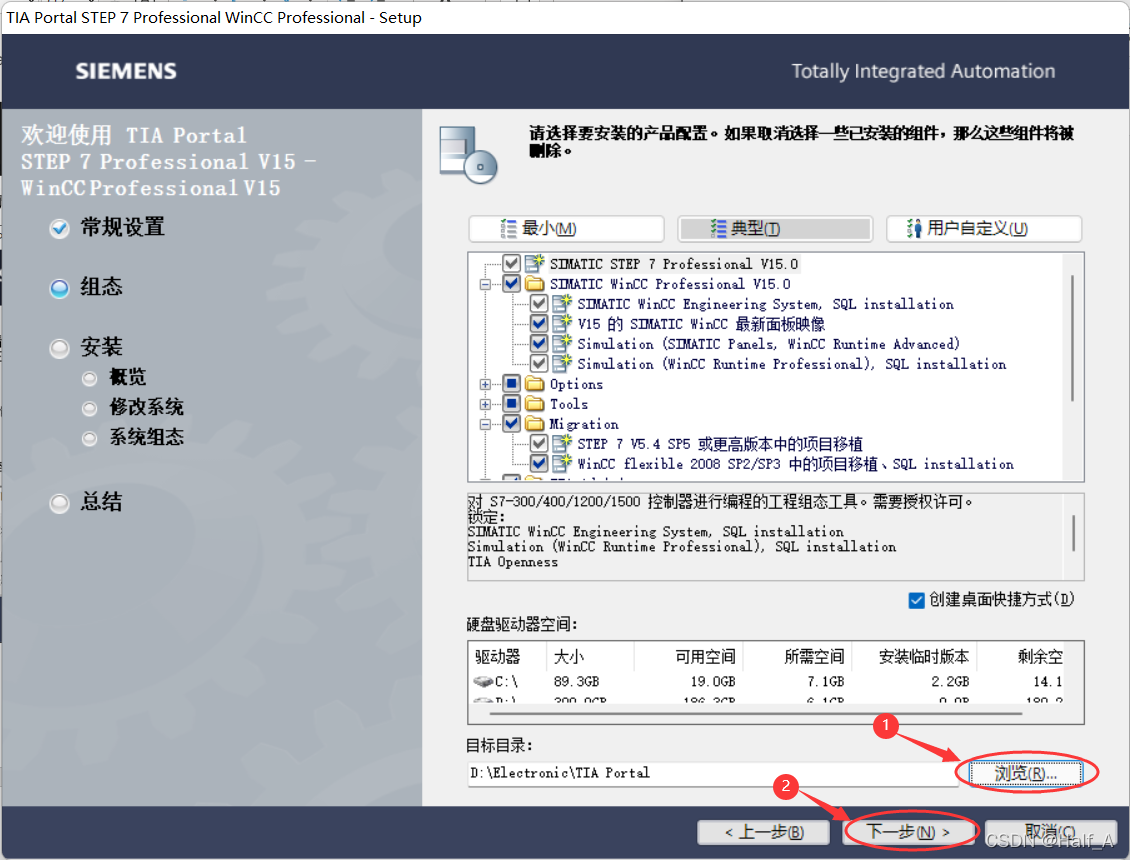
- Keep the default typical installation, click Browse to select the installation path, and then click Next.
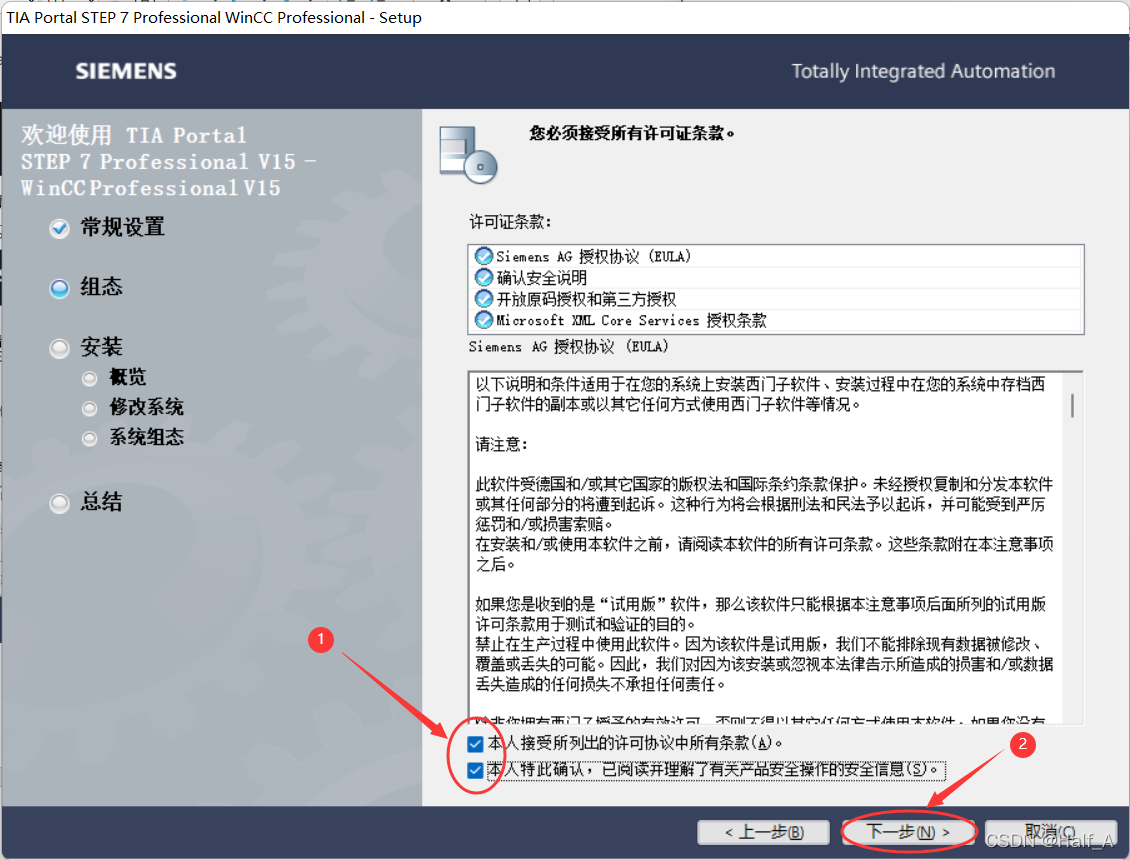
- Select the checkboxes to accept both agreements, and then click Next.
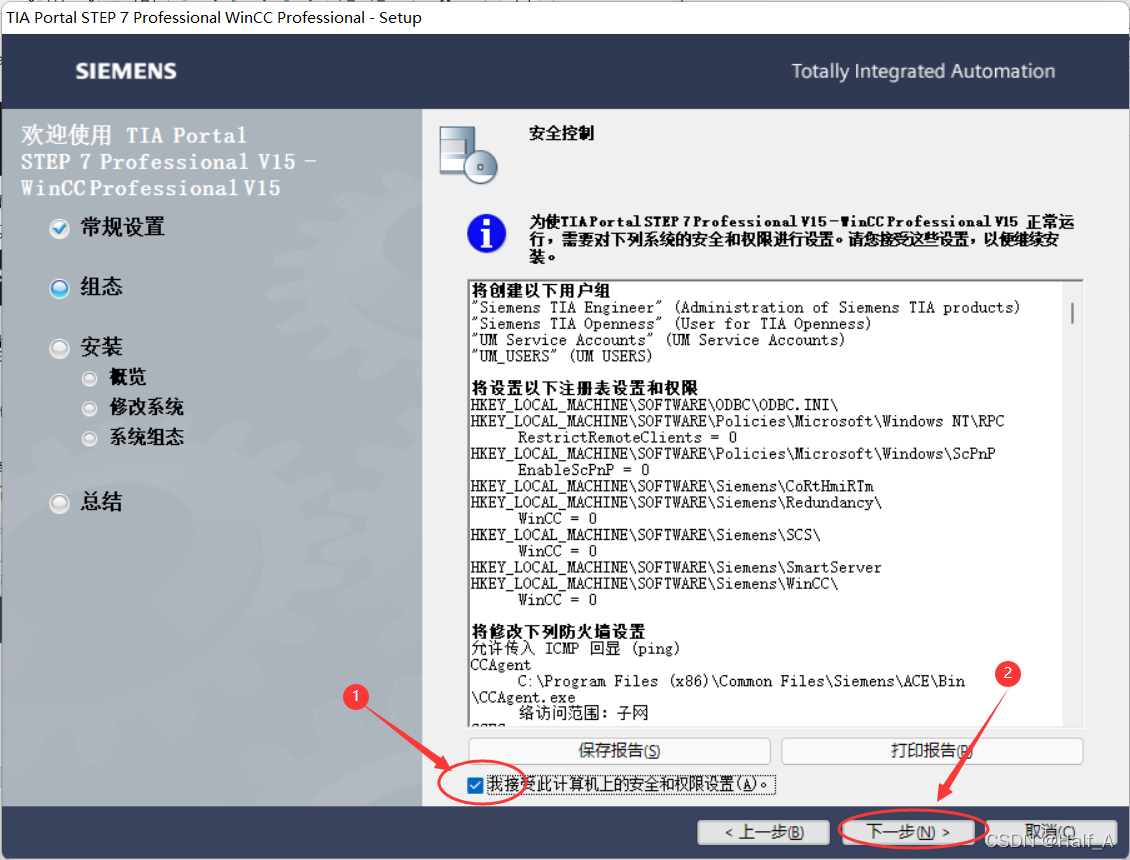
- Select the checkbox to accept the security and permission settings, and then click Next.
- After confirming that the installation path is correct, click the Install button to begin installation. The installation process takes about 40 minutes.
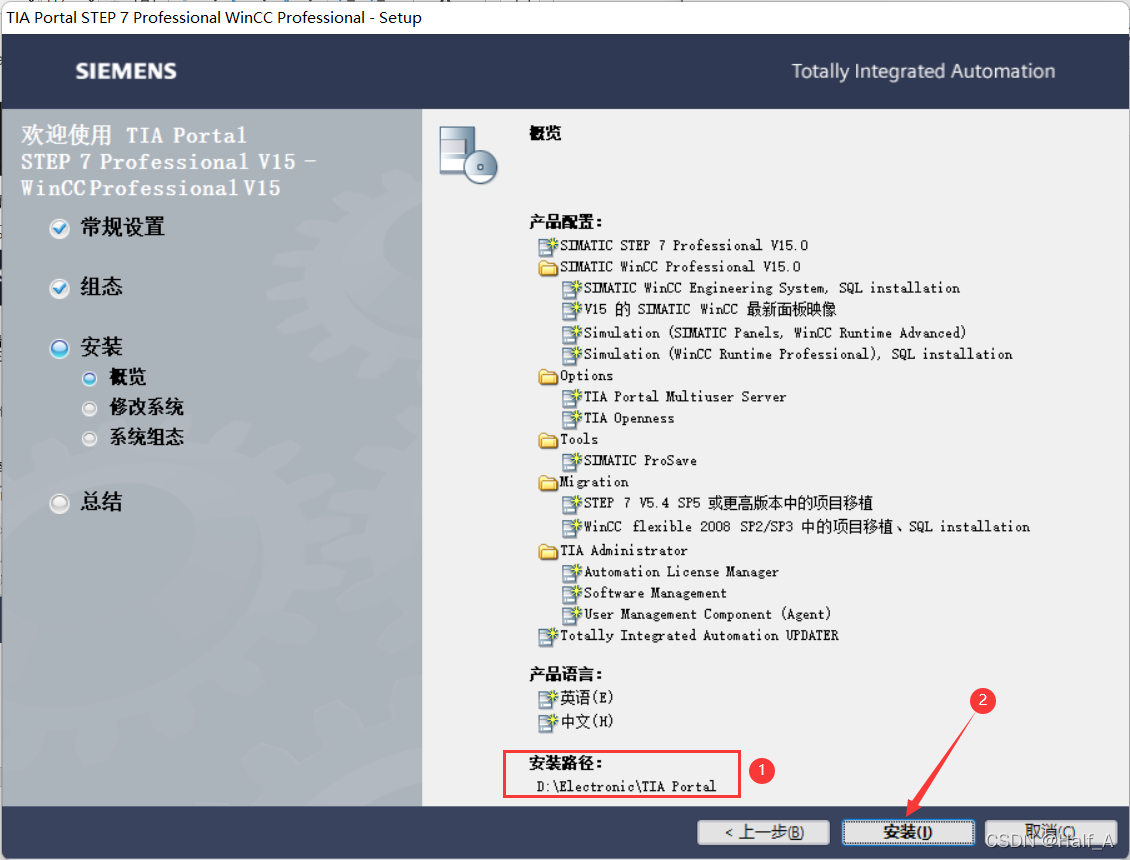
- Select Restart now to complete the installation. (You need to restart the computer here; otherwise, you cannot proceed with the subsequent installations.)
② Install STEP7_Simulation
- Open the 02-PLCSIM_V15 folder and double-click SIMATIC_S7PLCSIM_V15.exe to begin installing STEP7_simulation (PLC simulation software).
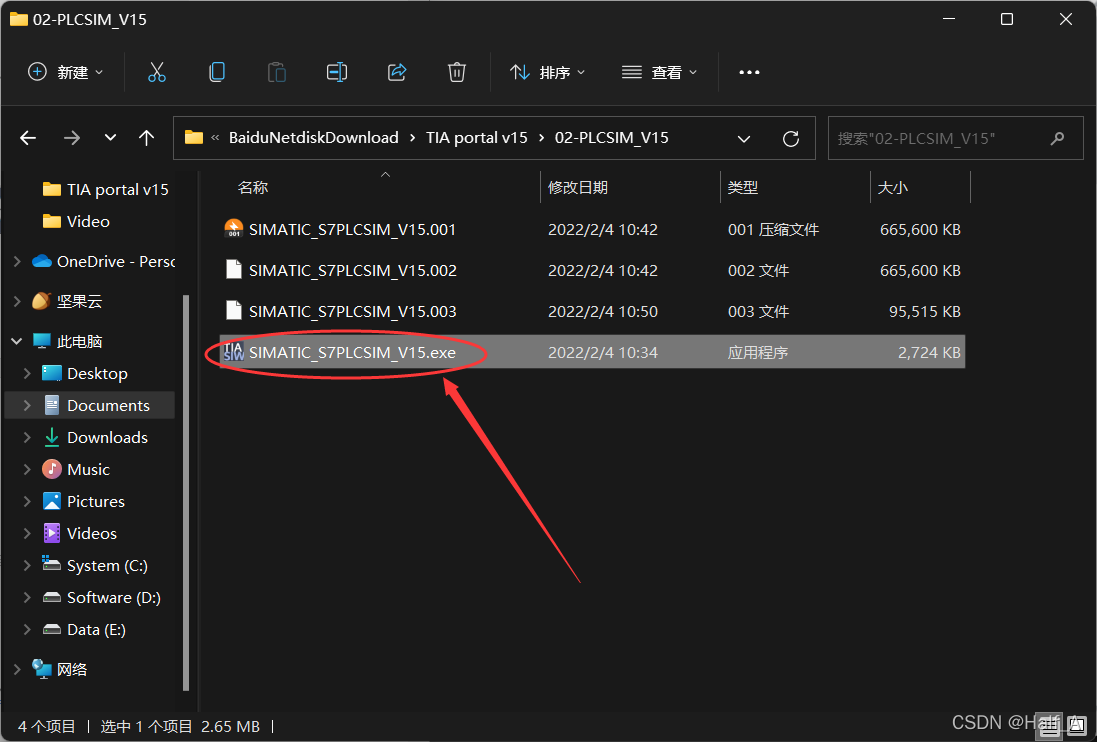
- Begin the installation and click Next directly.
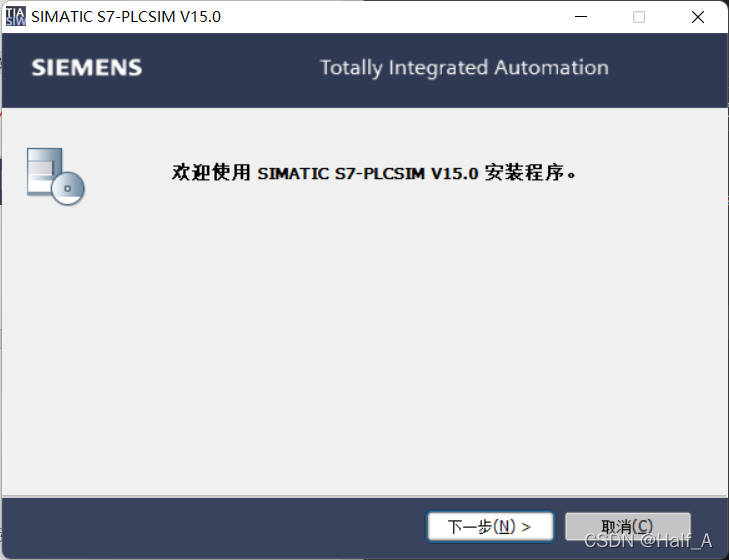
- Chinese is selected as the default installation language. Go directly to the next step.

- Select the path for extracting the installation files (do not select the same path as for the previous program, or files will be overwritten), then click Next and wait for extraction. This process takes about 3 minutes.

- Enter the installer and click Next to begin installation.
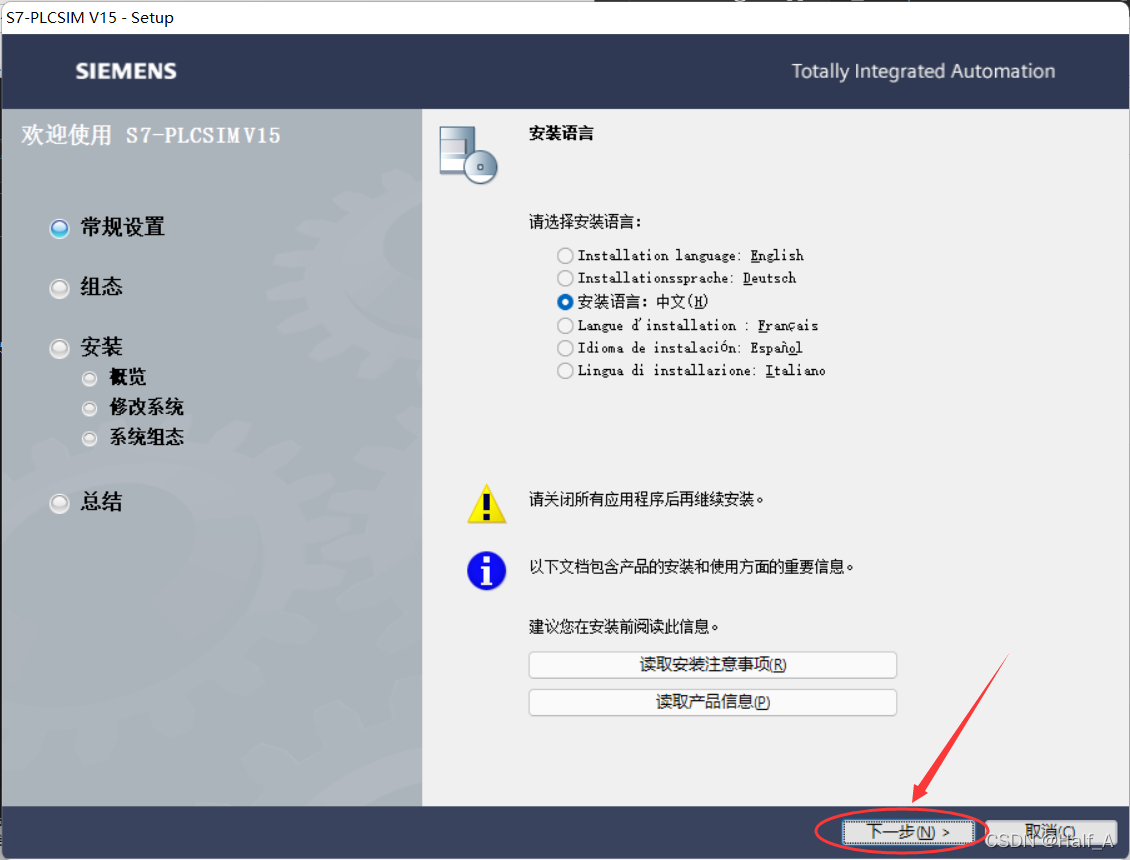
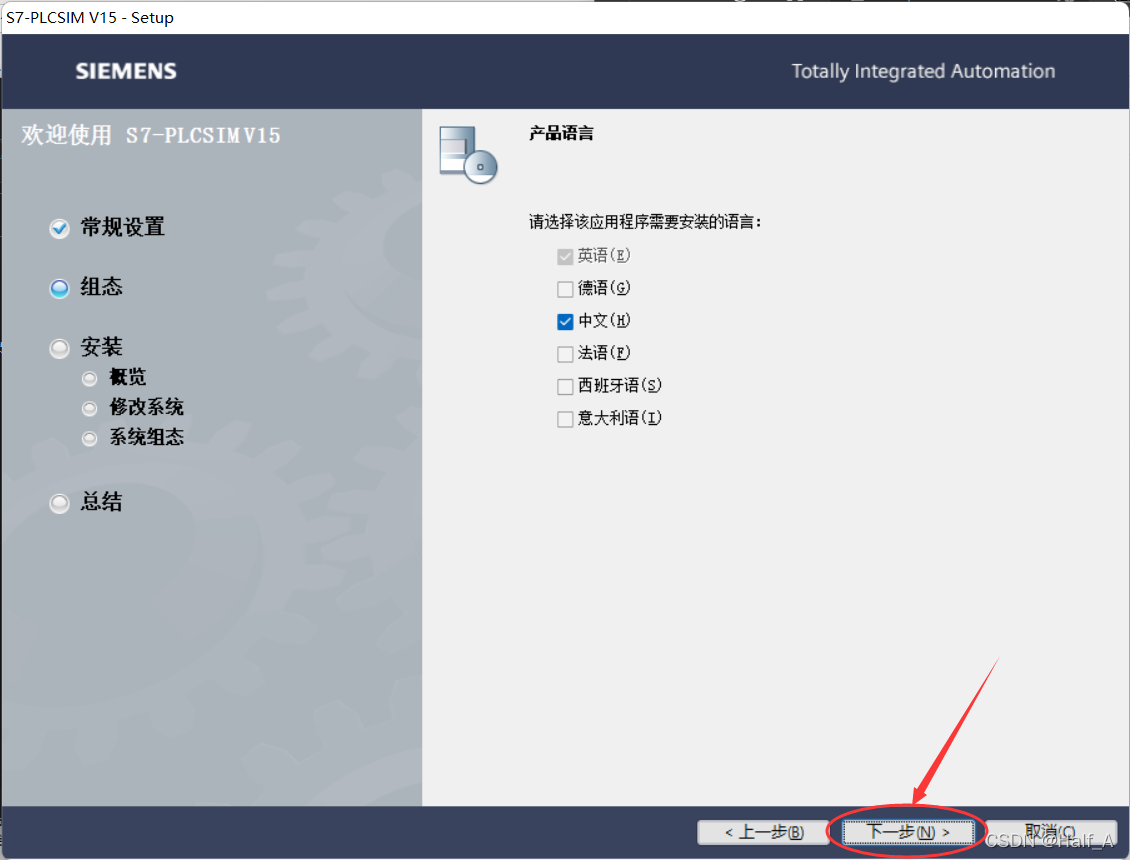
- Keep Chinese selected by default and click Next to continue.
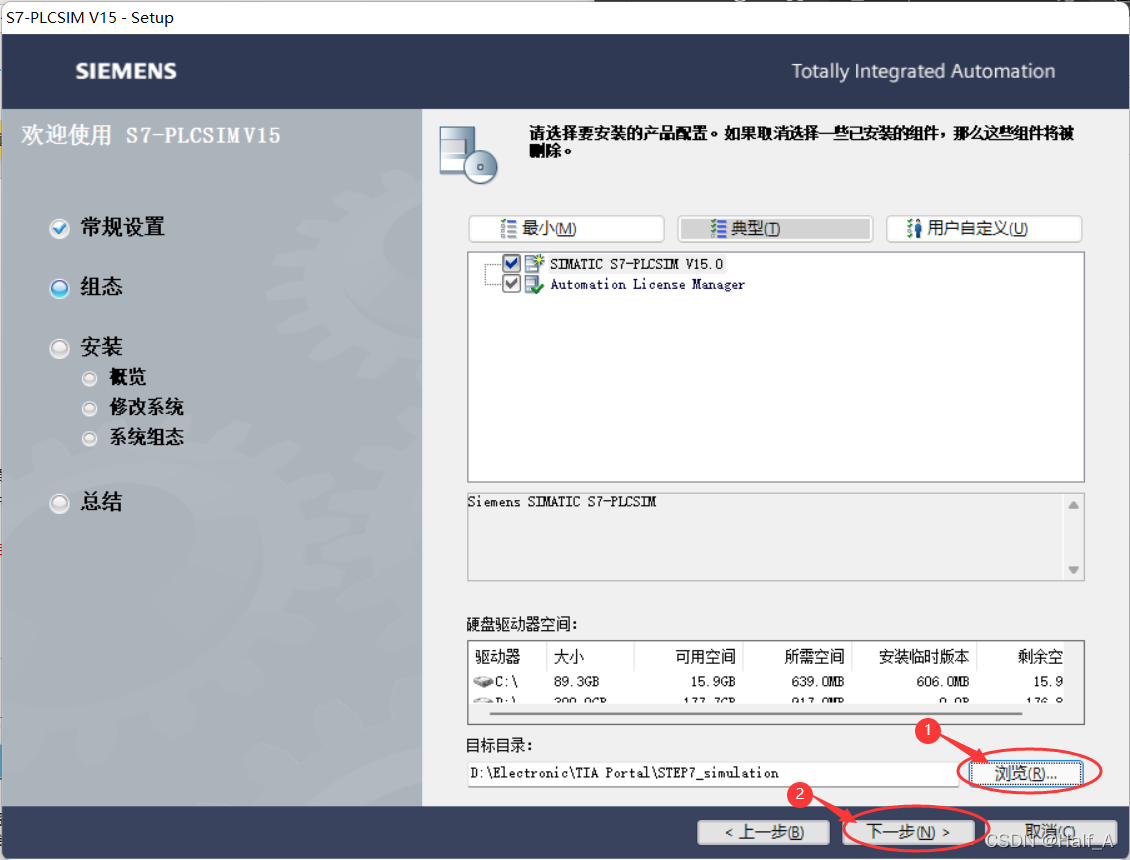
- Click Browse to select the installation path, and then click Next.
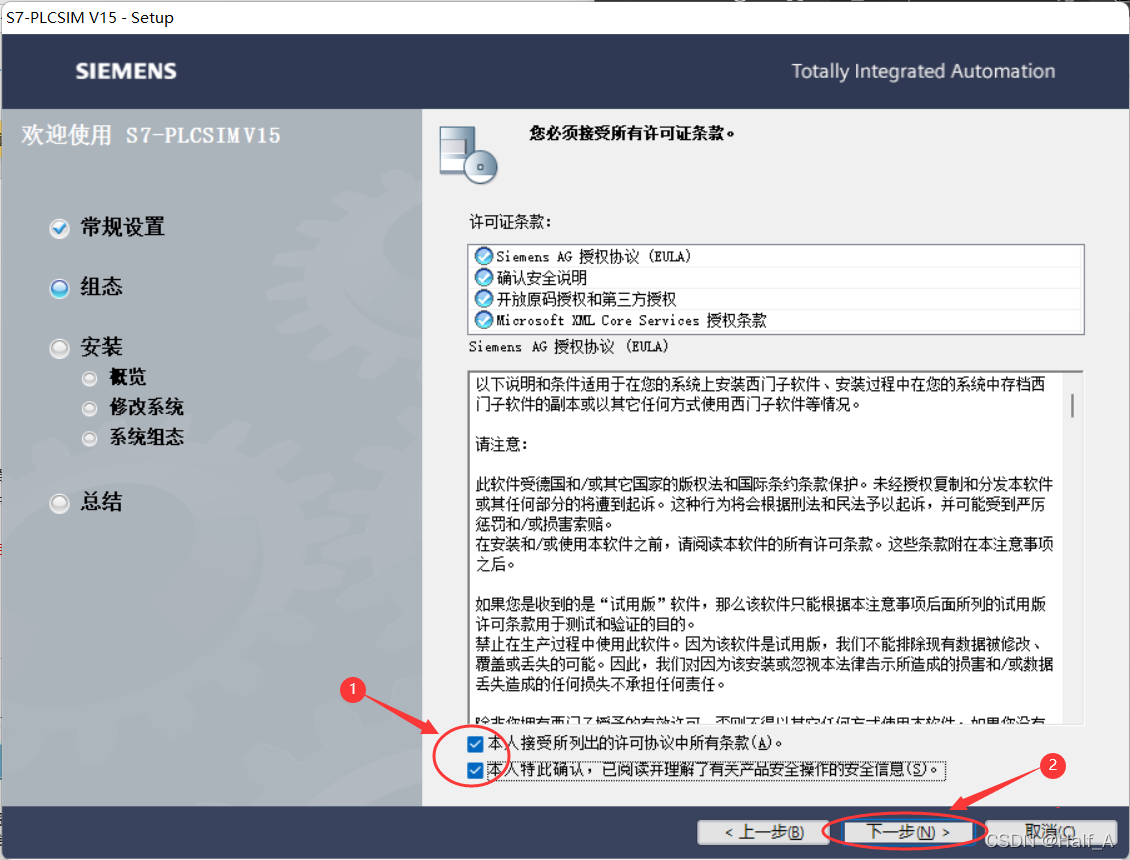
- Accept the agreement, and then click Next.
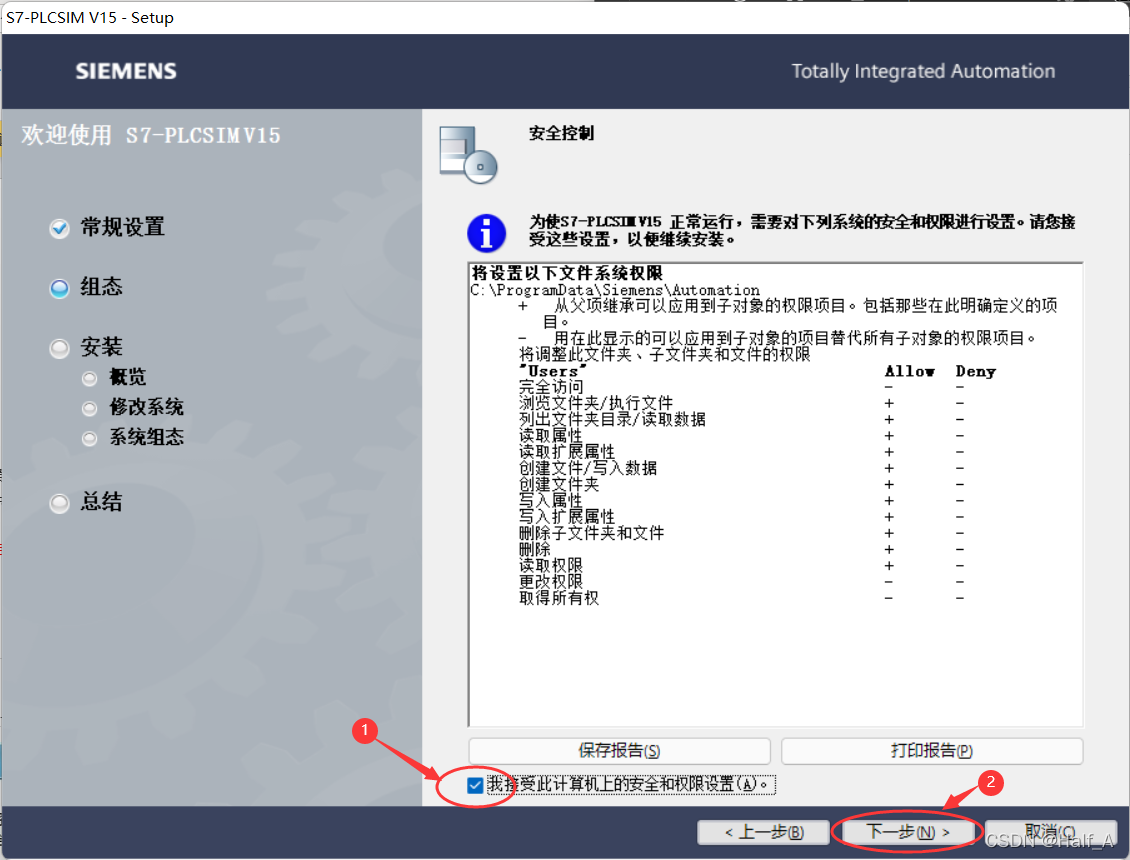
- Accept the computer security and permission settings, and then click Next.
- Check the installation path and, if it is correct, click the Install button to begin installing software 12.
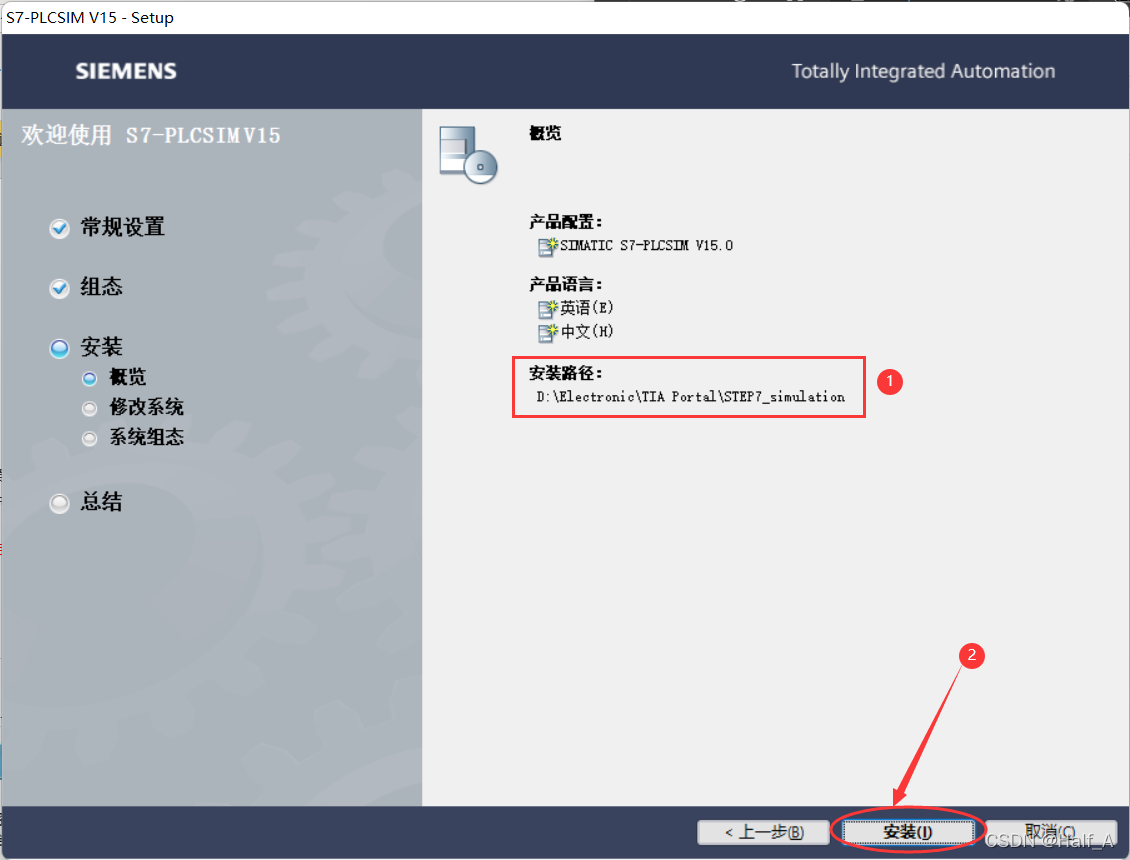
- Select Restart later to complete the installation.
③ Install the Driver (skip the installation if you only need simulation and do not need to connect to a PLC)
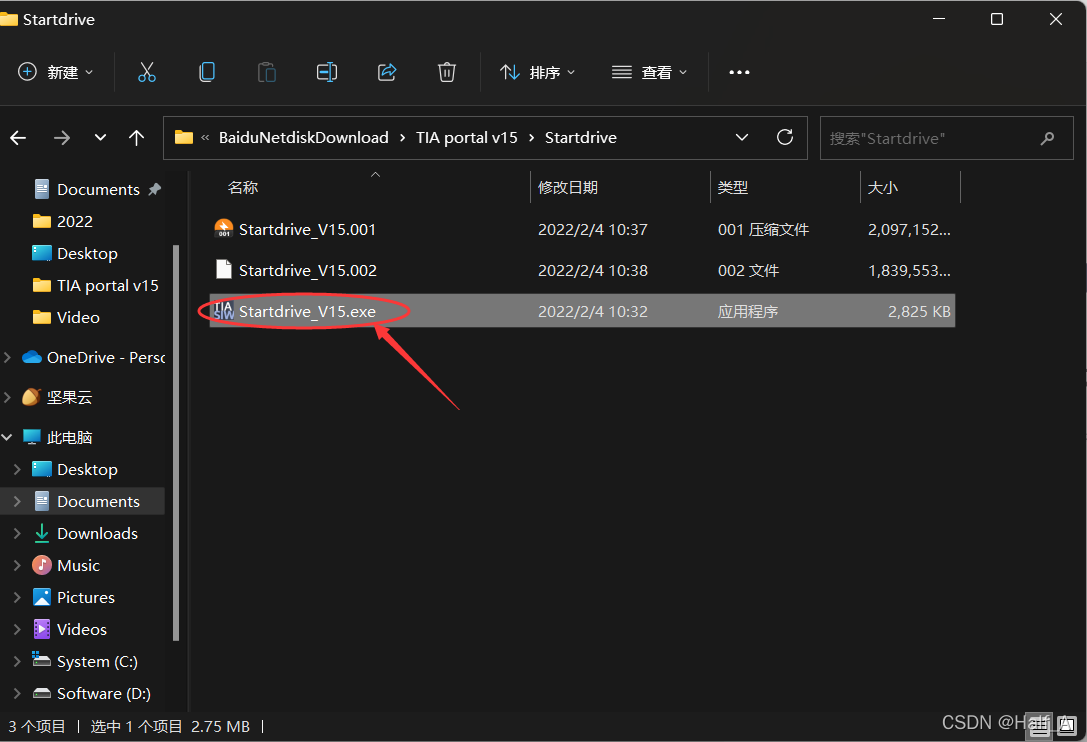
- Open the Startdrive folder, double-click Startdrive_V15.exe, and follow the steps to install it.
④ Licensing
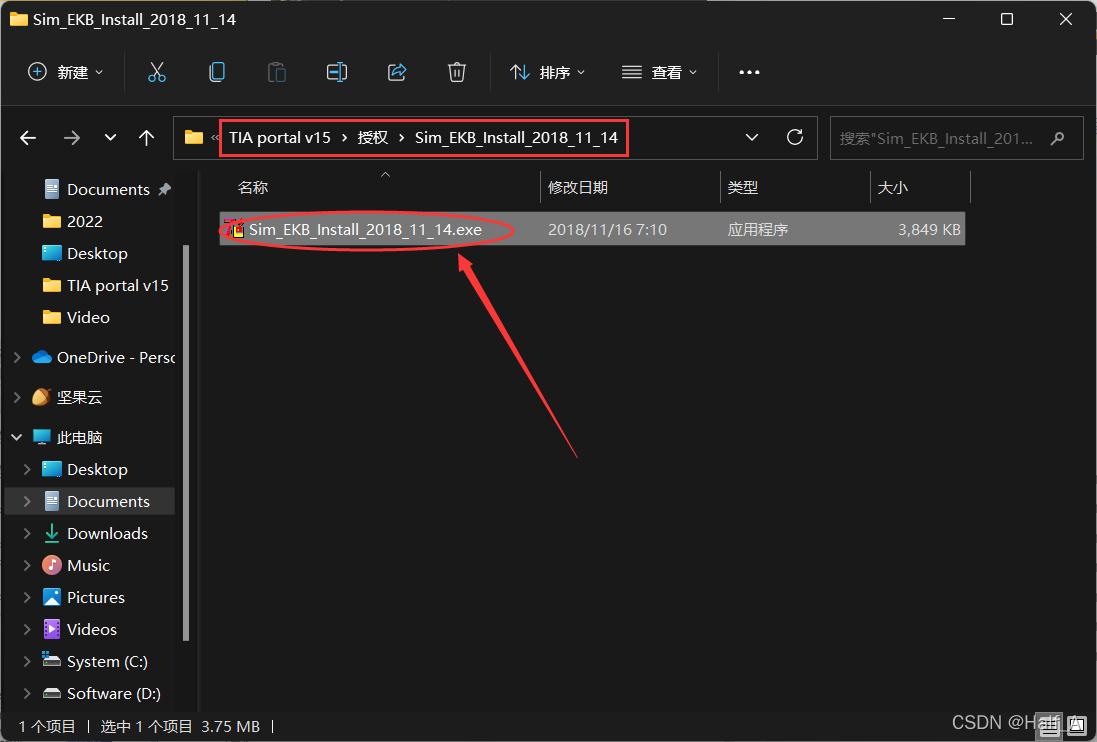
- Find Sim_EKB_Install_2018_11_14.exe in the licensing folder, right-click it, and select Run as administrator.
- License Step7 Professional.
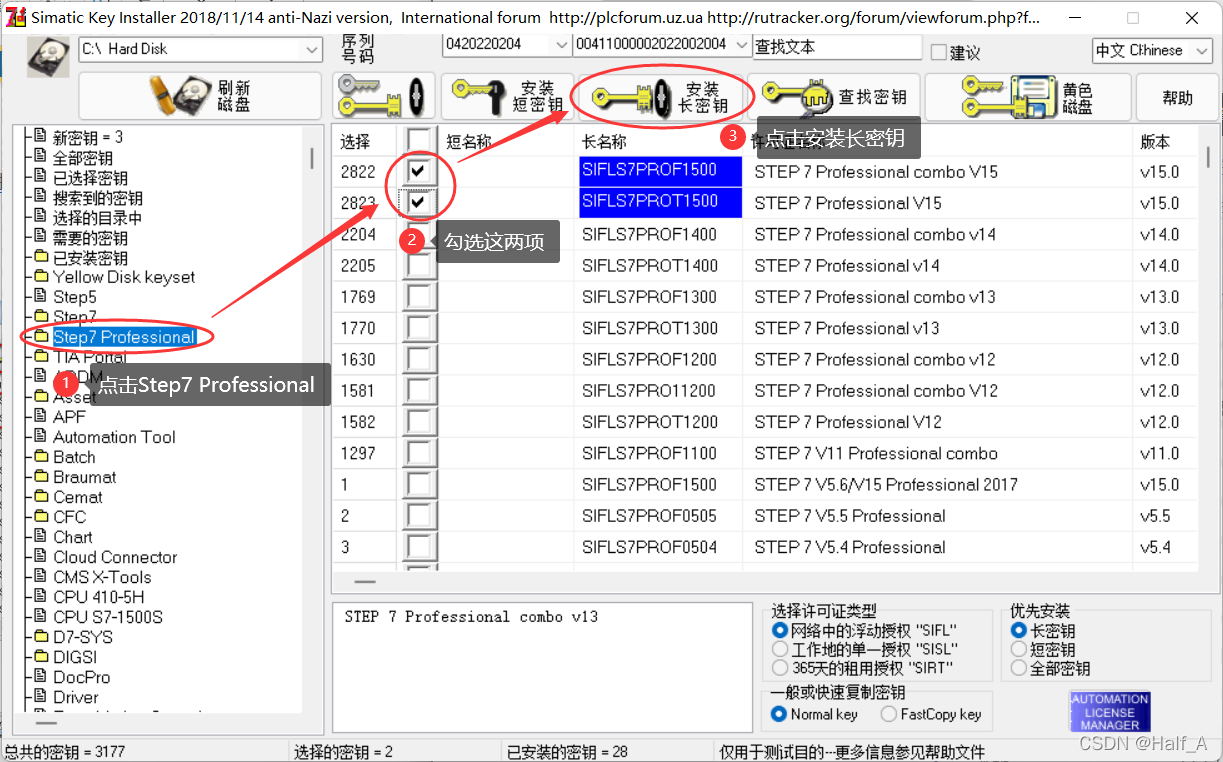
- License WinCC. Find TIA Portal —TIA Portal V15 –WINCC Prof v15, locate the options shown in the figure, and click Install Long Key.

- Close the program, and then restart the computer.
If the software is not successfully licensed after restarting, find and delete the AX NF ZZ folder on the C drive. (If you cannot find it, enable the display of hidden folders.)
If licensing still fails after you complete the steps above, you need to reinstall a clean Windows system. Do not install any other software, antivirus software, system management tools, or similar programs; install TIA Portal directly.
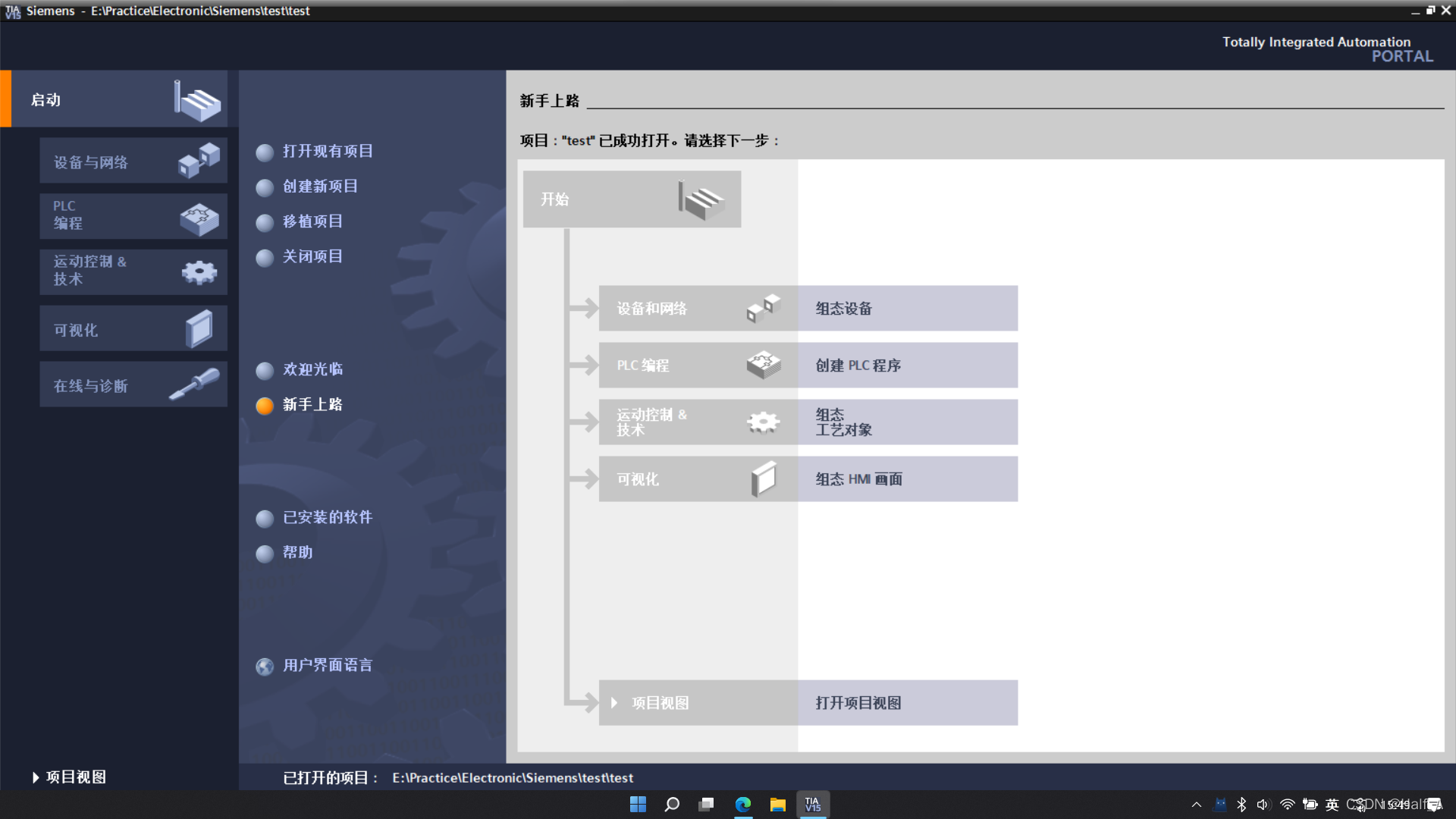
Find TIA Portal V15 on the desktop and double-click it. The software should start normally.
Comments